


Wix Harmony Editor: Using the Accessibility Wizard
In this article
- Scanning a site with the Accessibility Wizard
- Working on site level and page issues
- Site level issues
- Page issues
- Doing manual tasks
- Frequently asked questions (FAQs)
Scan your site with the Accessibility Wizard to identify and fix any accessibility issues on your site.
The wizard provides you with in-house solutions, as well as guidelines on making your own adjustments. Completing all of the tasks is a great way to give your site a solid foundation, and make it more accessible for everyone.
Important:
- This article refers to the new Wix Harmony Editor, released in January 2026. If you're unsure whether you’re using the Wix Harmony Editor or the Wix Editor, view more information here.
- For information on scanning a Wix Editor or Studio Editor site with the Accessibility Wizard, please click here.
Scanning a site with the Accessibility Wizard
Start creating a more accessible experience by scanning your site with the Accessibility Wizard. Not only does the wizard identify and highlight potential issues; our extra recommendations under
Manual tasks ensure you're guided through the entire process.
Important:
The Accessibility Wizard does not support / scan all parts of the site (e.g. Velo and side carts).
Learn more about what the wizard supports.
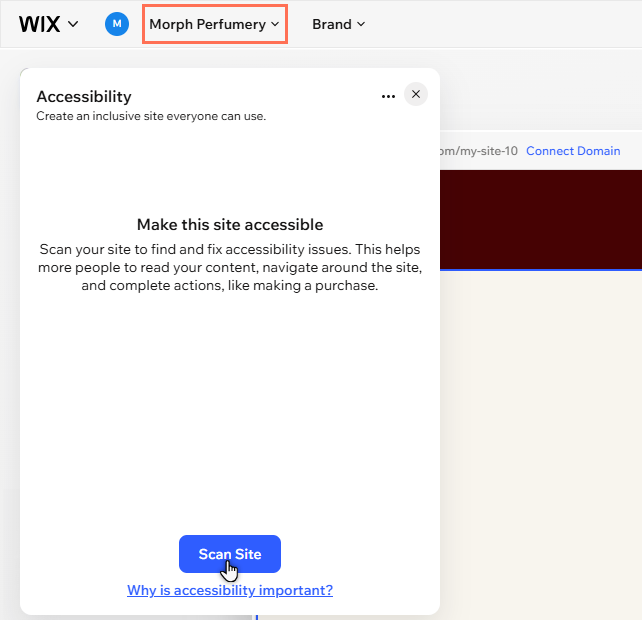
To open the wizard and scan your site:
- Go to your editor.
- Click your site’s name at the top left of the editor.
- Scroll down to Accessibility and click Fix Issues.
- Click Scan Site.
Working on site level and page issues
The wizard organizes detected issues into site level and page-level tasks. Going through each task is a surefire way to improve every aspect of your site's accessibility—from the overall experience, to specific elements.
Depending on the content, you can make adjustments from the wizard, or within your editor.
Site level issues
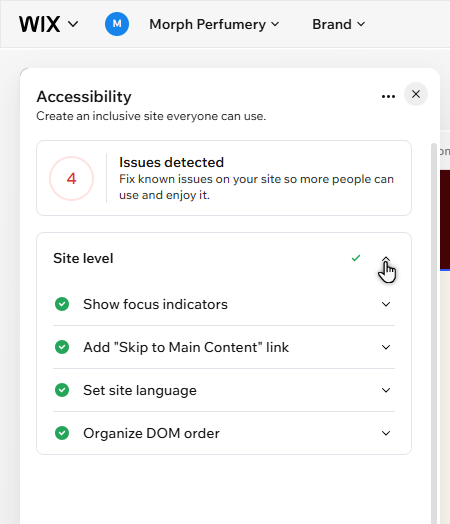
The Site level drop-down displays settings that impact the entire site (e.g. the site's language and focus indicators). Select an option to learn more about tasks that affect the whole site.
Show focus indicators
Add 'Skip to Main Content' link
Set site language
Organize DOM order
Page issues
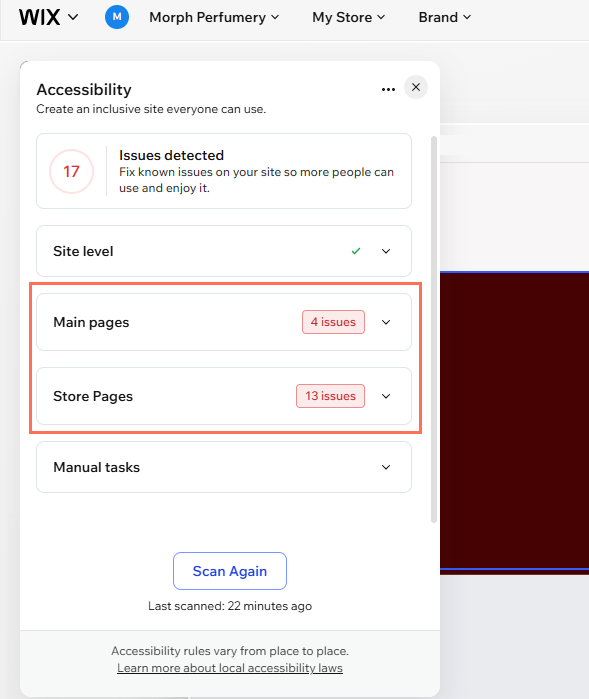
Your site's pages are divided into a
Main pages drop-down (regular pages that come with the site template or that you add), and pages that come with apps you install on the site.
No matter whether they're main pages or app pages, the wizard scans for the same potential issues. Open an option to learn more about the types of issues that are detected.
Give this page a descriptive title
Organize heading structure
Add alt text to images
Improve color contrast
Verify media files are accessible
Organize DOM order
Doing manual tasks
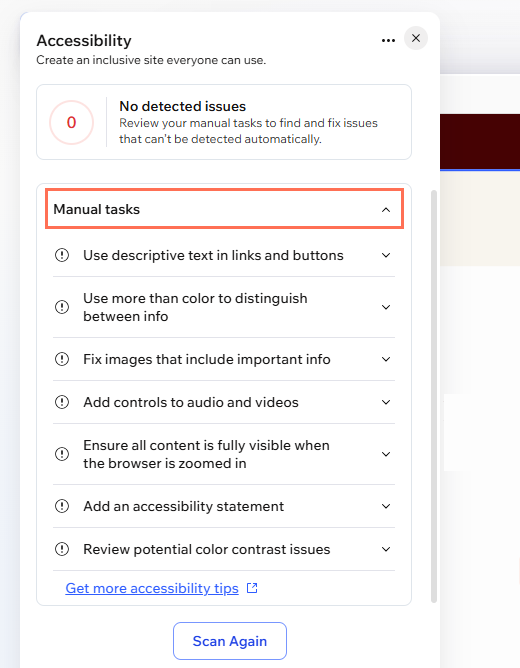
These are additional details you manually check across the site, like browser zoom and media controls. Don't worry about steps - the wizard gives you an explanation for each task, and links to additional information to help you identify and adjust them.
Use descriptive text in links and button
Use more than color to distinguish between info
Fix images that include important info
Add controls to audio and videos
Ensure all content is fully visible when the browser is zoomed in
Add an accessibility statement
Review potential color contrast issues
Frequently asked questions (FAQs)
What does the Accessibility Wizard scan?
What pages and site content are not supported by the wizard?
How else can I improve a site's accessibility?
