


Studio Editor: Password Protecting a Page
2 min
In this article
- Setting up password protection
- Frequently asked questions
Limit access to pages on your client's site by adding password protection. When visitors open the page, they're prompted to enter the password that you or your client have chosen.
Password protection is a helpful way to test new designs and elements with a smaller audience, or create exclusive content.
Important:
Password protected pages are not crawled or indexed by search engines, and do not appear in search results.
Setting up password protection
Add password protection to a page from the page's settings in your editor. Once you've published the change, you can share the password with anyone who needs it.
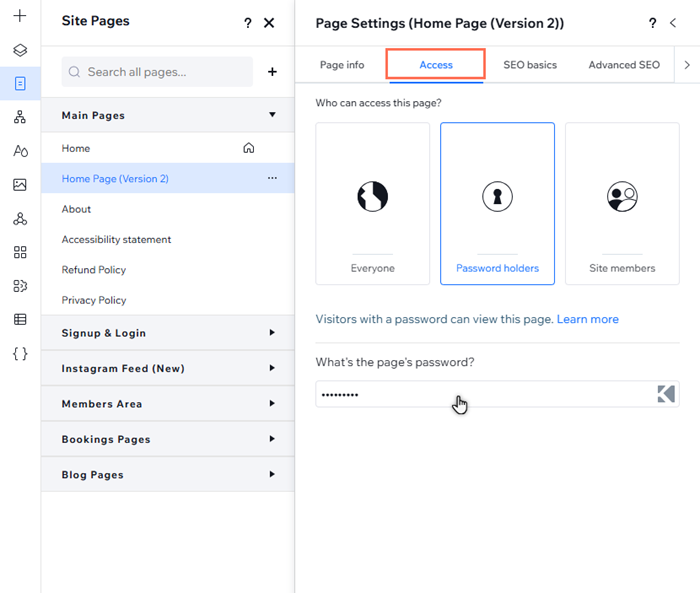
To password protect a page:
- Go to your editor.
- Click Pages
 on the left side of the editor.
 - Click the More Actions icon
 on the relevant page.
 - Click Settings.
- Click the Access tab.
- Select Password holders.
- Enter the password into the field.
- Press the Enter key on your keyboard.
Frequently asked questions
Select a question to learn more about password protecting pages.
Can I add password protection to the entire site?
How can I test the password window?
Can I customize the password window?
Is code affected by password protection?
