


Wix Bookings: Charging Clients from Your Dashboard
In this article
- Charge clients as you work
- Adjust the sale before you charge
- Choose how to get paid
- Charge clients on the go with mobile POS
- FAQs
Wix Bookings lets you charge clients directly from your dashboard, so you can take payment while managing your business behind the scenes. This is useful when you want to start a new sale, collect payment for an unpaid booking, or charge a client in person, over the phone, or later from an existing order.
Charge clients as you work
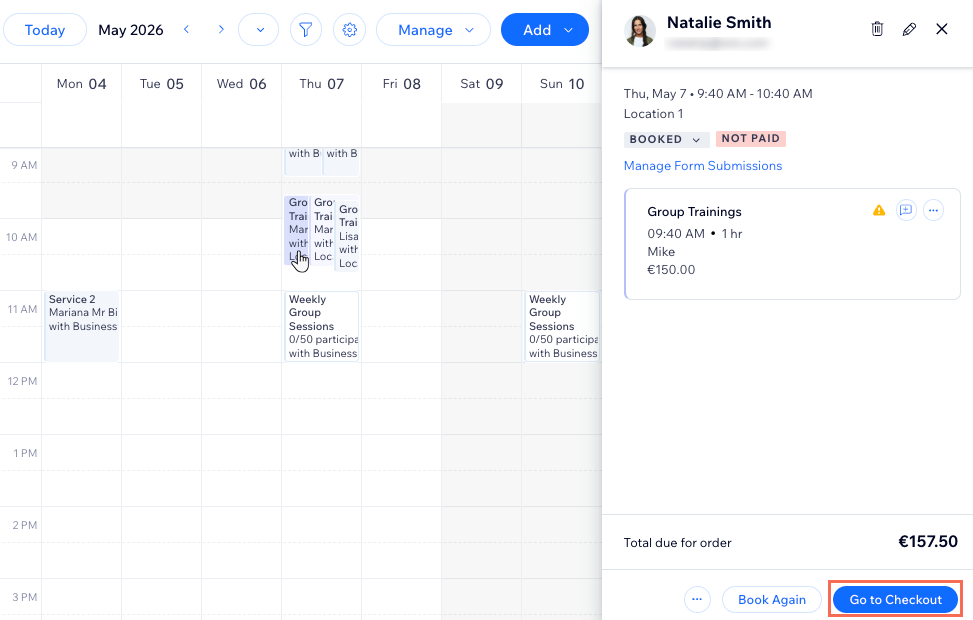
You do not need to send clients through your live site every time you want to collect payment. From the Booking Calendar, charge your clients for existing
classes,
appointments and
courses, or add a new
quick sale on the spot.
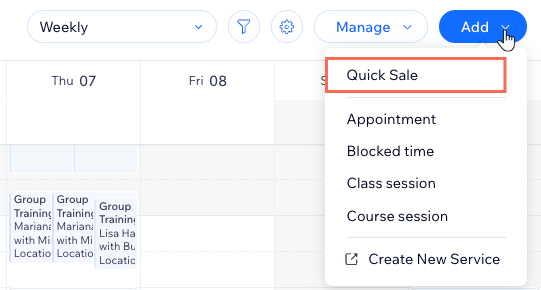
This gives you more flexibility when a client is standing in front of you, calls to pay over the phone, or still has an unpaid or partially paid booking.
Adjust the sale before you charge
Before you collect payment, you can update the sale so the order reflects what your client is buying.
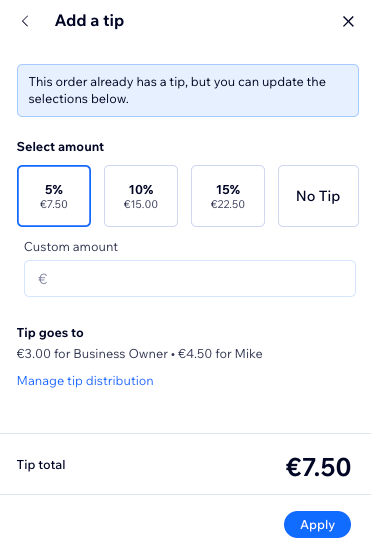
Depending on your needs, you can add items to the sale, include custom charges, apply
discounts, and add a
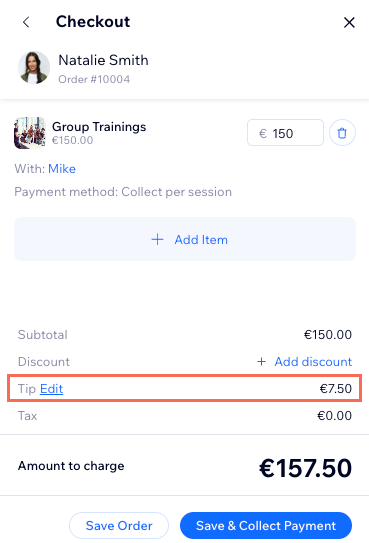
tip before payment. This is especially helpful when something changes at the last minute, for example, if a client adds another service, buys a product, or needs a custom fee added to the order.
As you update the sale, the total changes with it, so you can review everything before moving to payment. To understand how these sales connect to your wider order management,
learn more about the Orders tab.
Choose how to get paid
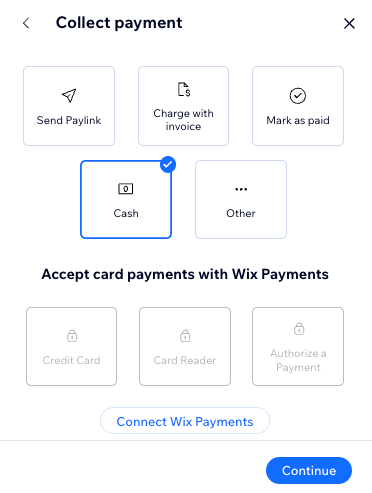
Different situations call for different payment methods. Some clients are ready to pay on the spot, while others need you to send something they can pay later.
If your client is not with you, you can send a
pay link or
invoice so they can pay later. If you already have your client’s permission to charge them directly, you can manually
enter their card details or charge a
saved card. If they already paid you another way, you can mark the order as paid.
For in-person payments, you can also use Wix POS Register with a
Wix POS Go card reader.
Note:
The payment options you see may vary based on the payment provider connected to your site and your location. For example, the Wix POS Go card reader is only available in the US, UK and Canada.
Charge clients on the go with mobile POS
If you also collect payment away from your desk, use
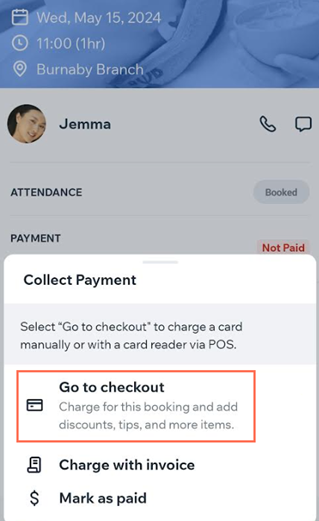
the Wix app as a point of sale on your mobile device. You can collect payments in several ways, including cash, card reader, manual card entry, and Tap to Pay (available in the US and UK only).
If needed, You can charge for multiple appointments, as well as Wix Stores products, in the same order.
Tip:
While it's not possible to book classes or courses with your mobile POS, you can use it to charge for classes or courses that were already booked.
FAQs
Click a question below to learn more about charging clients from your dashboard.
How is this different from checkout on my live site?
Can I charge clients for both new and existing sales?
Which payment methods can I use when charging my client?
Can I update the sale before I charge the client?