


Switching Your Site Template
In this article
- Step 1: Choose your new template
- Step 2: Copy elements and pages from your old site
- Step 3: Import media from your old site
- Step 4: Transfer additional features
- Step 5: Transfer your plan and domain
- FAQs
While
creating a website, we understand that you might have a change of heart and want to switch to another template. While it's not possible to switch to a different template for a site you already created, you can create as many sites as you want in your account. This means you can start over with a new template at any point.
Once you have chosen your new template, you can import elements, pages and media from your old site, and transfer your plan and domain to it.
Step 1: Choose your new template
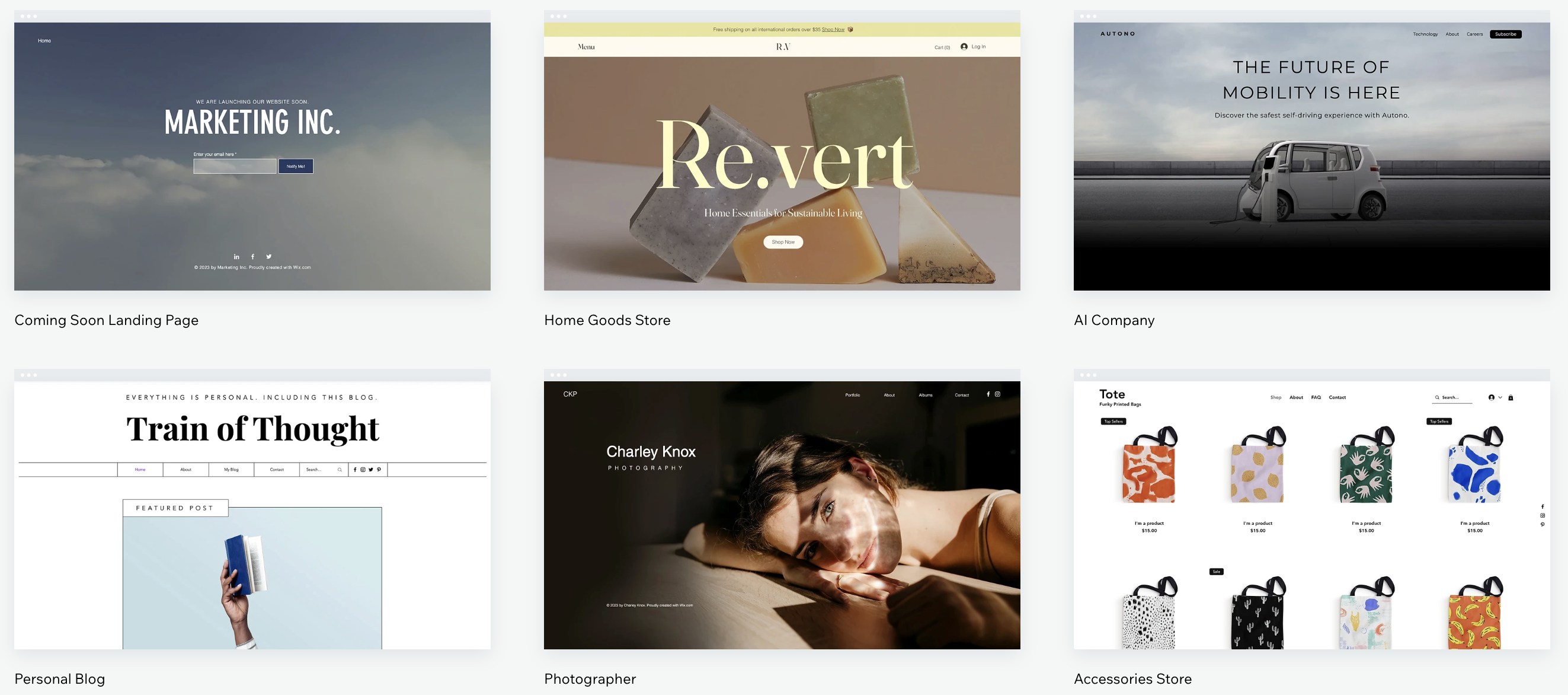
Get started by selecting a new template from our huge range of professionally designed templates. There are a variety of options and categories available including portfolio sites, business services, eCommerce templates and more, so you can choose the best style for your brand needs.
Step 2: Copy elements and pages from your old site
To make the process much easier when starting again with a new template, you can copy and paste elements and pages from your old site, or save and re-use design assets, depending on which editor you are using.
Learn more about:
Copying elements from a Wix Editor site

Copying elements from a Studio Editor site
Are there parts of other templates you want to use?
You can also copy or save designs (using My Designs or Design Assets) from any template you like, and then add them to your site.
Step 3: Import media from your old site
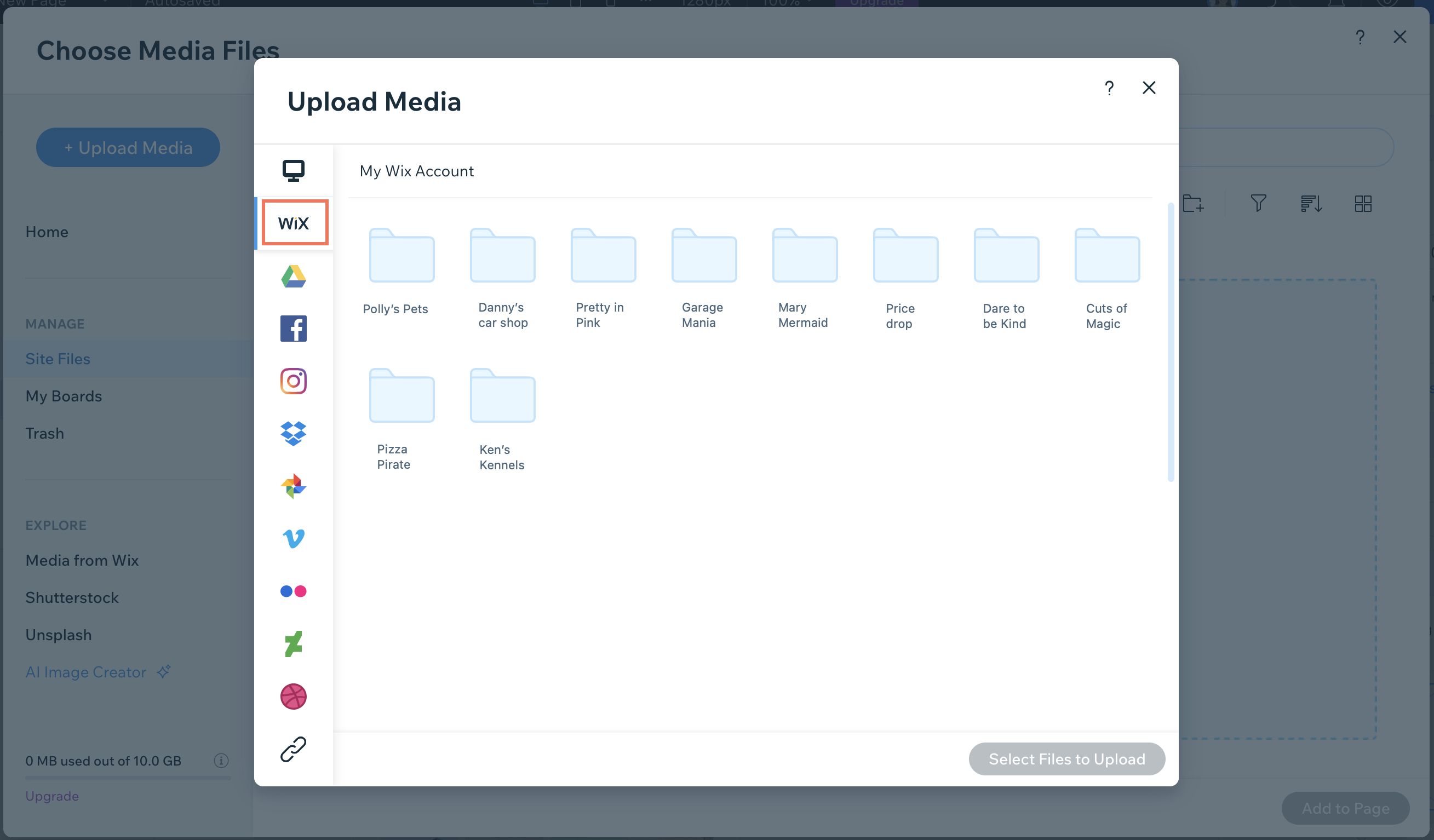
All the media from your existing site is saved under Site Files in your Media Manager. Site Files folders can be accessed from the Media Manager from all the sites in your account. If you want to add any file from your existing site to your new site, just
import it from the Site Files folder.
Can't find a file you are looking for?
Search your Media Manager to find the file you need.
Step 4: Transfer additional features
When starting over with a new template, it's important to note that there are some features that you
can transfer over to the new site and some that you
can't.
What other features can I transfer to a new template?
What features can't I transfer to a new template?
Step 5: Transfer your plan and domain
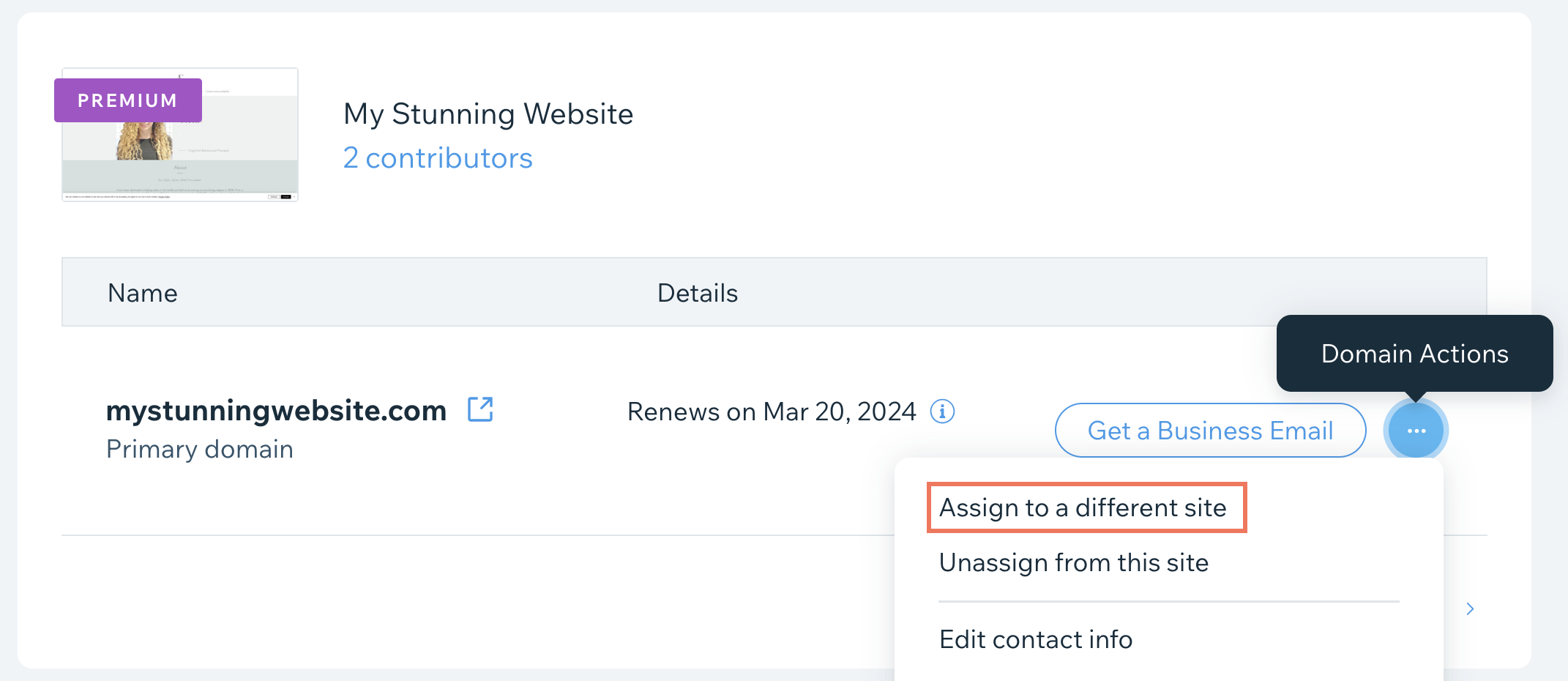
Once your new site is ready, you can transfer your plan which you used to upgrade your site, and the domain from your old site to your new one. This ensures that your site will be fully functioning and live on the internet with your unique domain name, just as it used to be. The process takes just a couple of minutes.
FAQs
Click a question below to learn more about switching to a new site template:
How can I vote for the feature to switch templates?
Can I use AI to build a website on Wix?
Can I use AI to create a new site if I’ve already started with a template?
What happens to my current site if I create a new site?
If I create a new site, can I use the same domain for the new site?
If I create a new site, how do I ensure my new site is indexed by Google and what happens to my site's SEO?
Can I create a landing page while working on my main site?
What happens to my uploaded fonts?
Can I preview my site without publishing it?
Can I switch between the Wix Editor and the Studio Editor?
