


Creating 'Buy X Get Y' Automatic Discounts
In this article
- Creating 'Buy X get Y' discounts
- Video tutorial
- FAQs
Important:
Automatic discounts are currently available for Wix Stores, Wix Restaurant Orders (New), and Wix Bookings.
Reward customers for their purchases by offering something for free or at a reduced rate when they buy selected items. For example, you can create an automatic discount where a customer can buy 1 T-shirt and get another at 50% off. Customers who add 2 t-shirts to the cart automatically get the less expensive one at 50% off - without entering a coupon code.
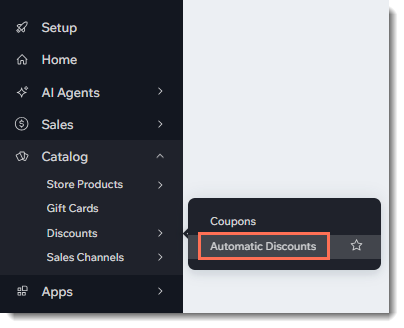
Show me how to access automatic discounts
Creating 'Buy X get Y' discounts
Create a 'Buy X get Y' automatic discount that applies to all your items, to specific items, or to a group of items. You decide what the discount is, when it's active, and which customers are entitled to it.
View examples of the types of discounts you can create
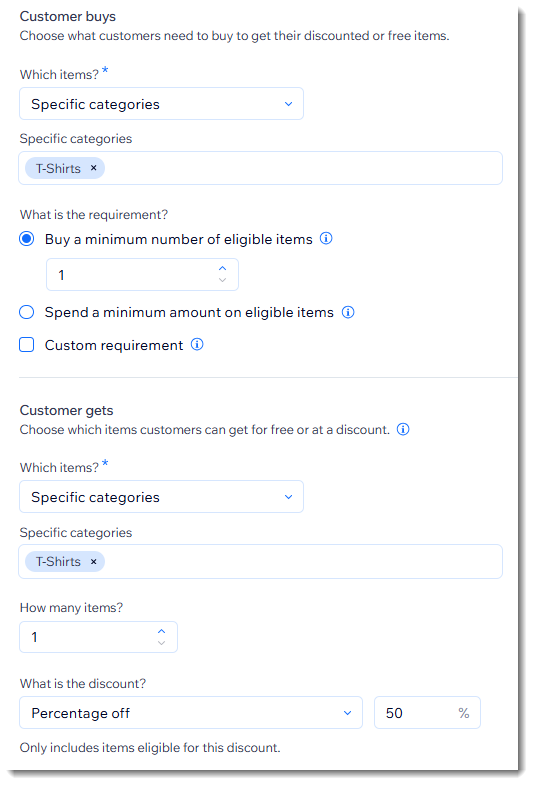
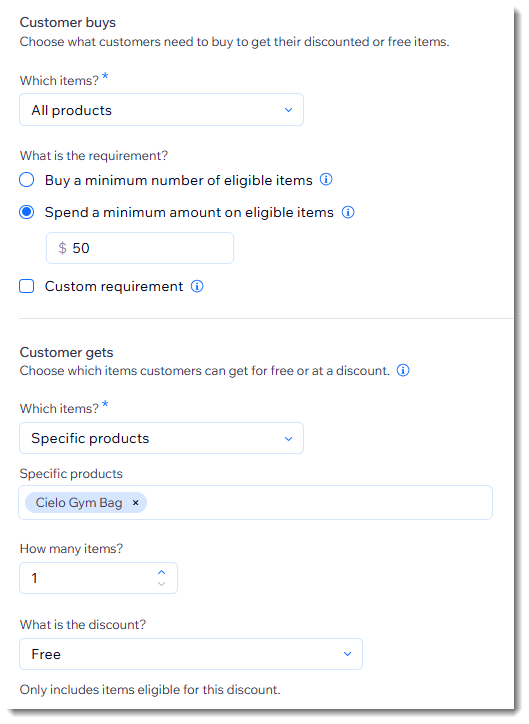
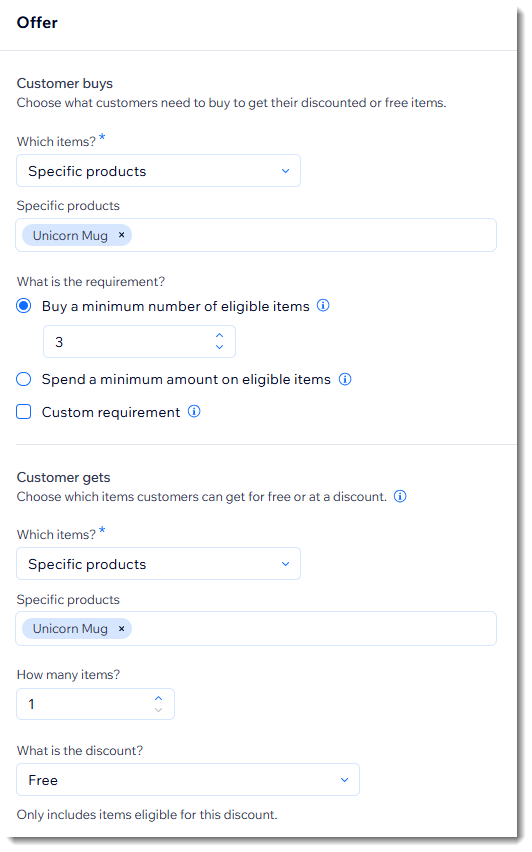
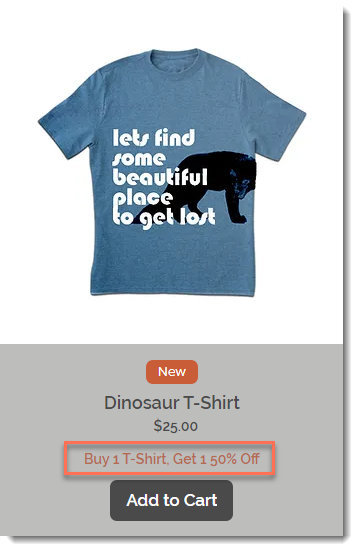
Tips:
- To keep things simple for both you and your customers, it's best not to create more than one automatic discount that applies to the same thing.
- You can also create standard automatic discounts.
To create 'Buy X get Y' discounts:
- Go to Automatic Discounts in your site's dashboard.
- Click Create Discount.
- Select Buy X get Y and click Continue.
- Enter the discount name.
Tip: Customers see this name. - Select the items customers need to purchase to qualify for the discount from the Which items? dropdown and enter the required details.
- Select the discount condition:
- Minimum quantity (e.g. buy 2 t-shirts to get the discount):
- Select Buy a minimum number of eligible items.
- Enter the number of items.
- Minimum amount (e.g. spend $50 on t-shirts to get the discount):
- Select Spend a minimum amount on eligible items.
- Enter the minimum amount.
- Minimum quantity (e.g. buy 2 t-shirts to get the discount):
- Select the items customers get from the Which items? dropdown.
- Enter the number of items.
- Select an option from the What is the discount? dropdown and enter the required details.
- (Optional) Create minimum requirements for the discount to apply:
- Minimum quantity (e.g. buy 3 hats get $10 off):
- Select the Minimum quantity of items checkbox.
- Enter the number of items.
- Minimum amount (e.g. spend $50 on hats and get $10 off):
- Select the Minimum order subtotal checkbox.
- Enter the minimum amount.
- Custom requirement:
- Choose a preset requirement from the dropdown or click Create New.
- If prompted, enter the requirement details.
- Click Activate.
- Minimum quantity (e.g. buy 3 hats get $10 off):
- (Optional) Set the maximum number of times a customer can use this discount per order:
- Select the Limit how many items per order get this discount checkbox.
- Enter the number.
- Select which customers are entitled to the discount:
- All customers: Any customer can enjoy the discount.
- Specific segments: Select one or more segments.
Note: Learn how to create contact segments. - Specific members: Select one or more members.
Note: For POS sales, see the FAQ below. - Specific contacts with label: Select one or more labels.
Note: Learn how to create and apply contact labels.
- Select the date and time when the discount starts.
- (Optional) Select the dates when the discount ends:
Note: By default, the discount starts immediately and doesn't have an end.- Select the Set an end date and time checkbox.
- Select the date and time when the discount ends.
- (Optional) Set a recurring schedule (e.g. 15% off all items every Sunday):
- Select the days.
- If you chose multiple days, select an option:
- Same time each day: Select what time the discount starts and stops on the relevant day(s).
- Different times each day: Select what time the discount starts and stops on each day.
- Select where customers see the sale name and details:
Note: Learn more about displaying automatic discounts on your site. - Click Save.
Video tutorial
Watch the video tutorial, or scroll down to read the FAQs.
FAQs
Click a question below to learn more about automatic discounts.
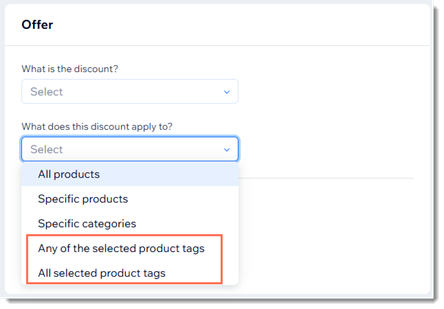
How can I apply an automatic discount to a group of store products?
What limitations are there when applying automatic discounts to Wix Bookings services?
How do discounts apply to Wix Bookings services that have add-ons or varied pricing?
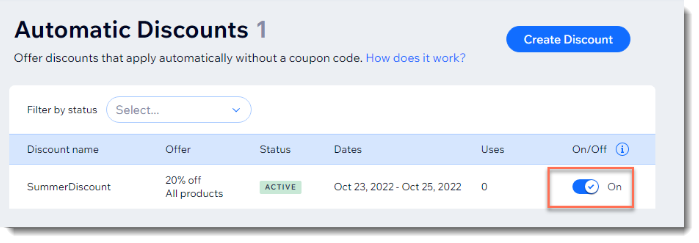
How can I manually enable or disable an automatic discount?
If I sell items at a point of sale, do the automatic discounts apply?
How can I edit, duplicate, promote, or delete an automatic discount I created?
 next to the relevant discount.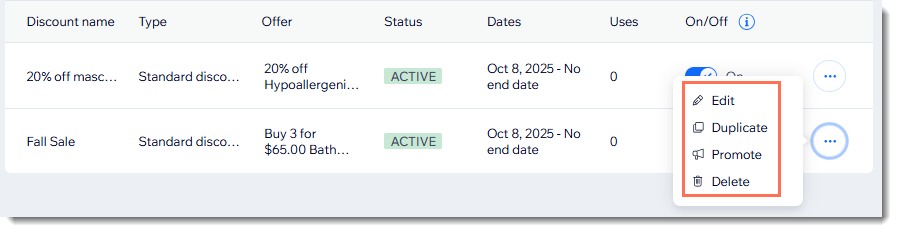
Why do I only see the discount name next to an item, but not the discounted price?
What are the best ways to let customers know about my store discounts?
How can my customers know that a discount is limited?
Does limiting the number of discounted items per order stop customers from purchasing multiple orders?
Can I apply an automatic discount to a store product subscription?
Do automatic discounts apply when selling through a sales channel?
How do 'amount off' standard discounts ($10 off) apply to a group of items?
If I set a minimum quantity or minimum subtotal, what counts towards the minimum?
With 'Buy X get Y' discounts, what do customers see in the cart and checkout pages?


What happens if I create a coupon in addition to the automatic discount?
What happens if more than one automatic discount applies to an order?
What time zone is used to set when a discount begins and ends?
My site has only automatic discounts, not coupons. Can I hide the promo code option?

What limitations are there to quantity discounts?
