Displaying Automatic Discounts on Your Site
In this article
- Types of discounts
- Standard discount
- Buy X get Y discount
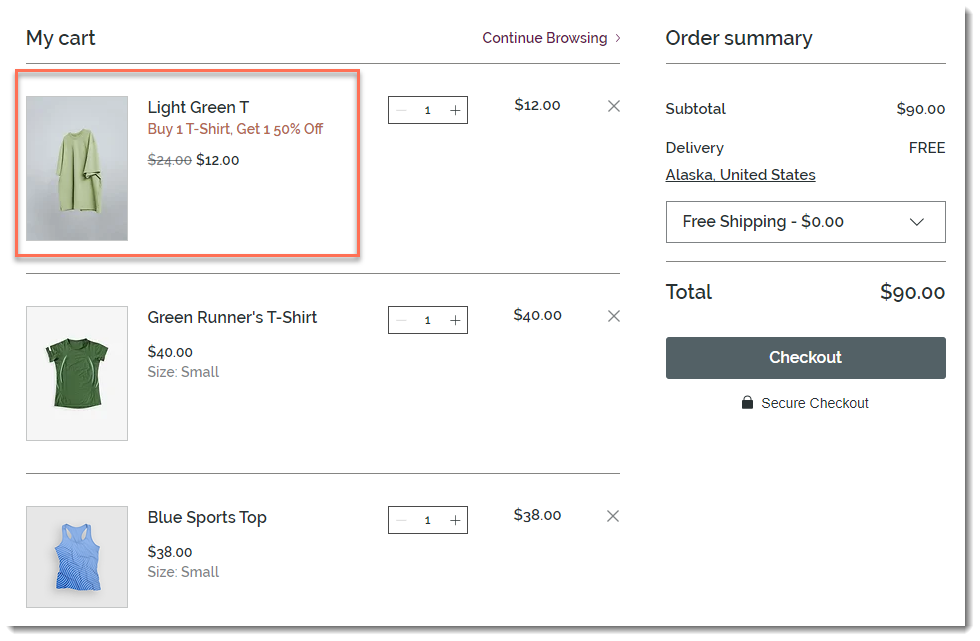
The name you give your automatic discount is displayed in the cart and checkout. Discounts on store products can be displayed on additional store elements.
- Wix Stores products: Discounts always appear in the cart and at checkout. You can decide whether you also want to display them in the product page & in store galleries.
- Wix Restaurants menu items: Discounts always appear in the cart and at checkout, but they do not appear anywhere else.
- Wix Bookings services: Discounts always appear in the cart (if enabled) and at checkout, but they do not appear anywhere else.
Tip: In Bookings only sites, the cart isn't enabled by default. We recommend adding the cart page so customers can see which discounts they'll be getting.
What does the automatic discount display look like?
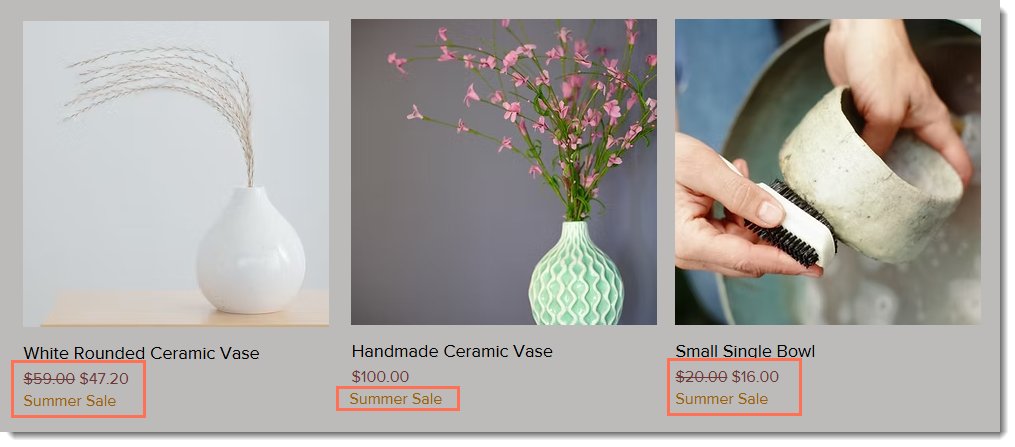
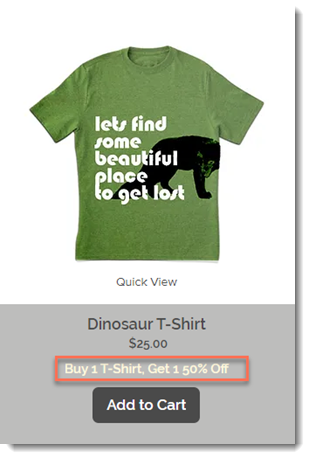
When applied to store products (and if enabled), the discount name appears in galleries...
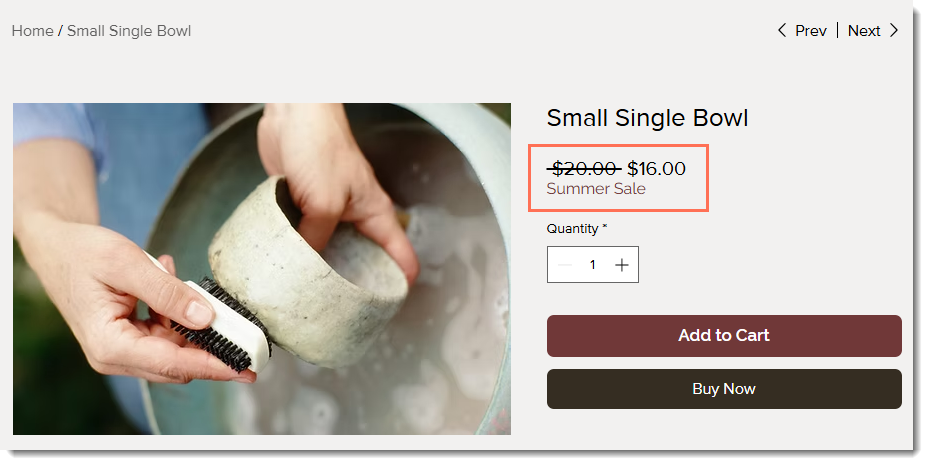
...and on the Product page.
Exceptions:
- If 3 or more discounts apply to a specific item, only the 2 best applicable discounts are displayed
- When a product has product options that are priced differently, only the sale name (e.g. Summer Sale) appear, not the discounted price.
Types of discounts
The messages that customers see on your site vary a little depending on the type of discount you set up.
Standard discount
You can choose whether you want to display discount info on the product page, galleries, cart and checkout pages, or just in the cart and checkout pages.
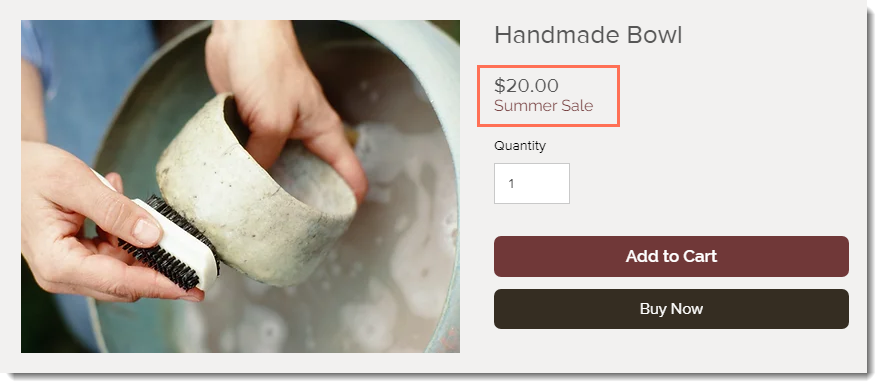
Note that when you create a discount with minimum requirements (e.g. the discount applies to orders above $50), only the name of the sale appears, not the discounted price. This lets customers know that the item is eligible for a discount, but doesn't display a price that they may not qualify for.
Buy X get Y discount
Just as for standard discounts, you can choose where you want to show the discount.
However, for Buy X get Y discounts, displaying the discount name in galleries and on the Product page can help your customers understand exactly what the requirements are and what they will get. It may also encourage them to purchase additional items.
If your customer meets the requirements (in this example, they added 3 t-shirts), the least expensive one is discounted, and the discount name appears in the cart.