


Wix Mobile POS: Enabling Automatic Discounts
In this article
- Step 1 | Create automatic discounts
- Step 2 | Enable automatic discounts in your mobile POS device
- Step 3 | (Optional) Removing a discount from a specific sale
- FAQs
Important:
- This article is about Wix Mobile POS for mobile phones.
- For info on Wix POS Register for brick-and-mortar businesses, click here.
Automatic discounts are price reductions you create in your site's desktop (e.g. 20% all hats). When customers buy the relevant items (e.g. hats) the discounts are applied.
With automatic discounts you can:
- Set a sale start and end time: For example you can schedule a sale that starts at the first of them month and automatically ends at the end of the month.
- Create conditional discounts: Create discounts that take effect only when certain conditions are fulfilled. For example:
- The customer buys a set quantity (buy 3, get 30% off)
- The customer buys a set amount (buy $50 worth of hats and get $10 off).
- The customer buys X and gets Y free or at a reduced rate (Buy a leash and get dog treats free).
Step 1 | Create automatic discounts
To get started, go to Automatic Discounts on desktop and create your first discount. Learn how to
create automatic discounts.
Step 2 | Enable automatic discounts in your mobile POS device
Now that you have one or more automatic discounts set up, you can enable them so that customers can enjoy the discounts.
To enable automatic discounts on mobile POS:
- Go to your site in the Wix app.
- Tap Manage
 at the bottom.
 - Tap Point of Sale under Getting Paid.
- Tap the More Actions icon
 at the top right.
 - Tap POS settings.
- Tap Automatic discounts.
- Tap the Apply automatic discounts toggle to enable it.
Tip: Click any of the discounts you created to view more details.
Step 3 | (Optional) Removing a discount from a specific sale
In the previous step, you enabled automatic discount and they now apply to every relevant sale. If, for some reason, you don't want to apply the discount to a particular sale, you can remove it during checkout.
To remove the discount from a specific sale:
- Go to your site in the Wix app.
- Tap Manage at the bottom.
- Tap Point of Sale under Getting Paid.
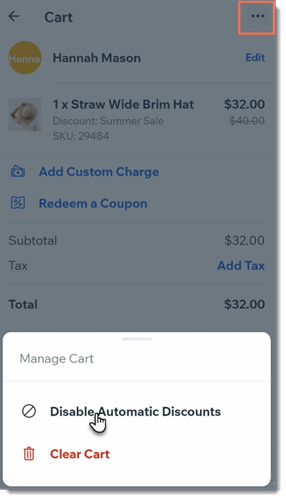
- Go to your a cart to which you have added products.
- Tap the More Actions icon
 at the top right.
 - Tap Disable Automatic Discounts.
- Complete the sale.
FAQs
Click a question below to learn more about using automatic discounts at a point of sale.
How can I view the details of a specific automatic discount on my mobile device?
 at the top right.
 What statuses can automatic discounts have?
Can I enable a specific discount only online or only in mobile POS?
How can I create a new automatic discount or edit an existing one?