


Wix スマートチャット:Wix スマートチャットを追加・設定する
4分
この記事内
- Step 1 | Add Wix Smart Chat to your site
- Step 2 | Configure your Smart Chat's settings
- Step 3 | (Optional) Train and test the AI
- Step 4 | Publish your site to activate Smart Chat
- FAQs
Wix Smart Chat is a customizable on-site chat interface that supports your site visitors in the way that best fits your business, with AI-powered answers, direct replies from your team, or a mix of both. Learn how to get started and set yourself up for success.
Step 1 | Add Wix Smart Chat to your site
Add Wix Smart Chat to your site via the Wix App Market and add the chat widget in your editor.
To add Wix Smart Chat to your site:
Dashboard
Wix Editor
Studio Editor
- Go to the Wix Smart Chat app in the Wix App Market.
- Click Add to Site.
Note: You'll be redirected to the editor where the chat widget is added to your site. You can stay in the editor to customize the chat or continue with the steps in this article to complete the dashboard setup first.
Important:
After you install Wix Smart Chat, it starts learning your site’s content and data. This may take a few minutes. Until it’s finished, you won’t be able to test the AI or use AI tools in the dashboard.
Step 2 | Configure your Smart Chat's settings
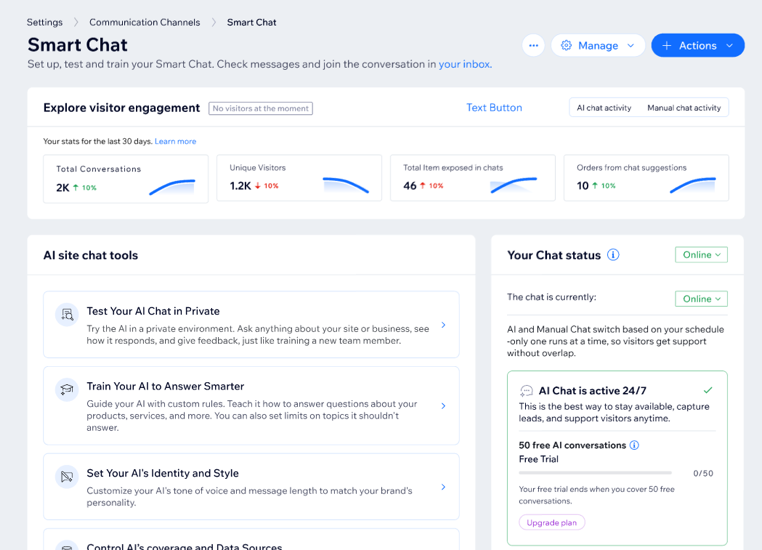
To continue setting up Wix Smart Chat, head over to your dashboard. The Wix Smart Chat dashboard provides you with useful tools such as:
- Visitor engagement stats: View data about AI and manual conversations, such as chat volume and engagement trends.
- AI site chat tools: Open shortcuts to various chat tools that help shape the AI chat experience.
- Your chat status: See if the chat is online, offline, inactive, or needs your attention, based on your availability settings.
- Business setup recommendations: Review AI-generated insights from your conversations and suggested next steps to help you get more value from Wix Smart Chat.
Configure how Wix Smart Chat supports your site visitors by setting up its behavior, specifying the content sources, and fine-tuning how the AI should interact in a way that aligns with your brand.
To configure your Smart Chat's settings:
- Go to Smart Chat in your site's dashboard.
- Choose what you want to set up:
- The chat's general settings: Control how the chat works on your site by setting the availability mode, offline behavior, contact form options, and avatars.
- Exclude site pages: Prevent specific pages from being used in AI answers (e.g. outdated pages or legal information).
- Identity & style: Set the AI's tone and response style to match and sound like your brand.
Step 3 | (Optional) Train and test the AI
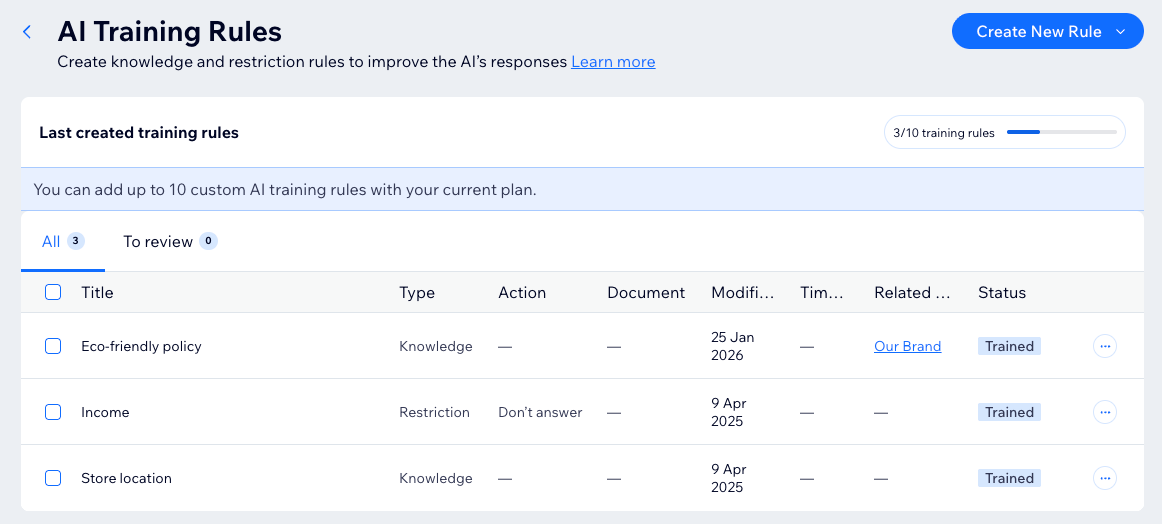
Training and testing the AI helps improve the answers it gives your site visitors. By adding training rules, you can teach it about your products, policies, and services, or restrict it from answering topics you do not want it to cover.
Test the AI in your dashboard by asking the kinds of questions visitors might ask about your business. Then give feedback to improve its answers over time.
Tip:
Regularly update and test the Smart Chat to keep it aligned with any changes in your products, services, or business strategies.
Step 4 | Publish your site to activate Smart Chat
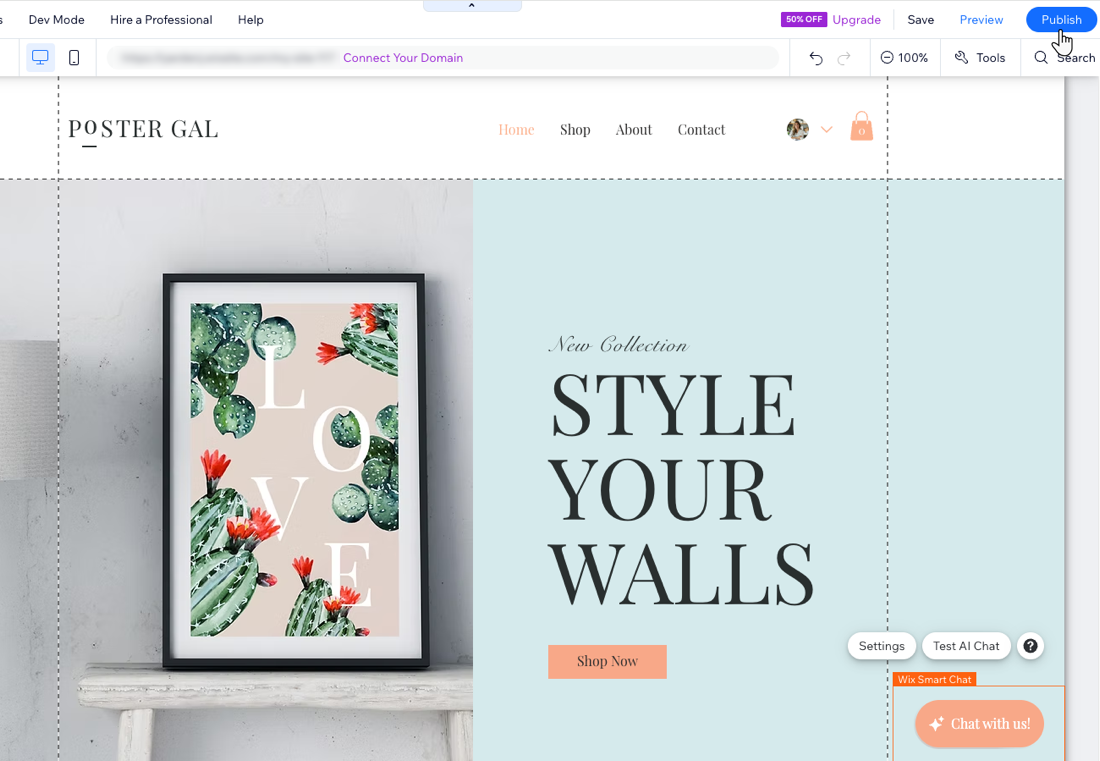
When you're ready, publish your site to make the Smart Chat available to site visitors. The chat widget, and any changes you make to the widget's design, only goes live after publishing. Any changes you make in the dashboard settings don't require publishing to take effect.
Learn how to publish your site in the Wix Editor and Studio Editor.
What's next?
- Customize the chat widget's design to reflect your brand's style.
- Check viewer engagement stats to understand the AI and manual chat performance.
FAQs
Click a question below to learn more.
Can I see the interactions between the AI and my site visitors?
Can I send site visitors payment requests, coupons, or links through Wix Smart Chat?

How do I delete the chat from my site?