


Wix Smart Chat: Managing Your Settings
In this article
- Choosing your chat availability mode
- Adjust the avatar settings
- Configuring the AI Chat settings
- Configuring the Manual Chat settings
- Customizing the chat widget behavior
- Customizing the chat's offline behavior
- FAQs
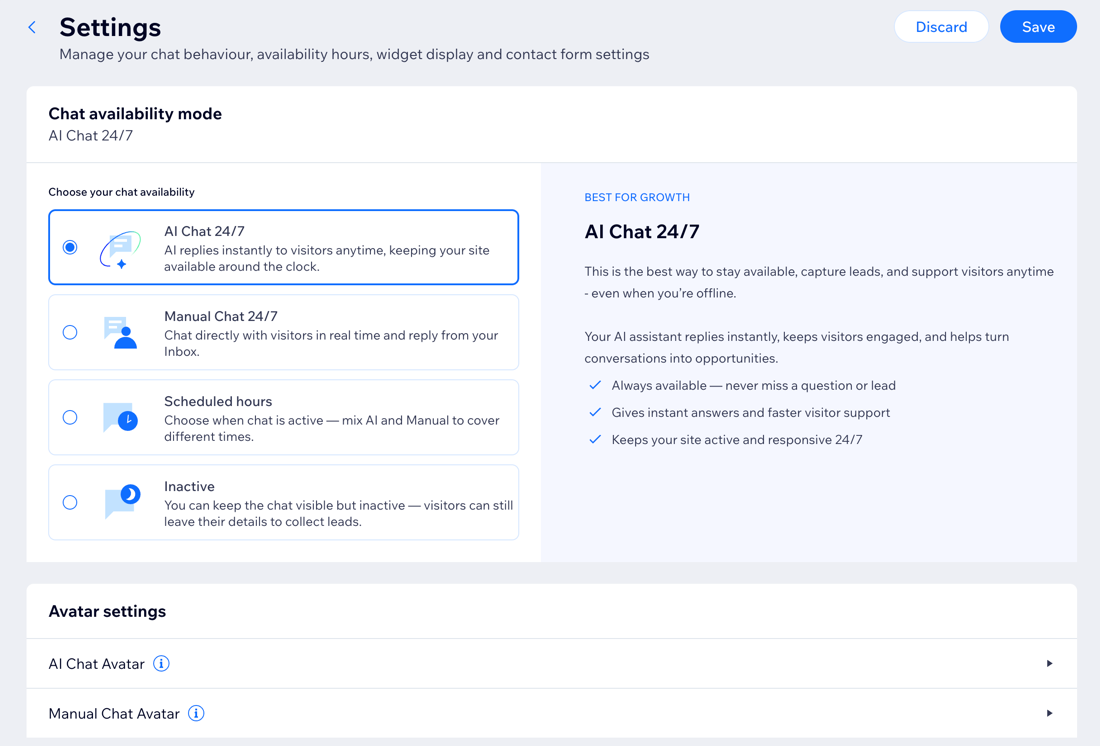
Wix Smart Chat settings let you control how your chat works on your site: when it’s available, what visitors see, and how your AI and manual chat experiences are configured. From here, you can manage your availability mode, visitor greetings, contact form behavior, offline experience, and avatars.
Tips:
- If you change your mind, click Discard to revert to the last saved version.
- Any change you make here won’t apply until you click Save.
Choosing your chat availability mode
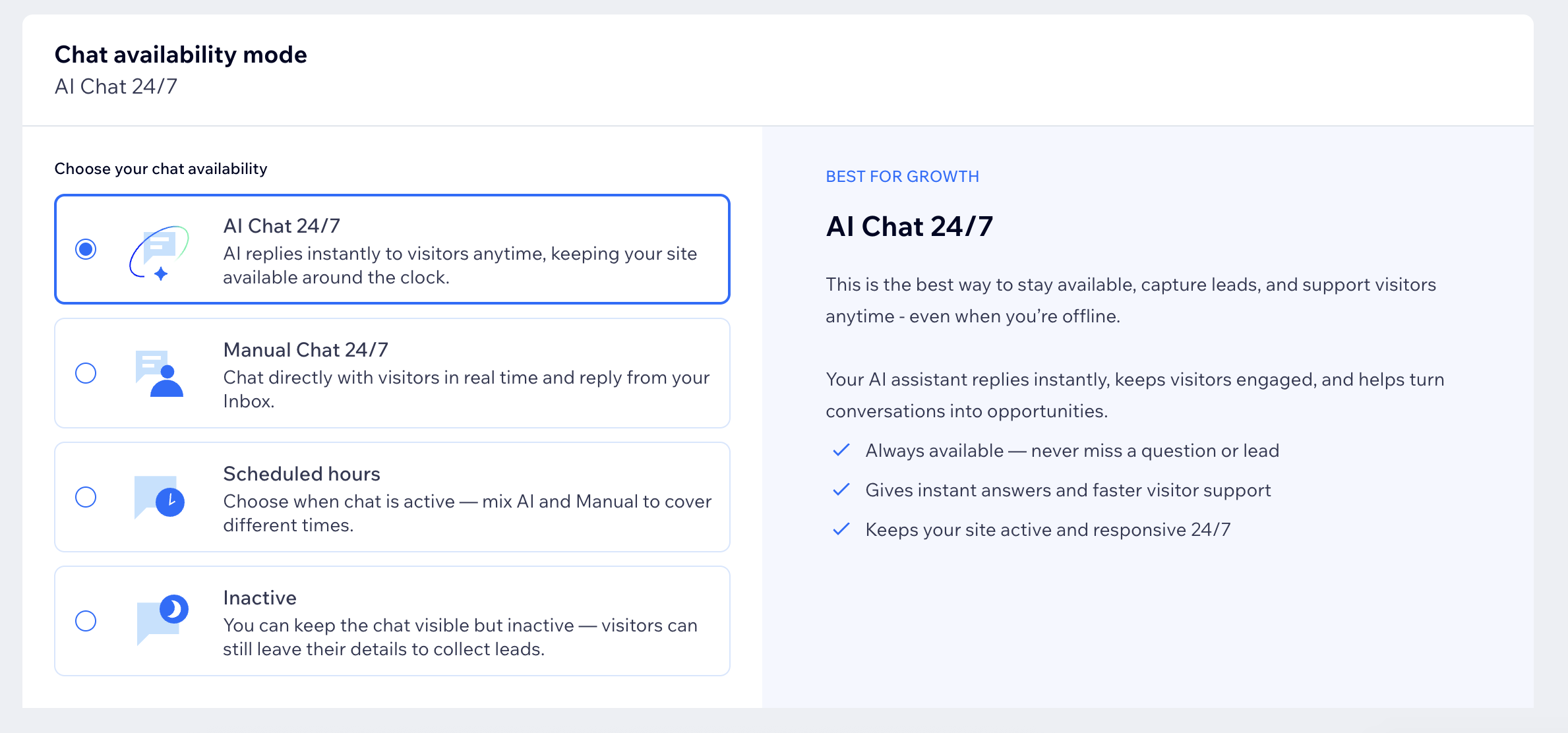
By default, Smart Chat starts with the AI Chat being active 24/7 so visitors can get answers right away. You can change the mode anytime to suit your business model and response style.
To choose the chat availability mode:
- Go to Smart Chat in your site's dashboard.
- Click the Manage drop-down and select General settings.
- Select a chat availability mode:
AI Chat 24/7
Manual chat 24/7
Scheduled hours
Inactive
Adjust the avatar settings
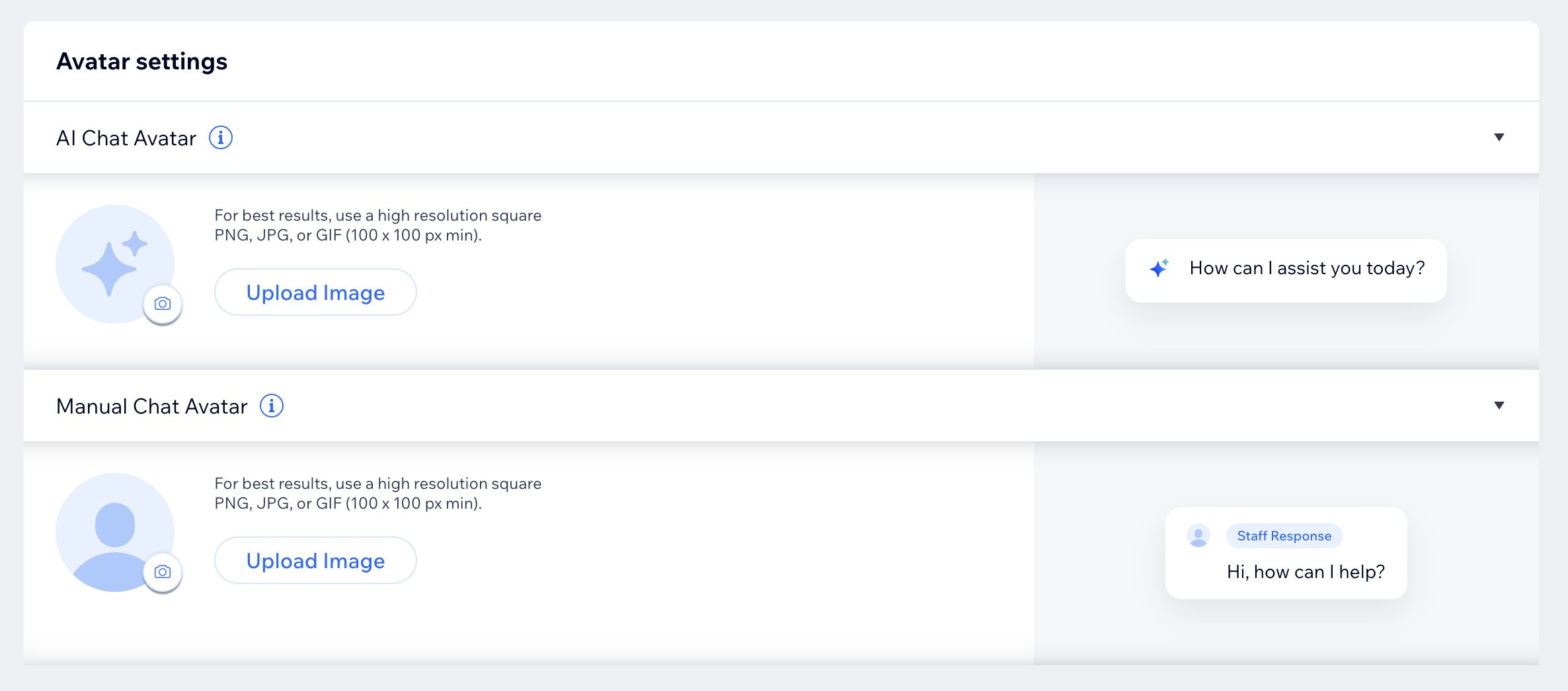
Choose the profile images visitors see in your chat when they’re speaking with the AI Chat or Manual Chat. Adding a recognizable avatar helps visitors understand who they’re chatting with and keeps the experience consistent with your brand.
To adjust the avatar settings:
- Go to Smart Chat in your site's dashboard.
- Click the Manage drop-down and select General settings.
- Under Avatar settings, choose which to update:
- AI Chat Avatar: Set the avatar visitors see when your AI Chat replies. Use a brand icon or assistant image so visitors instantly recognize they’re chatting with AI.
- Manual Chat Avatar: Set the avatar visitors see when you or your team members reply in manually. This can be your logo, a team photo, or a staff avatar - however you want to appear to visitors.
Tips:
- For best results, upload a high-resolution square image (at least 100 x 100px) in PNG, JPG, or GIF format.
- Use the preview on the right to see how the avatar will look inside the chat before saving.
Configuring the AI Chat settings
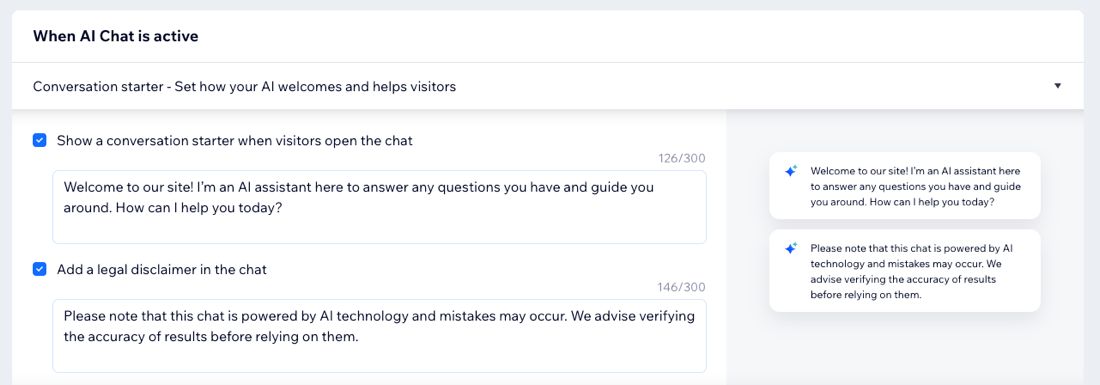
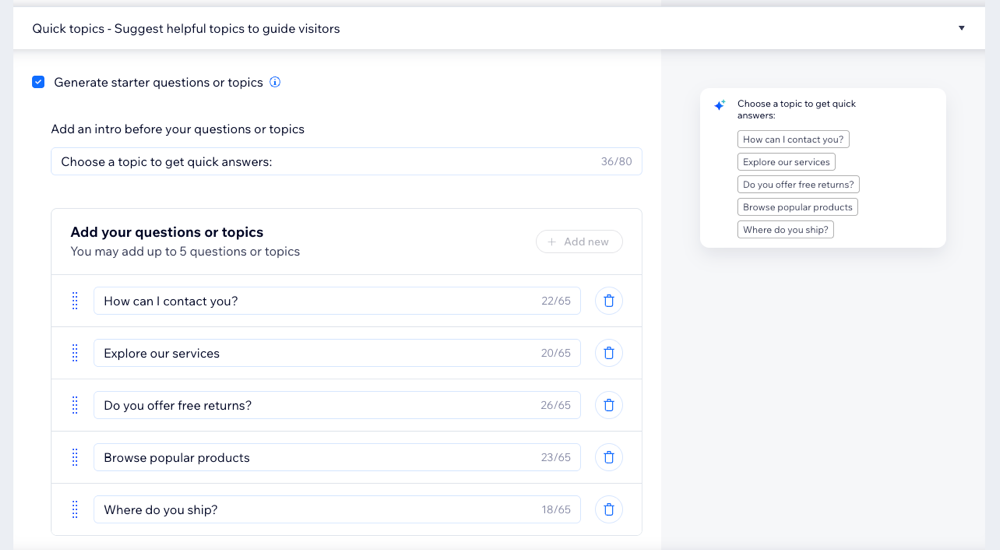
When the Smart Chat is active, you can control what visitors see when they open the chat and how the AI helps guide the conversation. These settings let you tailor the AI experience to match your business, whether that’s adding a welcome message, suggesting quick topics, or showing page overviews while visitors browse.
To configure the AI Chat settings:
- Go to Smart Chat in your site's dashboard.
- Click the Manage drop-down and select General settings.
- Choose what you want to set up under When AI Chat is active:
Conversation starter
Quick topics
Page overviews

Configuring the Manual Chat settings
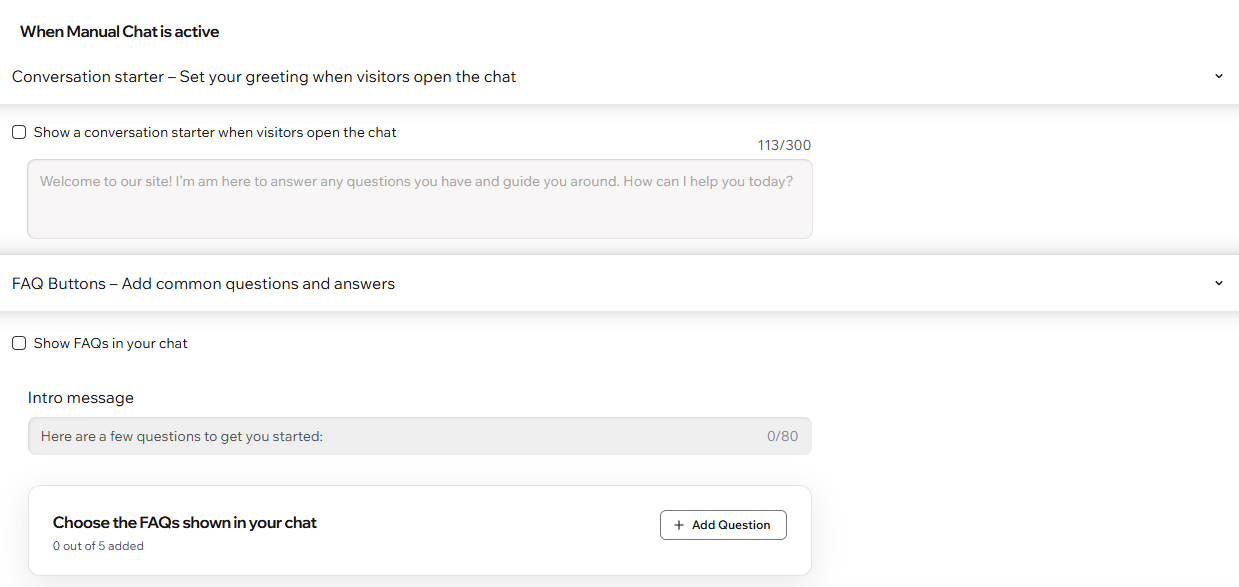
When the Manual Chat is active, visitors can message you directly and wait for your reply. In this section, you can control what visitors see when they open the chat so that expectations are clear and the conversation begins smoothly.
To configure the Manual Chat settings:
Go to Smart Chat in your site's dashboard.
Click the Manage drop-down and select General settings.
Under When Manual Chat is active, choose what to customize:
Conversation starter
FAQ Buttons
Customizing the chat widget behavior
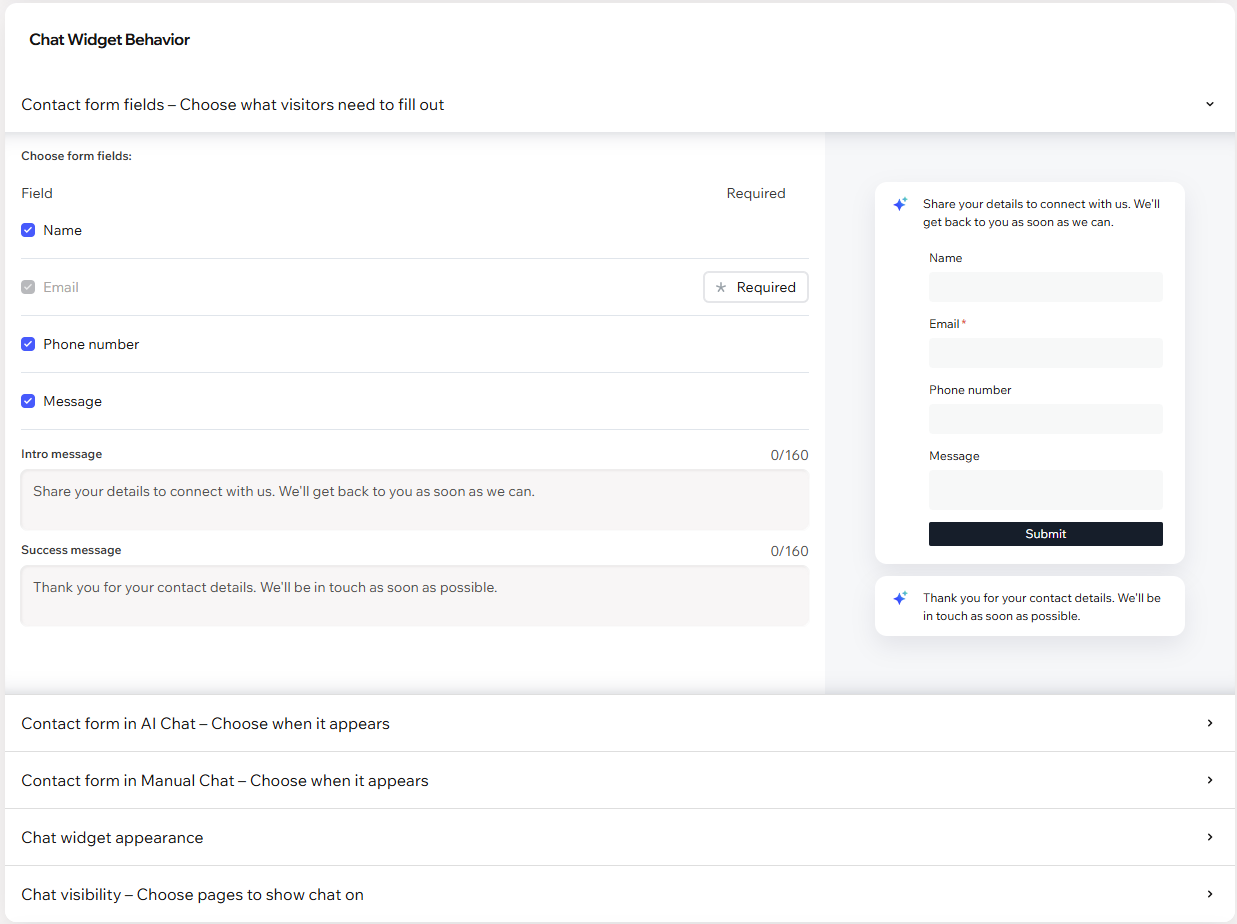
Control how visitors interact with the chat widget on your site. Here you can choose which contact form fields to collect, decide when the contact form appears in the AI Chat and Manual Chat, and customize where the widget appears and when it opens.
To customize the chat widget behavior:
- Go to Smart Chat in your site's dashboard.
- Click the Manage drop-down and select General settings.
- Under Chat Widget Behavior, choose what to customize:
Contact form fields
Contact form in AI Chat
Contact form in Manual Chat
Chat widget appearance
Chat visibility
Customizing the chat's offline behavior
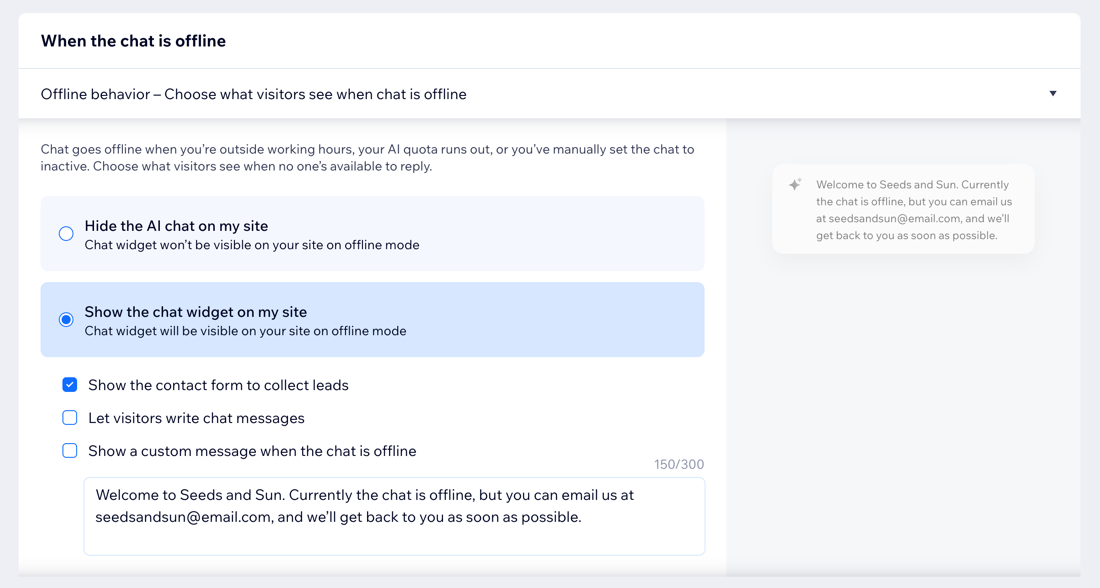
When the chat is offline, you can choose what visitors see on your site. Setting the behavior for when the chat is offline helps you stay professional and responsive even when you can’t reply right away. This reduces missed opportunities and sets the right expectation about when you’ll respond.
The chat goes offline when it's outside your scheduled hours, when the chat availability mode is set to
Inactive, or when your
AI credits quota is reached.
To customize the chat's offline behavior:
- Go to Smart Chat in your site's dashboard.
- Click the Manage drop-down and select General settings.
- Scroll down to When the chat is offline, and click Offline behavior.
- Choose what to do:
- Hide the AI chat on my site: Remove the chat widget from your site while the chat is offline, so visitors won’t see the widget or try to start a conversation.
- Show the chat widget on my site: Keep the chat widget visible on your site in offline mode. To show anything to visitors, select at least one option:
- Show the contact form to collect leads: Shows your contact form so visitors can leave their details. This helps you capture leads even when no one is available.
- Let visitors write chat messages: Allow visitors to type and send a message while the chat is offline, so they can still reach out in the chat experience.
- Show a custom message when the chat is offline: Display a message that explains the chat is offline to set expectations. You can customize the exact wording in the text box. For example, explain how to contact you and when you’ll get back to them.
FAQs
Click a question below to learn more.
Can I customize the design of the chat?
Can I see the interactions between the AI and my site visitors?
Is there a way to disable the chat temporarily?
I've hidden the chat from a number of pages, but AI seems to still answer questions about these pages. How do I stop this?
Can I set a different intro and success message for AI chat and manual chat?