Wix Smart Chat: Designing and Customizing the Chat
In this article
- Customizing your chat layout
- Configuring the chat's text settings
- Designing your chat
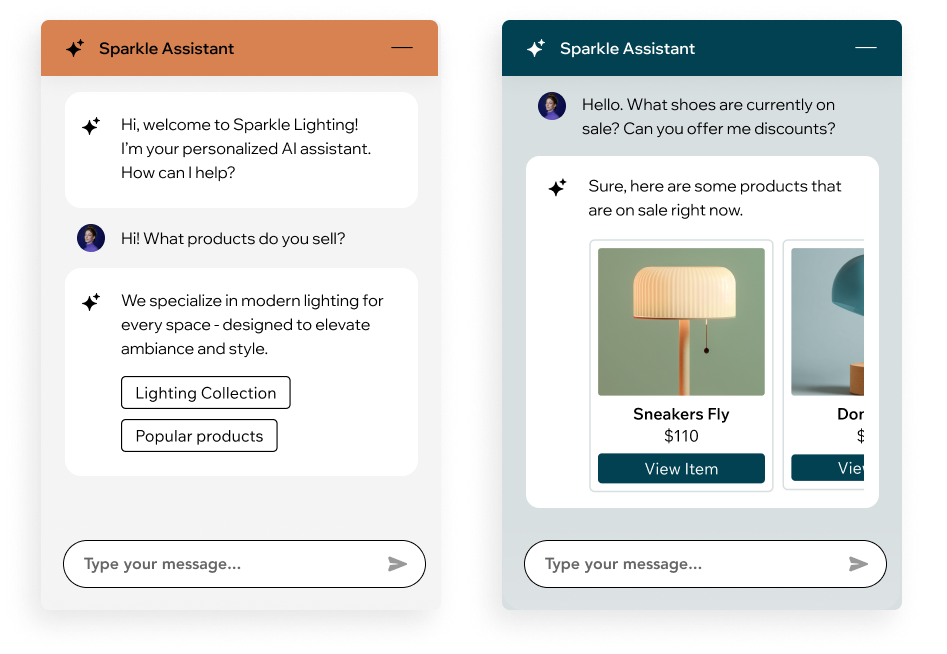
Wix Smart Chat allows you to reflect your brand's voice and style by designing and customizing your chat interface. You can adjust colors, text, layout, and more directly in your editor, making it easy for visitors to use.
This personalized touch can make them feel more connected to your brand and more likely to complete their purchase. By encouraging site visitors to get in touch, you increase engagement and provide better service.
Customizing your chat layout
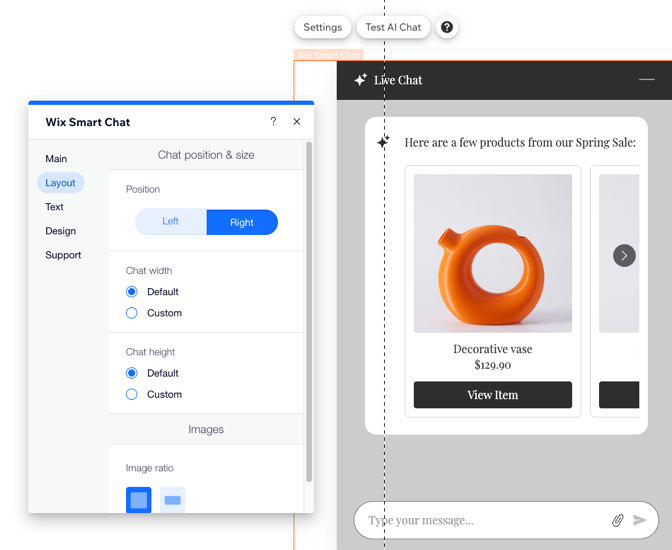
Choose how you want to display the chat on your site. Choose where on the page it appears and how new messages appear to visitors.
To customize your layout:
Wix Editor
Studio Editor
- Go to your editor.
- Click the chat widget.
- Click Settings.
- Click the Layout tab.
- Choose what you want to customize:
- Position: Decide whether you want your chat box to appear in the bottom left or bottom right of your site.
- Width and height: Choose your chat width and height, you can use default settings or customize it using the slider.
Configuring the chat's text settings
Enter the text you'd like to appear when the chat is minimized or offline. Give your visitors upfront information such as its typical response time.
To configure your text settings:
Wix Editor
Studio Editor
- Go to your editor.
- Click the chat widget.
- Click Settings.
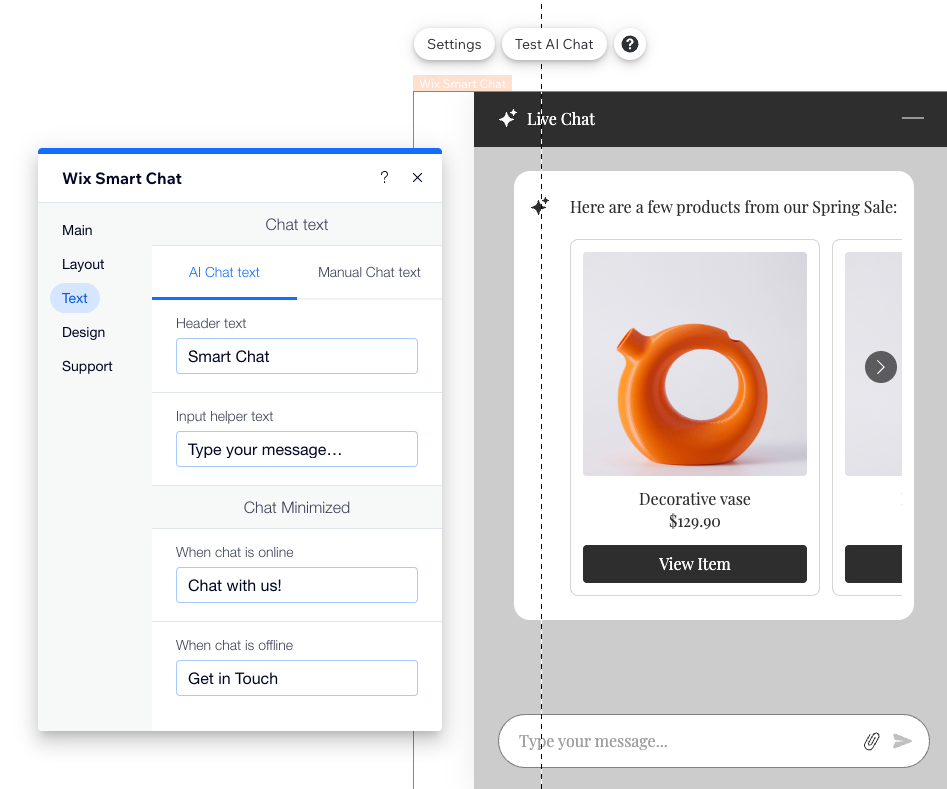
- Click the Text tab.
- Choose which mode you want to customize: AI Chat text or Manual Chat text.
- Choose what you want to customize:
- Header text: Enter the name you'd like to appear in the header when the chat box is open.
- Input helper text: Set the default text prompting visitors to enter a message (e.g. "Type your message...").
- When chat is online: Enter the text that site visitors see when your chat box is available to chat but minimized.
- When chat is offline: Enter the text that site visitors see when your chat box is unavailable and minimized.
Note: This option is only available if you've selected a minimized chat layout that includes text in the Design tab.
Designing your chat
Design each component of the chat in your editor.
To design your chat:
Wix Editor
Studio Editor
- Go to your editor.
- Click the chat widget.
- Click Settings.
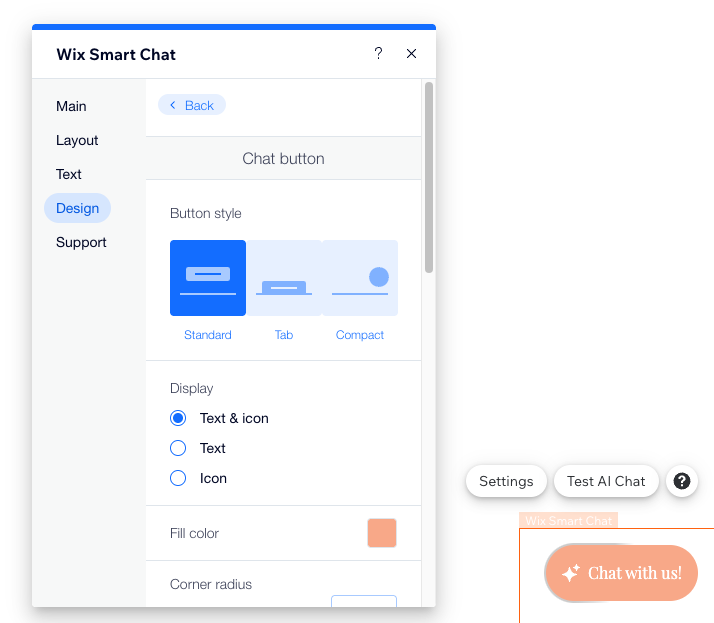
- Click the Design tab.
- Choose what you want to design:
Header
Background
Messages
Input Field
Minimized Chat