


Wix Harmony Editor: Improving Your Site’s SEO
In this article
- Setting up your business information
- Generating your SEO topics
- Optimizing your page’s SEO
- Connecting your site to search engines
- Customizing your social share settings
- FAQs
The Wix Harmony Editor has a step-by-step SEO checklist, designed to help you improve your site’s visibility and connect with your audience. With AI-powered suggestions, easy-to-follow tasks, and smart integrations, you can optimize everything from keywords to social shares, with no expert knowledge needed.
Whether you're building a brand or growing a community, these built-in SEO tools give you a clear path to success.
Setting up your business information
Begin by entering a few details about your business, like your business name, location, and services. This ensures the SEO tools recommend strategies that fit your unique needs.
To set up your business information:
- Go to your editor.
- Click your site’s name at the top left of the editor.
- Scroll down to SEO and click Go to SEO Tasks.
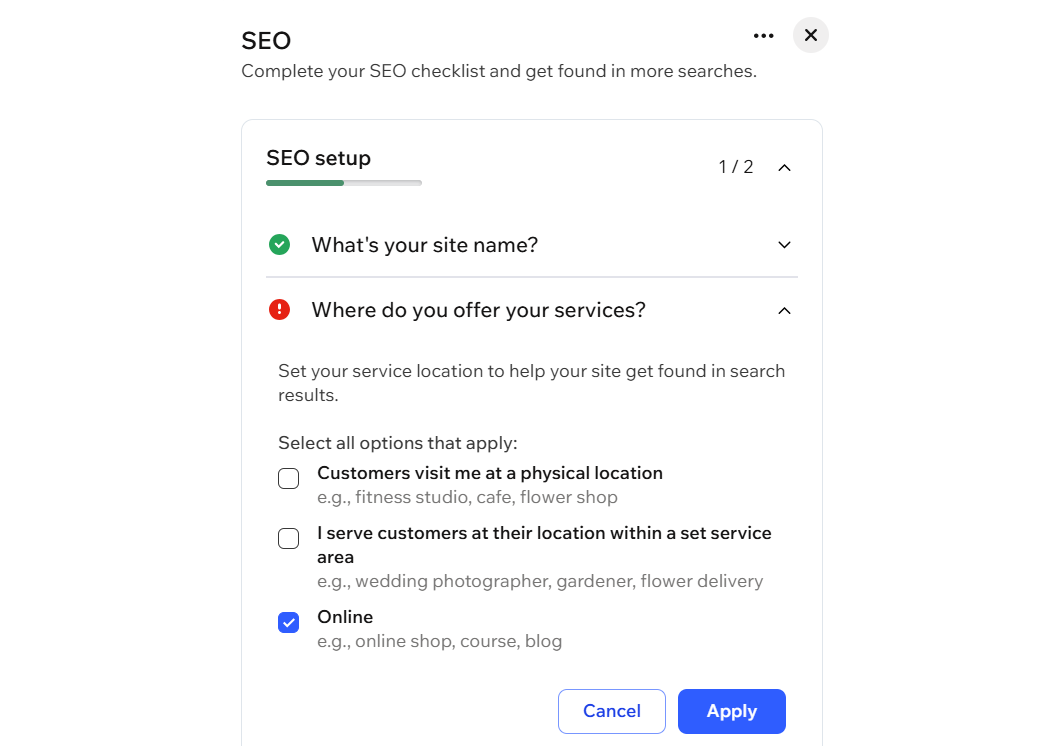
- Click SEO setup and choose what you want to set up:
- What's your site name? Enter your business name into the text field and click Apply.
Tip: Click Edit to change your site name. - Where do you offer your services? Select the checkbox next to all options that apply to your business:
- Customers visit me at a physical location: Enter your business address into the text field and click Apply.
Tip: Click + Add More to enter more than one address. - I serve customers at their location within a set service area: Enter a service area into the text field and click Apply.
Tip: Click + Add More to enter more than one area. - Online: Select if your business is online.
- Customers visit me at a physical location: Enter your business address into the text field and click Apply.
- What's your site about? Enter a short description of your site that describes what you sell, the services you offer, and who you're trying to reach.
- What's your site name? Enter your business name into the text field and click Apply.
- Click Apply.
Generating your SEO topics
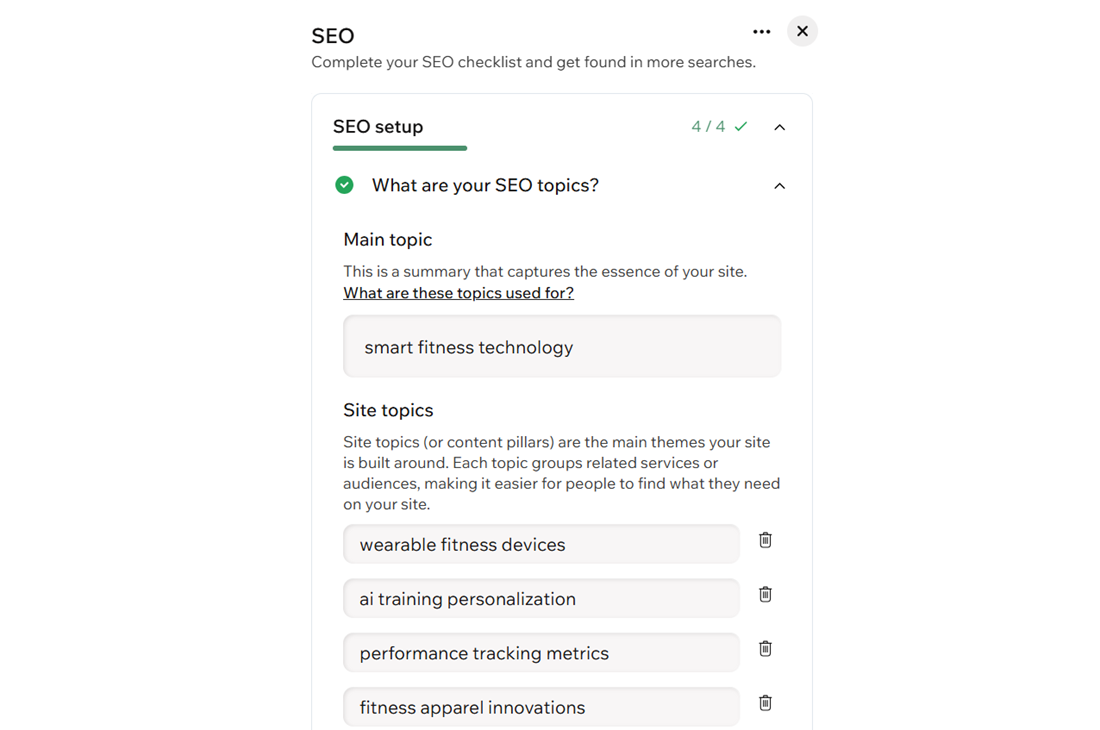
SEO topics let you set the main themes your site will be known for. These are the core categories that guide our AI-powered keyword research, and shape your content to help you reach the right audience in search results. When you identify the 3–5 topics your business covers most, you make it easier for search engines and potential customers to quickly understand what you specialize in, and to discover your most valuable content and offers.
To generate your SEO topics:
- Go to your editor.
- Click your site’s name at the top left of the editor.
- Scroll down to SEO and click Go to SEO Tasks.
- Click What are your SEO topics?
- Enter your Main topic into the text field, and allow your Site topics to generate. Tip: Click any Site topic text field and enter a new topic to edit it.
- Click Apply.
Note:
If you edit your Main topic, you will need to click
Regenerate Site Topics to generate a new list of topics.
Optimizing your page’s SEO
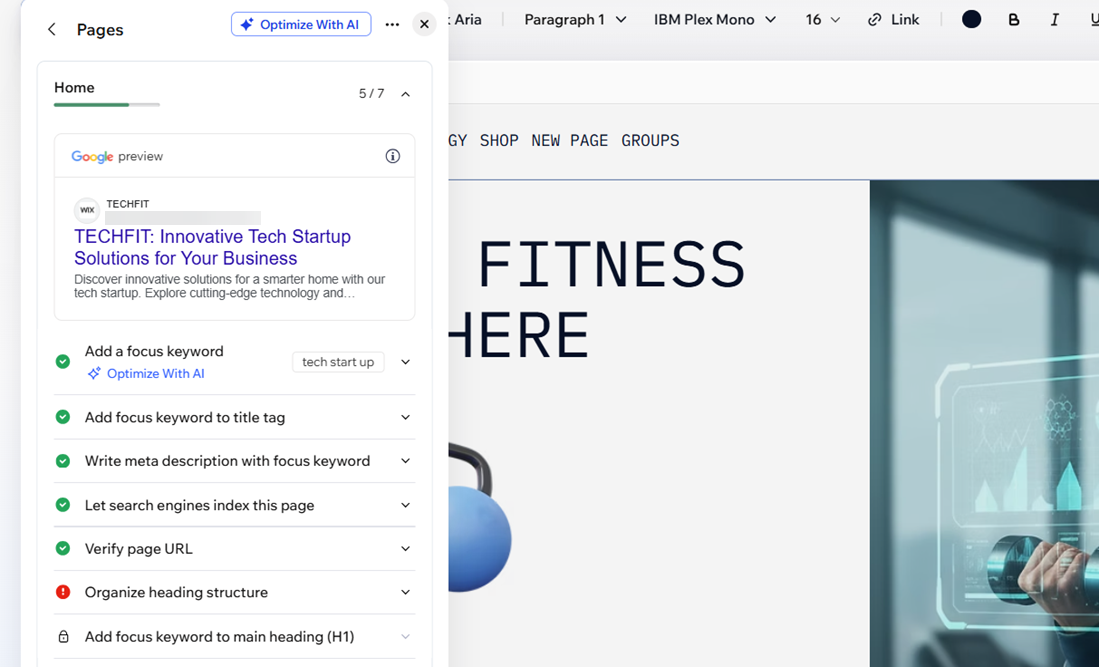
Each page in the Wix Harmony Editor comes with a set of essential SEO tasks, such as adding a focus keyword and meta description. You can choose to let AI handle these for you, or complete them manually for full control. Either way, Wix guides you step by step so your pages are optimized for better search visibility.
Tip:
Using AI is the fastest way to optimize your pages. You can always review or adjust what the AI suggests before applying changes.
To optimize your page’s SEO with AI:
- Go to your editor.
- Click the Page dropdown at the top left of the page.
- Click the More Actions icon
 next to the relevant page.
 - Hover over SEO and accessibility and click SEO.
- Click Optimize With AI.
- Click Optimize.
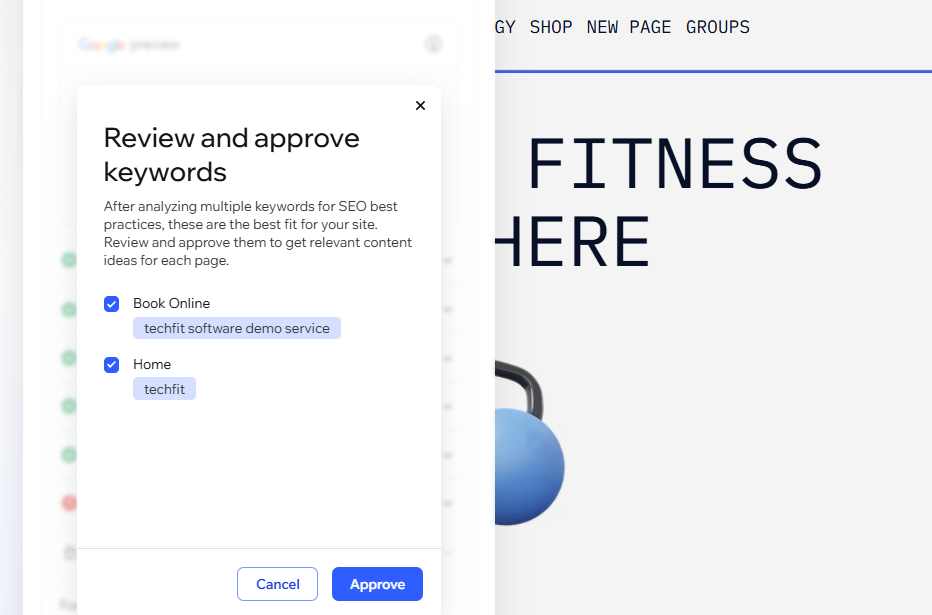
- Review the keyword and content suggestions.
- Select the checkboxes next to any items you don’t want, then click Approve to apply AI recommendations.
To manage your page's SEO manually:
- Go to your editor.
- Click the Page dropdown at the top left of the page.
- Click the More Actions icon next to the relevant page.
- Hover over SEO and accessibility and click SEO.
- Choose what you want to do:
Add a focus keyword
Set a title tag
Add a meta description
Let / prevent search engines from indexing the page
Change a page URL
Organize your heading structure
Connecting your site to search engines
Make sure people can find your site on Google and Bing by connecting directly through the
dashboard. With a few quick steps, you can verify your site so your business shows up where it matters most.
Click an option below to learn how to connect.
Google Search Console
Bing Webmaster Tools
Customizing your social share settings
Make a lasting first impression using the
Social share panel. See exactly how your pages will appear when shared on platforms like Facebook, Instagram, and X (Twitter), and fine-tune the image, title, and description for each one.
You can choose the right card size, preview your edits instantly, and follow built-in recommendations to help your content stand out and attract more clicks.
To customize your social share settings:
- Go to Search Engine Optimization (SEO) in your site's dashboard.
- Customize your page's social share settings.
FAQs
Click a question below to learn more about optimizing your site with SEO.
How long does it take for my SEO changes to appear in search results?
What if my business details change after setup?
Can I undo or change AI keyword and content suggestions?
I only want a single page to show up in search results. Can I hide others?
What happens if I change a page URL?
Can I use advanced SEO features like structured data or custom meta tags?
