


CMS: Displaying Wix Form Submissions in a Repeater, Gallery, or Table
- Step 1 | Check who can view your form's submissions
- Step 2 | Add a repeater, gallery, or table to a page
- Step 3 | Connect the element to your form's collection
- Step 4 | (Optional) Manage the dataset settings
- FAQs
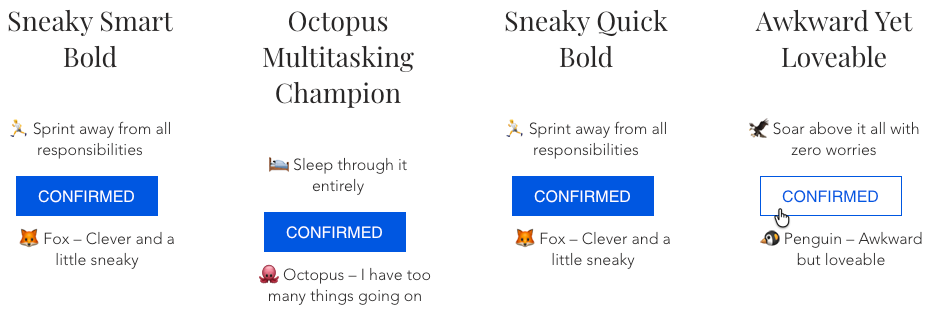
Show the submissions your forms receive on your live site. For example, display testimonials visitors send through a feedback form, or list the people who signed up for a workshop. Connect a repeater, gallery, or table to your form's collection with a dataset, then choose which submission fields appear.
- Dynamic pages: You can't create dynamic pages from Wix Form collections.
- Dynamic item pages: If you connect elements on a dynamic item page to your form's collection, the same submissions appear on every item page. They don't change to match the item the page shows.
- New Wix Forms only: You can only display submissions from forms created with the new Wix Forms.
- Add a form: Add a form made with the new Wix Forms to your site and publish your site. This creates the form's Wix Form collection.
- Add the CMS: Make sure to add the CMS to your site if you haven't already.
- Enable Wix app collections: Enable Wix app collections so you can use Wix Forms with the CMS.
Step 1 | Check who can view your form's submissions
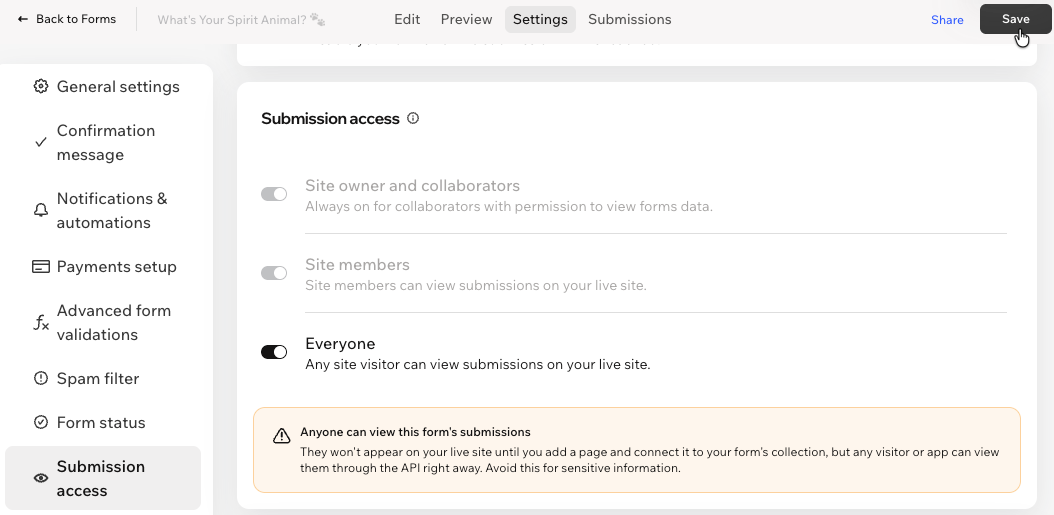
Choose who can view your form's submissions before you display them. By default, only you and your collaborators can view submissions, so visitors can't see them on your live site. Enable Everyone to show submissions to all site visitors. To show them only to logged-in site members, enable Site members instead.
When you enable Everyone, any visitor or app can view the form's submissions through the API, even before you display them on your site. Don't enable Everyone for forms that collect sensitive information. Learn more about managing access to form submissions.
To check who can view a form's submissions:
Go to Forms & Submissions in your site's dashboard.
Click the More Actions icon
 next to the relevant form.
Click Form settings.
Click Submission access on the left.
Choose who can view the form's submissions:
Site owner and collaborators: This toggle is always enabled. You and collaborators with permission to view forms data can always view submissions.
Site members: Enable the toggle to let logged-in site members view the form's submissions on your live site.
Everyone: Enable the toggle to let any site visitor view the form's submissions on your live site. This also enables the Site members toggle. Third-party apps can also access these submissions through the API, even if they aren't installed on your site.
Click Save.
Step 2 | Add a repeater, gallery, or table to a page
Go to the page where you want to show the submissions. Then add the element you want to use:
Repeater: Show each submission in its own item, with text, images, and links. Learn how to add and customize a repeater.
Pro gallery: Show images visitors upload through your form. Learn how to add and connect a pro gallery.
Table: Show submissions in rows and columns. Learn how to add and connect a table.
Step 3 | Connect the element to your form's collection
Connect the element to your form's collection with a dataset. Then choose which form fields appear in each part of the element.
Some form field types can't connect to every element. For example, you can't connect Address fields to tables.
To connect an element to your form's collection:
Go to the relevant page and click the repeater, gallery, or table.
Click the Connect to CMS icon
 .
.Click Add a Dataset. If you already have a dataset on your page, click the Choose a dataset dropdown and select Add a Dataset.
Click the Choose a collection dropdown and select your form's collection under Wix Form Collections.
(Optional) Enter a name in the Dataset name field.
Click Create.
(Repeaters only) Under Connections, click the repeater element you want to connect (e.g. text, image).
Click the relevant dropdowns and choose which form fields connect to each part of the element.
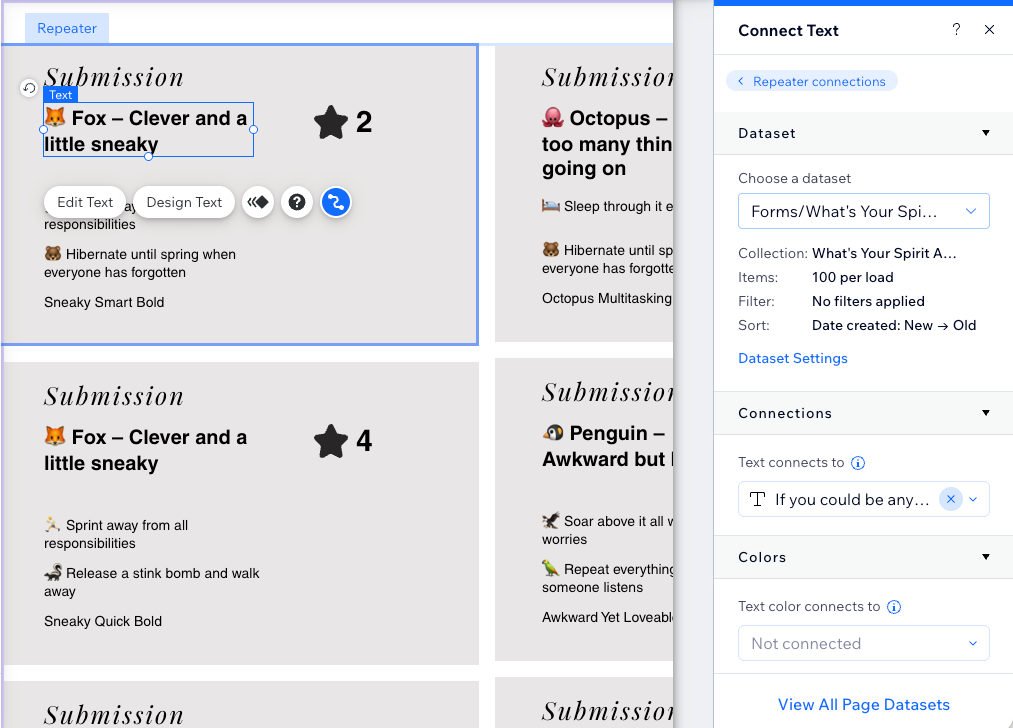
Click Preview at the top right to test your connections.
Click Publish if you are ready to make the changes go live.
Step 4 | (Optional) Manage the dataset settings
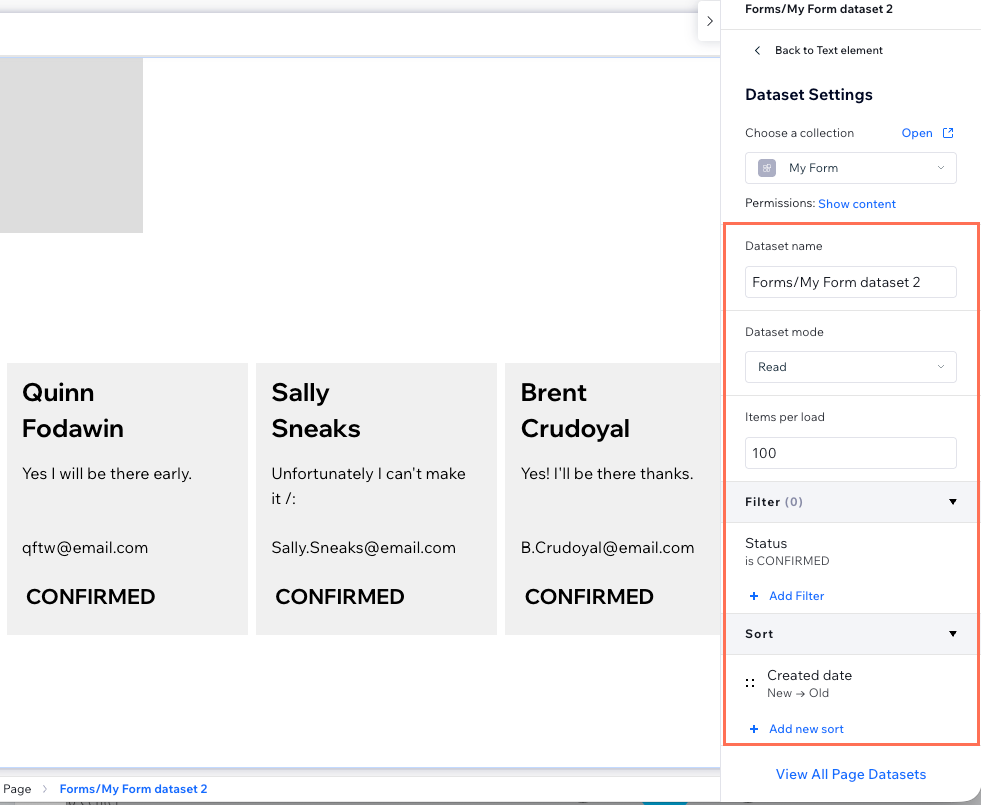
Choose how many submissions load at a time, show only specific submissions, or set the order they appear in. For example, filter by a text field named 'Status' to show only confirmed submissions.
The Items per load field doesn't apply to tables. Learn how to limit the items a table displays.
To manage the dataset settings:
Go to your editor and navigate to the relevant page.
Go to the relevant dataset settings:
Click the CMS icon
 on the left.
Click Manage Page Connections.
Click the More Actions icon
 next to the relevant dataset and select Dataset settings.
Edit the Items per load field to set the maximum number of submissions that load at a time.
(Optional) Click + Add Filter to show only specific submissions.
(Optional) Click + Add Sort to choose the order submissions appear in (e.g. newest first).
Add a 'Load More' click action or a pagination bar so visitors can see more submissions.
FAQs
Click below to learn more about displaying form submissions on your site.
