Wixel: Working with the Wixel Agent
- Accessing the Wixel Agent
- What can the Wixel Agent help me with?
- Creating custom skills
- FAQs
Bringing your creative ideas to life in Wixel is simple and intuitive with the Wixel Agent, your built-in AI design assistant. The Wixel Agent works alongside you in every project, helping you create designs, generate content, and explore new directions. With the Wixel Agent, you can move from an initial idea to a finished project faster, and enjoy a more flexible, inspiring creative process.
The Wixel Agent is powered by AI and as such may produce unexpected or inaccurate results. Always review the Wixel Agent’s suggestions or changes before finalizing your design.
Accessing the Wixel Agent
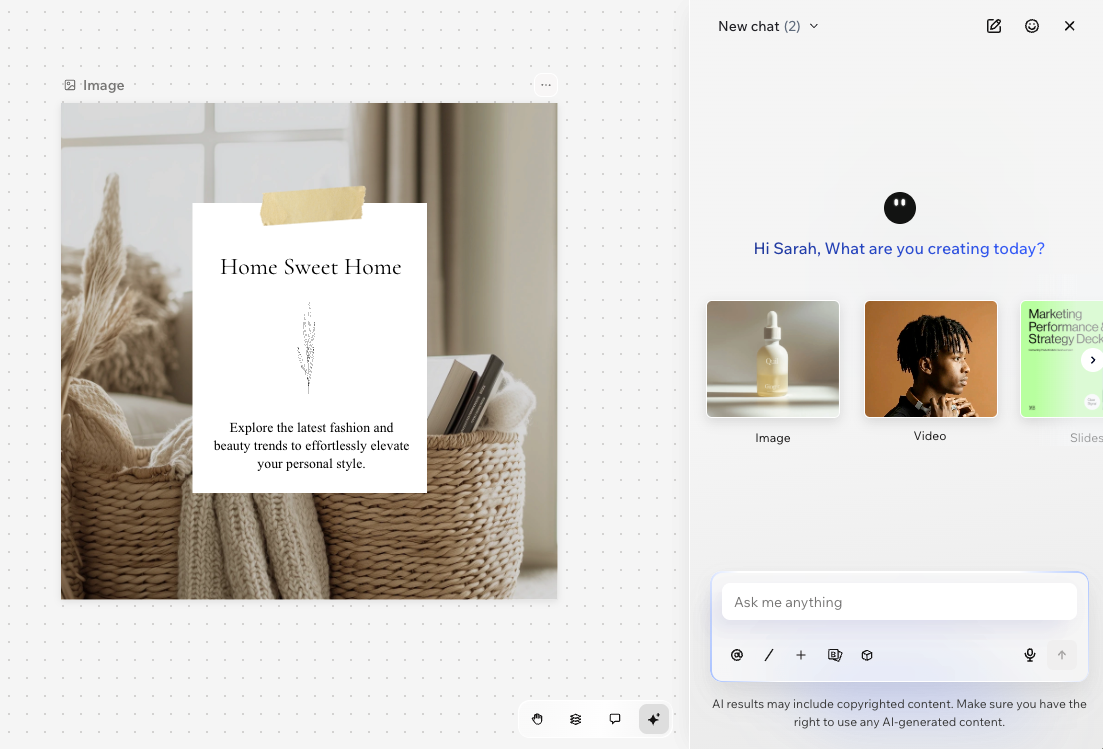
You can access the Wixel Agent in any project by clicking the agent at the bottom right of the project. Any time you want to try something new, improve your design, or have a question - open the chat and start a conversation.
When using the Wixel Agent you can:
Start a new chat: Click the New chat icon
 at the top to start a new conversation.
View chat history: Click the chats dropdown at the top to review past chats.
Tip: To delete a chat, hover over the relevant chat and click the Delete icon .
.Send a message: Type your message in the text box or click the Dictate icon
 to use a speech-to-text option.
Mention a design or element: Click a design or element to tag it in the chat, then describe what you want the Wixel Agent to edit without explaining the context.
Tip: Click the Mention icon in the chat to select a specific element within the asset.
Share files and connect apps: Click the Add icon + at the bottom to upload images and files from your computer, or to connect apps that the Wixel Agent can work with.
Choose an AI model: Click the Models icon
 to choose which AI model handles your tasks.
Tip: The Auto toggle is enabled by default to automatically select the best model for each task. To disable the toggle, select a model from the list.Connect your brand kit: Click the Brand kit icon
 to connect a brand to your project.
What can the Wixel Agent help me with?
The Wixel Agent’s capabilities cover a huge range of creative needs, so you can focus on your ideas, experiment, and achieve polished results even faster. For example, the Wixel Agent can help:
Design and edit assets: Describe your vision to the Wixel Agent and let it add, edit, and refine elements for any type of asset - logos, images, videos, documents, or PDFs.
Offer inspiration and suggest next steps: Get creative ideas on color palettes, mood, or next steps for your design.
Get answers quickly: Ask any question about your design. The Wixel Agent can explain features and provide guidance, all in the context of your current project.
Work with your other apps: Connect apps such as Google Drive, Figma, Instagram, or Pinterest, and the Wixel Agent can bring content into your project and send finished work out.
Manage your account: Chat to the Wixel Agent about upgrading your Wixel plan and adding more AI credits to keep creating without interruptions.
You always have full control of your design. Anything the Wixel Agent can do, you can also do manually.
Creating custom skills
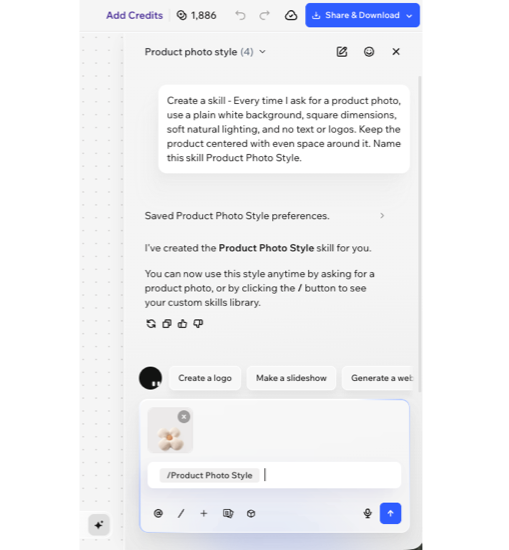
Save a set of instructions once and reuse them as a custom skill. A skill can be a prompt you use often, or a series of steps you want the Wixel Agent to follow every time - for example, your photo editing guidelines, or a set of dimensions you always want applied.
To create a skill, describe what you want it to do in the chat or click the Add icon + and select Create custom skill. Explain the steps to follow, the style to apply, or the rules to keep to. The Wixel Agent builds the skill, names it, and saves it to your custom skills library.
To use a skill, click the Skills icon  at the bottom of the chat or enter "/" and select a skill from your custom skills library.
Your skills are saved to your account, so you can use them in any chat and any project.
FAQs
Click a question below to learn more about the Wixel Agent in Wixel.