


Wixel: Creating and Customizing Slides
- Step 1 | Create your slide outline with Aria
- Step 2 | Customize your slides and design
- Step 3 | Present and export your slides
- FAQs
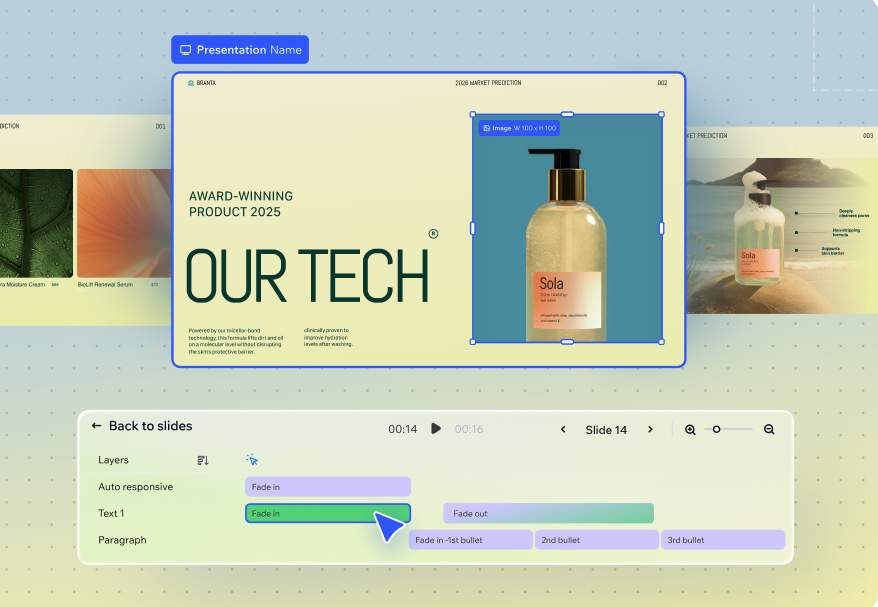
Use Wixel slides to turn a rough idea or existing file into a clear, polished presentation. Aria, your AI design agent, helps you create an outline, build slides, and match everything to your brand so you can focus on your story and your audience.
Step 1 | Create your slide outline with Aria
To create slides from your content:
Choose how to create a Slide presentation:
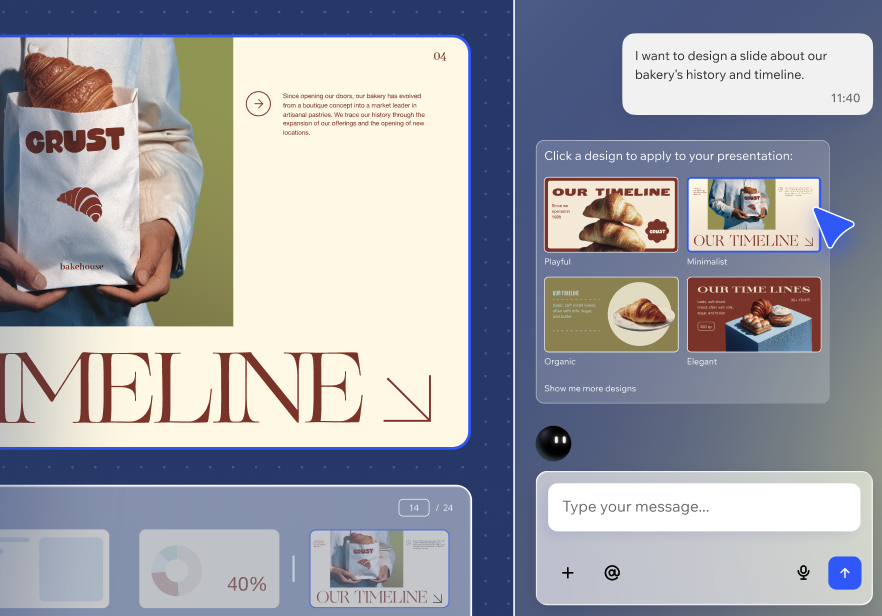
Describe with AI: Enter in the text box what you want to present and who it's for. For example, a 10-slide pitch for a new fitness app for investors or a workshop about social media basics for small business owners.
Share a file: Upload an existing file with all the information you want in the presentation so Aria can extract the key information and generate your slides.
From scratch: Scroll down and select a blank Slides template from the Blank Frames tab. In the project, you can add elements from the toolbar if you already know the structure you want.
From a template: Scroll down and select a template from the Slides tab.
Review the presentation's outline:
Audience: Enter the audience for your presentation so Aria can adjust the tone and level of detail. For example, marketing team, new clients, or students.
Length: Choose a length for the presentation (e.g. Short, Medium, Long)
Select a generation type:
Fully Customizable: Edit the elements yourself in the presentation.
Designed Slides: Get a design that's ready to go, with the option to edit text.
Customize the outline:
Click a slide to rename the title, and add or remove information from the talking points.
Tip: Click the Suggestions icon to get ideas for new slide titles and talking points.
Add new slides or sections if something is missing.
Drag sections or slides to change the order they appear in your presentation.
Click Add Image on a slide to attach an image and choose how Aria uses it:
Use as-is: Includes the image in the presentation exactly as uploaded.
Generate from this: Enter instructions to guide Aria on how to use the image.
Click Approve to confirm the outline.
Select the style you want your presentation to have.
Step 2 | Customize your slides and design
To customize your slides:
Select the relevant slide in your project.
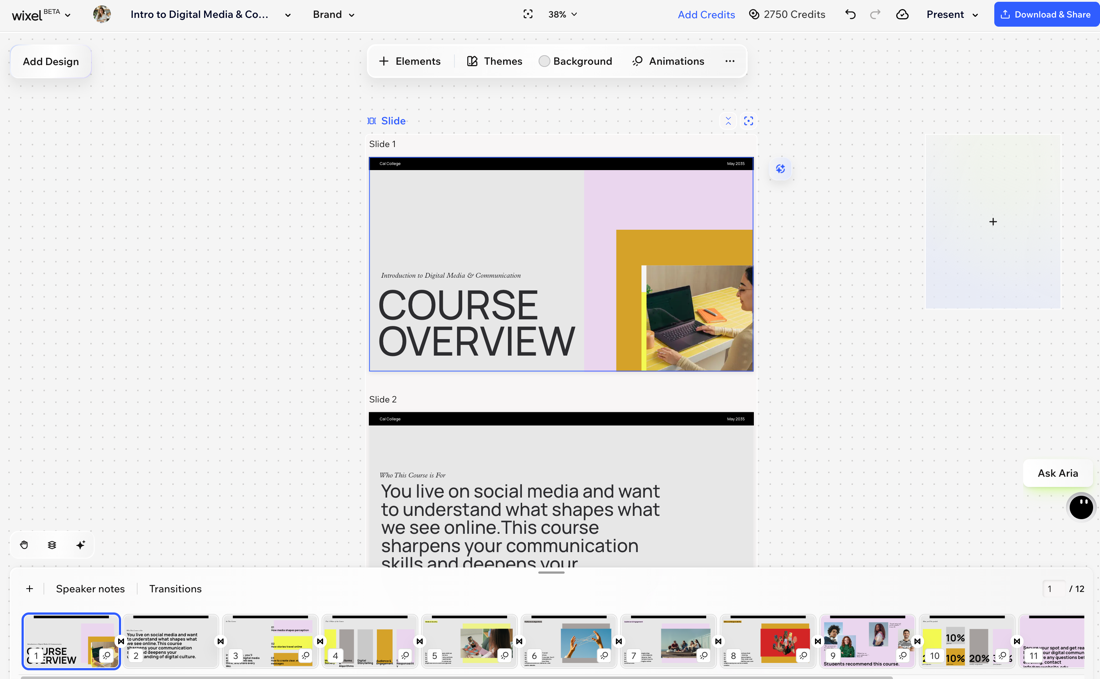
Use the action bar to customize each slide:
Background: Change the background of a slide.
Styles: Change the style of a single slide or entire presentation. You can choose from predefined styles or generate a brand new style with AI.
Animations: Add or edit animations on your slide.
Split Elements: Duplicate the generated slide to break it into individual elements that can be edited.
Use the slides panel at the bottom to organize your deck:
Drag and drop slides to change their order and adjust how your story unfolds.
Click the More Actions icon
 on a slide and choose what to do:
 Skip slide: Keep it in the presentation but skip when presenting.
Duplicate slide: Duplicate a slide to reuse and then edit the content.
Delete slide: Delete a slide you no longer need.
(Optional): Choose how to continue customizing your presentation from the slides panel:
 to add a new slide.
Add a chart to turn your data into a clear visual.
Step 3 | Present and export your slides
To present or export your slides:
Select the presentation in your project.
Choose what you want to do:
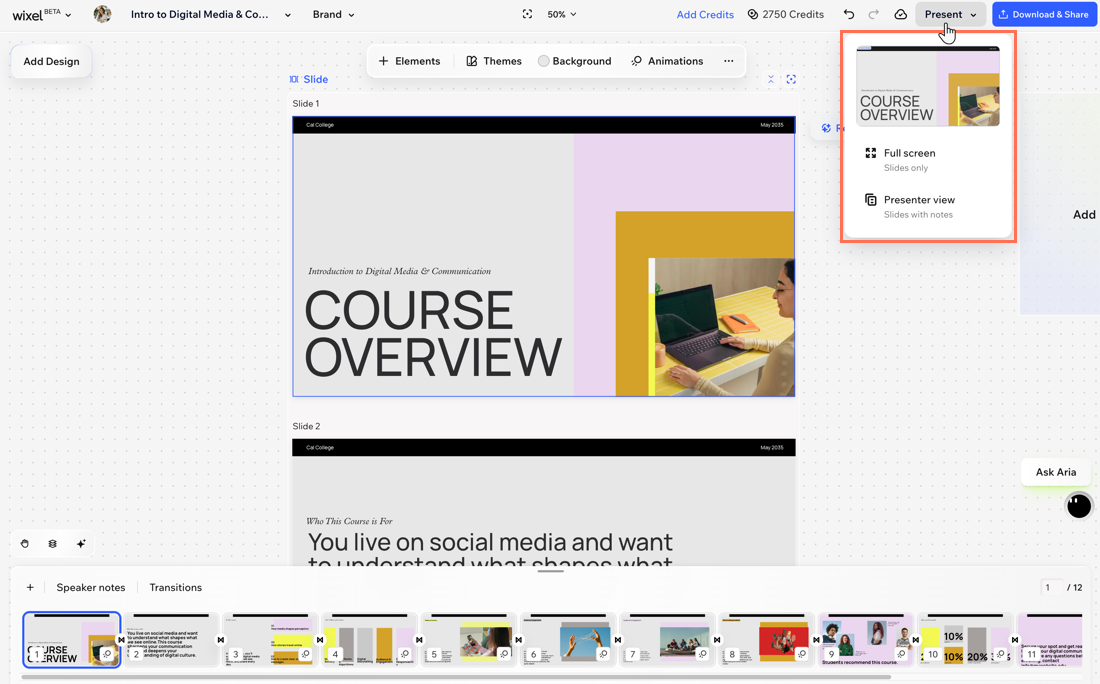
Present your slides: Click Present and choose how you want to show your Wixel project:
Full screen: Start a standard full-screen presentation view that only shows the slides.
Presenter view: Open a presenter view that shows your slides along with your speaker notes, so you can stay on track while your audience only sees the slides.
Download and share your slides: Download your slides to your device or share them online using a generated link.
FAQs
