Wixel: Working with Themes
7 min
In this article
- Choosing a theme
- Editing a theme
- Applying theme colors to designs and elements
- FAQs
This article refers to the new Wixel, released in December 2025. If you're unsure whether you’re using the new or previous Wixel, view more information here.
Themes in Wixel make it easy to keep a consistent, polished look across your designs. Instead of picking colors and fonts one by one, you can use themes to set the mood and visual style for your entire project. This lets you quickly create designs that look like they belong together, whether you’re posting online, printing flyers, or sending out invites.
Choosing a theme
Themes are the foundation for creating a unified look and feel in your Wixel project. By selecting a theme, you can instantly apply a combination of colors and fonts to your designs, bringing everything together under one visual style.
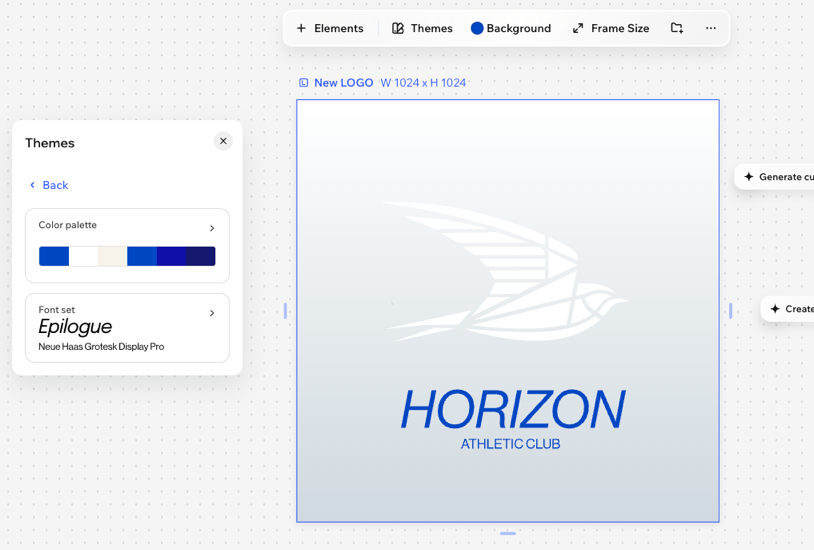
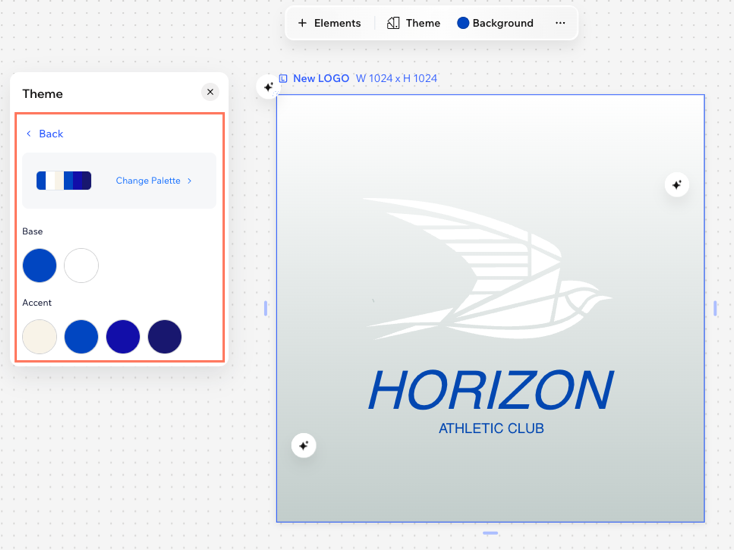
Wixel themes are made up of colors and fonts. You can individually customize each of these elements or use the theme as it is. The font theme includes a header and paragraph font. The color theme include 2 base colors and 4 accent colors:
- Base colors: The primarily colors for backgrounds and elements (e.g. text, shapes, icons).
- Accent colors: The colors for links, accents, and additional uses.
To choose a theme:
Desktop browser
Wixel app
- Go to your project in Wixel.
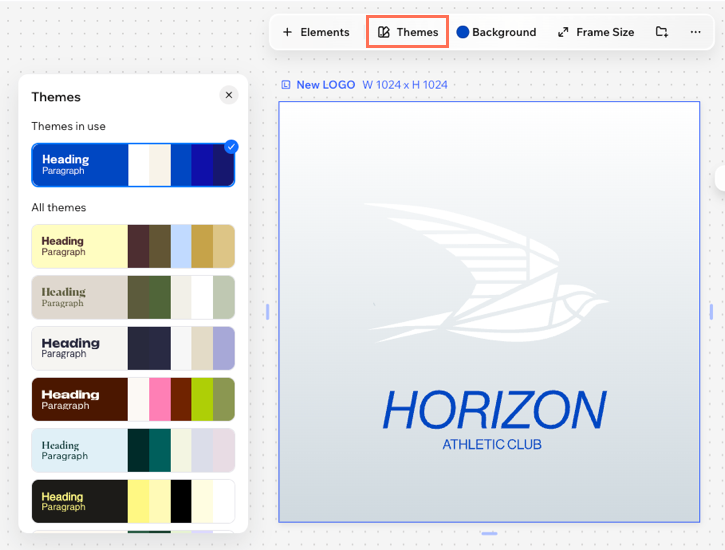
- Select a logo design in your project and click Themes on the action bar.
- Select a theme:
- Themes in use: These are themes that have already been used in this project.
- All themes: All available options for themes.
Editing a theme
Make a theme your own, showing off your unique personality and brand. Personalize your theme's colors and fonts by swapping color palettes, trying a new typeface, or tweaking individual elements.
To edit a theme:
Desktop browser
Wixel app
- Go to your project in Wixel.
- Click Theme on the action bar.
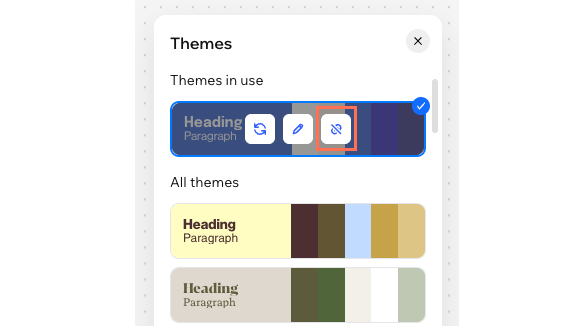
- Hover over a project theme and click the Edit theme icon
 .
. - Hover over what you want to edit and click Edit.
Colors
Fonts
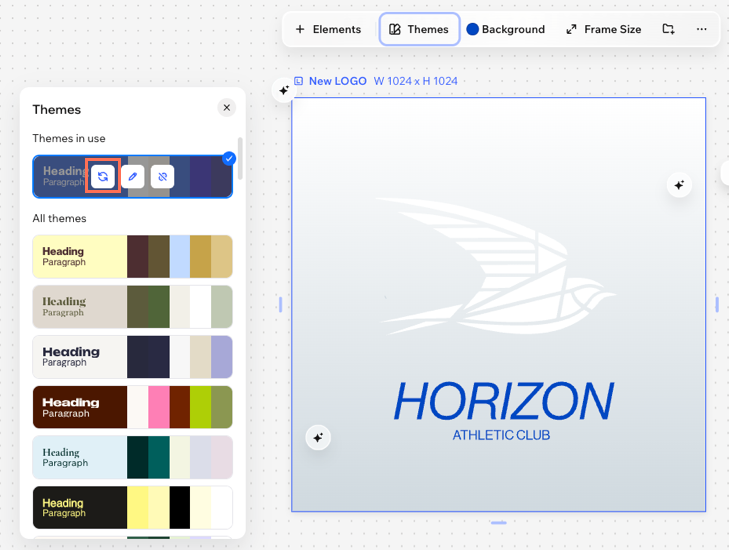
Applying theme colors to designs and elements
As your project develops and you add new elements, you can re-apply your chosen theme to instantly update everything with the same colors. This helps ensure all your content looks and feels like it belongs together.
To apply a theme:
Desktop browser
Wixel app
- Go to your project in Wixel.
- Choose how to apply a theme:
Update all elements across your project
 to update all elements in the logo.
Update individual elements
FAQs
Click a question below to learn more about themes.
Can I change a design's theme later?
If I add new elements to a design, will they automatically adopt the theme?
How can I make sure the colors across my project are accessible?
Why is my theme not applying to the whole video?
Can I remove a project theme?
 in the Themes panel.