Wixel: Exploring Your Project Workspace
- The top navigation bar
- The toolbar
- The action bar
- The bottom navigation bar
- The AI tools in your project
- Aria, your AI design agent
- AI breakdown
- Suggestion bubbles
The top navigation bar
At the top of your project, you'll find the tools that help manage your Wixel account and your projects. Click your account picture at the top left to access your account settings, subscriptions, and billing.
Click the drop-down next to your project name to rename, duplicate, or delete your project, invite people to collaborate on it, or view its version history. You can also access your media, view your social posts, create a new project, or switch to a different project. You can also rename your project by clicking on the project name and typing the new name.
Use the Gallery view  and Focus view
  to zoom in and out on a single design and clear away distractions. Next to it, use the zoom to customize how you view your designs by zooming in or out, choose a preset size, or make the screen fit your project or specific design.
At the top right of your project, you can check how many AI credits you have left to use in your current cycle and click Add Credits to buy more. You'll also find undo and redo buttons, and Share & Download to export and share your project.

The toolbar
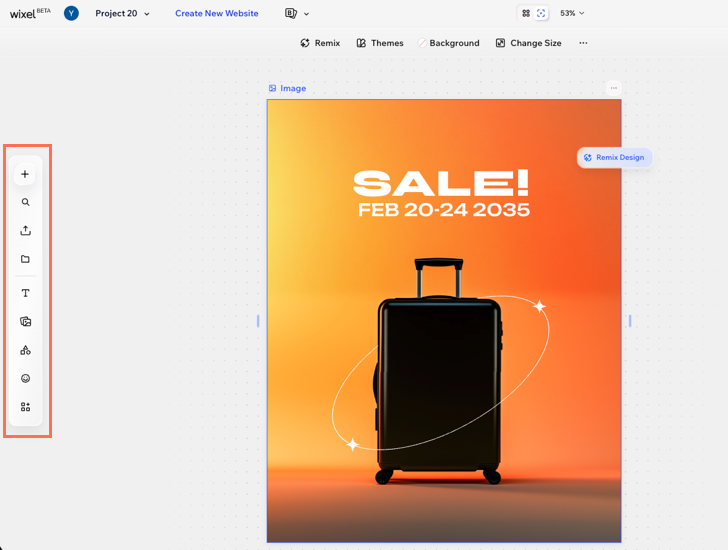
The toolbar on the left side of your project is where you add anything new. Click the Add design icon  to jumpstart any creative project. You can start with a professionally-designed template, a blank frame, or use a smart action like removing backgrounds, editing PDFs, and more.
The rest of the toolbar holds everything you can add to a design, such as media, text, and other elements. Learn more about adding and customizing elements.
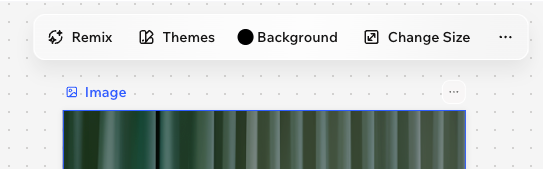
The action bar
For example, when you select an image the action bar will offer photo editing options. When you select a document, you'll get background and layout options. You add new content from the toolbar, and use the action bar to customize what's already in your design.
The bottom navigation bar
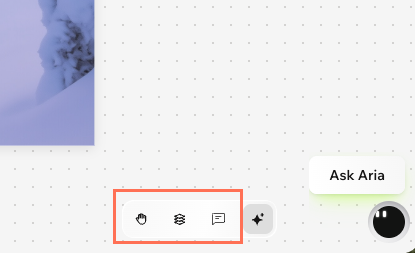
At the bottom right of the project, you'll find navigation tools to move between your designs and manage elements. Click the Hand tool  tool to reposition your view of the project without making changes to the content itself.
 to get a structured view of every element in your project, making it easy to move, select, and organize each part separately.
Click the Comments icon  to leave feedback anywhere on your project for you and your collaborators. Click a comment in the project to read it, reply to it, or mark it as resolved. Learn more about using comments.
The AI tools in your project
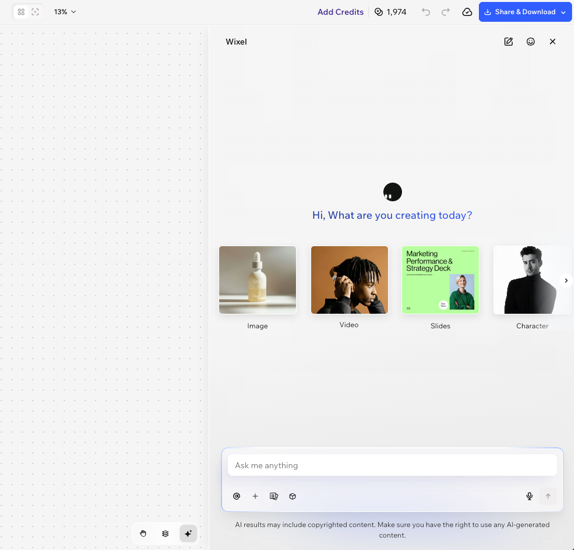
Aria, your AI design agent
On the right side of your project you'll find the chat window for Aria, Wixel's AI design agent. Aria is your creative partner for creating and editing designs. You can brainstorm, create, and make changes to any design in your project - logos, images, videos, documents, PDFs, and more - directly from the chat.
The chat opens automatically when you open a project. You can close it any time by clicking the X on the window. Learn more about working with Aria.
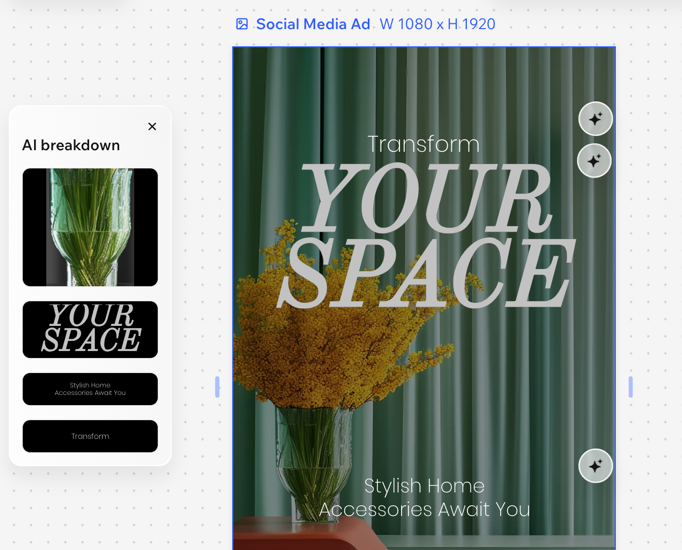
AI breakdown
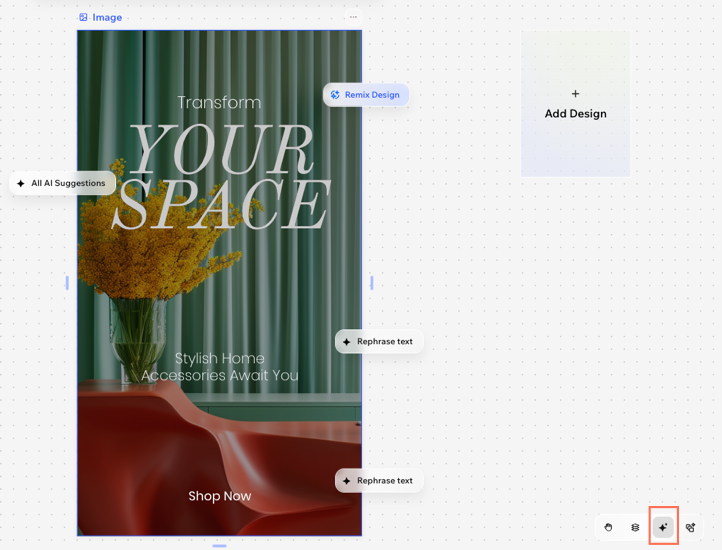
Select a design, then click the AI breakdown icon  at the bottom left of your project to open the panel, and select an item to work on it. For example, you can regenerate or remove an object in an image or rewrite text and apply a different text style.
Suggestion bubbles
 at the bottom of your project.