Wixel: Adding and Customizing Elements
- Adding an element
- Selecting colors
- Customizing text
- Customizing vector art
Add elements from the side panel on the left of your project, and customize them using the action bar. You can insert images, text, graphics, shapes, and more, giving you the creative freedom to shape each design exactly how you want.
Adding an element
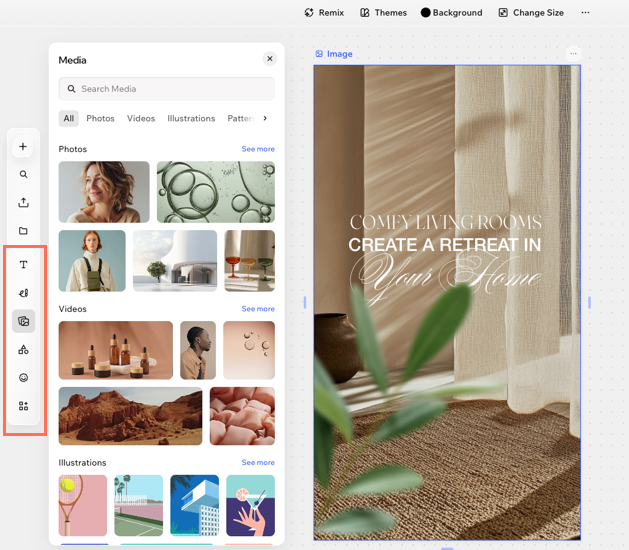
Add new content to your project from the side panel. Each icon opens its own panel — text, media, shapes, and graphics — and every panel has its own search field and category tabs so you can find exactly what you need.
Some design types offer unique elements. You may not be able to add decorative elements to every type of design, so the options you see can vary depending on what you’re working on.
To add an element:
Click the relevant design.
On the side panel, click the type of element you want to add:
Add text
 : Add a text box directly to your design. Select preset styles to save time or customize your own.
Draw
 : Draw freehand on your design with a pen or highlighter. Pick a color, then adjust the Weight and Transparency of your strokes. To remove something you've drawn, switch to the eraser.
Media
 : Add photos, videos, illustrations, patterns, and cutouts.
Shapes
 : Use geometric shapes, arrows, and frames for a creative touch.
Graphics
 : Add vector art and stickers.
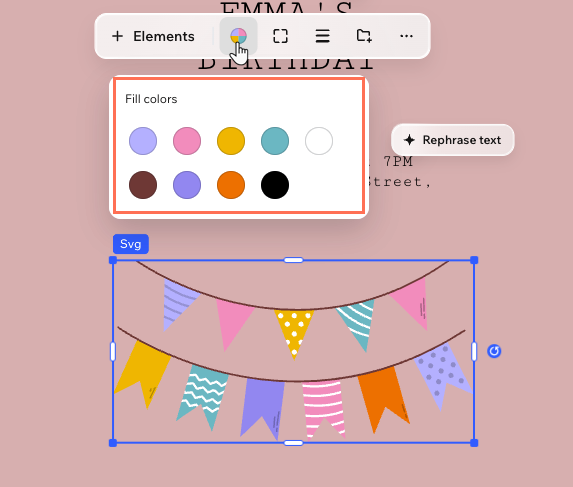
Tip: Customize the vector art colors to match your design's look.Elements
 : Add additional elements such as preset text, page numbers and charts.
Click an element to add it to the design.
(Optional) Use the resizing handles and customization tools on the action bar to adjust the element’s size, color, position, and more.
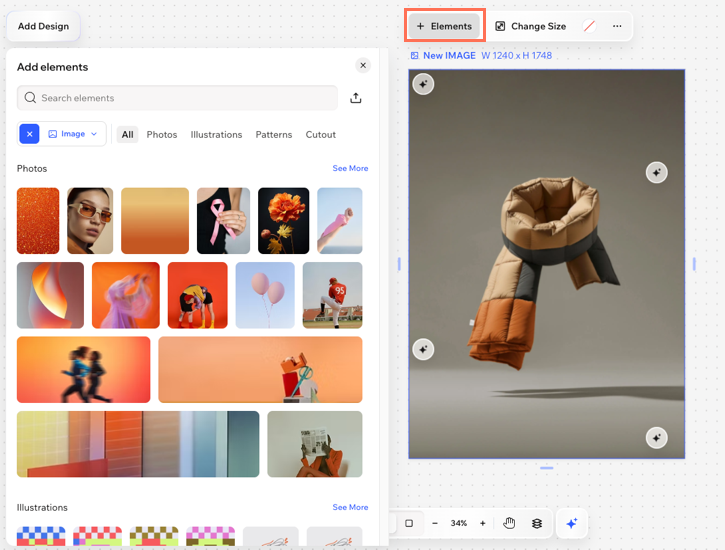
Upload your own media by clicking the Upload icon  on the side panel. You'll find the uploaded images in your Project Files.
Selecting colors
To select a color:
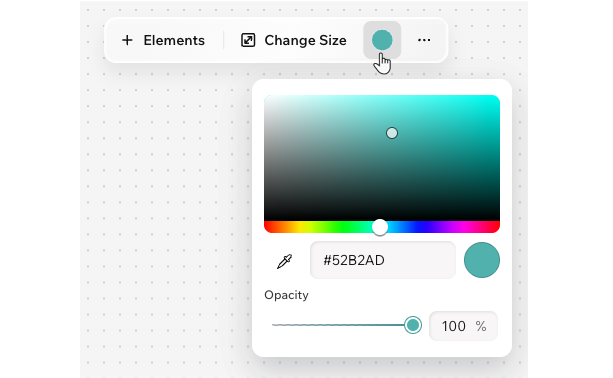
Click the Fill Color icon on the action bar.
Move the dot on the color scheme or enter the color's hex code (e.g. #000000 for black).
(Optional) Drag the slider to adjust the color's opacity.
Customizing text
To customize text:
Select the text element in your design.
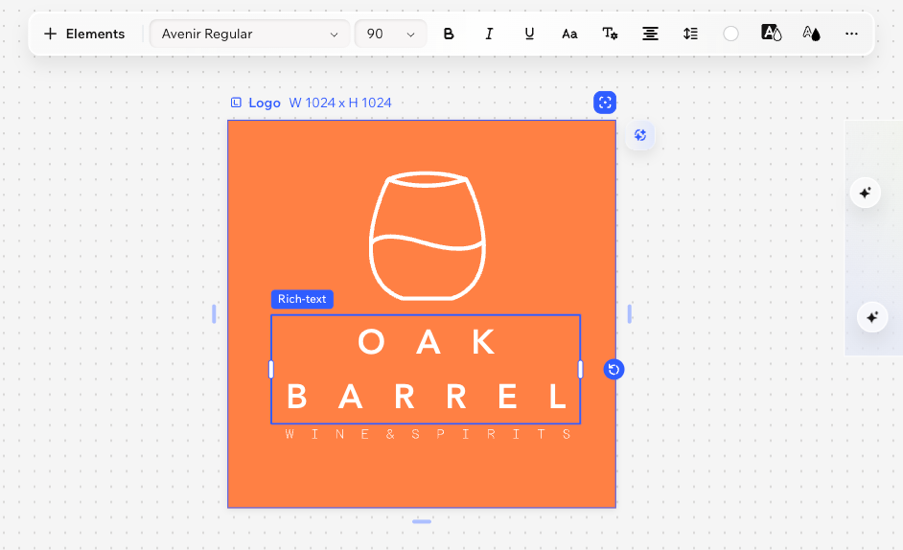
Use the available options on the action bar to customize your text:
Font: Choose the font style.
Font size: Choose the font size.
Bold, Italic, Underline: Make your text stand out with formatting options. Click the Bold icon
 , Italics icon
  , and/or Underline icon
  .
.Uppercase: Convert your text to all capital letters.
More settings: Choose a list style (e.g. Numbered list, Bulleted list) and increase or decrease the indent.
Alignment: Choose how your text lines up.
Line spacing: Adjust the spacing between lines and letters to make your text easier to read and give it a more open, spacious feel.
Fill color: Pick any color for your text using the color picker or select a theme color.
Highlight Color: Make your text pop by highlighting it with a background color.
Border: Add a border to make it stand out.
Shadow: Add a subtle or dramatic shadow effect to give your text depth.
Customizing vector art
You can find vector art options under the Graphics tab on the side panel.
To customize vector art:
Click the relevant vector art in your design.
Choose how to customize the vector art:
 on the action bar.
 to design each corner separately.
  on the action bar.