


Wixel: Creating and Editing Images
- Creating an image
- Adding an image to your design
- Editing an image
- FAQs
Unlock your creative potential with Wixel’s intuitive image tools. Whether you’re building graphics for your website, social channels, or digital campaigns, Wixel gives you all the options you need to craft standout visuals.
Actions that involve generating and editing an image with AI use AI credits.
Creating an image
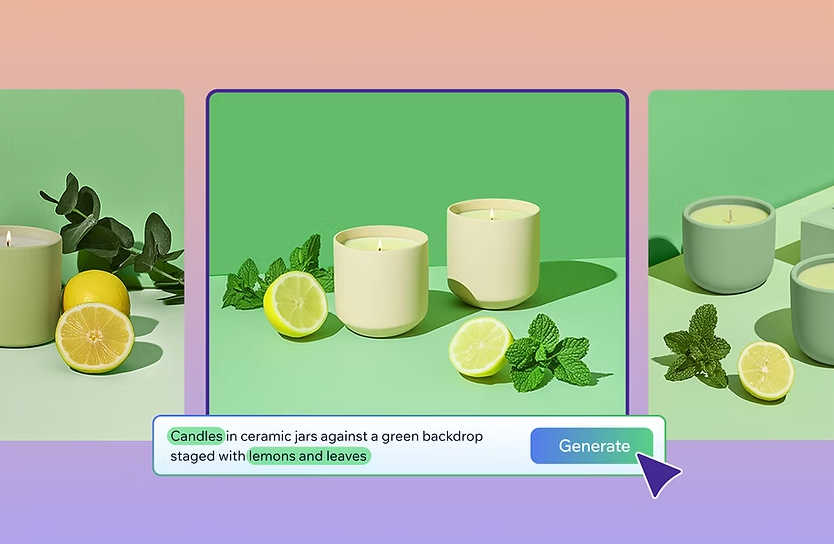
Create unique, high-quality AI-generated images. Describe your idea, define your style, and let Aria bring your vision to life.
To create an image:
Choose how to generate the image you want in the text box:
Describe what you want to create: Enter a description like "Create an image of a puppy". You can also specify the style or mood of the image.
Add a reference image: Click the Add icon
 in the text box to upload an image, then describe what you want to create with it.
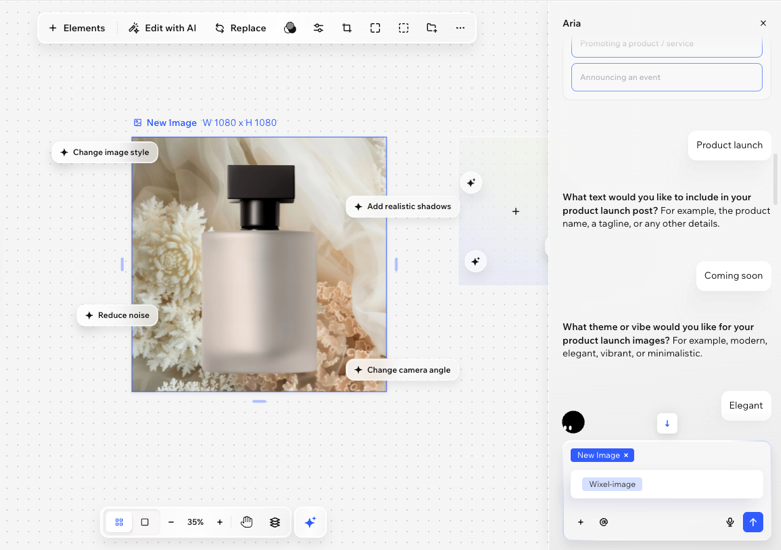
Promote your business on social media: Create posts for a product launch, a service, or event. Name the type of post you want (e.g. "Create an Instagram story") and you'll automatically get the right size for that platform.
Tip: Add a link to your site or business page to get a post that matches your logo, fonts, and colors.
Click the Generate icon
 .
.Once the image is generated, choose what you want to do:
Preview the image: Click the Preview icon
 to open each image and view it larger.
Download an image: Hover over the relevant image and click the Download icon
 to save it to your device.
Edit an image: Hover over the relevant image and click Select. This will add the image to the project so you can continue modifying it.
You can always scroll back up in your history with Aria to download or add other images to your project.
Adding an image to your design
To add an image:
Click the relevant design.
Choose how to add an image:
Upload your own image: Click the Upload icon
 on the toolbar to upload an image from your computer.
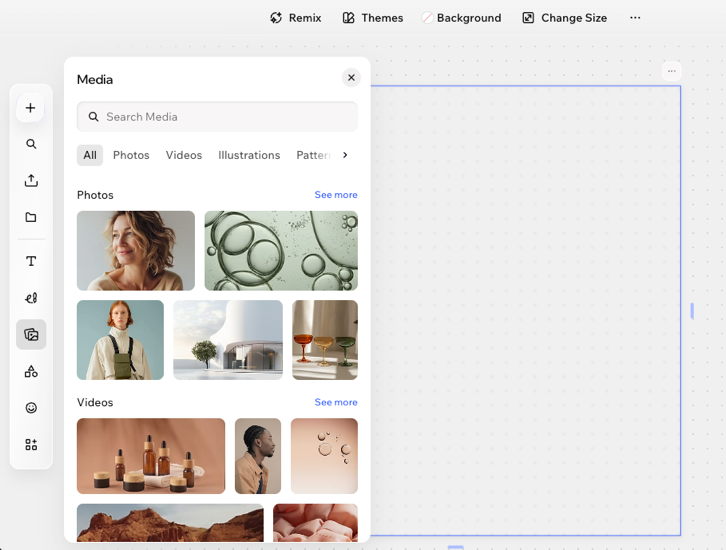
Browse Wixel's public media: Click the Media icon
 on the toolbar to select an image.
Editing an image
To edit an image:
Click the relevant image in your project.
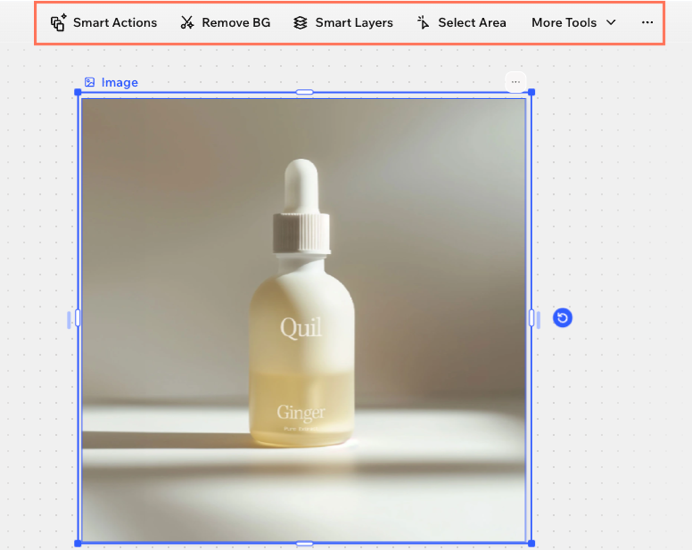
Choose from the available editing options on the action bar:
 : Click an object in the image to automatically select it.
 : Click and drag to draw a rectangle over the area you want to edit.
 : Manually brush over the area you want to edit.
 or Select less icon
  to refine your selection.
 to add an image from your device or from the Wixel Media Manager.
 at the top corner of the image to compare the 'before' and 'after'.
 to design each corner separately.
 on the action bar and click
Save to add the edited image to your media.
on the action bar and click
Save to add the edited image to your media.
FAQs
 .
. on the action bar.
 at the top of the project to revert recent changes. Alternatively, press
Ctrl + Z (Windows) or
Cmd + Z (Mac) on your keyboard.
at the top of the project to revert recent changes. Alternatively, press
Ctrl + Z (Windows) or
Cmd + Z (Mac) on your keyboard.
 on your action bar. When you want to use it for other parts of your project or to access it in the future, click
+ Elements on the action bar and find it under
My Media.
on your action bar. When you want to use it for other parts of your project or to access it in the future, click
+ Elements on the action bar and find it under
My Media.
 (on the Wixel mobile app) at the top of your project. Choose your desired file type, quality, and size, then click or tap
Download.
(on the Wixel mobile app) at the top of your project. Choose your desired file type, quality, and size, then click or tap
Download.
