header-logo
Getting started with WixLearn how to build your website and business using Wix.
Creating a websiteDesign and manage your site with smart functionalities.
Account & billingManage subscriptions, plans and invoices.
Using the Wix mobile appsRun your business and connect with members.
Connecting a domainLearn to purchase, connect or transfer a domain to your site.
Managing your businessGet tools to grow your business and web presence.
Promoting your siteBoost your visibility with SEO and marketing tools.
Studio, Partners & EnterpriseGet advanced features to help you work more efficiently.
Need more help?Find solutions, learn about known issues or contact us.
placeholder-preview-image
Wix LearnImprove your skills with our courses and tutorials.
Wix BlogGet tips for web design, marketing and more.
SEO Learning HubLearn to increase organic site traffic from search engines.
Website developmentBuild a custom site using our full-stack platform.
Hire a ProfessionalGet matched with a specialist to help you reach your goals.
placeholder-preview-image
In this article
  • Previewing your project
  • Downloading your project
  • Sharing your project
  • FAQs

Wixel: Previewing, Downloading, and Sharing Your Project

6 min
In this article
  • Previewing your project
  • Downloading your project
  • Sharing your project
  • FAQs
This article refers to the new Wixel, released in December 2025. If you're unsure whether you’re using the new or previous Wixel, view more information here.
Before sending your work out into the world, you can check exactly how it looks on desktop and mobile, make changes, and choose the perfect way to distribute your finished designs. Wixel makes it easy to download your designs in the right format or share them online with a link, so you can decide how your work is seen.
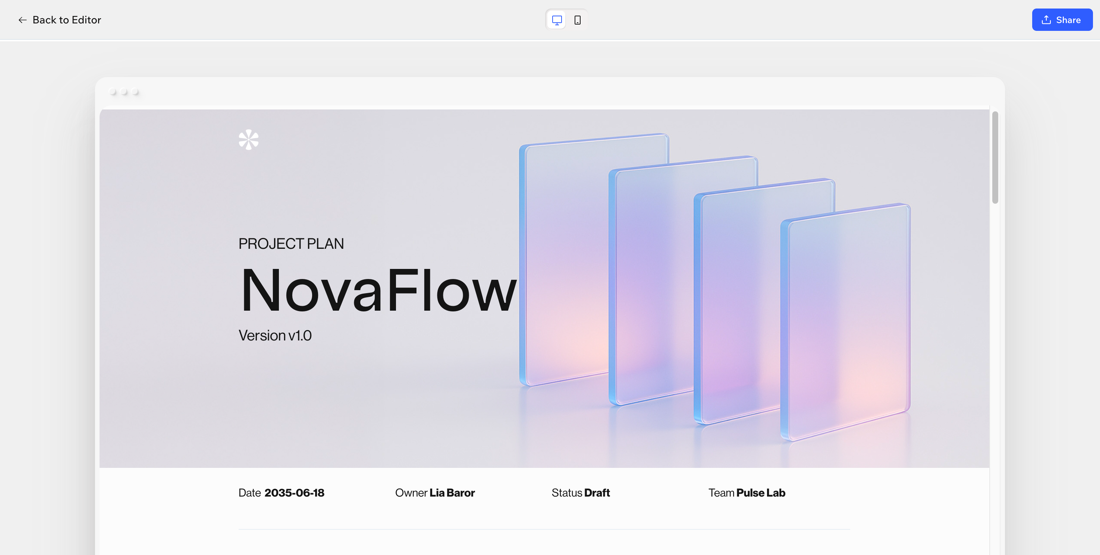
A screenshot of previewing a document on Wixel.

Previewing your project

Preview your project to see exactly how it appears before you share it. You can use it to test a flow in a form, review video playback, or check your document’s layout.
Make sure to check both desktop and mobile versions, so you can catch any formatting issues and ensure everything looks and works as expected.
Note:
Preview is available for docs, videos, forms, and RSVP pages.

To preview your project:

  1. Go to your project in Wixel.
  2. Select the relevant design.
  3. Click Preview at the top right.
  4. (Optional) Switch between desktop and mobile view to check both versions.

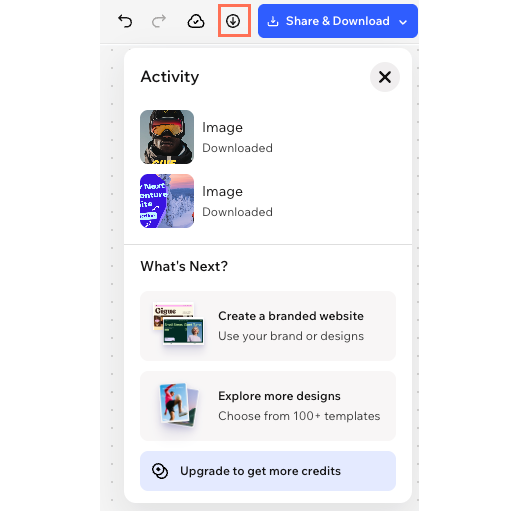
A screenshot of the Preview button highlighted in Wixel.
What's next?
Continue editing your project, download or share your project.

Downloading your project

You can download any design from your project in just a few clicks. Choose the file type and quality you need, then save it directly to your device.
Note:
  • It is not possible to download RSVP pages or forms.
  • The available settings depend on the type of design you are downloading.

To download your project:

  1. Go to your project in Wixel.
  2. Select the relevant design in your project.
  3. Click Share & Download at the top right.
  4. Click Download.
  5. Customize your download settings. For example, choose a file type and desired size.
  6. Click Download to save the file to your device.
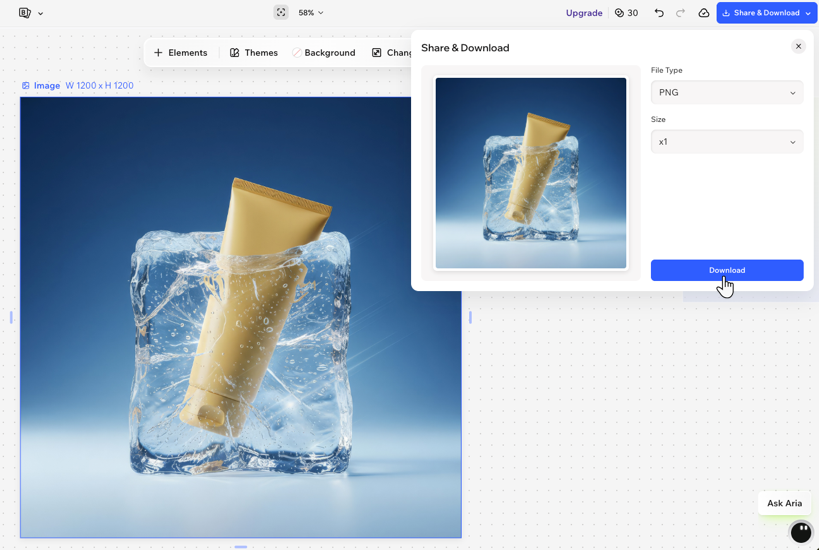
A screenshot of downloading an image in Wixel.

Sharing your project

Share your finished designs with family and friends, colleagues, or clients. When you're ready to share a design, such as a document, form, or RSVP page, you get a URL that you can send around.
When you share your design, you’ll see a status badge above the link:
  • Up-to-date: Your link has the most up-to-date version of your design. It’s live, and anyone with the link will see your latest changes.
  • Changes to update: You’ve made edits to your design that aren’t live yet. To update the link and share the latest version, click or tap Update Changes in the Share panel.
Tip:
Anyone with the design's link can view your design. To share only with specific people, send the link directly and avoid posting it publicly.

To share your project:

  1. Go to your project in Wixel.
  2. Select the relevant design in your project.
  3. Click Share & Download at the top right.
  4. Click Create Shareable Link.
    Note: The link will be live once the link is created.
  5. (Optional) Click Copy Link to add the URL to your clipboard for easy sharing.
Note:
To remove access to your design, click the Delete link icon  next to the URL and click Delete to confirm.
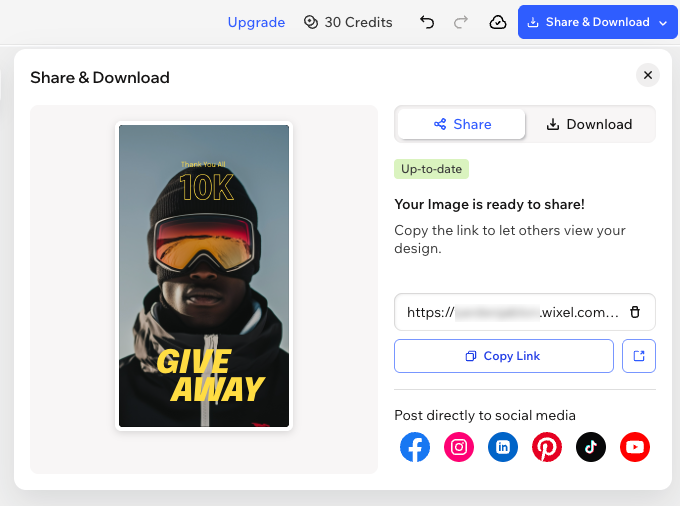
A screenshot of the Share window in Wixel.

FAQs

Click a question below to learn more about downloading your project.

Helpmate

Hello

Need a bit more guidance?
Summary of this article
Related articles
Wixel: Creating a Project From Start to Finish

Wixel: Managing Your Projects

Wixel: Exploring Your Project Workspace
Unlock personalized helpLog in to get the most out of Helpmate.