


Wixel: Working with Brands
- Generating a brand
- Customizing a brand
- Connecting a brand to a project
- Managing your brand
- FAQs
Generate a brand in Wixel to give your business a consistent look across your designs. A brand is a set of styles and designs that match your business, and you can connect it to a project to speed up your design work.
When you generate a brand, you can customize it to fit your needs, and connect or disconnect them from the relevant projects.
- Aria is powered by AI and as such may produce unexpected or inaccurate results. Always review Aria’s suggestions or changes before finalizing your design.
- Generating and editing branded assets with Aria uses AI credits.
Generating a brand
Generate a brand to begin creating a new aesthetic for your projects. Aria uses the information you give her to create everything you need for cohesive, personalized branding across projects.
To generate a brand:
Click the Brand icon
 in the chat.
Click Create and Connect New Brand.
In the chat, select how you want to build your brand:
Start from scratch: Share your brand's name and a business description.
From my website: Provide a website URL and have Aria scan it to retrieve your brand details.
From a logo: Create or upload a logo, and generate a brand from it.
From images: Upload images and generate a brand from them.
From a document: Upload a document and generate a brand from its information.
Follow the prompts in the chat to complete your brand profile:
 in the chat.
Click Skip in the chat if you'd rather not answer a question. You can always add the missing details later from the brand panel.
Customizing a brand
Customize your brand to keep the look and feel fresh. You can change the theme and logo, and update details about the brand and style.
To customize your brand:
Click the Brand icon
in the chat to open the brand panel.Choose what to customize:
Brand overview / Tone of voice / Target audience / Visual style: Click Edit to update the text in the text box, then click the check mark to save.
Logo: Hover over the logo and click Remove to delete it, or click the Download icon
 to save a copy. If there's no logo, upload your own or ask Aria to create one in the chat.
Theme: Hover over the theme and click Edit Theme. Select a theme in the Brand themes panel to change the colors and fonts used in your brand.
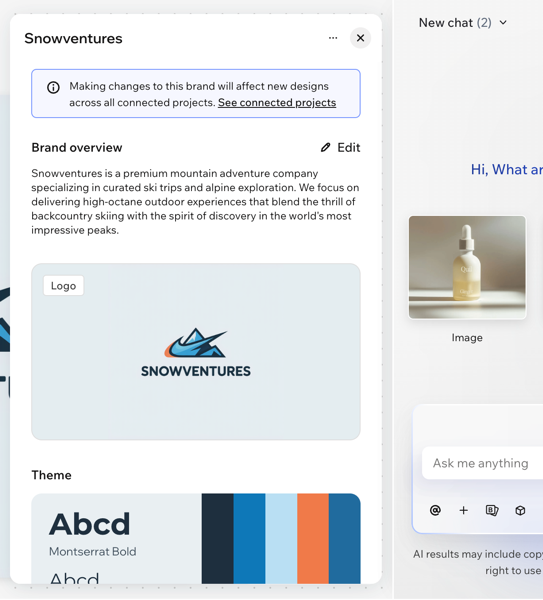
Changes you make to a brand affect new designs across all of the projects it's connected to. Click the More Actions icon  and click See connected projects to check which projects use this brand.
Connecting a brand to a project
Connect brands to projects to quickly create a coherent style across designs. Connecting a brand to a project means that all future assets are automatically branded.
To connect a brand to a project:
Click the Brand icon
in the chat. Select the brand you want from the list.
The brand tag in your chat shows that assets are generated with this brand. It's on by default, but you can click it to turn it off when you want to generate an asset separate from your brand guidelines.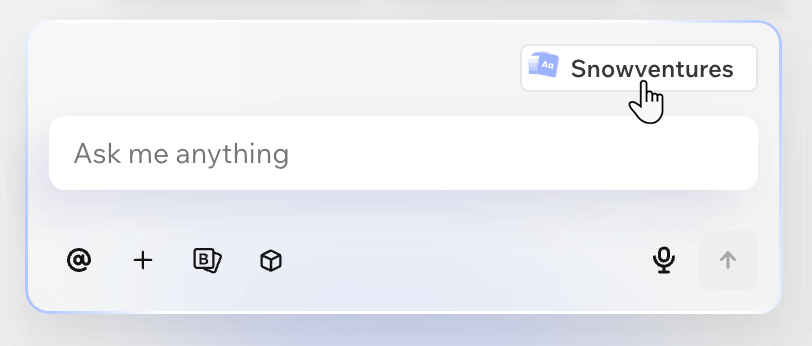
Managing your brand
Manage your brands to keep everything connected and up to date. You can rename your brands, see every project that uses a brand, and disconnect brands you no longer need.
To manage your brand:
Click the Brand icon
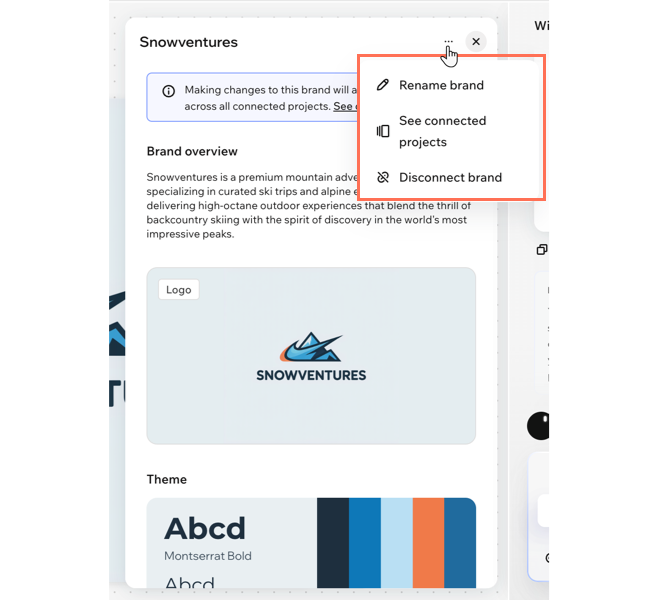
in the chat to open the brand panel.Click the More Actions icon
at the top of the panel and choose how you want to manage your brand:Rename your brand: Click Rename brand and enter a new name into the field.
View connected projects: Click See connected projects to view every project that currently uses this brand.
Disconnect the brand: Click Disconnect brand to remove it from the project.
Note: Disconnecting a brand doesn't change assets you already created. It only stops new assets in this project from being based on the brand.
FAQs
Click a question to learn more about working with brands.
