Wixel: Connecting Your Apps and Social Accounts
- Connecting your apps
- Disconnecting your apps
- Connecting your social media accounts
- Disconnecting your social media accounts
Connect your apps and social media accounts to Wixel to get more out of your projects. Connect an app so the Wixel Agent can work with your content during a task, or connect a social media account so you can publish designs to it yourself.
Connecting your apps
Connect an app so the Wixel Agent can work with content that lives outside Wixel. Connected apps work in both directions: the Wixel Agent can bring content into your project and send finished work out.
For example, ask the Wixel Agent to pull your latest Instagram posts into a collage and upload the result to a new Pinterest board, or to save a finished design straight to a Google Drive folder.
App connections are separate from social media accounts. Connecting Instagram as an app does not connect it for publishing from the Share & Download window, and vice versa.
To connect an app:
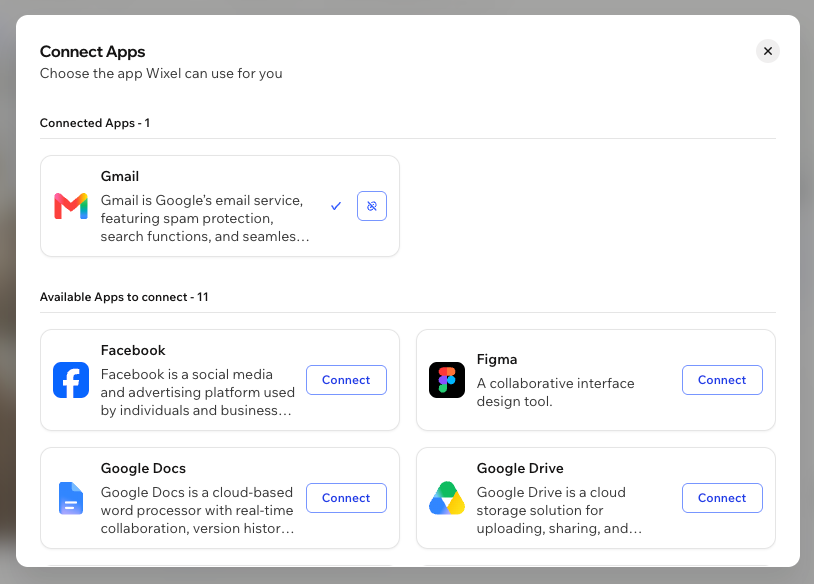
Choose how you want to connect:
During a task: Ask the Wixel Agent to do something that needs the app or send "Connect [name of app]".
Ahead of time: Click the Add icon + at the bottom of the chat, then click Connect apps.
Click Connect and follow the on-screen instructions to log in and authorize the app.
Disconnecting your apps
Disconnect an app at any time. The Wixel Agent stops being able to reach that app's content straight away, and anything you already brought into your project stays where it is.
To disconnect an app:
Click the Add icon + at the bottom of the chat.
Click Disconnect next to the relevant app.
Tip: You can also send the Wixel Agent "Disconnect [name of app]".
Connecting your social media accounts
These accounts are for publishing a design yourself from the Share & Download window. To let the Wixel Agent work with an app during a task, connect it as an app instead.
Social media accounts are connected per project, not per account.
To connect your social media accounts:
Select a relevant design in your project.
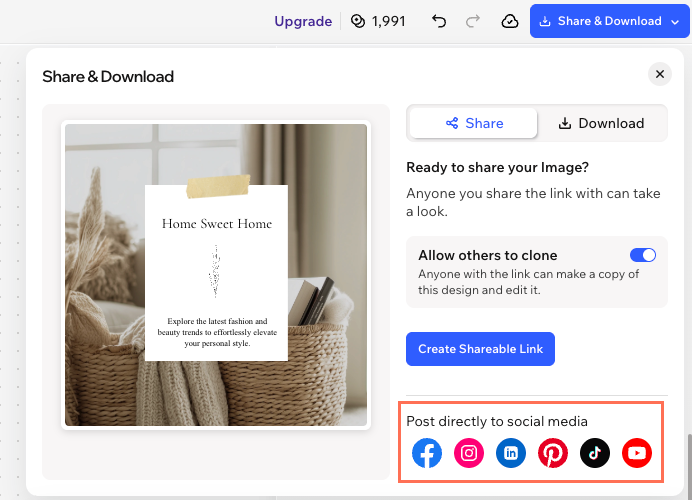
Click Share & Download at the top right.
Click a social media platform icon (e.g. Instagram or TikTok).
Connect the relevant platform:
Disconnecting your social media accounts
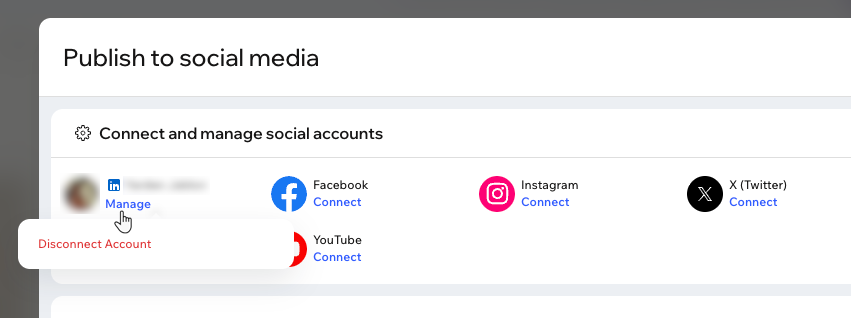
To disconnect your social media accounts:
Select a relevant design in your project.
Click a social media platform icon (e.g. Instagram, YouTube).
Click Manage under the social media account you want to disconnect.
Click Disconnect Account.