


Wixel: Creating a Video with AI
- Creating a video
- Editing your video
- Changing ingredients in your video
- FAQs
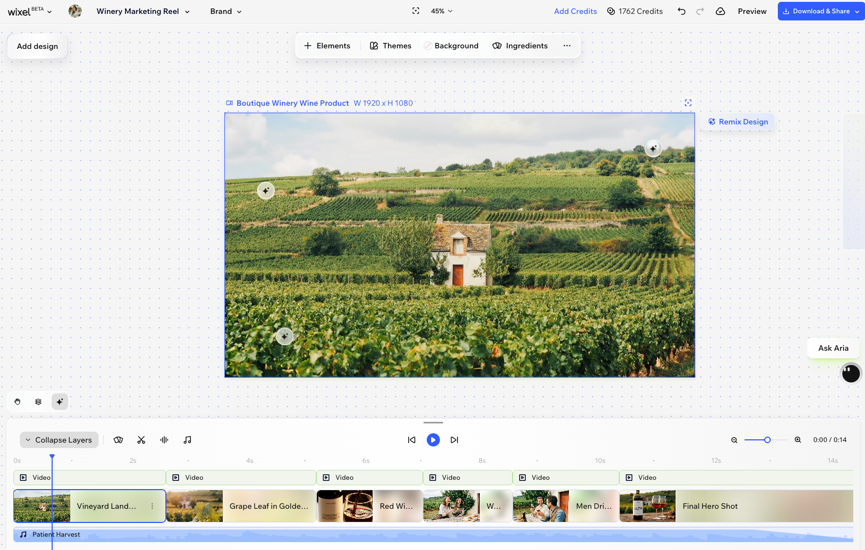
Actions that involve generating and editing a video with AI use AI credits.
Creating a video
Start on the Wixel home page and tell Aria, your AI design agent, what kind of video you want. Describe your idea and add reference images, or turn footage you already have into a highlights video.
To create a video:
Choose what kind of video you want to create:
 to attach images that customize the video for your needs. For example, add photos of the sneakers from different angles to get a product ad that shows them off.
 .
.Editing your video
- Video: The video as a whole (i.e. a design in your project).
- Shot: The main building blocks of your story. Each shot encompasses a scene or section of the video.
- Video element: The core video inside a shot. This layer includes visuals that Aria generated.
- Elements: Visual layers like graphics or text, each in its own row so you can individually adjust the position and timing.
- Background music: The video's audio track.
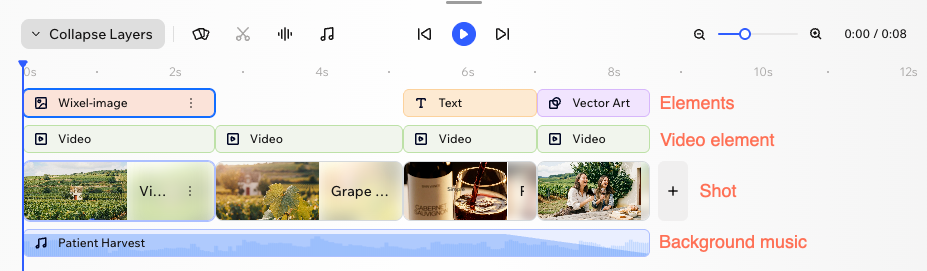
To edit your video:
Click the relevant video in your project.
Choose what you want to do:

 to the right of your timeline and choose how to add a new shot:
 on the action bar.
 .
. on the timeline.
 on the voiceover element and choose what to do:
 icon on the timeline.
 to listen to a sample before choosing it.
 .
.Changing ingredients in your video
To change ingredients in your video:
Click the relevant video in your project.
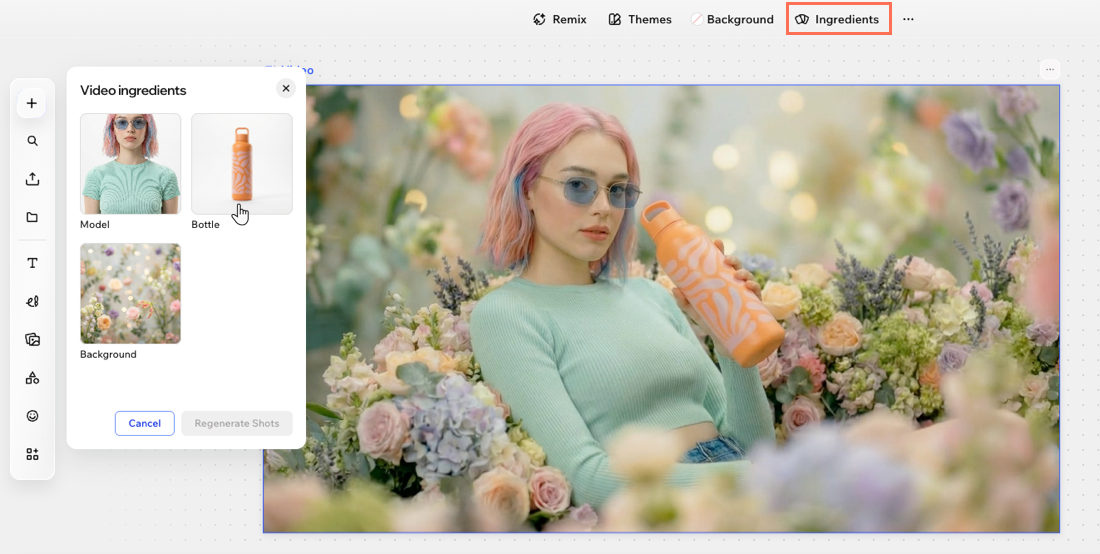
Click Ingredients on the action bar.
Click the ingredient you want to change and choose what to do:
Replace Image: Choose an image from the Wixel Media Manager.
Regenerate Image: Describe the ingredient you want and click Generate Image. For example, if you have a female model in the video you can change it to a male model.
(Optional) Repeat step 4 for other ingredients you want to change.
Click Regenerate Shots.
Note: All shots that include these ingredients are regenerated so your video stays visually consistent.
FAQs
 /Pause
  : Preview your video from the current position in the timeline. Pause it when playing to quickly stop and review.
 and
and  controls to work closely on a shot.
 / Fast forward
  : Jump forward or backward in the video.