


Wixel: Working With Your Media
In this article
- About the Wixel Media Manager
- Uploading files to your media
- Using boards
- Organizing your media
- FAQs
Wixel's Media Manager keeps your files organized and accessible, so you can save time using the same images and files across multiple projects. Upload, manage, and edit files all from one place, making your design workflow smoother and more efficient.
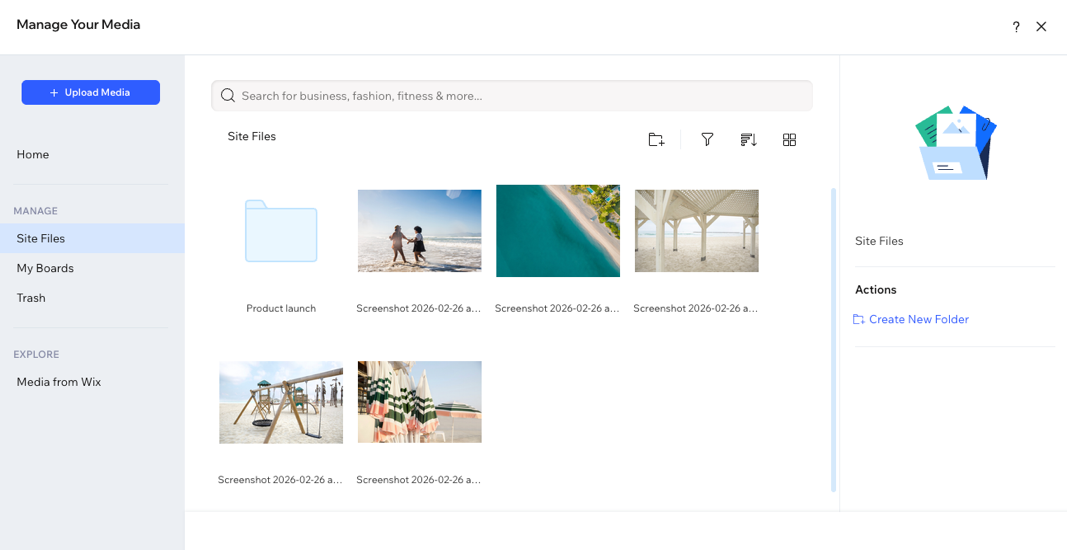
About the Wixel Media Manager
The Wixel Media Manager is divided into sections to help you quickly find and organize your files. Use the tabs on the left side to navigate:
- Site Files: Media you’ve uploaded to the current project.
- My Boards: Create account-level media folders, accessible from any Wixel project.
- Trash: Deleted files you no longer need.
- Media from Wix: Access hundreds of free Wix images, videos, shapes, and icons.
Uploading files to your media
You can upload your media to Wixel from a variety of sources, such as from your computer files or from social networks.
To upload media:
Click the dropdown next to your project's name at the top and select Media manager.
Click + Upload Media.
Select where you want to upload or import media from:
Your computer
Your Wix sites
Your Wixel projects
Social networks
A URL
 on the left side.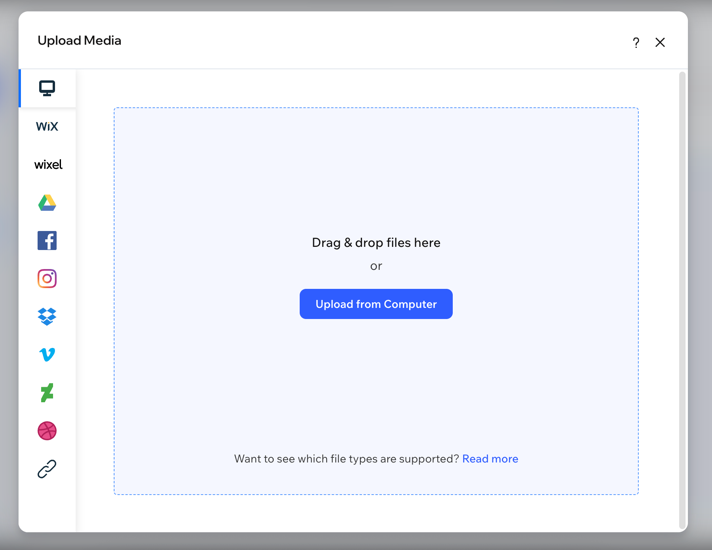
Using boards
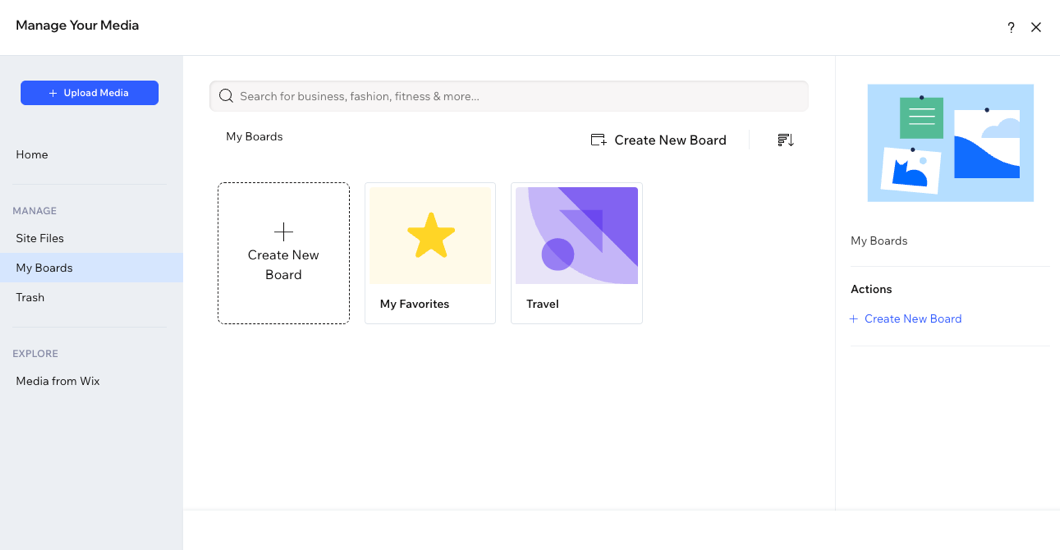
Boards are account-level folders that you can create to easily access your media files across all your projects. You can add your own media or Media from Wix to your boards. Boards let you edit and manage the files you regularly need, no matter which project you're working on.
To use boards:
Click the dropdown next to your project's name at the top and select Media Manager.
Click My Boards on the left.
Choose what to do:
Create a board
Add media files to a board
 .
.Delete a board
 on the relevant board.
Note:
You can't download the contents of Board folders in bulk. You can only download your files individually.
Organizing your media
Organize your files to save time and stay efficient when looking for specific media.
To organize your files:
Click the dropdown next to your project's name at the top and select Media Manager.
Click the Site Files tab.
Choose what to do:
Find the files you need
 : Sort files alphabetically or by date.
 : Display your files in a gallery or list.
 to display files of a specific type.
Create folders
Rename a file or folder
Add tags
Delete or restore media files
 and click Move to Trash.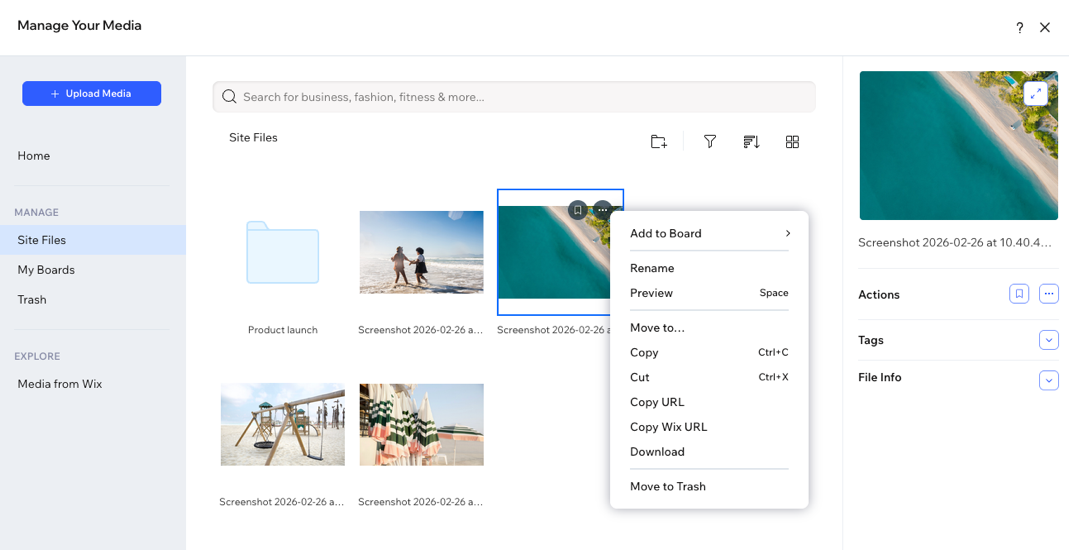
Looking for more ways to manage your media?
Click the
More Actions icon
 on any file to see additional options, such as previewing, copying the file's URL, or downloading the file.
on any file to see additional options, such as previewing, copying the file's URL, or downloading the file.
FAQs
Click a question below to learn more about this.
What file types are supported?
How do I add media to my project?
 on the side panel and select an image.
How do I edit images?
Can I save media from the project to my media?
 on the action bar.
What should I know about using Media from Wix?
