


Wix Harmony Editor: A Guided Tour
In this article
- The action bar
- The top navigation bar
- The Add Elements panel
- Ask AI (Aria)
- Mobile view
- Additional panels
This article refers to the new Wix Harmony Editor, released in January 2026. If you're unsure whether you’re using the Wix Harmony Editor or the Wix Editor,
view more information here.
Welcome to Wix Harmony, the all-new, all-in-one builder that puts creative magic at your fingertips. With smarter AI tools, dynamic design options, and total freedom to build your way, you can
launch your first site or reimagine your latest project with confidence.
In this article, we'll get to know the editor. Get ready to design, create, and innovate faster than ever before – no design or coding experience needed.
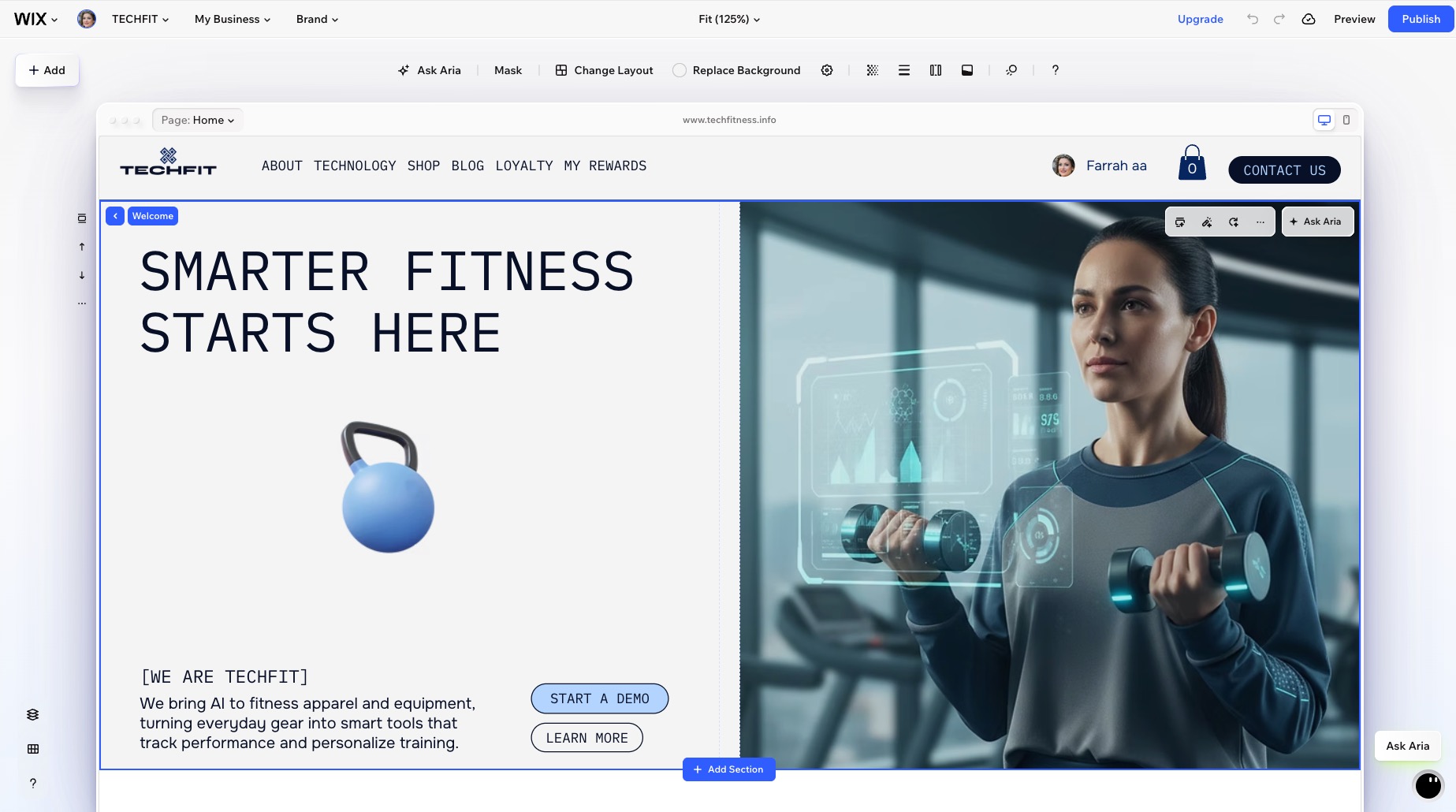
Good to know:
The editor is fully responsive. When you resize your browser window, the canvas automatically adjusts so you can always see how your site looks at different sizes.
The action bar
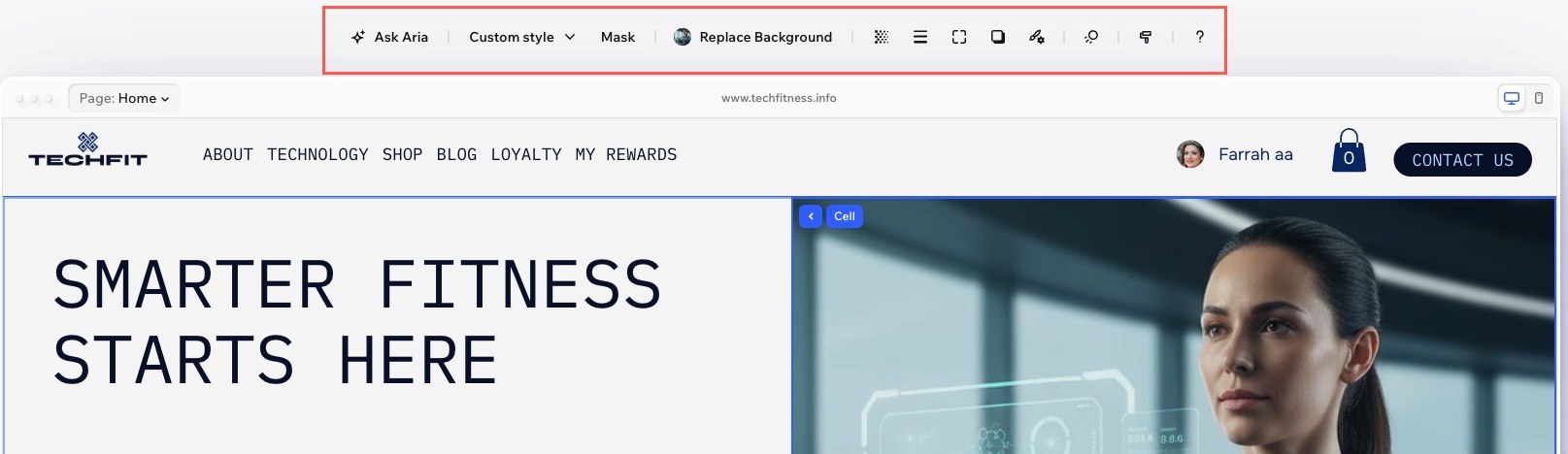
The action bar sits right a
bove the page, giving you instant access to settings and tools tailored to what you’re working on. Select a menu, section, or element, and you’ll notice the options update automatically.
For example, when you select a text element, the action bar gives you quick the option to change its font as well as size, alignment and formatting. Then, if you select the header, new options appear like changing the background, adding a scroll effect and more.
The top navigation bar
At the top left of the editor, you can access everything that drives your editing workflow. Easily switch between
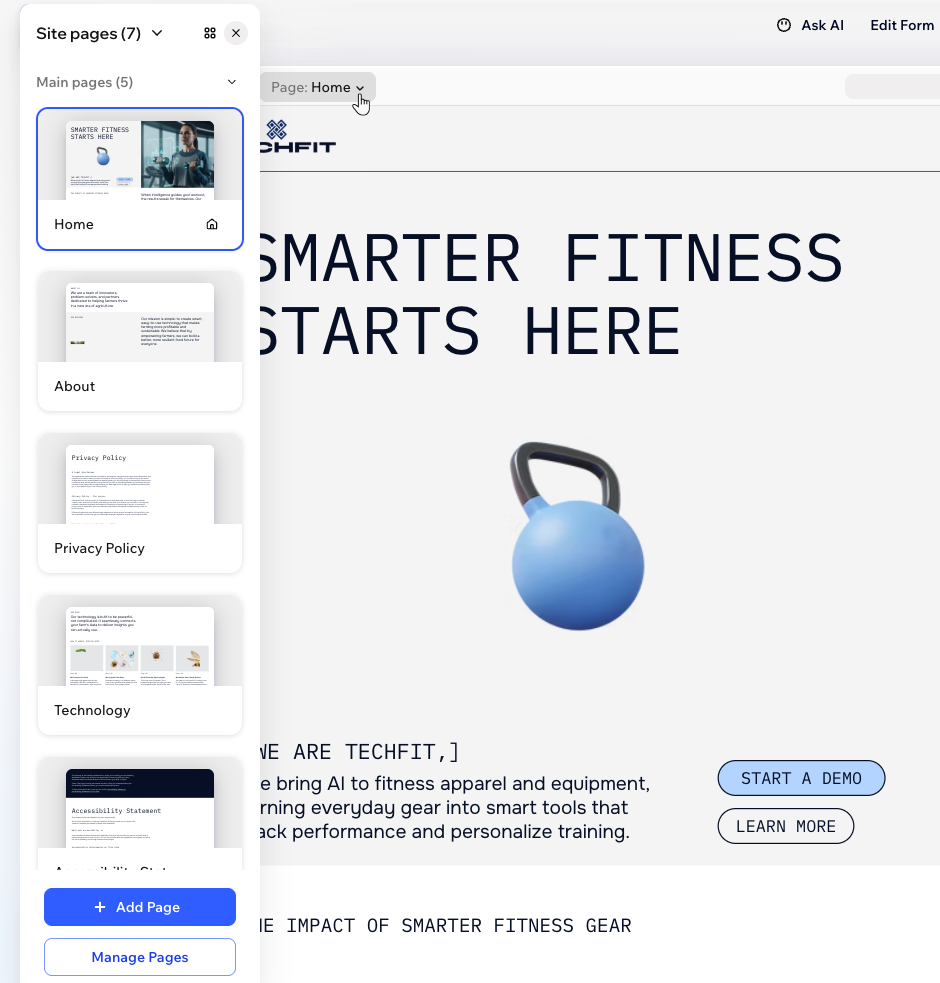
pages, see your
brand's colors and fonts, publish changes, get info from the dashboard and so much more. This bar keeps your most important controls only a click away, helping you work fast and stay organized.

Click below to learn more about every part of the top bar.
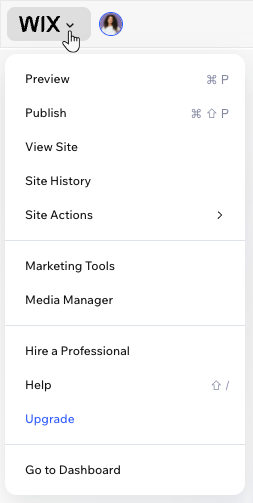
Quick site actions menu
Site overview

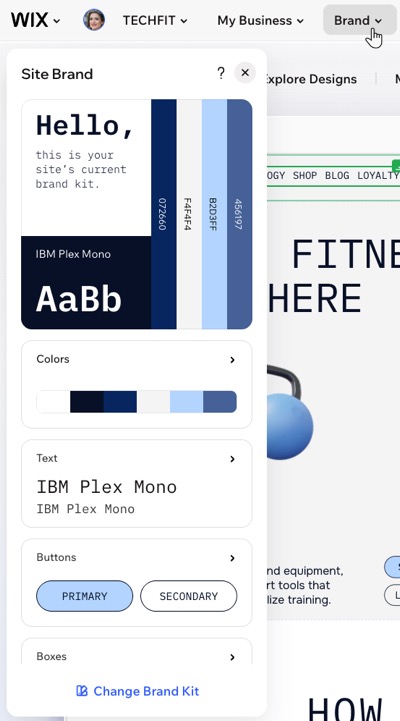
Brand
My Business
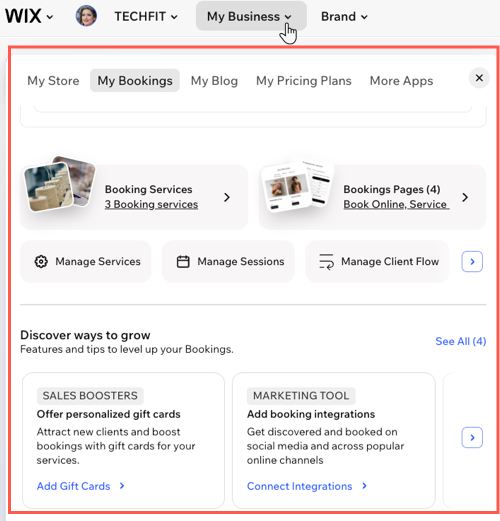
Site pages
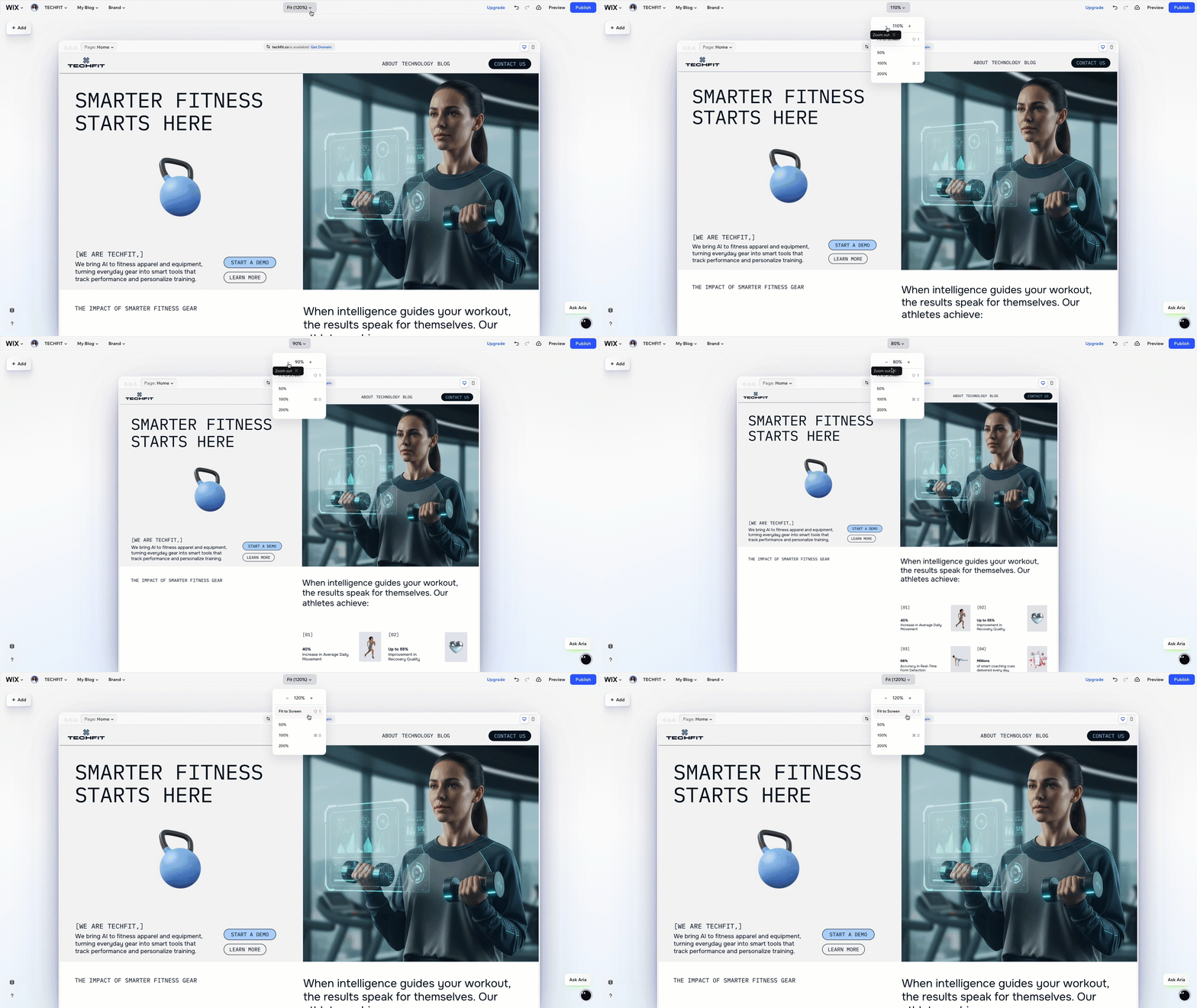
Fit (zoom)
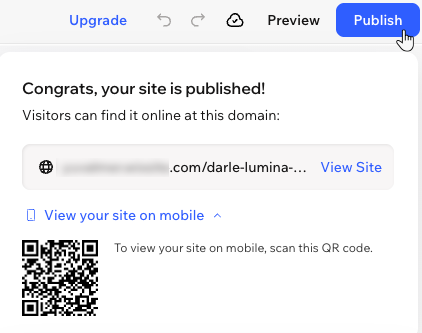
Preview and publish
The Add Elements panel
The
Add Elements
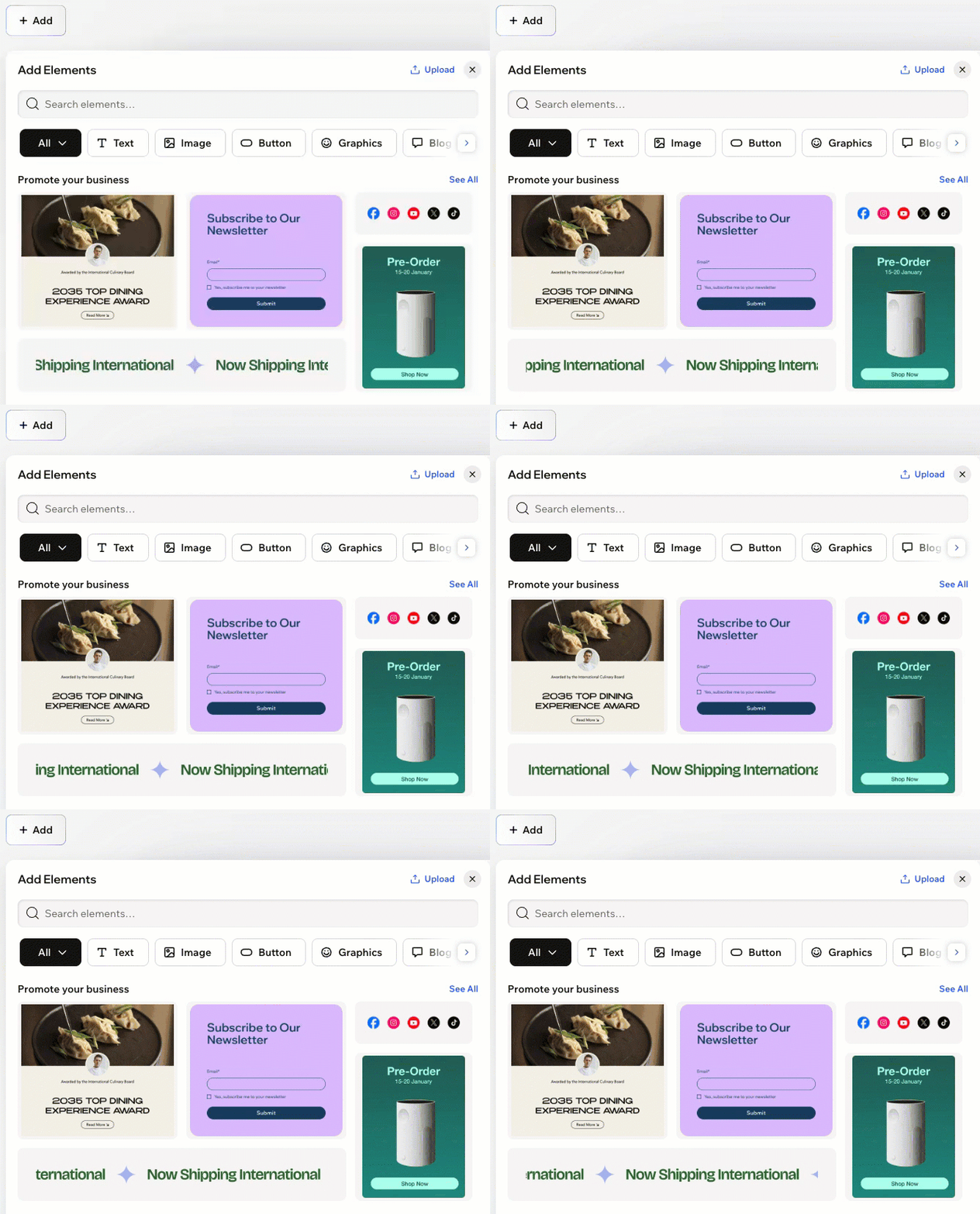
panel is your creative launchpad in the Wix Harmony editor. From here, you can explore a huge library of elements such as headings, images, slideshows, menus, and even third-party apps.
Filter by category or use the search bar to quickly find what you need. Then, drag elements onto your canvas and start shaping your site.
Ask AI (Aria)
Aria, your multi-skilled AI partner, is here to help streamline your workflow. Click the
Ask Aria icon at the bottom right of the editor to start chatting.
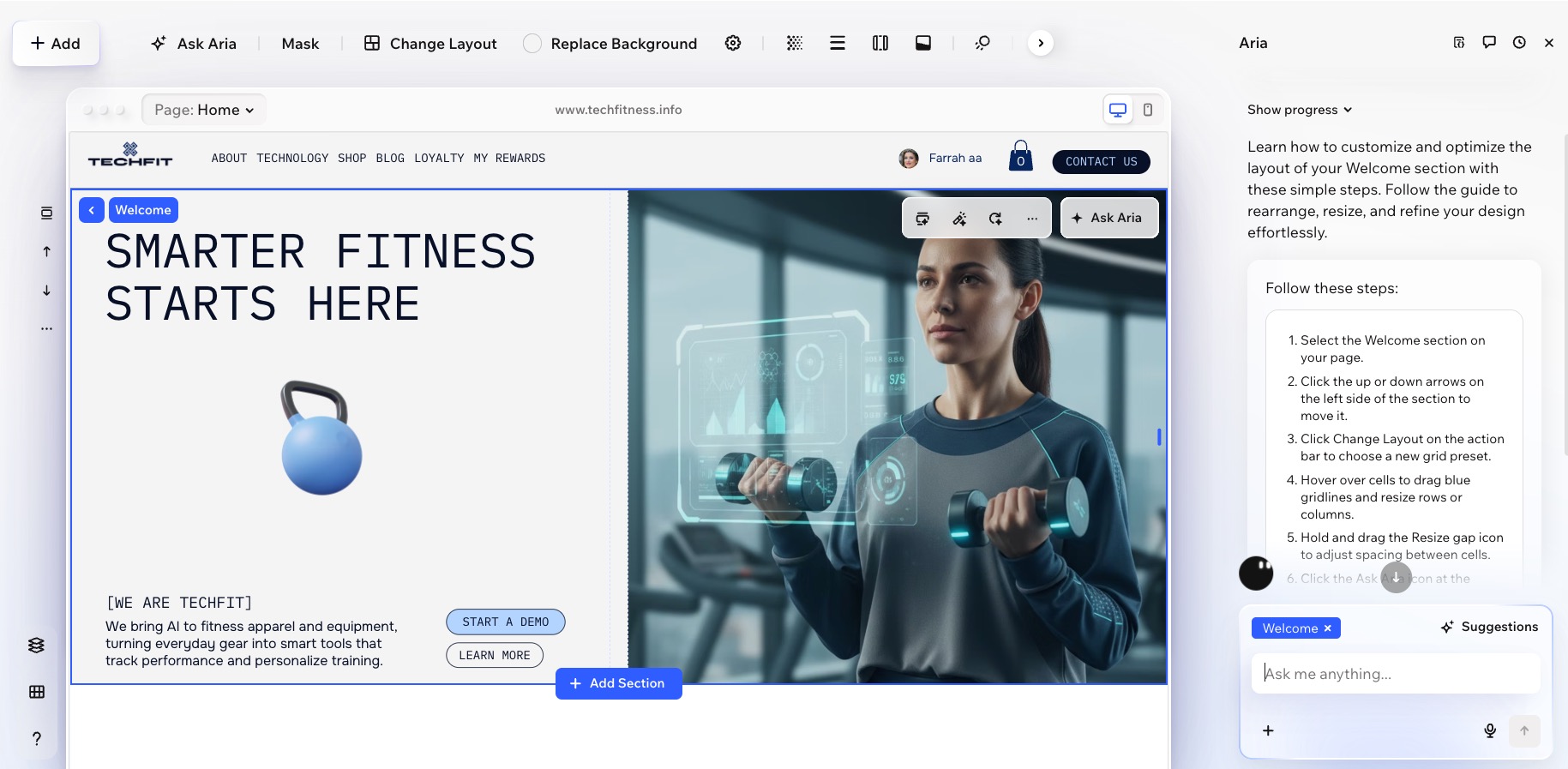
When selecting an element, you can also click Ask Aria on the action bar for tailored prompt suggestions. Ask Aria to move sections, generate a new design, fix layout issues, or improve section text—all with a simple command. If you need to make more changes, just send another message to Aria right in the chat.
Mobile view
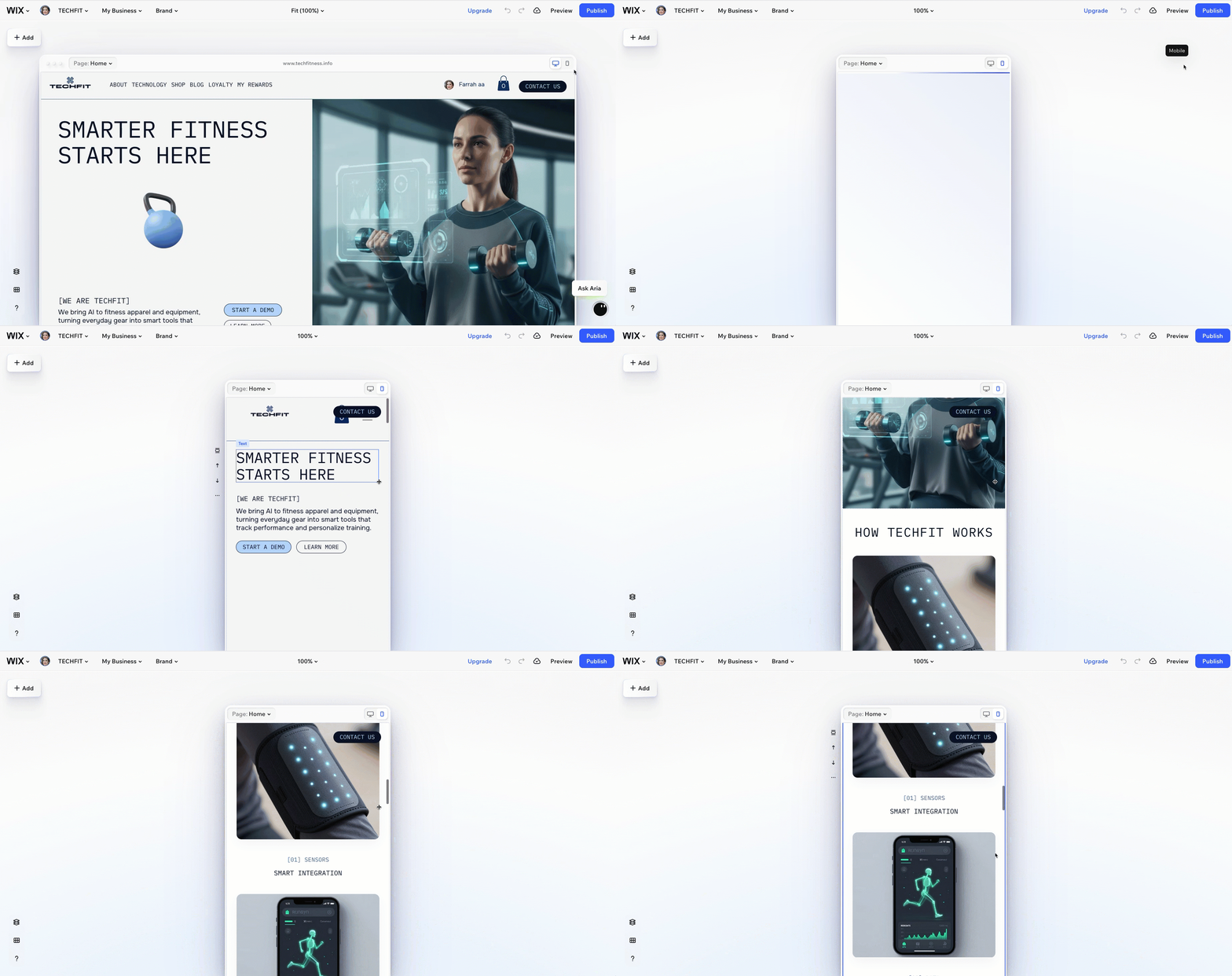
At the top right of the page, quickly switch between desktop and mobile views with a single click. The mobile view lets you see how your site looks on smaller screens.
While your site is automatically responsive to different screen sizes, you always have the freedom to
adjust the mobile design and give your visitors the best experience possible, no matter the device.
Additional panels
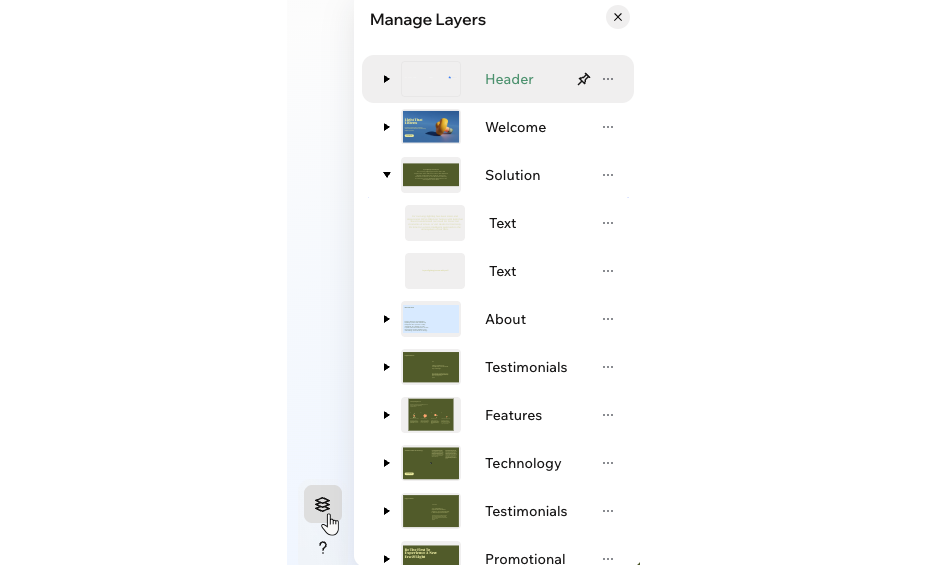
At the bottom left corner of the editor, you'll find additional panels to help you control every part of your page. Use the
Layers panel
 to see the structure of every section and element on your page—great for fine-tuning layouts and managing overlapping items.
to see the structure of every section and element on your page—great for fine-tuning layouts and managing overlapping items.
Click the
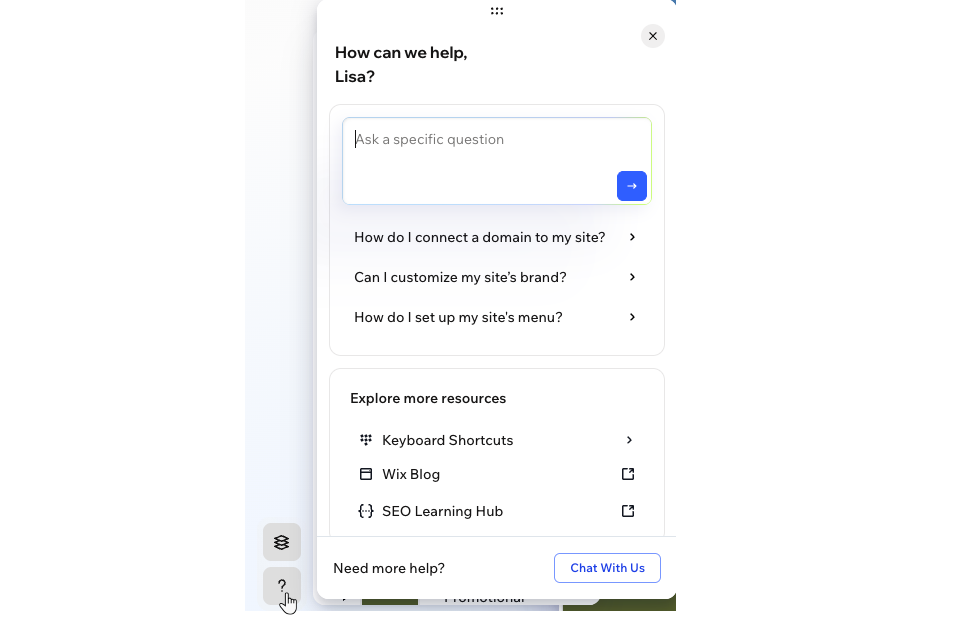
Help icon
 to see tailored tips, guides, and answers specific to where you are in the editor. This makes it easy to get support and discover new features, without ever leaving your workspace.
to see tailored tips, guides, and answers specific to where you are in the editor. This makes it easy to get support and discover new features, without ever leaving your workspace.
Create with Wix Harmony:
Experience the next generation of website creation with
Wix Harmony. Flow freely between prompting your AI agent and precise drag and drop, so creating feels as natural as thinking.
