


Wix Harmony Editor: Adding and Managing Pages
In this article
- Adding a new page
- Managing your site pages
- FAQs
Organize your pages to keep your site stylish, engaging, and sophisticated. After adding a page, you can give it a fresh name, set it as your homepage, hide it from the menu, and customize it to fit your
style perfectly. You can also choose how to view your pages, either in
a minimal list view or a visual grid view with page previews.
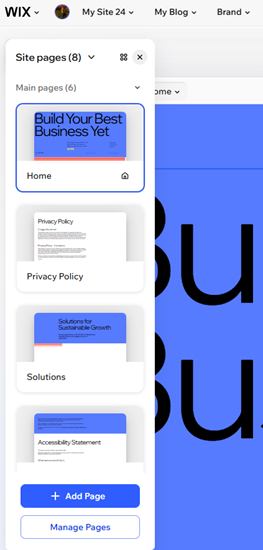
Navigating between pages:
Click the
Page dropdown at the top left of the page to navigate elsewhere on your site.
Adding a new page
Choose from a range of professionally designed pages by Wix, or start fresh with a blank page to bring your own vision to life. Every new page you add will instantly show up in your site menu, ready to go.
To add a new site page:
- Go to your editor.
- Click + Add at the top left of the editor and select Pages.
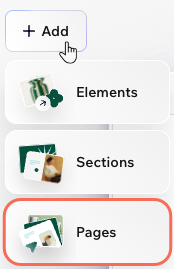
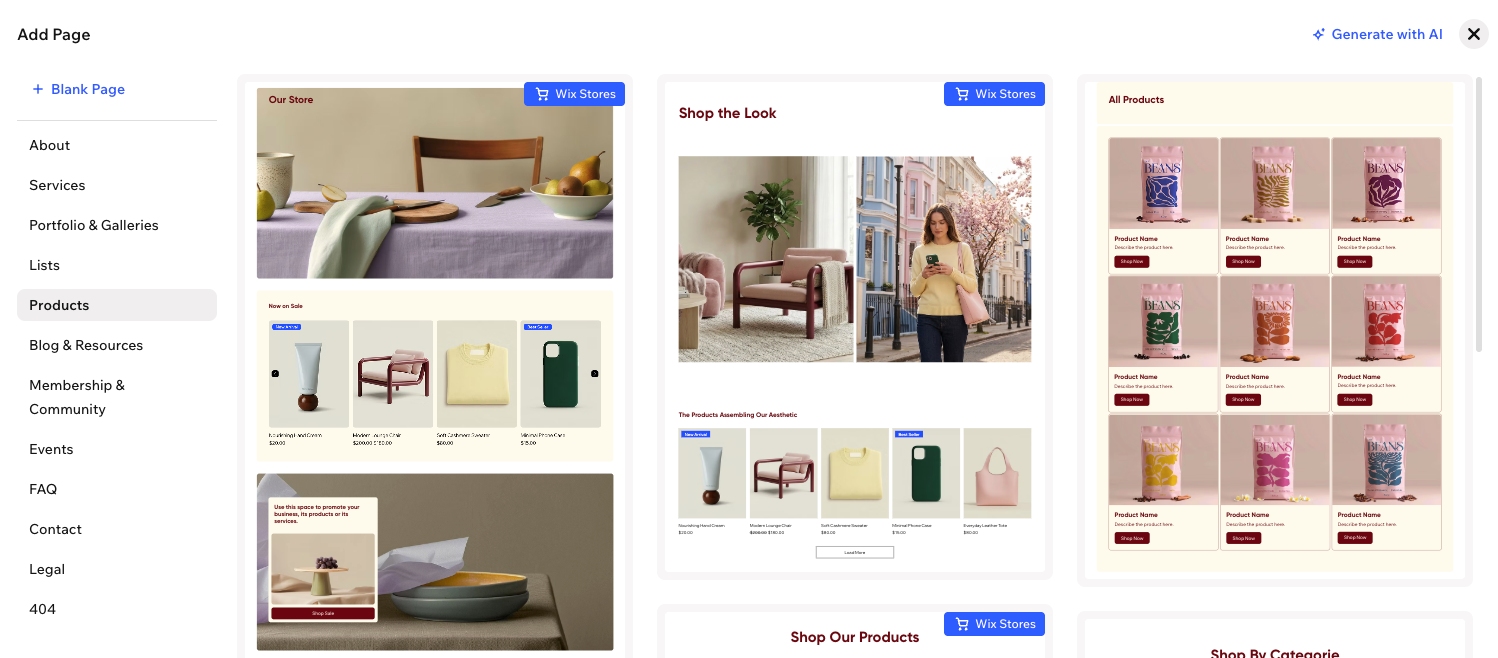
- Choose how you want to create your new page:
- Generate with AI: Get page ideas and let AI create your page. Review the suggested page types in the chat and pick the one you want to add. Alternatively, you can write your own description of the page you're envisioning.
- Designed page: Browse our designed page templates and select the one you like best. Use the menu on the left to navigate between page categories (e.g. About, Services, 404).
- Blank page: Start with a completely blank page. The new page is added to your site, ready for you to customize.
Tip:
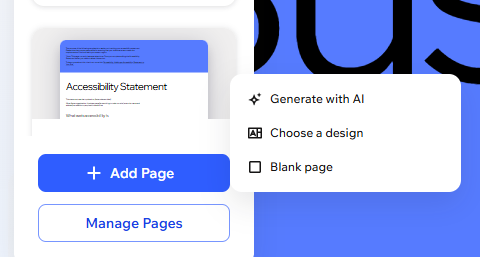
You can also add a new page from the Site Pages panel. Click
+ Add Page at the bottom to get started.
Managing your site pages
Manage all your site pages in one place to keep your content organized and up to date. Add new pages, rename or delete existing ones, and adjust key settings like SEO, member access, and social sharing.
Change the view of the panel:
Click the
Grid
 or
List
or
List
 icon at the top of the panel to switch the view. The list is more compact, while the grid shows you a preview of each page.
or
List
icon at the top of the panel to switch the view. The list is more compact, while the grid shows you a preview of each page.
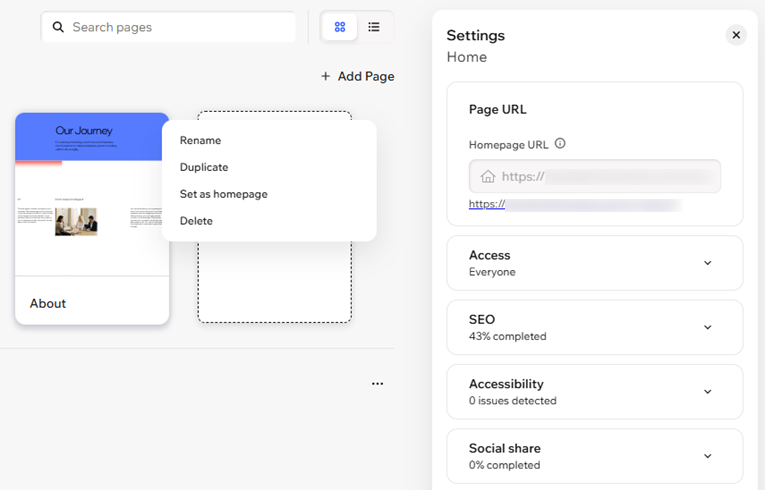
To manage your site pages:
- Go to your editor.
- Click the Page dropdown at the top left of the page.
- (In the Site Pages panel) Click the More Actions icon
 next to the relevant page.
 - Choose what to do next:
Rename
Duplicate
Set as homepage
Delete
SEO and accessibility
Settings
 .
. 
FAQs
Click a question below to learn more.
Can I edit the width of my page?
Why can’t I delete a page that belongs to a Wix app, like Blog or Bookings?
Can I download a page from my site?
