


Wix Harmony Editor: Adding Elements
3 min
In this article
- Adding an element
- Types of elements
The Add Elements panel is your main source for everything you want to add to your site — from text boxes and images to galleries, videos, and more. Each category offers creative ways to express your vision and build a site that’s truly your own. Whether you know exactly what you want or feel like exploring new options, adding elements is fast and flexible.
Adding an element
The Add Elements panel makes it easy to explore, search, or scroll through everything you can add to your site. You can search for something specific, upload your own media, or browse by category to discover new design ideas — all in one place.
To add elements:
- Go to your editor.
- Click + Add at the top left of the editor.
- Select Elements.
- Choose how you want to find the element:
- Direct search: Use the search bar to find the exact element.
- Upload your own media: Click the Upload Media icon
 next to the search bar.
 - Browse through the panel:
- Select the relevant category using the icons on the left.
Tip: Click the More Options icon to see the full list.
 - Select the relevant tab within the category.
- Select the relevant category using the icons on the left.
- Click an element or drag it onto the page.

Generate elements with AI:
The AI Element Generator lets you create elements that perfectly match your creative vision. Whether you have a one-of-a-kind idea or just need something not found in the Wix library. Click Generate Element in the Home tab to get started.
Types of elements
Browse through the following categories in the Add Elements panel:
| Category | What it offers |
|---|---|
Branded titles and paragraphs that instantly match your site’s style, along with a range of designed titles, running text (text marquee), and collapsible text – perfect for making longer info easy to read. | |
A huge library of curated photos, illustrations, and image cutouts with transparent backgrounds. Explore endless inspiration by scrolling or browsing topics like Abstract and Business, and find the perfect image for every page. | |
A range of branded and designed buttons. Choose from text-only, icon-only, or combinations. Add a social bar to link visitors to your social profiles, or share buttons that let people spread your page on their favorite social platforms. | |
Graphics | Shapes, vector art, icons, stickers, and lines designed by our creative team, ready to help you add color and character anywhere on your page. |
Basic empty boxes in various colors and shapes, plus pre-designed boxes with ready-to-customize elements. You’ll also find slideshows here to display stories or products in sequence. | |
A curated mix of video clips from our designers, along with social video players so you can embed content from TikTok, YouTube, Instagram, and more — bringing your site to life with motion. | |
Form & Contact | Forms grouped by intent (subscribe, contact, and more), with the choice to build a new form or drop in one you’ve already made. You’ll also find the Google Maps element here to help visitors get directions. |
Site menus that automatically connect to your main pages, or custom menus you can tailor for different sections or special navigation. | |
Galleries for showcasing your images and videos. Pick from a variety of layouts and customize the gallery to match your style and content. | |
Social | Social bars that link to your accounts and share buttons that let visitors share your pages — increasing your reach with just a click. |
Easy ways to add external content by embedding a link or pasting HTML code. Display anything from widgets to outside media right on your site. | |
Apps | Wix's business solutions (e.g. Wix Stores, Wix Bookings), along with recommended third-party apps. |
Good to know: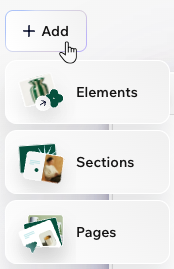
You can quickly add more pages and sections to your site by hovering over + Add and clicking the relevant option.
