


Wix Harmony Editor: Previewing and Publishing Your Site
In this article
- Working with autosave
- Previewing a site
- Publishing a site
- FAQs
Manage your site right from the editor to keep it up to date with your latest changes. Save, preview, and publish whenever inspiration strikes, so your content is always ready to shine.
In the Wix Harmony editor, your site is saved automatically, so you never have to worry about losing your work. You can also choose to save your progress manually whenever you like for added peace of mind.
Working with autosave
Autosave helps protect your work by automatically saving changes as you build your site. This feature ensures you never lose progress if you forget to save manually.
To check when your site was last saved, hover over the
Autosave icon
 at the top right of your editor.
at the top right of your editor.
Previewing a site
Take your site for a test drive, see your site exactly as your visitors will, on any device. Preview mode gives you a real-world look at your design, navigation, and responsive features before hitting publish.
To preview your site:
- Go to your editor.
- Click Preview at the top right of the editor.
- Check your site in preview mode on desktop or switch to mobile view.
Tip: Drag the slider at the top of the preview to see your site in different screen sizes. - Choose what to do next:
- Publish your changes.
- Click Edit Site to go back to the editor.
Tip:
Click t
he Fit to Screen icon
 in preview mode to make the preview fit your exact
screen size.
in preview mode to make the preview fit your exact
screen size.
in preview mode to make the preview fit your exact
screen size.
Publishing a site
Ready to launch? Publishing takes your updates live, so the world can see your latest work instantly. Your site is always one click away from going public or sharing a fre
sh redesign.
To publish your site:
- Go to your editor.
- Click Publish at the top right of the editor.
- Wait for the confirmation message that your site is live.
- (Optional) Using your mobile, scan the QR code icon to quickly test how your site looks on mobile.
What's next?
After publishing your site, it automatically appears online and can be seen by anyone entering your
free site URL (siteprefix.wixsite.com/site-name) or
domain name.
FAQs
Click a question below to learn more.
What’s the difference between saving and publishing?
Can I go back to a previous saved or published version of my site?
How do I hide a page from my site if it's not ready for my visitors to see?
Why are my changes not appearing on the live site after publishing?
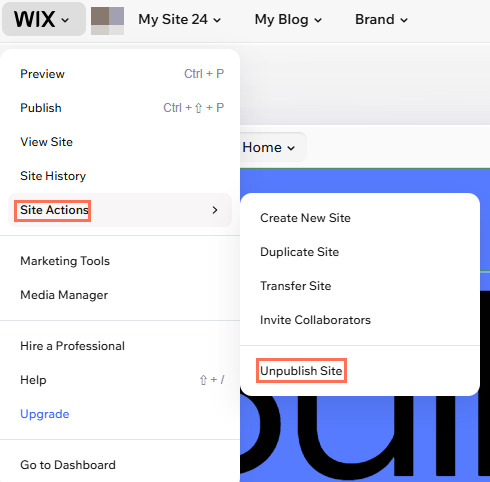
I published my site accidentally, can I unpublish it?
I published my site, why can't I find it on Google?
