


Wix Vibe: Using Wix Restaurants Menus in Wix Vibe
In this article
- Display your menu directly on your Wix Vibe site
- Manage your menus from the dashboard
- Customize menu items and add details
- Customize your menu design with AI or manual edits
- Track menu performance with analytics
- FAQs
Important:
Wix Vibe is no longer available for creating new sites. If you already have a site built with the Wix Vibe Editor, you can continue editing and publishing. To create your next site with AI, we recommend using the Wix Harmony Editor.
Wix Restaurants Menus in Wix Vibe gives you a powerful way to showcase your restaurant's dishes, organize your menu into sections, and provide customers with a seamless browsing experience—all while leveraging AI to design and customize your menu's presentation. Similar to
Wix Headless, Wix Vibe uses AI to generate your menu pages on the frontend while you manage all the content from your dashboard. You can focus on running your restaurant while AI handles the design details.
Whether you're launching a new restaurant website or refreshing an existing one, Wix Restaurants Menus brings professional menu management tools to your Wix Vibe site. From displaying menu items with beautiful imagery to organizing dishes into categories, you can create a polished menu showcase that helps visitors explore your offerings.
Important:
Wix Restaurants Menus could only be added when a Wix Vibe site was first generated. If your site doesn't already include Wix Restaurants Menus, you can't add it now.
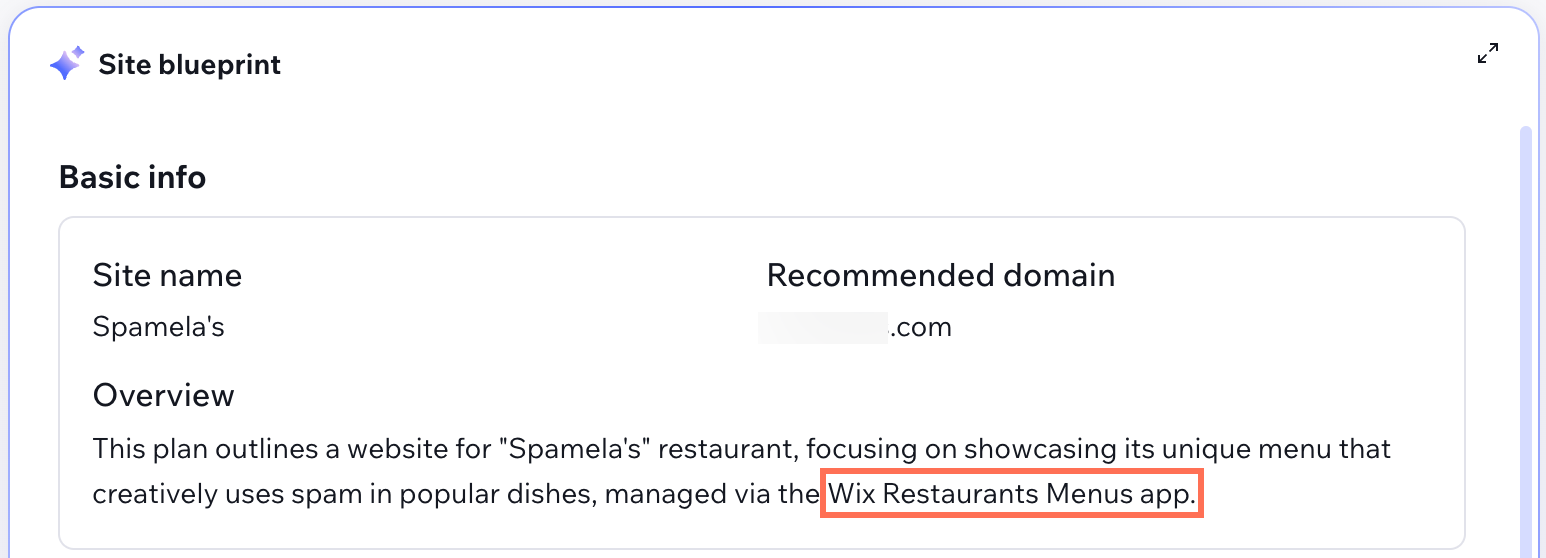
Display your menu directly on your Wix Vibe site
Wix Restaurants Menus on Wix Vibe lets you showcase your restaurant's dishes with names, descriptions, prices, and images. AI generates your menu pages and menu elements based on your site's design and theme. This means your menu pages may look and function differently from those in the Wix Editor or Studio Editor—but they're designed to match your site's style and provide a seamless experience for your visitors.
Your menu pages are styled automatically to fit your Wix Vibe site's design, giving you a polished presentation from the start. You can customize menu pages using the chat or manual design options in the Wix Vibe Editor to adjust layouts, colors, fonts, and more.
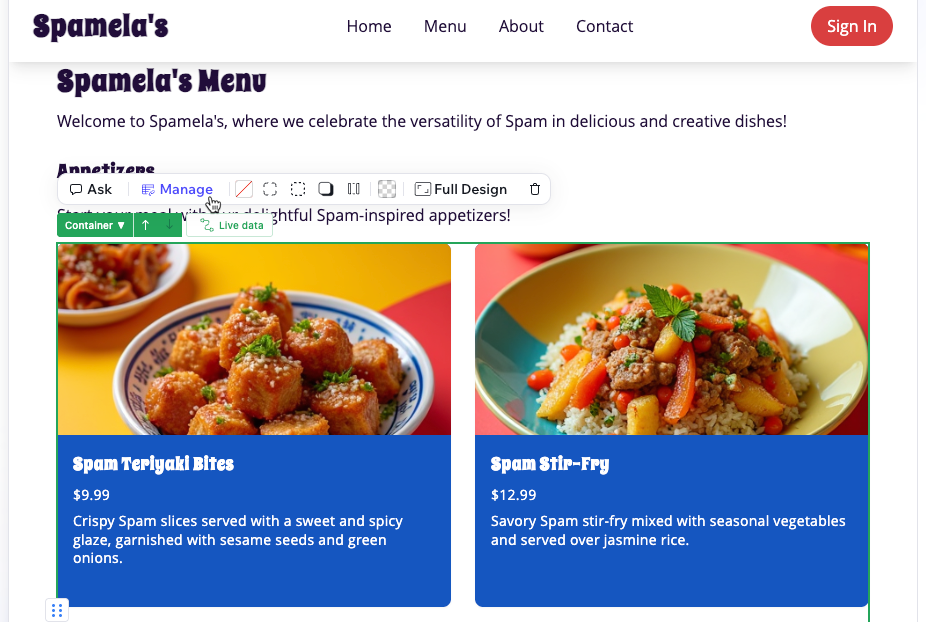
Manage all your menu items, sections, pricing, and images from the
Restaurant Menus (New) tab in your site's dashboard. Add new dishes, organize items into sections like "Appetizers" or "Desserts", and keep everything organized in one place.
Learn more about:
Manage your menus from the dashboard
While AI generates and styles your menu pages in the Wix Vibe Editor, all menu management happens in the
Restaurant Menus (New) tab of your dashboard.
From the Restaurant Menus (New) tab, you can access two main areas:
- Menus: Create and manage multiple menus for your restaurant—such as breakfast, lunch, dinner, or seasonal specials. Organize each menu into sections like Appetizers, Main Courses, Desserts, and Beverages to help visitors easily navigate your offerings. You can add descriptions and images to sections, control menu visibility, and upload menu files with AI to quickly convert them into interactive menus.
- Items: Add, edit, and organize all your menu items in one place. Upload images, write descriptions, set prices, add labels like Vegan or Gluten-Free, and create price variants for different sizes. You can also manage which menus and sections each item appears in, making it easy to feature the same dish across multiple menus.
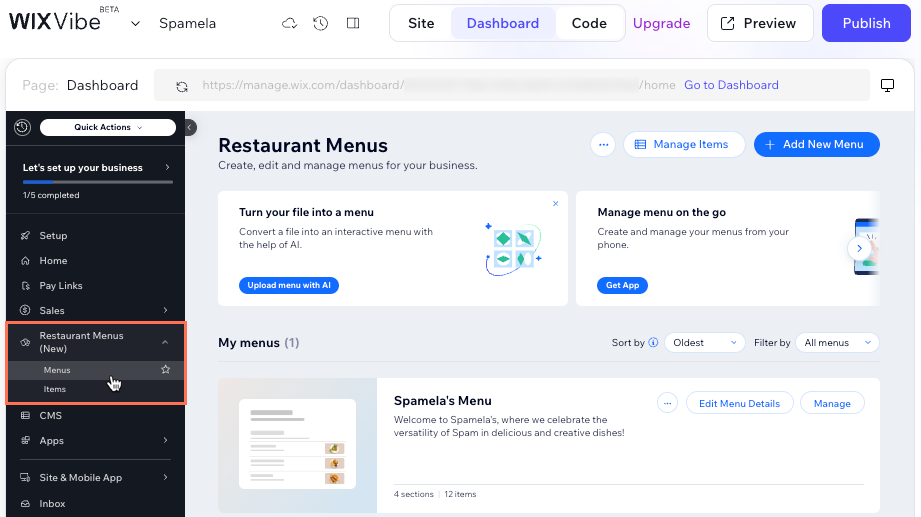
This centralized dashboard gives you full control over your menu's content and organization, making it easy to stay on top of updates and keep your offerings fresh.
Learn more about:
Customize menu items and add details
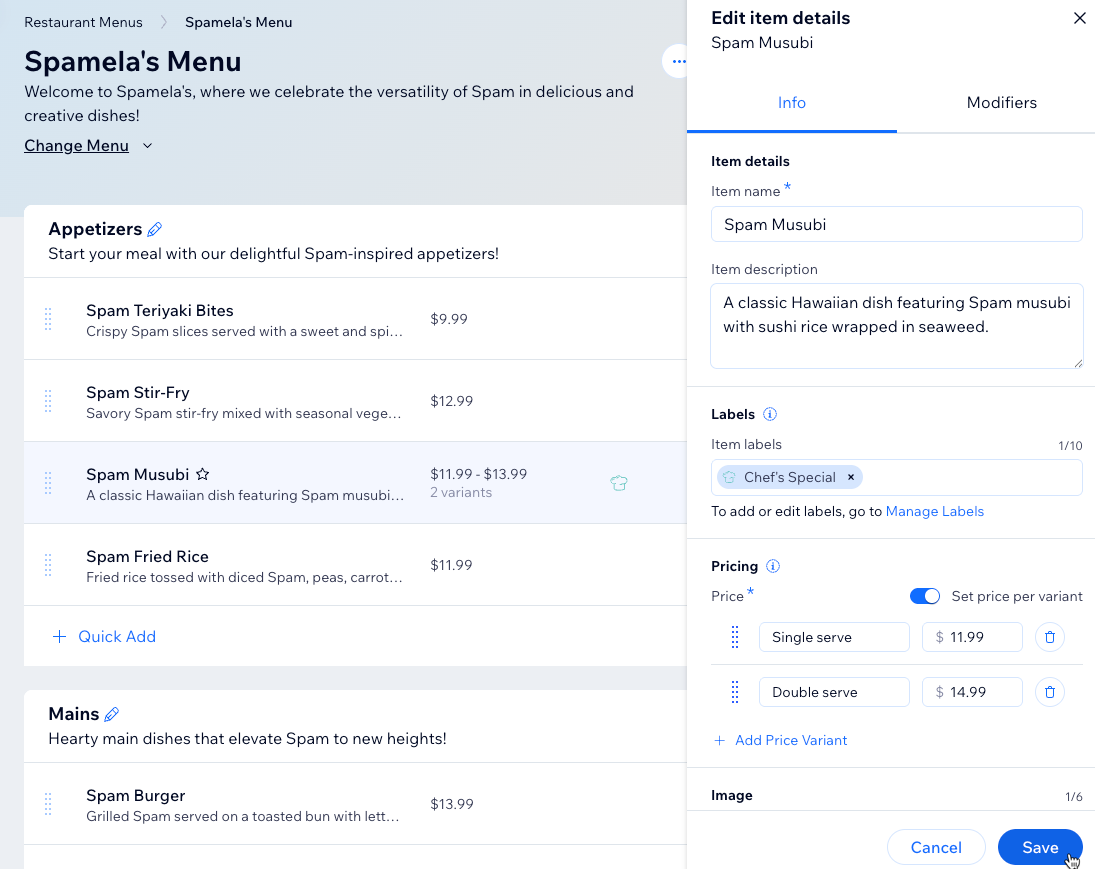
Make each dish on your menu stand out by adding rich details that help visitors understand your offerings. Upload multiple high-quality images per item to showcase your food beautifully. Write clear, appetizing descriptions that highlight key ingredients, preparation methods, or what makes each dish special.
Add visual labels like "Vegan", "Gluten-Free", "Spicy", or "Chef's Special" to help visitors quickly identify dishes that match their preferences or dietary needs. You can create custom labels that reflect your restaurant's unique offerings and apply them to any menu item.
For items available in multiple sizes or variations, set up price variants—such as Small, Medium, and Large for beverages, or 10-inch and 14-inch for pizzas. This lets visitors see all their options at a glance and understand the pricing for each variation.
Learn more about
adding and customizing menu items
Customize your menu design with AI or manual edits
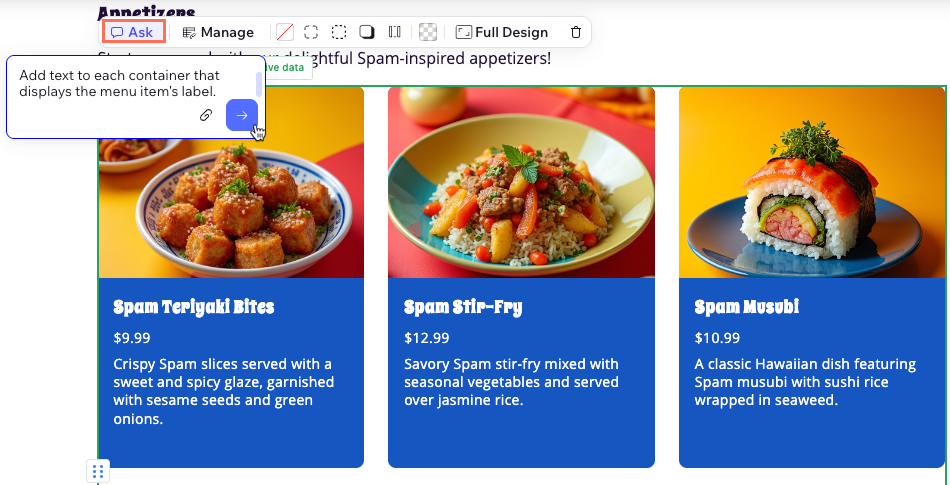
Menu pages and menu elements in Wix Vibe are generated by AI and may look different from those in other Wix editors. The AI designs pages to match your site's overall style and theme, creating a cohesive look across your entire site.
If you want to make changes, you can use the chat panel to ask AI to adjust colors, layouts, fonts, or other design elements. You can also switch to edit mode to manually customize elements like text, images, and spacing on your menu pages.
Track menu performance with analytics
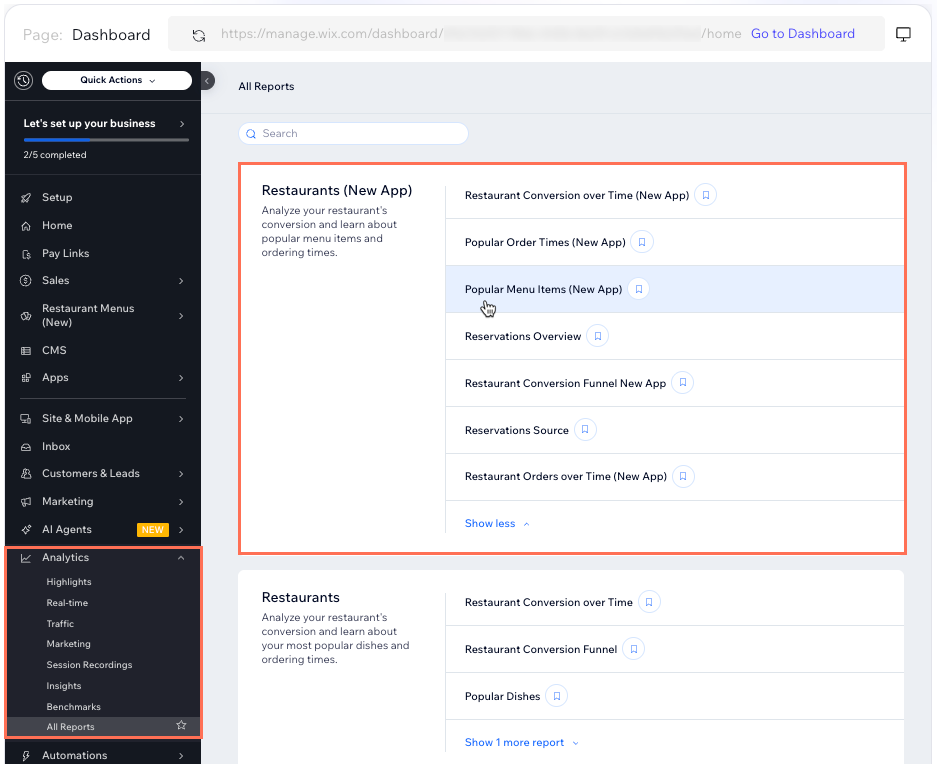
Understanding how visitors interact with your menu helps you make smarter decisions about which dishes to highlight or adjust on your site. Wix Vibe provides insights so you can monitor menu page performance and see what resonates with your audience.
Use these insights to identify popular sections, optimize your menu layout, and improve the visitor experience on your site.
FAQs
Click below for answers to common questions about using Wix Restaurants Menus in Wix Vibe.
Can I add Wix Restaurants Menus to an existing Wix Vibe site?
How do I edit my menu pages in Wix Vibe?
Where do I manage my menu items and sections?
How do I reorder my menus or menu sections?
