


Wix Editor: Editing Your Site on Your Mobile Device
In this article
- Editing your text
- Adjusting button text
- Changing your site images
- Changing your background
- Publishing your site
- FAQs
Edit your website using Wix Editor on Mobile to engage with your visitors anytime, anywhere. You can edit your site using your mobile browser, or the
Wix app to adjust text, add links, change images and more. Keep your content relevant and fresh while giving your site a competitive edge.
Important:
- This feature is not yet available for all users.
- Any changes you make to your site using your mobile device reflect on both your mobile and desktop site.

Editing your text
Adjust text from your mobile to stay responsive and keep your audience captivated with real-time tweaks.
Wix app
Mobile browser
- Go to your site in the Wix app.
- Tap Manage
 at the bottom.
 - Select Website.
- Tap Edit.
- Tap the relevant text in the editor.
- Enter your new text.

Note:
Formatting options such as bold, underline and italics are not supported. However, you may see these options depending on your native OS of your device.
Adjusting button text
Edit button text and add links from your mobile to create compelling clickable content and optimize your user engagement.
Notes:
- For Text & Icon buttons, you can edit the text from your mobile device, but not the button icon.
- Currently, the supported link types on mobile are site page, URL, email, and phone number.
Wix app
Mobile browser
- Go to your site in the Wix app.
- Tap Manage at the bottom.
- Select Website.
- Tap Edit.
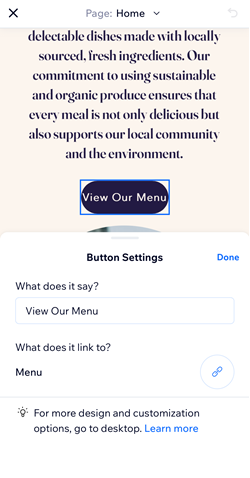
- Tap the relevant button.
- Set up your button using the options:
- What does it say?: Enter what you want your button to say.
- What does it link to?: Select where you would like your button to link to.
Changing your site images
Update site images from your mobile to keep your visual content current. Choose images from your
Media Manager or upload direct from your device, adding alt text to increase accessibility.
Wix App
Mobile browser
- Go to your site in the Wix app.
- Tap Manage at the bottom.
- Select Website.
- Tap Edit.
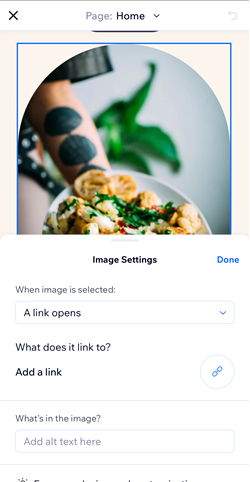
- Tap the relevant image.
- Choose from the following Image Settings:
- Change: Replace the image with an image from your media manager or upload a new image from your device.
- What do you want to link to? Choose whether you want your image to link to a page, URL, email or phone number.
- What's in the image? Add alt text to your image.
Note:
Currently, only standalone images can be edited from your mobile device. If you would like to edit images displayed in a gallery for example,
vote for this feature.
Changing your background
Change the site background from your mobile device to keep your site visually appealing for your visitors. Use your background image to tell your site's story and make your site memorable.
Wix app
Mobile browser
- Go to your site in the Wix app.
- Tap Manage at the bottom.
- Select Website.
- Tap Edit.
- Tap the image background.
- Select Change.

Note:
It is not possible to link background images using the mobile or desktop editor.
Publishing your site
Embrace unparalleled flexibility and publish your changes effortlessly from anywhere, any time.
Wix app
Mobile browser
- Go to your site in the Wix app.
- Tap Manage at the bottom.
- Select Website.
- Tap Edit.
- Tap More.
- Tap Publish.

FAQs
Click a question below to learn more about editing your site from your mobile device.
Will these changes reflect on my desktop site?
How can I undo my change?
 .
.
Is it possible to test the links I have added to my site?
Can I edit dynamic pages?
Can I manage my Wix site apps (e.g. Bookings and Restaurants) on mobile?
