Wix Bookings: About Wix Bookings
4 min
In this article
- Adding Wix Bookings to your site
- Accepting online and offline payments
- Selling membership plans and packages
- Offering services in multiple locations
- Managing your calendars efficiently
- Customizing your booking form
- Sending emails or SMS messages to clients
- Viewing clients' past bookings
Wix Bookings is an easy-to-use scheduling system that lets your members book and pay for services online, so you can focus on managing your business.
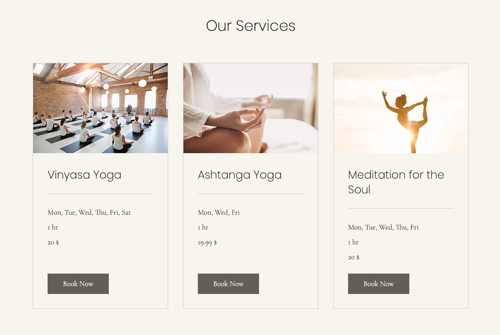
Whether you offer services like workshops, courses, or private sessions, online or in-person, Wix Bookings has you covered.
Important:
You can add Wix Bookings to your site for free, but you must upgrade your site to accept bookings. Some Wix templates come with Wix Bookings already included.
Adding Wix Bookings to your site
Add Wix Bookings to your site from the Wix App Market and complete the setup in your site's editor. This process gets you up and running quickly, allowing you to start accepting bookings right away.
Get started: 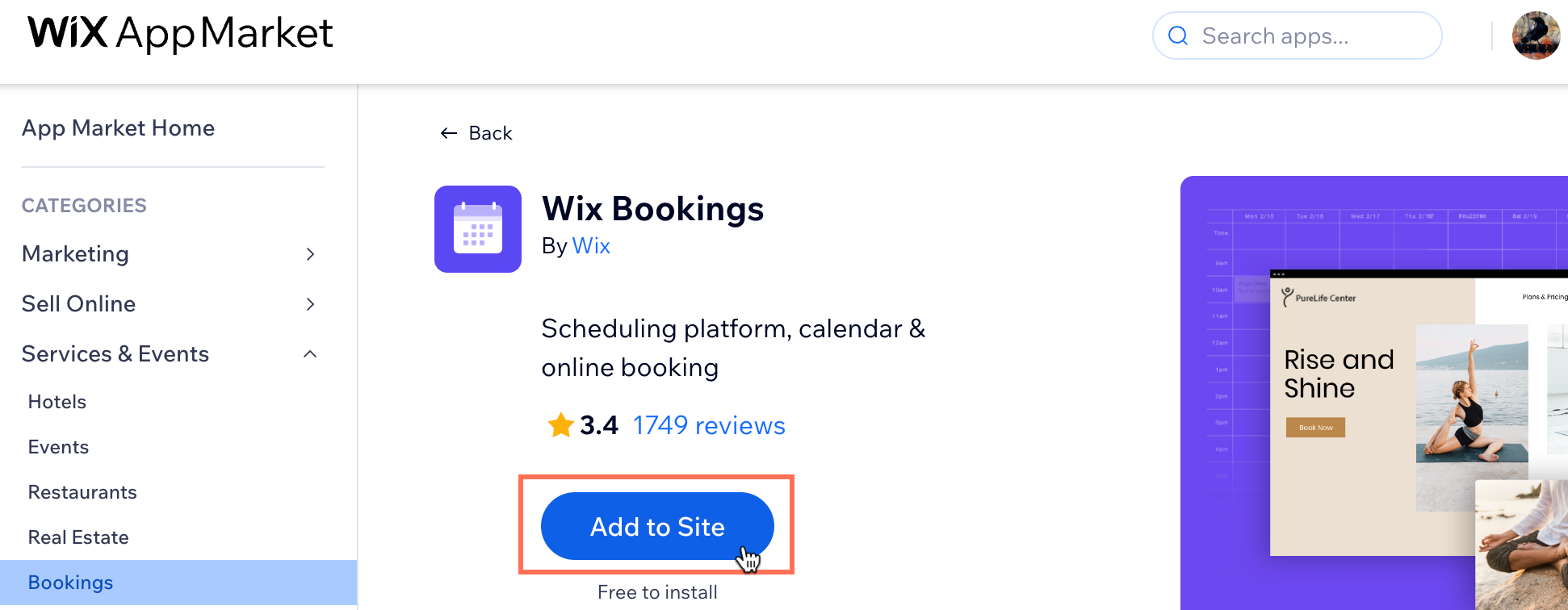
Go to Wix Bookings in the App Market and click Add to Site.
Accepting online and offline payments
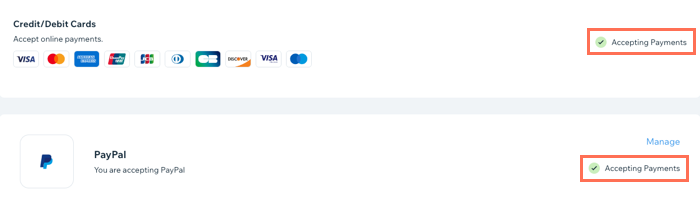
With Wix Bookings, you can offer your clients flexibility by accepting both online and offline payment options. Choose from credit card, PayPal or in-person payments that best suit your business and your clients.
Important:
You must upgrade your site in order to accept online payments.
Selling membership plans and packages
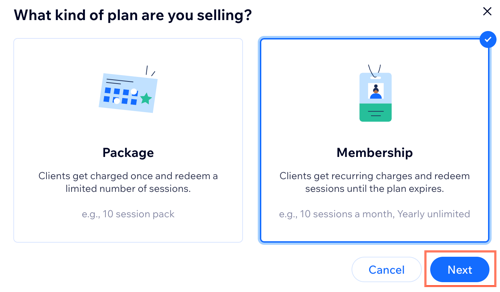
Offering membership plans and packages keeps your clients coming back and provides great value for their money. You can add these plans to appointments or classes, giving you the flexibility to choose the best pricing model for your services.
Note:
Membership plans and packages are currently not available for courses.
Offering services in multiple locations
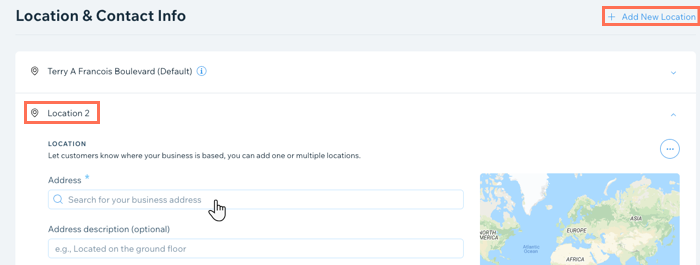
As your business expands, you can add more locations for your services. This keeps it easy for your clients to book your services, ensuring they receive the same great experience no matter where you operate.
Managing your calendars efficiently
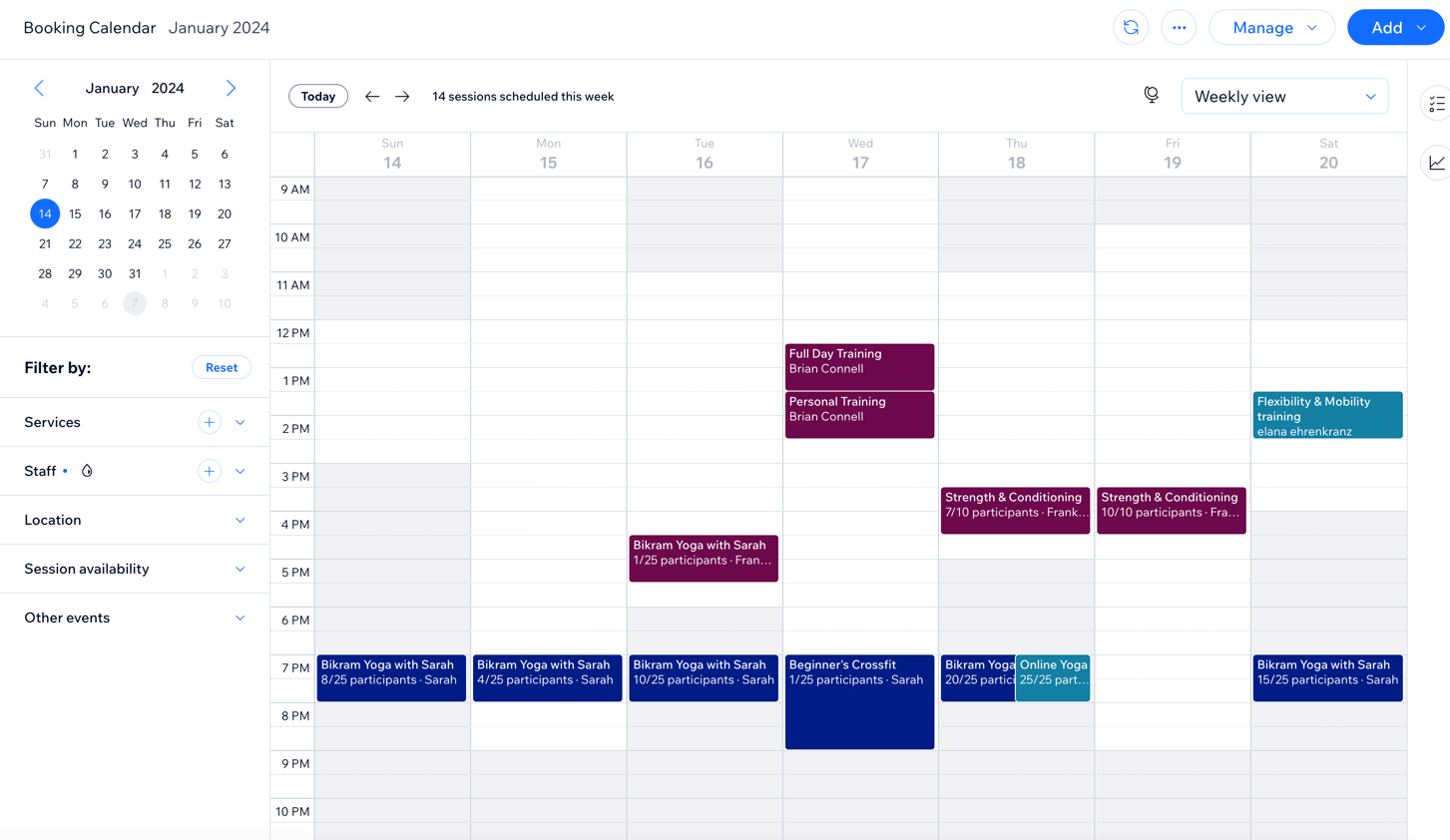
The Wix Bookings calendar helps you manage appointments, classes, and courses and make scheduling changes with ease. Learn more about managing your calendar.
Tip:
Avoid scheduling conflicts between your business and personal life by syncing your personal calendar with your bookings calendar.
Customizing your booking form
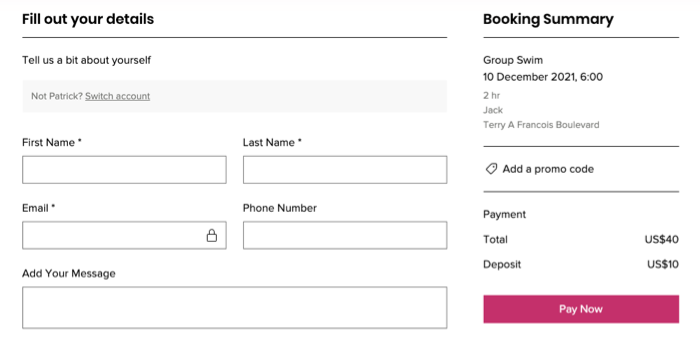
Use the booking form to gather essential information about your clients before their sessions. By customizing the form, you can collect important details about your clients that are relevant to your services. This helps you understand your clients' needs and provide the best experience possible.
Sending emails or SMS messages to clients
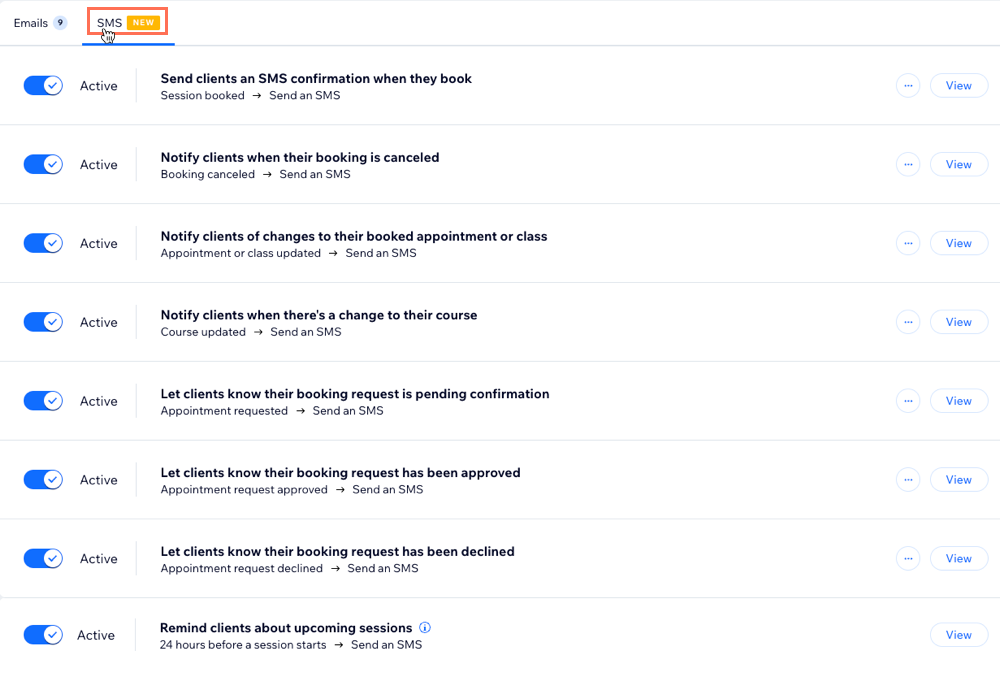
Keep your schedule running smoothly and reduce no-shows by sending clients reminder emails or SMS messages about their upcoming services. You can also notify them of any changes or updates to their appointments.
Viewing clients' past bookings
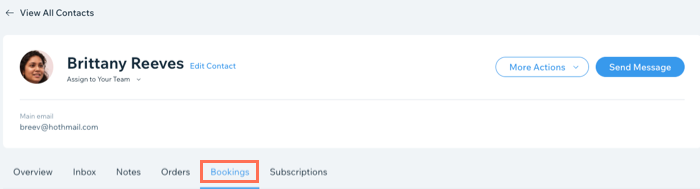
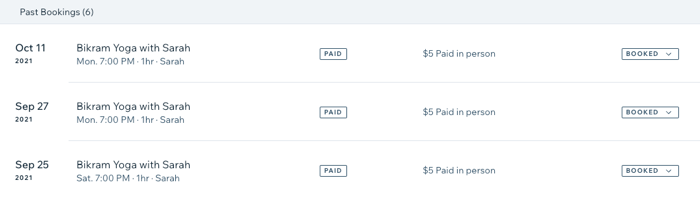
Use the Contacts tab in your site's dashboard to view and update your clients' past bookings, including payment and attendance. This helps you keep track of your clients' history so you can provide a personalized experience. Learn more about reviewing clients' past bookings.