


Wix Bookings: Syncing Personal Calendars with Wix Bookings
In this article
- Share the benefits of synced calendars with your staff
- Prevent double bookings
- Sync your Google Calendar with Wix Bookings
- Sync your Apple Calendar with Wix Bookings
- Sync your Microsoft calendar with Wix Bookings
- Re-sync your Wix Bookings calendar with your personal calendar
- FAQs
Sync your booking calendar with your personal calendar to help manage your business and sessions. Syncing calendars is a great way to avoid double bookings and check when you and your staff are unavailable to take sessions each week.
Before you begin:
Make sure you
upgrade your site to sync your personal calendar with Wix Bookings.
Share the benefits of synced calendars with your staff
As the site owner, you can sync your own calendar and
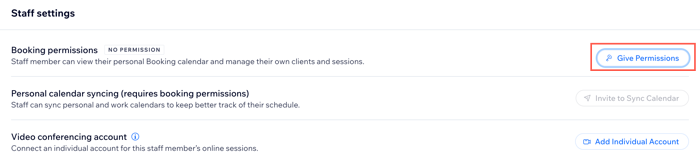
invite your staff to sync their personal calendars. This helps keep everyone's calendars up to date each week. Before you can invite a staff member to sync their personal calendar, make sure you give them the relevant booking permissions.
Prevent double bookings
Synced calendars connect with each other and share information, making it easier to plan upcoming weeks and months.
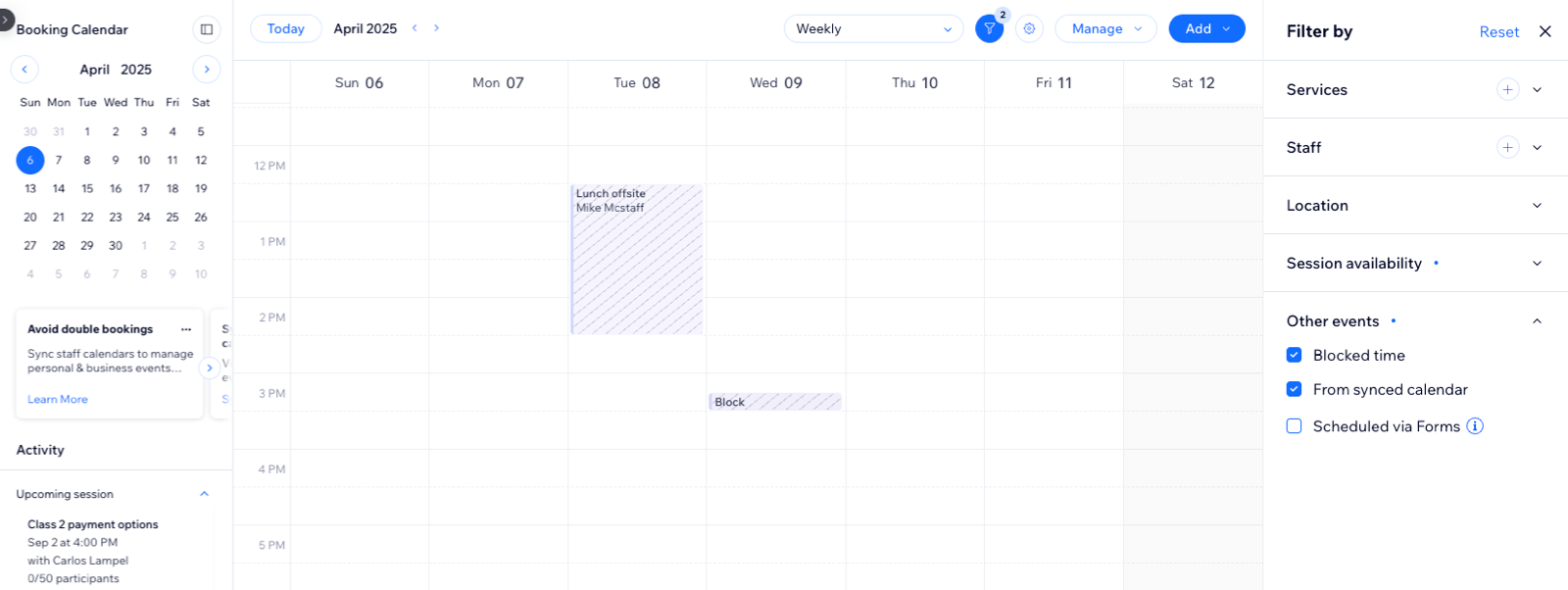
When you sync a personal calendar with the booking calendar, all meetings appear in both places, so you always know when you're busy or free. Meetings from your personal calendar can show as 'Busy' time, or you can choose to display event details in the booking calendar. Your personal events will still show as 'Busy' to others.
You can connect either a Google, Microsoft (Outlook or Office 365) or an Apple calendar to Wix Bookings.
Sync your Google Calendar with Wix Bookings
When you
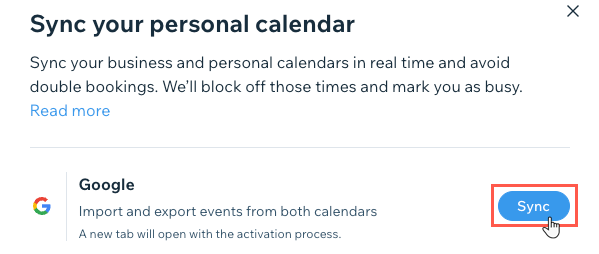
sync your Google calendar with Wix Bookings, only sessions assigned to the connected staff member are synced to that external calendar. Sessions assigned to other staff members are not reflected. Personal appointments in the external calendar block off availability in Wix Bookings - this is a two-way sync.
The information you see in your personal calendar depends on the type of service that a client books:
- Appointments: You can access all the information you need about your upcoming service: The service name, address, customer name and contact details, and which staff member is providing the service.
- Classes and Courses The name of the class or course appears in your personal calendar (except for Apple calendar). Even if no one booked a session, classes and courses still appear in your personal calendar.
Sync your Apple Calendar with Wix Bookings
When you
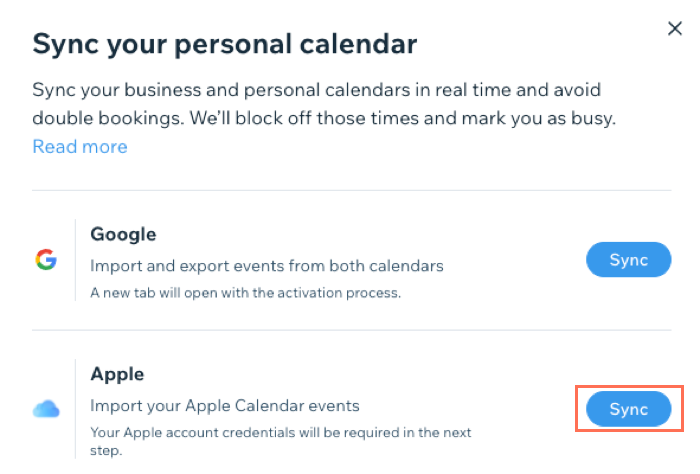
sync Wix Bookings with your Apple Calendar (iCal), you can view your personal appointments and business sessions in one place.
You can choose to import upcoming personal appointments from Apple Calendar to your Wix calendar. You can also import upcoming Bookings sessions from your Wix calendar to your Apple calendar.
Apple requires you to create a specific kind of password to sync your Wix calendar with your Apple calendar.
What is an app-specific password?
Sync your Microsoft calendar with Wix Bookings
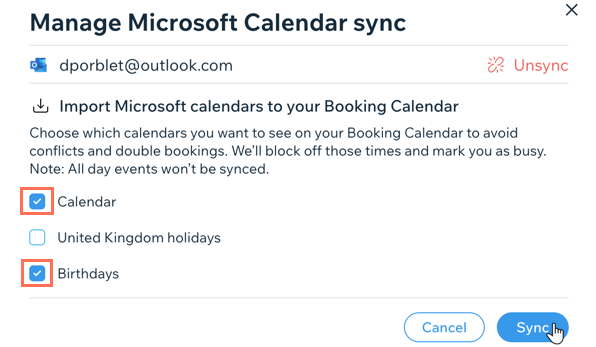
Sync your Microsoft calendar (Outlook or Office365) with Wix Bookings to view your business sessions and personal appointments in one place.
You can choose which of your personal calendars you want to include in the sync. This is a great way to block off time for birthdays, weddings and even public holidays.
Re-sync your Wix Bookings calendar with your personal calendar
Before re-syncing your Wix Bookings calendar with your personal calendar (Google, Outlook, or iCal), you must first unsync your existing connection. Re-syncing restores the connection so your bookings continue updating in your personal calendar.
To re-sync your calendar:
- Go to Booking Calendar in your site's dashboard.
- Click the Manage drop-down and select Sync personal calendar.
- Click Manage next to the relevant calendar.
- Click Unsync.
- Click Unsync to confirm.
- Click the Manage drop-down and select Sync personal calendar.
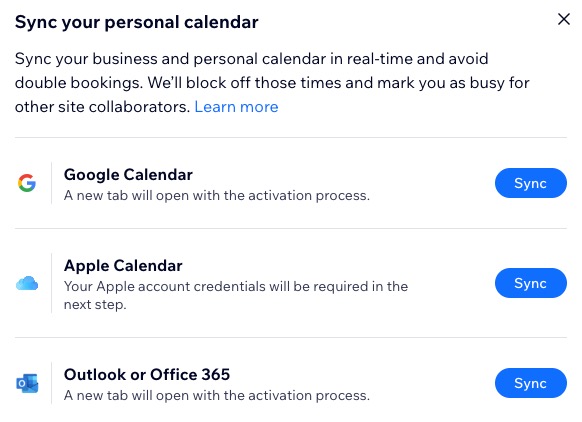
- Click Sync next to the relevant calendar and follow the relevant guide below:
Notes:
- Your previous calendar stays in your account but stops updating. We recommend deleting or renaming it.
- Re-syncing creates a new “Wix Bookings” calendar. If one already exists, Wix creates a new version with an incremented name (for example, “Wix Bookings 2”). The calendar with the highest number stays synced.
FAQs
We are here to help with all your questions. Click a question below to learn more.
How do personal calendar appointments show up in Wix?
Can I create a personal calendar event without it blocking time in Wix?
Why don’t all my personal calendar sessions appear in Wix?

Why aren’t all sessions visible in my synced external calendar?
Why do all my staff appear as unavailable when only one is busy?
What happens when I block time in Wix?
Does Google Calendar's "All Day" option block time in my booking calendar?

What happens if I reschedule or remove a session or personal calendar event?
What happens when I change my personal calendar password?
What happens when I stop syncing calendars?
Does buffer time apply to 'Busy' slots from my personal calendar?
