


Wix Stores: Accessing the Payment Setup
3 min
In this article
- Getting started
- Choose payment methods
- Wix Payments
- Third-party credit/debit payment providers
- PayPal
- Apple Pay / Google Pay
- Manual payment
- Installment providers
Before you can start selling, you need to set up one or more payment methods. This is done in the Accept Payments page in your site's dashboard.
Show me how to access the payment setup
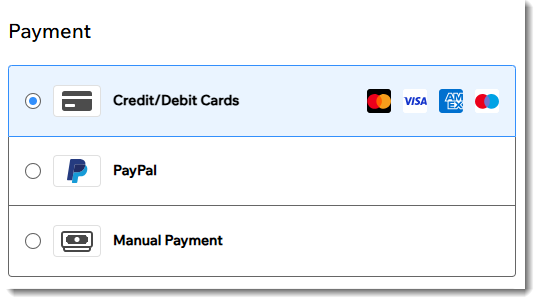
The payment methods you set up are then displayed to your customers at checkout.
Getting started
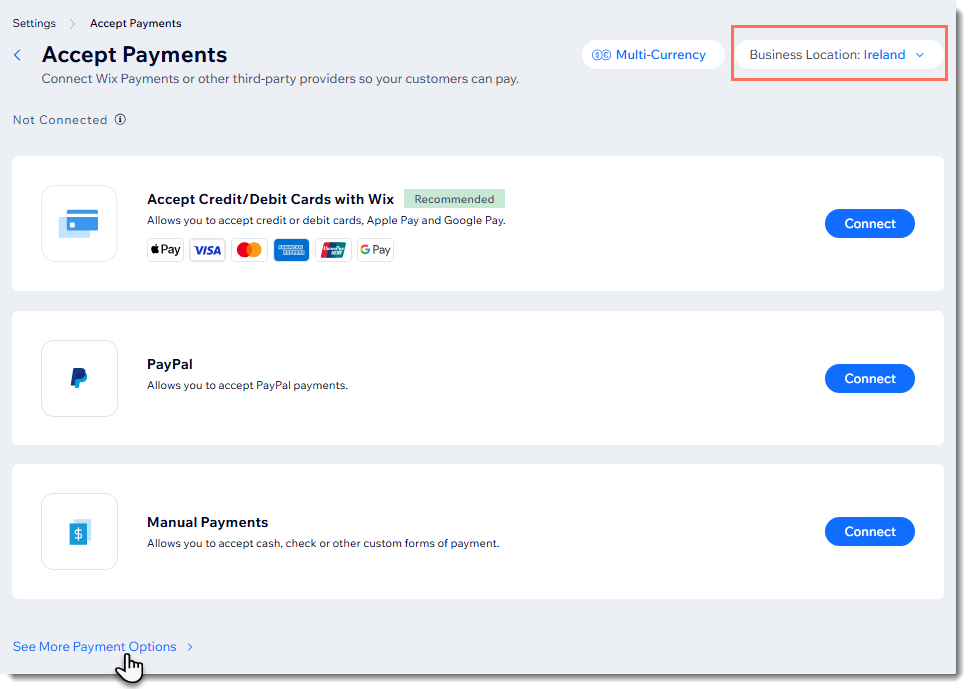
Wix automatically suggests the most suitable providers available to you in your region. To make sure you're getting the best recommendations, check that your business location is correct. To see additional payment providers, click See More Payment Options at the bottom.
Choose payment methods
Wix offers a wide variety of payment methods. Depending on your location, they can include:
Wix Payments
Wix Payments is Wix’s built-in payment provider that lets you accept major debit and credit cards, Apple Pay, Tap to Pay on iPhone and Android, Google Pay, PayPal, and other popular payment methods. It also gives you a single dashboard where you can track and manage payouts, refunds, and chargebacks.
Learn more about Wix Payments.
Third-party credit/debit payment providers
Connect to a third-party payment provider (e.g. Square, Stripe) to accept credit card payments. Wix works with over 70 payment providers worldwide so you can take advantage of their services and features. Available providers vary by region, and you can see the full list of options for your country.
- Learn more about third-party payment providers.
- Find out which third-party payment providers are available in your country.
PayPal
Accept payments through PayPal. Note that if you select the PayPal option, customers can pay by credit card even if they do not have a PayPal account.
- Learn more about connecting PayPal as a third-party payment provider.
- Learn more about customer checkout with PayPal.
Apple Pay / Google Pay
Let customers check out using their Apple Pay or Google Pay wallets. Note that the Apple Pay button is displayed only to customers viewing your site with a Safari browser on iOS or macOS devices.
Learn more about adding Apple Pay or Google Pay as a payment method.
Learn more about customer checkout with Apple Pay or Google Pay.
Manual payment
The manual payment method allows you to accept any kind of payment offline. When customers select this method, they'll see your instructions on how to send payment.
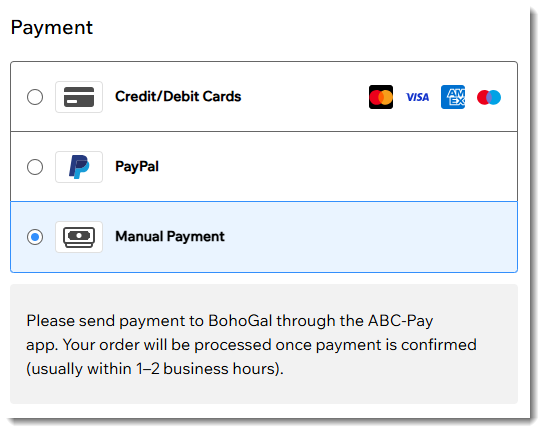
After you receive payment for an order, you can manually update the payment status in the Orders tab to 'Paid'. Besides accepting payment through a cash app, you can use this payment method to accept cash, bank transfers, checks, or any other form of payment that is not tracked online.
Learn more about the manual payment method.
Installment providers
Let customers buy now and pay later—or pay in installments—by connecting a payment provider that supports these payment options. You receive payment for the order right away, while giving your shoppers a more affordable payment option.
Learn more about accepting payments in installments.
Want to learn more?
Check out the full Wix Learn course on getting started with Wix eCommerce. Skip to the third video to learn more about accepting payments.
