


Wix Stores: Managing Emails Sent to Store Owners
In this article
- Viewing confirmation notifications
- Customizing the recipient address
- Customizing the email
- Troubleshooting confirmation email issues
- Still need help?
Important:
This article refers to the email that merchants receive. Learn more about
emails sent to customers.
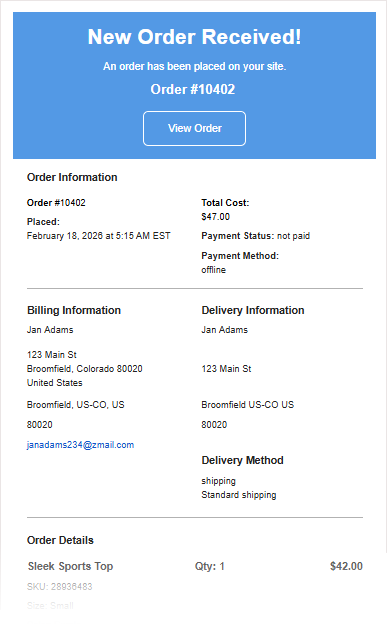
Every time a store order is placed, you receive an email notification. You can customize this email so that it's sent to other recipients and change the email's text and design.
Note:
Some payment providers take a day or two to process payments. In these cases, the email is sent and the order appears in the Orders tab only after the payment is processed.
Viewing confirmation notifications
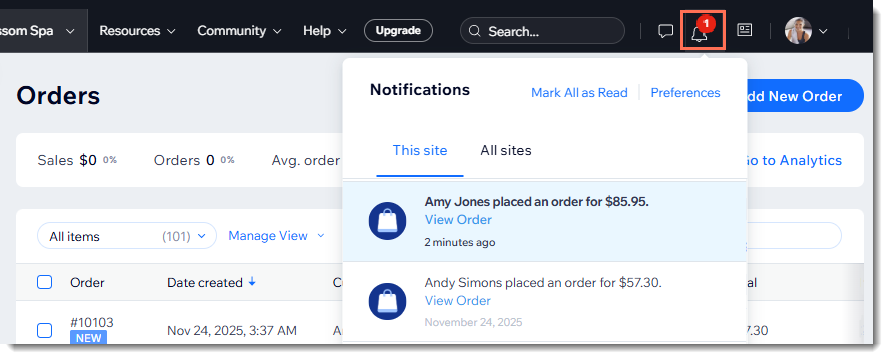
In addition to the email notification, you also receive a notification in your dashboard.
Note:
If you are using a merchant account (e.g. PayPal, Stripe), you may also receive a confirmation email from the relevant payment provider to the email address associated with your account.
Customizing the recipient address
By default, the confirmation email is sent to the email address set in the
Business Info section of your site's settings. You can change that email address at any time.
To change your default email address:
- Go to the Business Info section of your site's settings.
- Scroll down to the Location & contact info section.
- Enter an email address in the Email field.
Tip:
You can also direct the email to a different address or to multiple email addresses. Learn how to
customize the email addresses notification emails are sent to.
Customizing the email
You can customize the emails you receive so they match your business needs. You can access these emails through Automations or from the
Emails & Notifications tab in
Checkout settings.
To access the notifiction email from Emails & Notifications:
- Go to Checkout Settings in your site's dashboard.
- Click the Emails & Notifications tab at the top.
- Scroll down to the Notifications you get section.
- Click Edit next to Get notified when an eligible order is placed.
- Customize the email or manage the automation.
Troubleshooting confirmation email issues
If you are not receiving confirmation emails, try the steps below:
Step 1 | Test your email
Step 2 | Check that the email isn't in the spam folder
Step 3 | Check your MX records setup
Step 4 | Test online ordering
Still need help?
What information should I include if I need to reach out for assistance?
