


About Your New Customizable Emails
2 min
In this article
- Which customer emails does this affect?
- What customizations can I make?
- How do I access email customizations?
You can now upgrade the customer emails sent automatically from your site. While they may look and function much as they did before, they’re now powered by Wix Automations and are fully customizable.
Which customer emails does this affect?
- Order confirmation: Sent when a customer places an order.
- Digital download link: Sent in addition to the order confirmation email when a customer pays for a digital product.
- Refund confirmation: Sent when a refund is initiated.
- Shipping confirmation: Sent when a physical order is shipped.
- Ready for pickup notification: Sent to let customers know they can collect their pickup order.
- Order canceled: Sent when you cancel an order.
- Order updated: Sent when you edit an order.
Tip:
This upgrade also affects the notification you receive every time an order is placed.
What customizations can I make?
Emails sent through Wix Automations give you the flexibility to customize their look and function. You will be able to:
- Edit the email text
- Customize the email design
- Send notifications about an order to multiple merchant email addresses (e.g. to you and your business partners)
- Deactivate an email
What do I need to do?
To switch to your new customizable emails, click Start Update.
Important:
If you previously edited email text, those changes won't carry over to the new system. Make sure to read how to recreate your changes in the steps below.
To move to upgraded emails:
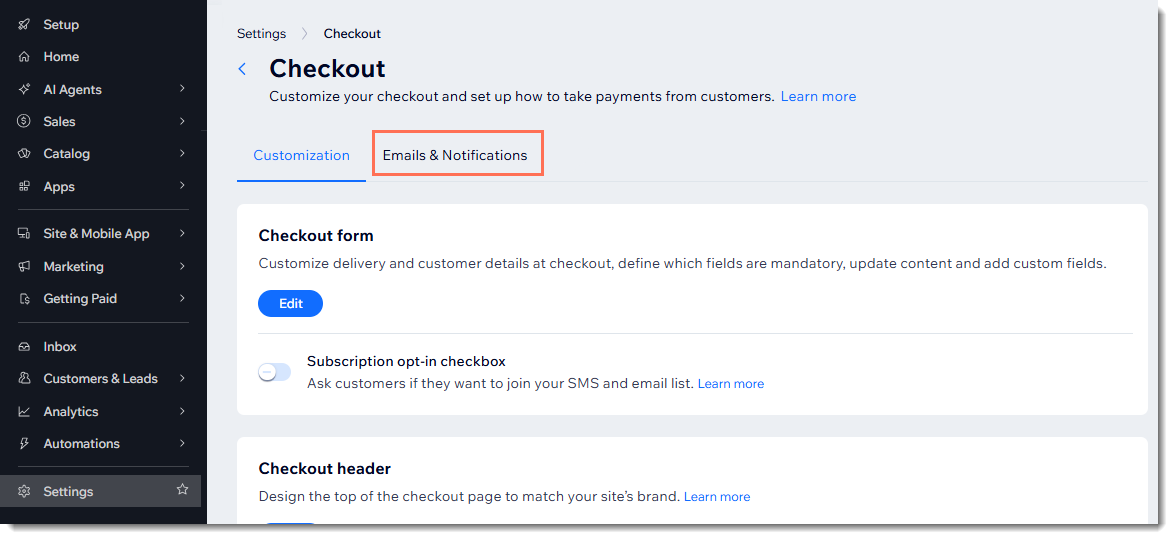
- Go to Checkout Settings in your site's dashboard.
- Click the Emails & Notifications tab at the top.
- Click Update Email System.
- If you previously customized email text, select the Email me the copy of my current custom texts checkbox.
Note: Since previous customizations don't carry over, this will allow you to easily view your previous changes. - Click Update Order Emails.
You can now go to Wix Automations and recreate previous customizations or make new ones.
How do I access email customizations?
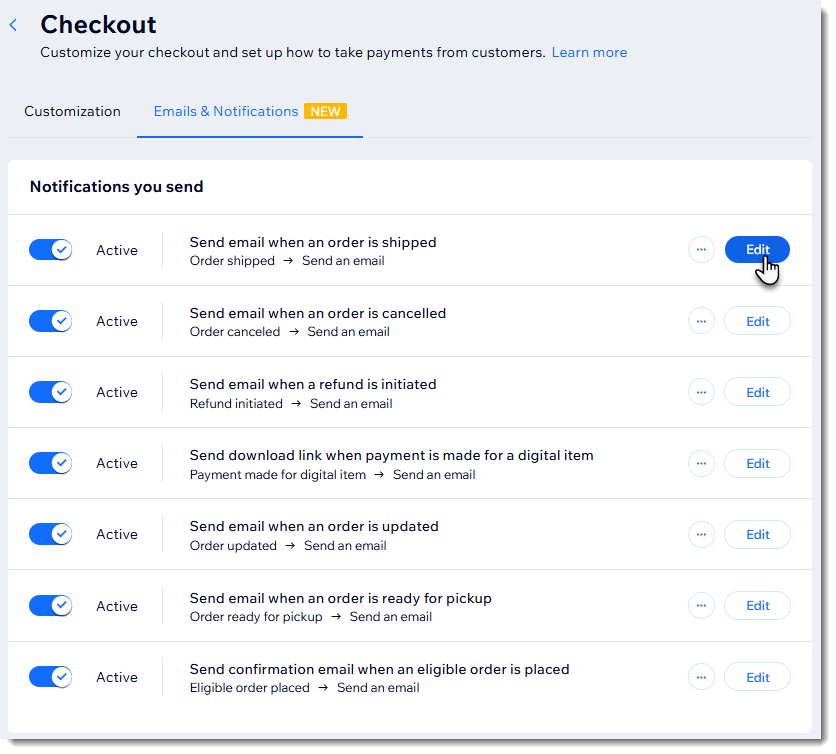
After you upgrade, you can click the Emails & Notifications tab and select an email.
Next, click Edit next to the email you want to customize.
Learn more about managing emails with Wix Automations:
