


Wix Stores: Fulfilling Store Orders
In this article
- Manually marking orders as "Paid"
- Marking orders as "Fulfilled"
- Adding tracking numbers
- Fulfilling local delivery and scheduled orders
- Printing packing slips
- FAQs
You just made a sale. Congratulations! The next step is processing the order. This can include shipping the order, adding a tracking number, printing a packing slip and more.
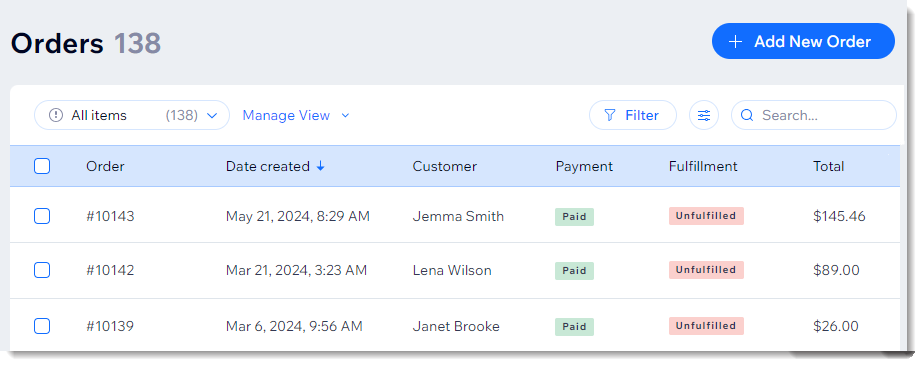
Show me how to access my orders

Manually marking orders as "Paid"
If an order was placed using the
Manual payment method, you must manually mark it as 'Paid' for your inventory to update and for any applied coupons to be considered as used.
Tip:
If you received partial payment, you can enter a custom amount.
To update the payment status:
- Go to Orders in your site's dashboard.
- Click the relevant unpaid order.
- Click the Collect Payment drop-down and select Mark as Paid.
- (Optional) Select a custom amount (i.e. accept partial payment):
- Select the Mark a custom amount as paid checkbox.
- Enter the amount.
Note: Must be less than the order total.
- Click Mark as Paid to confirm.
Note: This cannot be undone.
Digital Products:
As soon as a digital product is marked as "Paid", an email is sent to your customer with a link to download the file. The order status automatically changes to "Fulfilled".
Learn more about
collecting payment for unpaid orders.
Marking orders as "Fulfilled"
To keep track of the orders sent to customers or picked up, make sure to mark them as "Fulfilled" as soon as they are processed.
To mark an order as "Fulfilled":
- Go to Orders in your site's dashboard.
- Select an order.
- Click More Actions at the top right.
- Select Mark as Fulfilled:
- (Optional, if the order is unpaid) Select the Mark Order as Paid checkbox.
- (Optional) Send your customer an email:
- Shipping or delivery orders: Select the Send shipping confirmation email checkbox.
- Pickup orders: Select the Send pickup ready email checkbox.
- Click Mark as Fulfilled to confirm.
Tip:
You can change the status of an order back from "fulfilled" to "unfulfilled" by following the same steps and selecting
Mark as Unfulfilled in step 4.
Adding tracking numbers
Tracking numbers help you and your customers follow the progress of packages as they make their way to their destinations.
- Learn how to add tracking numbers to orders.
- Learn how to scan tracking numbers on your phone using the Wix app.
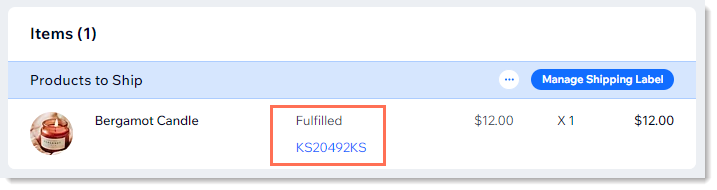
Customers can find an order's tracking number in the shipping confirmation email and in their
My Orders page. You can locate them in the Orders tab in the Wix dashboard.
Fulfilling local delivery and scheduled orders
- Learn how to add tracking numbers to orders.
- Learn how to scan tracking numbers on your phone using the Wix app.
If you offer your customers local delivery - especially if you allow them to choose the time slot they prefer - you'll need to customize the look of the order page to help you see at a glance which orders need to be delivered at specific times.
Learn how to customize the Orders tab for local delivery.
Printing packing slips
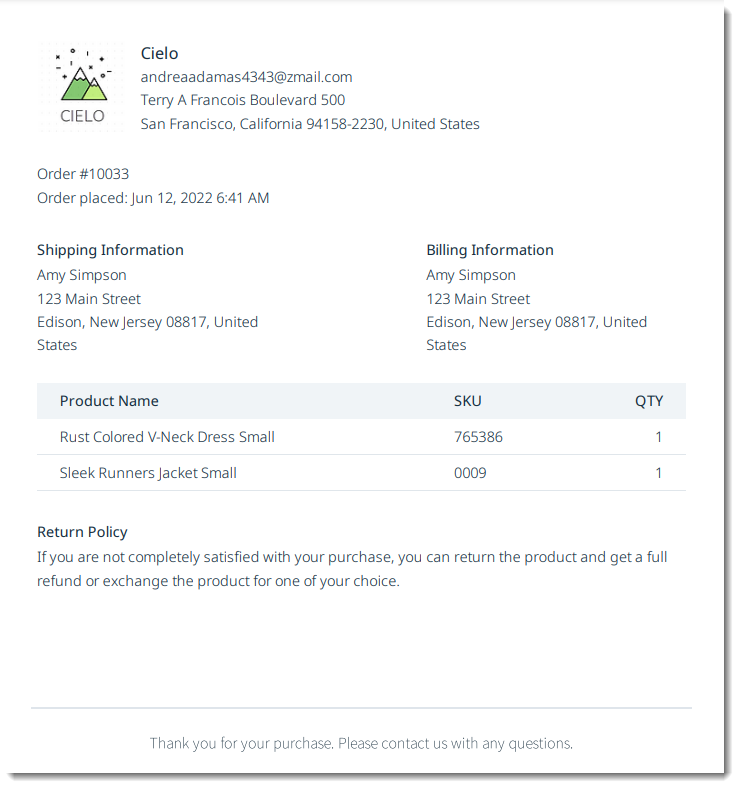
Packing slips display the order number, shipping and billing addresses, the products purchased, as well as your store policies.
Notes:
- Packing slips are not available for dropshipping or digital orders.
- You can print a packing slip for pickup and local delivery orders.
To print a packing slip:
- Go to Orders in your site's dashboard.
- Select an order.
- Click the More Actions icon
 .
.
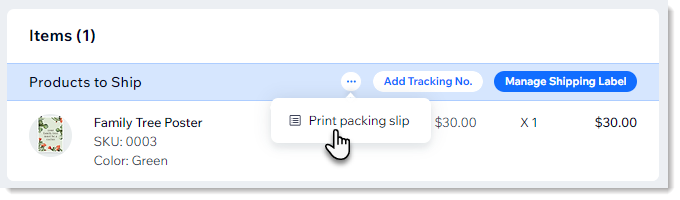
- Select Print packing slip.
- Click the Print icon
 .
. - Click Print.
Below is a sample packing slip:
FAQs
Click a question to learn more.
How can I mark an order as "partially paid"?
Can I change the status from "Paid" to "Unpaid"?
Can I edit an order?
Can I print an order?

How can I customize the columns in the Orders tab?
