


Wix Stores: Customizing the Wix Studio Product Page
In this article
- Step 1 | Customize the global settings
- Step 2 | Customize individual Product page elements
- FAQs
Important:
The new Product page is available only in the Studio Editor.
Wix's fully-customizable Product page lets you bring your design vision to life. Start by customizing the page's global settings, like hiding elements you don't need and selecting your main layout options. Then, adjust other parts of the Product page to get the perfect look.
Tip:
The Product page is a dynamic page. That means that you customize it once. The changes you make apply to each of your products.
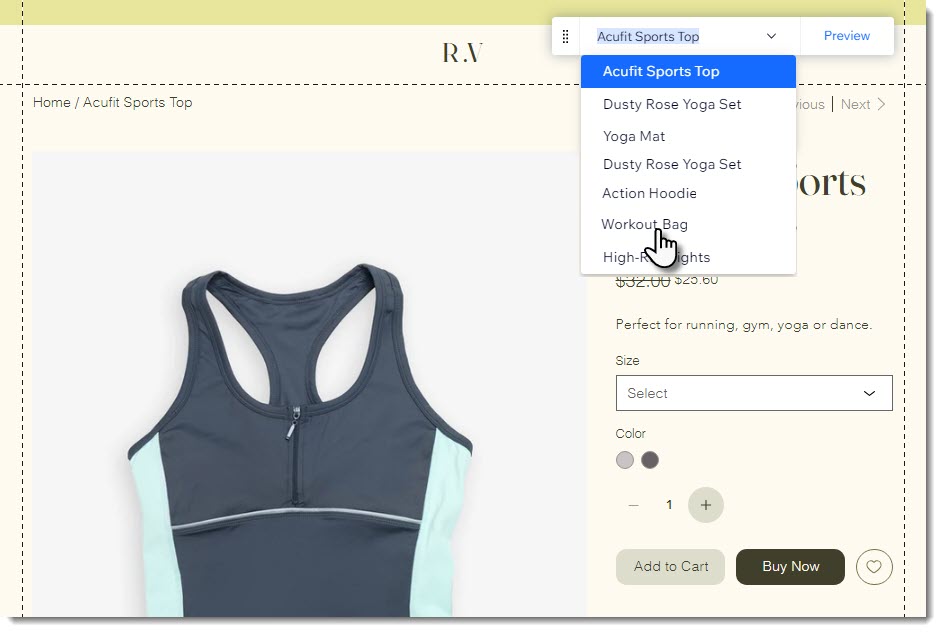
Want to see how your design will look when applied to other products? Simply select a product from the
Preview Toolbar.
Step 1 | Customize the global settings
Start by customizing the settings that apply to the entire page. Click the Product page once in the Editor to display the global settings.
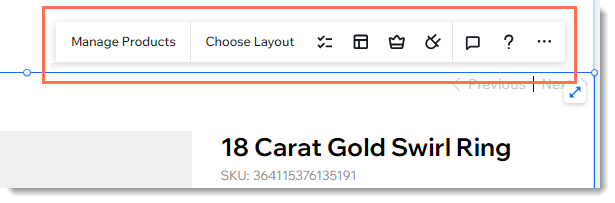
- Manage Products: Click to open the dashboard and add or edit products.
- Choose Layout: Select layout settings that apply to the entire Product page.
Tip: Later, you can select a layout for your product image display. - Elements: Deselect the checkbox next to any element you want to hide from your Product page.
Tip: You may not see some visible elements if they are not relevant to the product you're currently viewing. For example, to view the Product Options element, select a product that has options. - Plugins: Add plugins that work hand-in-hand with the Product page, such as Wix Reviews or the Wishlist.
Tip:
Design options are available in the
Inspector panel.
Step 2 | Customize individual Product page elements
Now you have the option of customizing each of the elements you chose to display. Your first click brings up the global settings. Then, click any of the individual elements (e.g. the product name element) to view the available customization options.

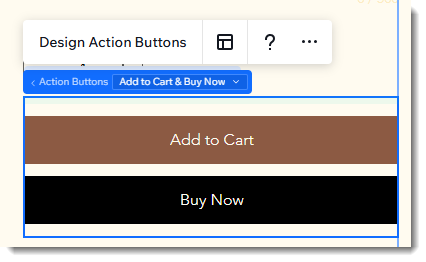
Note that some elements, such as the Action Buttons, have different states that need to be selected before you can view and customize them.
By default, only the Add to Cart and Buy Now buttons are visible. However, after clicking the buttons, you can select other options from the
Action Buttons drop-down. These include the Out of Stock button and the Subscribe Now button.
FAQs
Click a question below to learn more about customizing the new Product page.
I want to design an element, but I don't see it. What can I do?

What are each of the elements in the Product page?
 to display the Product page elements.


How do I customize gallery images?
Can I customize the mobile view as well?
Is it possible to change the positioning of elements in the Product page?