


CMS: Creating Automations for Collection Items
In this article
- Creating automations with CMS triggers
- Using CMS actions in automations
- FAQs
Use
Wix Automations to work with your CMS (Content Management System) collections. Automatically respond when collection items change, or automate changes to your collections based on other triggers.
This is the primary method for automating actions when visitors submit
CMS forms. Since forms save data as new items in your collection, the
Item added trigger allows you to send emails, create contacts, or perform other actions immediately after a submission.
Before you begin:
Make sure to
add the CMS to your site, if you haven't already.
Creating automations with CMS triggers
Set up an automation that runs whenever there is a change in your collection. You can choose to trigger the automation when a new item is added, an existing item is updated, or an item is deleted.
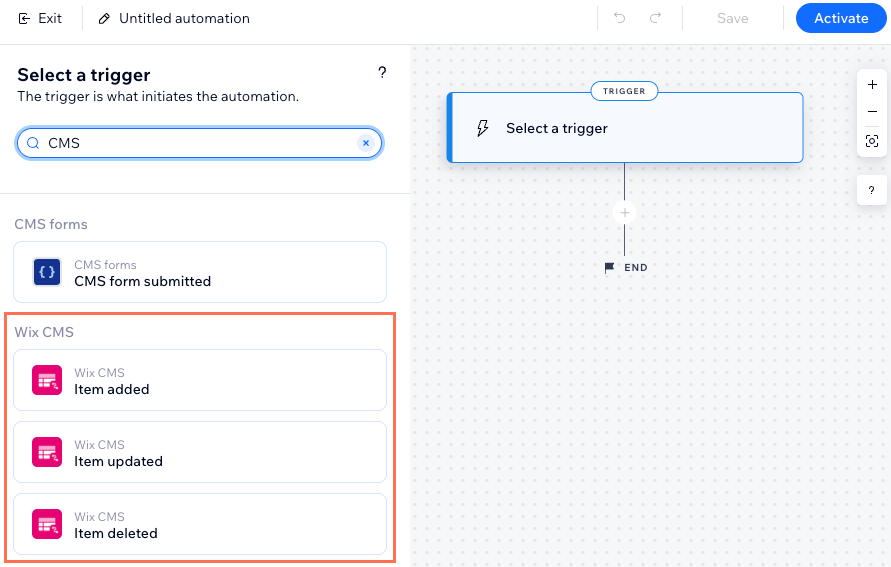
To create an automation for collection items:
- Go to Automations in your site's dashboard.
- Click + Create Automation at the top right.
- Click Start from Scratch.
- Click the title at the top left to give your automation a name.
- Type "CMS" in the search bar.
- Select the relevant trigger under Wix CMS:
- Item updated: The automation runs when an existing item in the collection is modified.
- Item added: The automation runs when a new item is added to the collection.
- Item deleted: The automation runs when an item is deleted from the collection.
- Select the relevant collection below Select a collection.
- Click Apply.
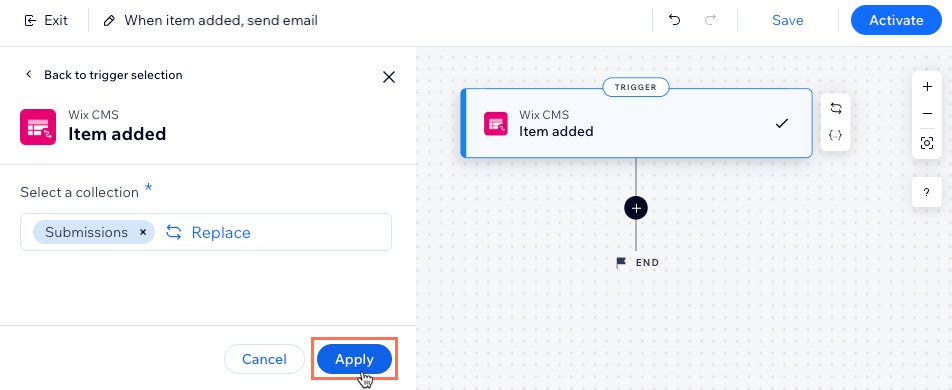
- Click the Add step icon
 and choose what you want to do:
Note: Repeat this step as many times as you need to customize your automation.- Delay: Add a delay that makes the automation wait before performing the next step. Choose the duration of the delay and click Apply.
- Condition: Add a condition that allows the flow to continue, only if the condition is met. You can set an ELSE path to define what happens if the condition is not met:
- Click Select a property and choose the dynamic field that the automation collects when it runs (e.g. Form Name, Form ID).
- Click the Select logic drop-down and choose an operator that will compare the received data with the value (e.g. equals, contains, is true).
- Click the Enter value drop-down or field that appears under your selected operator. The logical statement you've created will determine whether the automation continues.
- (Optional) Click + Or / + And to add another condition for the automation to check.
- Click Apply.
- Action: Select an action that will occur next (e.g. send an email, create a contact, send via webhook). Set up the action using the available options, which vary depending on the action type, then click Apply. Learn more about the actions you can choose.
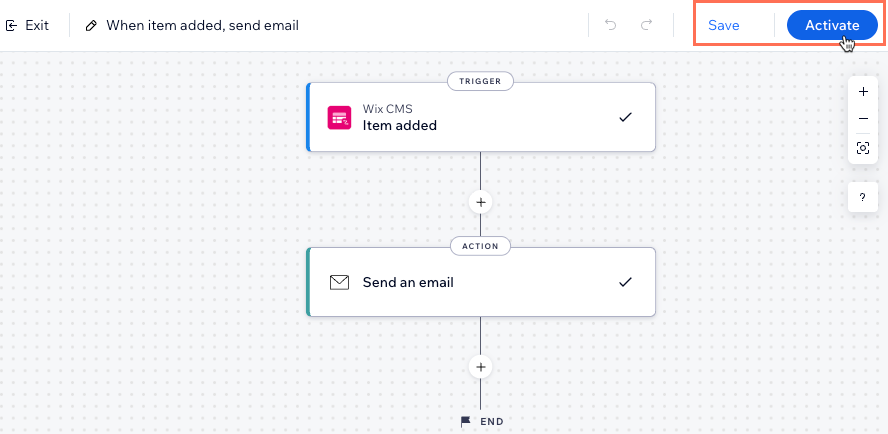
- Click to choose what you want to do:
- Save: Save the automation but do not make it active yet.
- Activate: Save and make your automation active.
Using CMS actions in automations
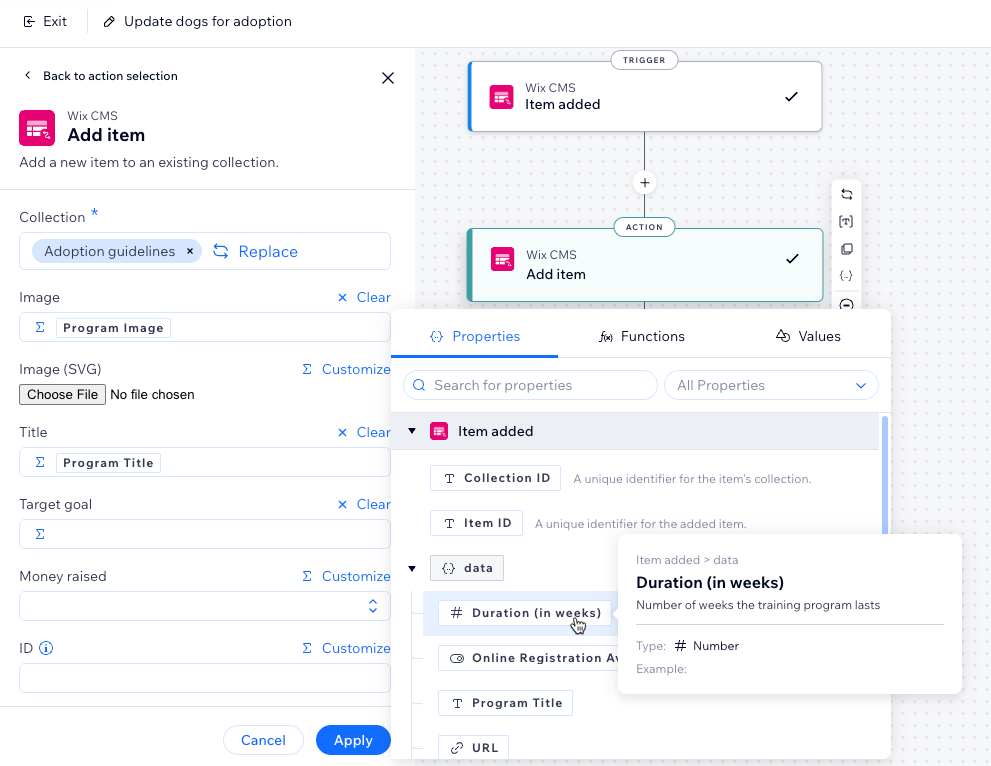
In addition to triggering automations when items in your collections are added, updated, or deleted, you can also automate changes to your collections themselves. CMS actions allow you to add, delete, update, find, patch, or query items in your collections as part of your automation workflows.
For example, you can automatically update a collection item when an invoice is paid, add new items to a collection based on form submissions, query items that match specific filters, or patch individual fields without overwriting the entire item.
To use CMS actions in your automations:
- Go to Automations in your site's dashboard.
- Create a new automation or open an existing one.
- Select a trigger for your automation.
- Click the Add step icon to add a new step to your automation.
- Click Action.
- Enter "CMS" in the search bar.
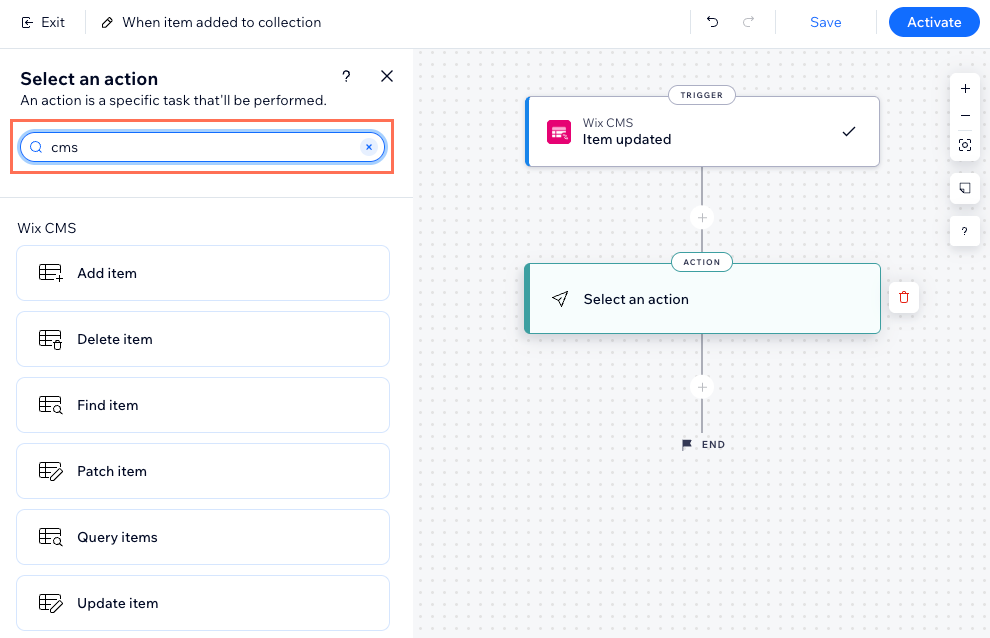
- Select the action you want to use under Wix CMS:
Add item
Delete item
Find item
Patch item
Query items
Update item
FAQs
Click below for answers to common questions about using CMS triggers in Wix Automations.
Can I use these triggers for CMS form submissions?
Does this automation run on sandbox or live collections?
How do I understand which automations are available to me?
What are some examples of CMS action automations?
Can I connect my automations to apps that I use outside of my Wix site?
What CMS collection fields can I use in Wix Automations?
What is the difference between Patch item and Update item?
What is the difference between Query items and Find item?
