


Wix Mobile Apps: How Members Use the Spaces App
6 min
In this article
- Joining a site
- Join with an invite code
- Invite others to join
- Managing their sites on the app
- Organize their site list
- Search for sites
- Manage their notification settings
- Browsing your site
- Chatting with you and other site members
- Viewing their activity
- Managing their credit card information
- FAQs
Spaces by Wix is an app for your members to engage with your business and online community.
The app helps your members interact with their favorite sites, receive important updates, and keep track of their personal activity (e.g. bookings, programs, or upcoming events). They can also book services, buy products, invite others to join, chat, read your blog, and more.
Joining a site
There are 2 ways for people to become members of a site:
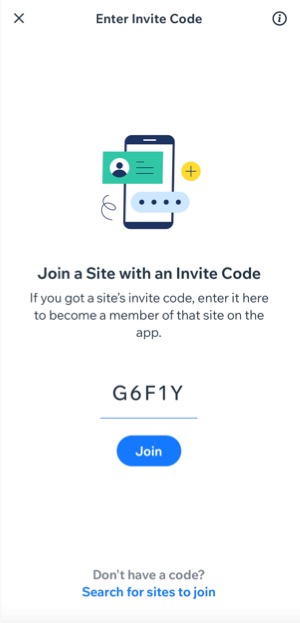
Join with an invite code
Visitors can join your site through the Spaces app using a unique invite code which you, the site owner, provides them with.
If they don't have an invite code, app members can tap Search sites at the bottom to search for your site.
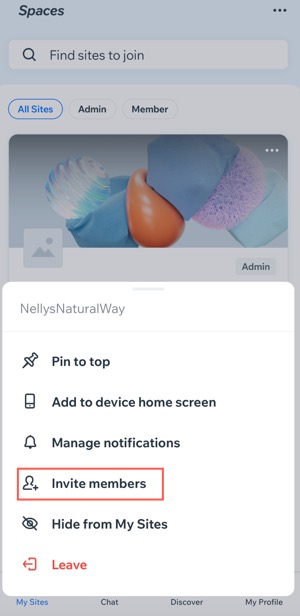
Invite others to join
Existing site members can share the experience by inviting others to become part of your community.
Managing their sites on the app
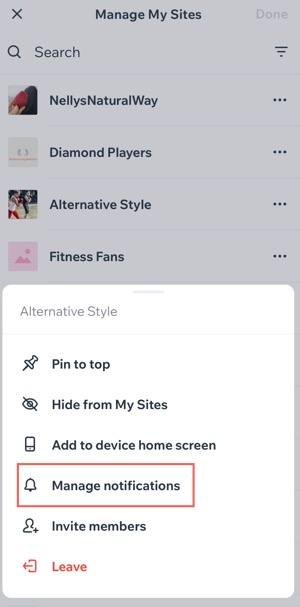
When members open the Spaces app, they see their site list (sites they are members of). They can prioritize their favorites by pinning them to the top and hide less frequented sites. They can also adjust notification preferences and opt out of sites they wish to leave
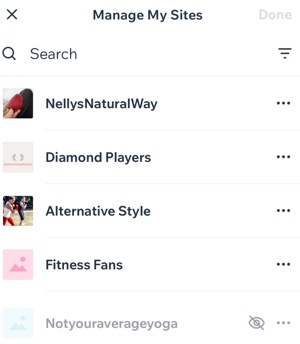
Organize their site list
Members can organize their home screen by pinning favorite sites to the top, hiding infrequently visited ones, and leaving sites they no longer wish to be part of.
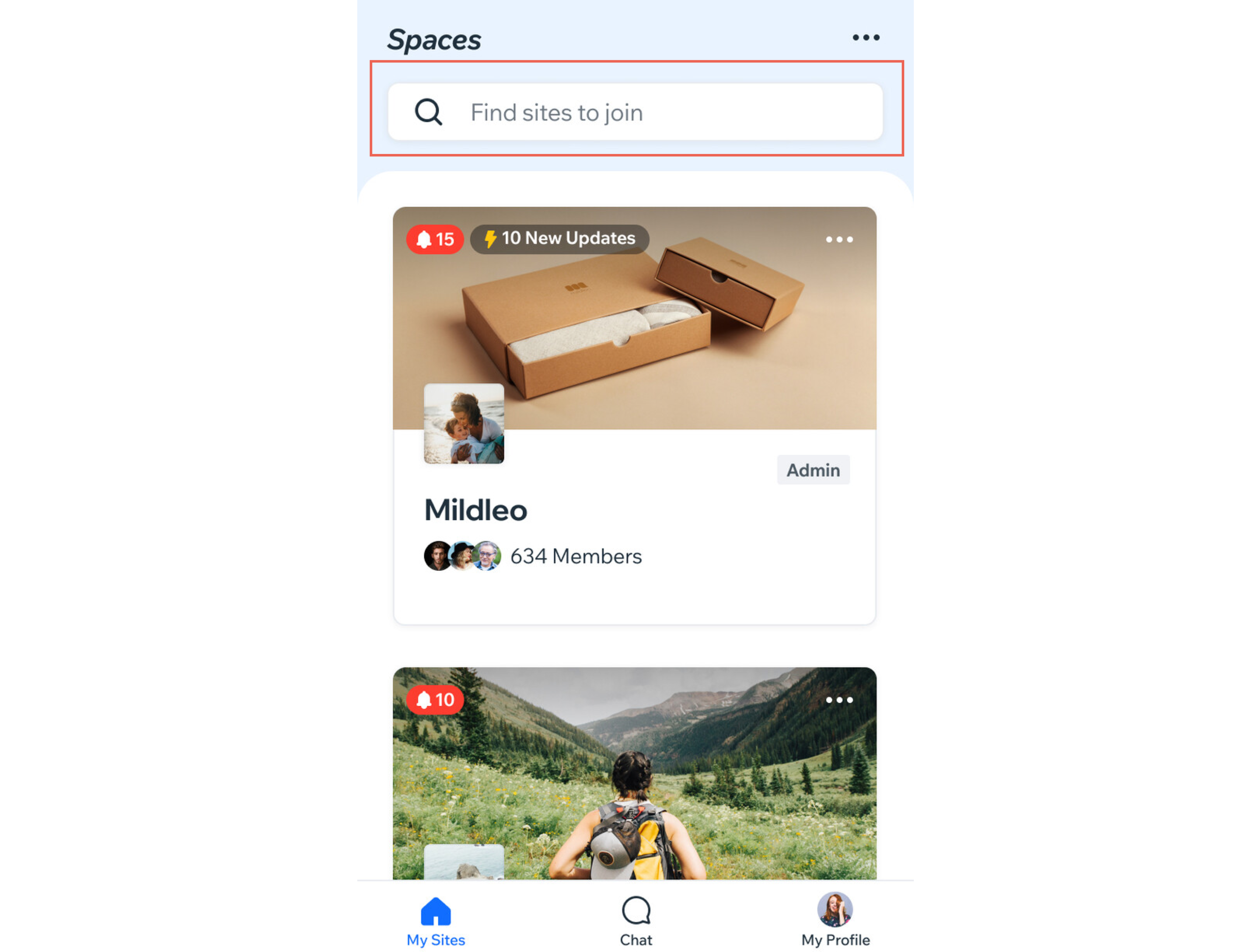
Search for sites
Members can use the search bar at the top of the Spaces app to find a site they're a member of or interested in. They can search by name, URL, sites they've interacted with, or been invited to in the past.
Tip:
As a site owner, you can help people discover your site by enabling the site search feature from your dashboard or the Wix app.
Manage their notification settings
Members can personalize their notification preferences by selecting between push notifications or email. They can also specify the types of notifications they wish to receive, such as general announcements, updates, or reminders.
Browsing your site
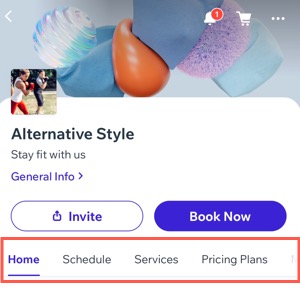
Your members can browse your site using the navigation tabs. They can view everything on your home page, shop for your products, view and join events, groups or programs, read your blog, and more.
Tip:
You can restrict some navigation tabs so that only members with specific badges and pricing plans can access them. Learn more about setting tab permissions for members.
Chatting with you and other site members
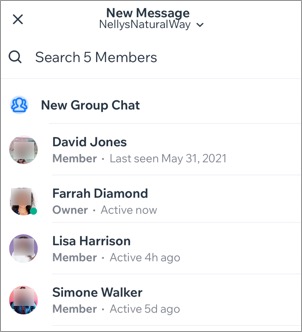
Your members can chat with you and other site members directly from their mobile devices. They can also initiate group chats, control participation, and leave chats at your their discretion.
Important:
- To chat with your site visitors, you must have the Wix Chat app installed on your site.
- Group chat is only available for your members if you've added a Blog or a Forum to your site, and have Members Chat enabled.
Viewing their activity
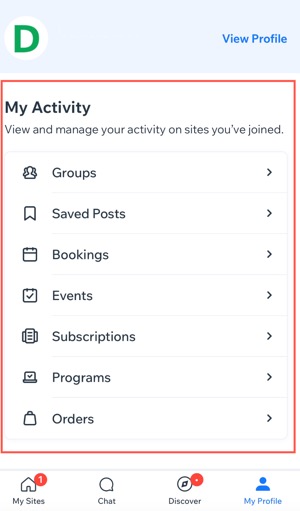
Once a member books a service, RSVPs to an event, or purchases a paid plan, their activity is logged under My Profile  in the Spaces app.
in the Spaces app.Members can then access their upcoming classes, appointments, events, orders, and subscriptions by tapping an option under My Activity to manage their engagements.
Managing their credit card information
When your members buy something from your site, they can choose to save their card details by selecting the Save card details for next time checkbox at checkout.
Saved cards are linked to the specific site where the purchase happens, so each site has its own list of payment methods rather than one card that works across all the sites your members interact with.
Important:
This option is only available on Android devices.
To manage their credit card information
- Open the Spaces by Wix app.
- Tap My Profile
 at the bottom.
 - Tap View Profile at the top right.
- Tap Credit cards.
- Tap the relevant site.
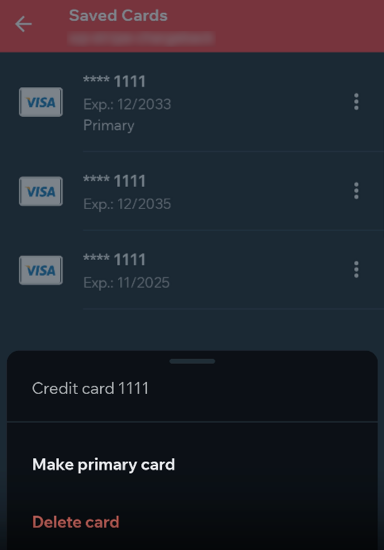
- Tap the More actions icon
 next to the credit card and choose what you want to do:
- Make primary card: Set this card as the main payment method for this site.
- Delete card: Delete this card from your Saved cards list.
Important:
- On iOS, members can still choose to save a card when they check out on your site, but they cannot view or manage their saved cards from the Spaces app settings. Instead, they can manage saved cards from the My Wallet page on desktop.
- To see the credit cards option in the app, a member must already have at least 1 saved card for that site.
FAQs
Click a question below to learn more.
What happens if someone I invite does not have the Spaces app?
Can members add a new card from the 'Credit cards' section in the Spaces app?
Can members edit saved card details from the 'Credit cards' section in the Spaces app?
What should I do if a member asks me to delete their personal information?
