


Wixel: Previewing, Downloading, and Sharing Your Project
6 min
In this article
- Previewing your project
- Downloading your project
- Publishing your project
- FAQs
This article refers to the new Wixel, released in December 2025. If you're unsure whether you’re using the new or previous Wixel, view more information here.
Before sending your work out into the world, you can check exactly how it looks on desktop and mobile, make changes, and choose the perfect way to distribute your finished designs. Wixel makes it easy to download your designs in the right format or publish them online with a shareable link, so you can decide how your work is seen.
Previewing your project
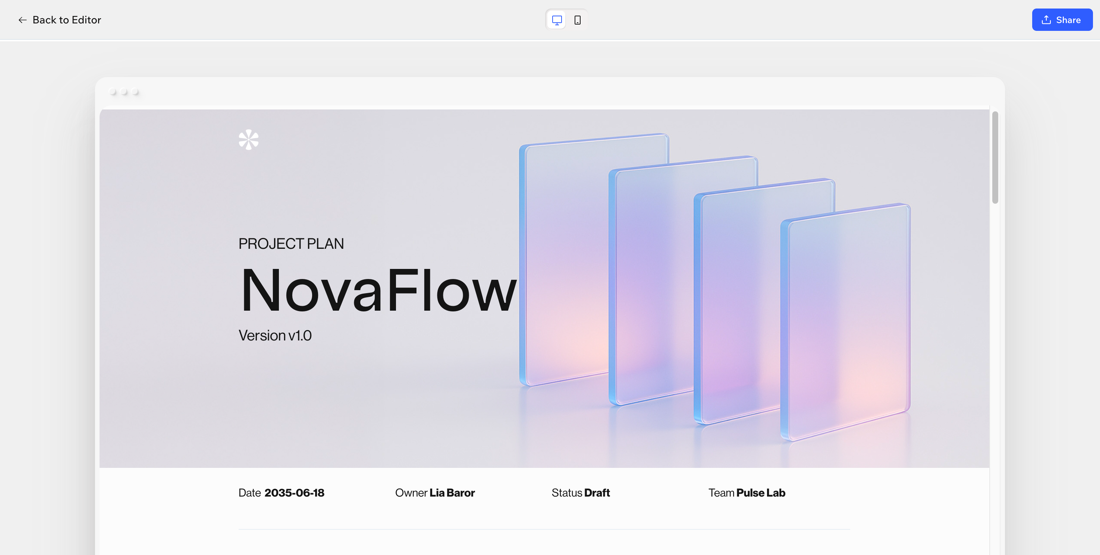
Preview your project to see exactly how it appears before you share it. You can use it to test a flow in a form, review video playback, or check your document’s layout.
Make sure to check both desktop and mobile versions, so you can catch any formatting issues and ensure everything looks and works as expected.
Note:
To preview your project:
Desktop browser
Wixel app
- Go to your project in Wixel.
- Select the relevant design.
- Click Preview at the top right.
- (Optional) Switch between desktop and mobile view to check both versions.

What's next?
Continue editing your project, download or publish your project.
Downloading your project
You can download any design from your project in just a few clicks. Choose the file type and quality you need, then save it directly to your device.
Note:
- It is not possible to download RSVP pages or forms.
- The available settings depend on the type of design you are downloading.
To download your project:
Desktop browser
Wixel app
- Go to your project in Wixel.
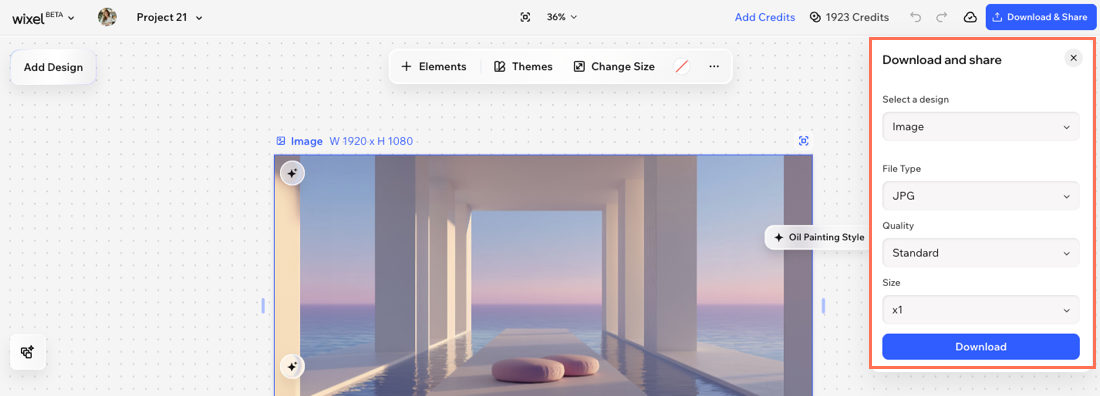
- Click Download & Share at the top right.
- Click the Select design drop-down and choose the design you want to download (e.g. the image or video).
- Customize your download settings:
- File Type: Pick the file type that best fits your needs (e.g. JPEG, PNG).
- Quality: Choose the desired quality level (e.g. Low, Standard, High).
- Size: Choose the desired size (e.g. x0.5, x2).
- Click Download to save the file to your device.
Publishing your project
Share your finished designs with family and friends, colleagues, or clients. When you publish a design in your project, such as a document, form, or RSVP page, you get a shareable URL that you can send around.
When you share your design, you’ll see a status badge above the link:
- Ready to share: Your link has the most up-to-date version of your design. It’s live, and anyone with the link will see your latest published changes.
- Unpublished changes: You’ve made edits to your design that aren’t live yet. To update the link and share the latest version, click Publish again.
Tip:
Anyone with the public link can view your published design. To share only with specific people, send the link directly and avoid posting it publicly.
To publish your project:
Desktop browser
Wixel app
- Go to your project in Wixel.
- Click Download & Share at the top right.
- Click the Select design drop-down and choose the relevant design.
- Click Publish.
Note: The link will be live once the design is published. - (Optional) Copy the link by clicking the Copy icon
 next to the URL.
Tip:
To un-publish, click the More Actions icon  and click Unpublish. Click Unpublish Link to confirm.
and click Unpublish. Click Unpublish Link to confirm.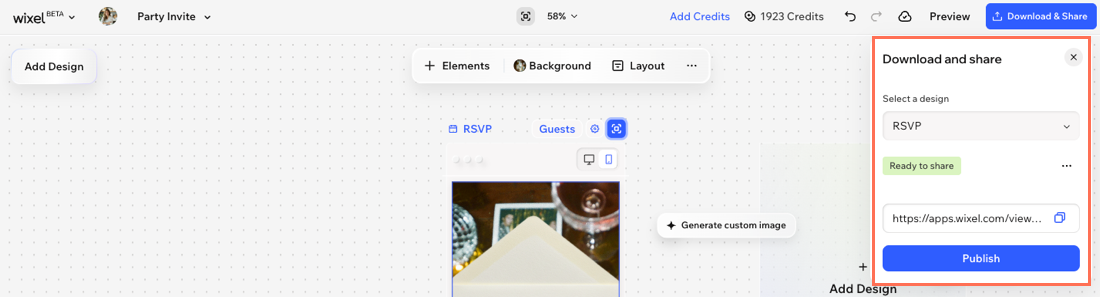
FAQs
Click a question below to learn more about downloading your project.
What file format should I choose for images?
Does changing the image size affect the image quality?
What should I know about using AI-generated content?
