


Wix Vibe: Collaborating in the Wix Vibe Editor
In this article
- Understanding real-time collaboration in Wix Vibe
- Seeing who is online
- Understanding real-time updates and notifications
- Working with chat and AI in a multi-user environment
- Concurrent code editing
- How credits work when multiple people collaborate
- FAQs
Important:
Wix Vibe is no longer available for creating new sites. If you already have a site built with the Wix Vibe Editor, you can continue editing and publishing. To create your next site with AI, we recommend using the Wix Harmony Editor.
The Wix Vibe Editor lets you and your collaborators work on the same site together in real time. You can see who is online, share live site changes, and run AI tasks while keeping roles and permissions in control. Credits are shared at site level, so every AI request in Vibe uses the same daily balance for that site.
Important:
Wix Vibe collaboration is available only to collaborators with roles that include editor access for that site. Learn more about
Roles & Permissions.
Understanding real-time collaboration in Wix Vibe
Wix Vibe is a real-time editor, so several people can work on the same site at the same time. You can see each other’s presence, share changes across the site, and keep track of who owns which part of the work. Collaboration behavior depends on the role you give each person.
Owners and Admin (Co-Owner) roles have full access to the Wix Vibe Editor and the site dashboard. Website Managers can also open the Wix Vibe Editor and update the site, but cannot manage billing. Back Office Managers can open the dashboard for the site, but they cannot access the Wix Vibe Editor.
To give someone access to collaborate in the Wix Vibe Editor:
- Go to your editor.
Tip: Alternatively, you can go to Roles & Permissions in your site's dashboard and skip to step 3 below. - Click the Collaborator profile icon at top right and select Manage Collaborators.
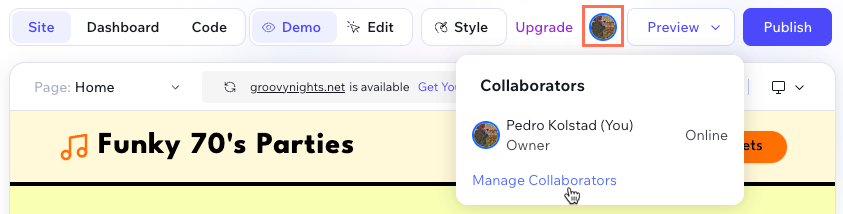
- Click Invite Collaborators.
- In the Emails field, enter the email addresses of each collaborator you want to invite, each separated by a comma.
- Select the checkbox next to the roles you want to assign to your collaborator.
Tip: Assign a role that includes Wix Vibe Editor access, such as Admin (Co-Owner) or Website Manager. - Click Send Invite.
- Select an option to let us know how you're connected and click Done.
Learn more about
inviting someone to collaborate on your site.
Seeing who is online
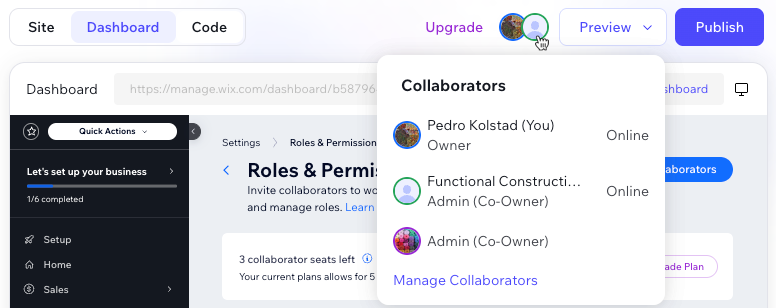
When collaborators work on the same Wix Vibe site, you can see who is present in your editor. Live avatars appear at the top right, next to the
Preview button. Each avatar represents the owner or a collaborator on the site.
Clicking the avatars opens a panel that shows each person’s name, role, and current status, such as 'Online' or 'Pending'. From this panel, you can go to the dashboard to manage collaborator roles and invitations.
To check who is online in the Wix Vibe Editor:
- Go to your editor.
- Hover over an avatar at the top right to see who's currently in your editor.
Tip:
Click
Manage Collaborators to go to
Roles & Permissions in your site's dashboard.
Understanding real-time updates and notifications
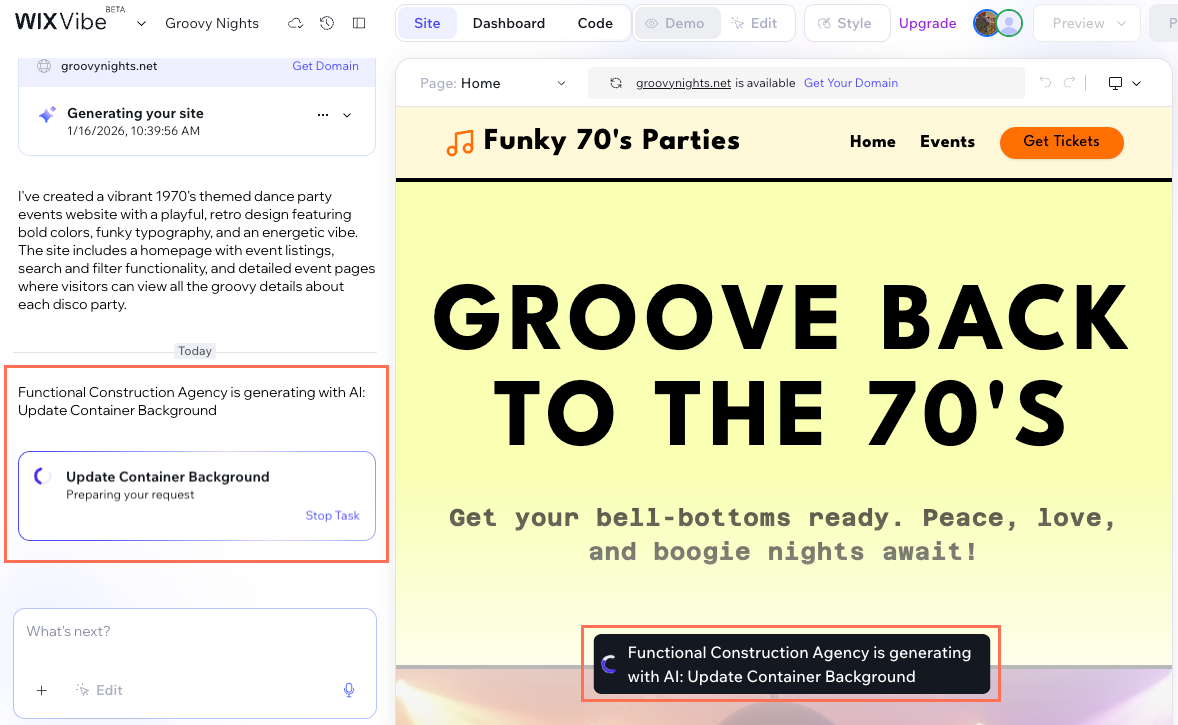
When another collaborator opens the site, you see a join notification near the bottom of the screen so you know they joined.
As you all work, manual edits update in real time. You see changes within seconds and do not need to refresh. Several collaborators can manually edit different parts of the site at the same time.
AI‑powered changes behave differently. When someone starts an AI task from the chat panel, editing pauses for everyone. A notification appears on the stage describing what AI is generating, and the same event appears in the chat panel. When the task finishes, editing resumes and the updated content appears for all collaborators.
During collaboration, autosave and versions continue to work as usual. Autosave keeps recent changes backed up, and you can restore earlier versions if you need to undo edits made while working together.
Learn how to
view and restore versions in your site history.
Working with chat and AI in a multi-user environment
Each collaborator has their own chat conversation with AI in the Wix Vibe Editor. Your prompts and chat history are private, so other collaborators do not see your messages. However, when you ask AI to change the site, those changes apply to the shared site for everyone.
When any collaborator runs an AI task from chat, Wix Vibe helps prevent conflicts. During that task, other collaborators cannot run their own AI tasks or edit the site. The editor appears blocked for them until the active task finishes or someone stops it.
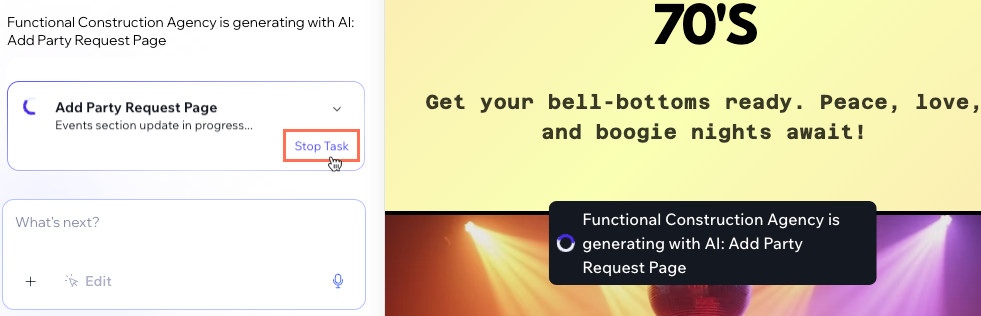
While a task runs, collaborators can see that AI is working on the site. A banner or message on the stage shows who started the task and a short description of what AI is generating. They also see a matching event in their chat panel.
Note:
Blocking during AI tasks applies to all collaborators who are currently in the Wix Vibe Editor for that site. When the task completes or is stopped, manual edits and AI tasks become available again for everyone. Any collaborator can click
Stop Task on the task in the chat panel to prevent it from continuing.
Learn more about
customizing your Wix Vibe site.
Concurrent code editing
The
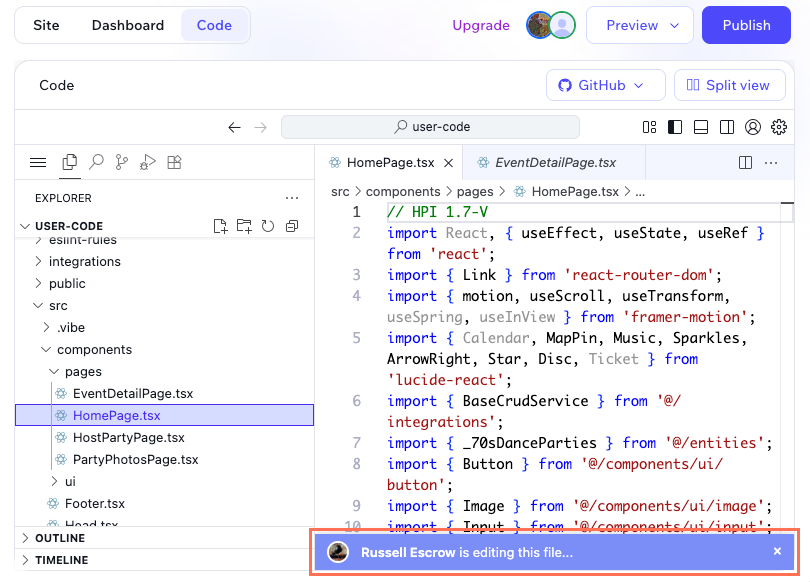
Code tab in Wix Vibe supports multiple collaborators working on the same project code. You can open the same file as another collaborator and see their changes appear in real time. Saving writes the latest version of that file for everyone.
Each collaborator can also open the floating chat in the
Code tab for AI-powered help with code. These chat conversations are personal, but any code changes that AI applies affect the shared project.
Learn more about
using the Code tab in Wix Vibe.
How credits work when multiple people collaborate
Wix Vibe uses daily credits for AI chat actions on each site. Free sites receive 6 daily credits. Sites with a Premium plan receive 50 daily credits. These limits match the existing behavior in Wix Vibe.
Credits are tied to the site, not to individual collaborators. Any collaborator who runs an AI task in the Wix Vibe Editor spends credits from that site’s daily balance. This includes tasks started from the main chat panel, from the
Ask toolbar option, or from the
Code tab’s floating chat.
If several collaborators work at the same time, they share the same pool of daily credits. When the site’s daily credits run out, AI chat becomes unavailable in Vibe for everyone on that site until the limit resets.

Learn more about
Wix Vibe daily chat request limits and
AI credits across Wix.
FAQs
Click a question below to learn more about collaborating in Wix Vibe.
Can collaborators see each other’s chat conversations?
What happens if two people edit the same element at the same time?
Do collaborators use their own credits or the site’s credits?
How do I manage who can collaborate in Wix Vibe?
What happens if someone runs an AI task while I am editing?
