


Wix Online Programs: Adding Sections and Steps to Your Program
In this article
- Adding steps to your program
- Adding sections to your program
- FAQs
Enrich your program by adding steps for participants to follow and reach their goal. For self-paced programs, you can group steps into sections to help maintain organization and ensure a clear path for progression. For scheduled programs, you can add steps to specific days or dates.
Adding steps to your program
Add steps to build your online program and guide participants through the content. You can use different step types, such as articles, videos, quizzes, and imported steps. This caters to diverse learning styles, deepening comprehension.
Note:
Steps added for future days go into the program curriculum. Steps added for past days are marked as "missed" for existing participants, and are hidden from those who have completed the program.
Dashboard
Wix app
- Go to Online Programs in your site's dashboard.
- Select the relevant program.
- Click the Content tab.
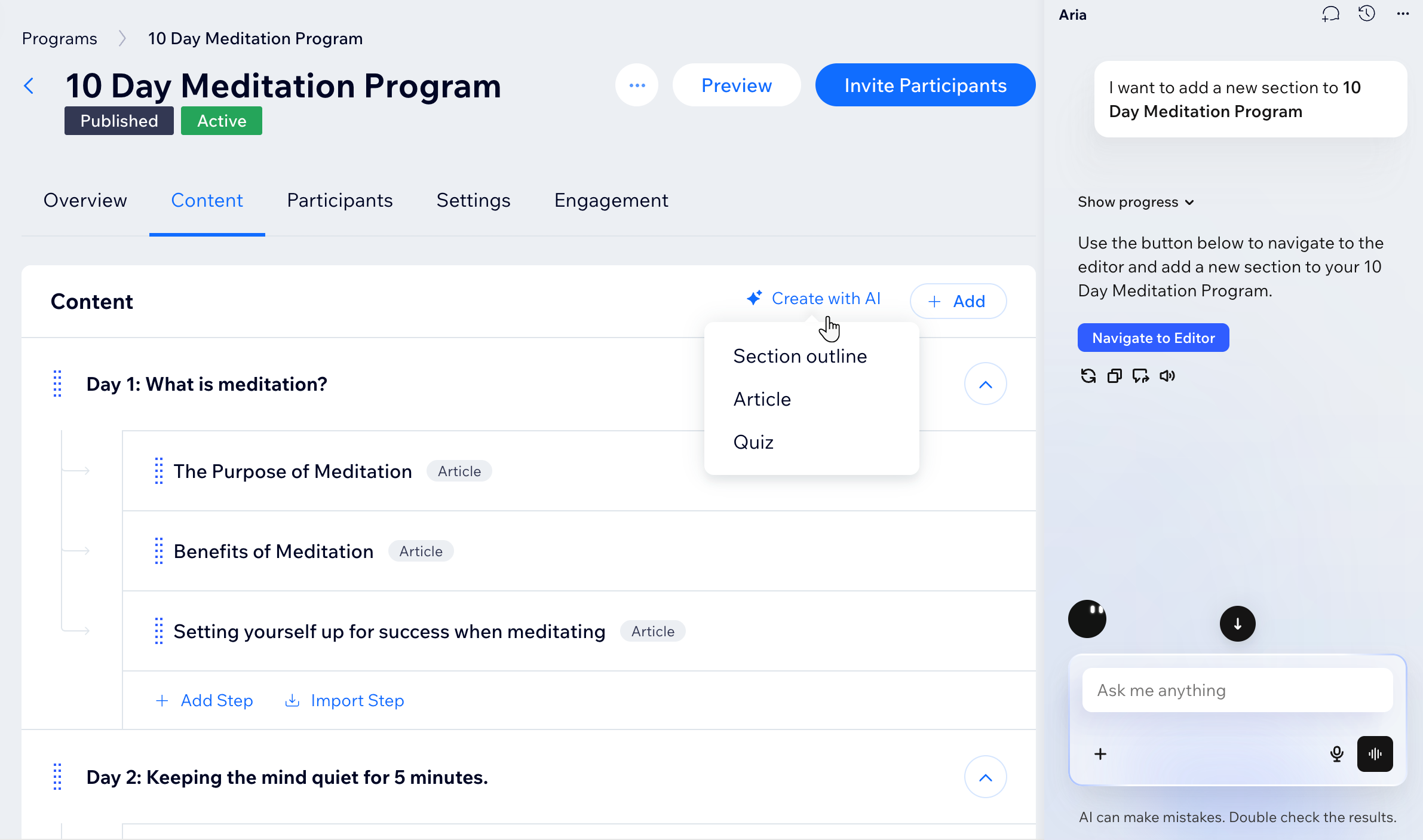
- Click + Add or Create with AI next to Content or Schedule.
- Select the relevant content type:
- Section: Add a new section to your program.
- Article: Add a text-based step to a section.
- Video: Add a video-based step to a section.
- Quiz: Add a quiz to keep participants engaged while completing this step.
- Import Step: Add a step from one of your existing programs for quick editing.
- Customize the step you created.
- Click Save.
- Repeat steps 3-6 to add more steps to your program.
Adding sections to your program
Organize your online program by splitting it into sections that contain the steps. You can create all the sections first to build the program outline, or create sections as you go.
Important:
Sections are only available for self-paced programs.
Dashboard
Wix app
- Go to Online Programs in your site's dashboard.
- Select the relevant program.
- Click the Content tab.
- Choose what you want to do next:
- Click + Add and select Add section.
- Click Create with AI and select Section outline.
- Add information to tell participants what your section is about.
- Click the Section Dripping toggle to allow participants to complete the section on a specific day:
- Enabled: You choose when participants complete the section. Click the Select Day drop-down and select the week and day.
- Disabled: Participants can complete the section whenever they want.
- Click Save.
What's next?
Reorder, edit and delete sections any time you need to update your program.
FAQs
Click a question below to learn more about adding sections and steps to your program.
Can I add steps to published programs that already have participants?
What happens when I add steps for past or future days in a program?
What happens to newly added steps for participants who have completed a program?
What is the maximum number of steps and sections that I can add?
What if I need more than 2,000 steps or 1,000 sections for my program?
Why do participants see different buttons on their steps?