


Wix Online Programs: Adding a Video Step to a Program
4 min
In this article
- Adding a video step
- FAQs
Add a video as a dedicated step in your program to boost participant engagement and add variety to your content. You can set a required percentage participants must watch, and enable autoplay for a smooth transition between video steps.
Additionally, you have the option to customize the cover photo of each video to enhance visual appeal and professionalism.
Adding a video step
Adding a video step is easy to do right from your site's dashboard or the Wix app.
Dashboard
Wix app
- Go to Online Programs in your site's dashboard.
- Click the relevant program.
- Click + Add next to Content / Schedule on the program page.
- Click Video.
- Enter the Basic info:
- Step name: Provide a name for your step.
- (For self-paced programs) Click the Section drop-down and choose the relevant section to add the step.
- (For scheduled programs) Select the date for this step.
- Add a video:
- Click the Add icon
 under Video.
 - Select either to upload a video from your device / cloud storage using the Media Manager or add a video from the Video Library.
- Click Continue and select a video.
- Click the Add icon
- (Optional) Add a cover image.
- Enter an informative description of your step, explaining how to complete it.
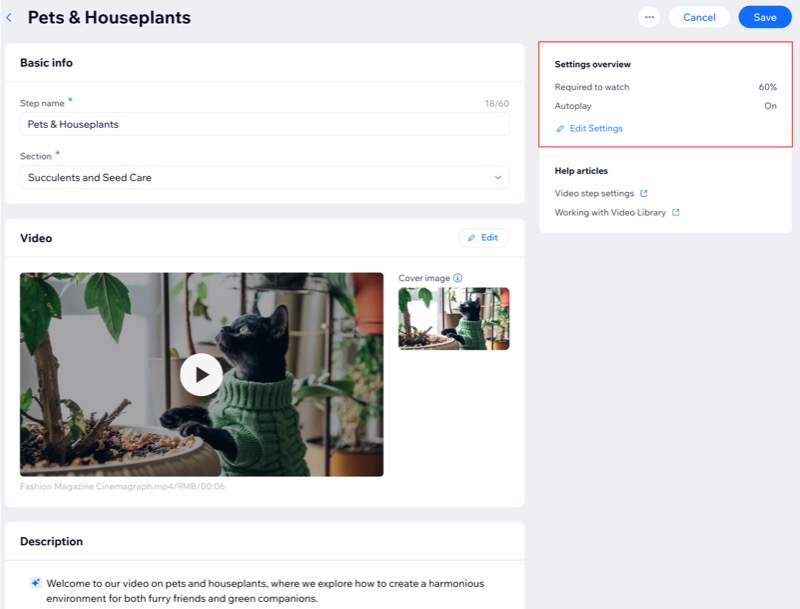
- (Optional) Adjust the Settings overview to customize the viewing experience:
- Click Edit Settings.
- Enable the relevant toggles:
- Require to watch videos: Set a required percentage participants must watch to complete the step, then click Save.
- Autoplay next video step: Automatically play the next video after the current one ends, then click Save.
Note: These settings apply to all video steps in your program.
- Click Save.
FAQs
Click a question to learn more about adding a video step to your program.
How does a Video step look to my participants?

What's the difference between including a video in an Article step and adding a Video step?
What happens if a participant exits the video and returns at a later time?
Can I view Video step stats for my participants?
Can my participants download the video?
