


Wix Multilingual: Customizing Your Site Menu per Language
In this article
- Translating your site menu
- Changing the order of menu items per language
- Showing or hiding menu items per language
- FAQs
Customize your site menu per language so your site visitors see content relevant for their demographic. You can also reorder items or hide some of them per language. Doing so may improve your site's SEO by matching search queries in different languages.
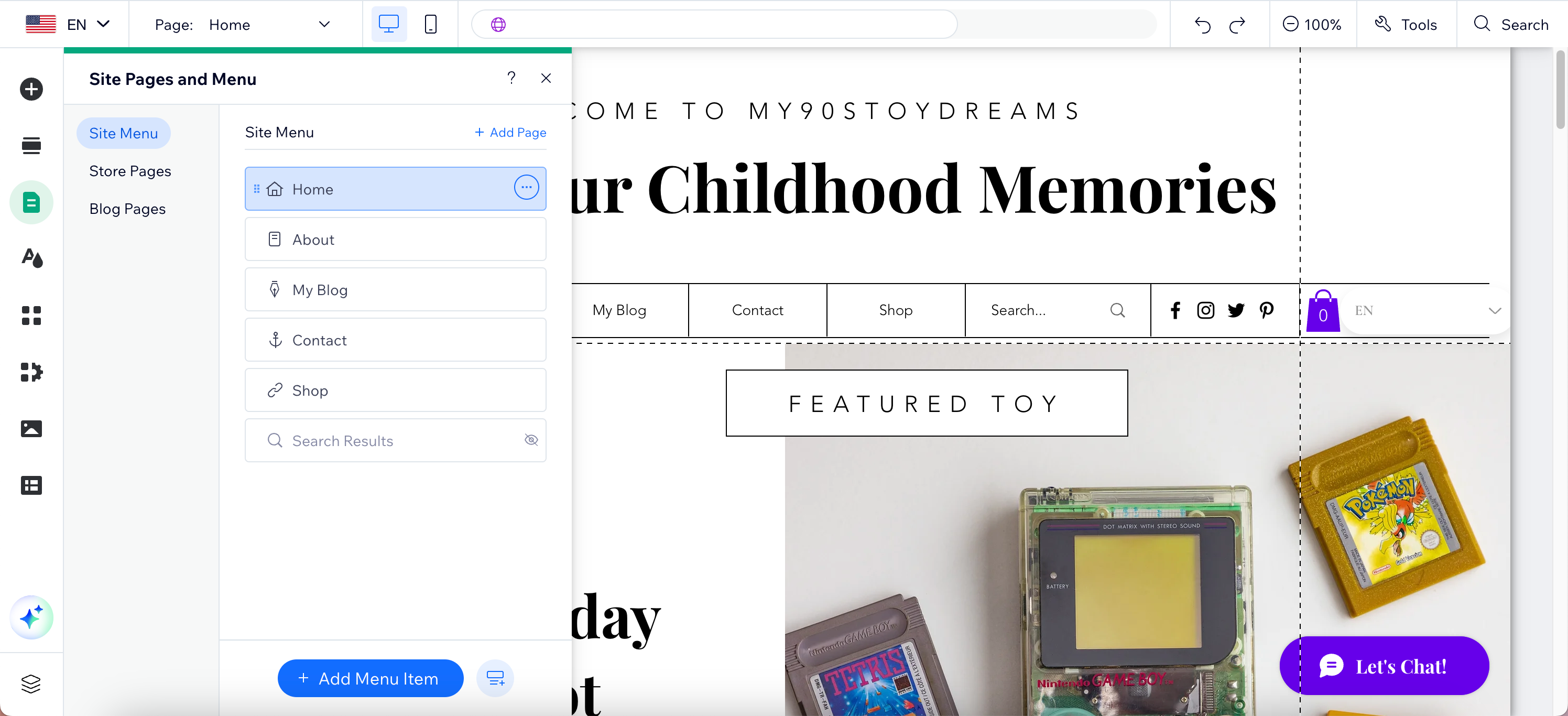
Translating your site menu
Translate your site menu so visitors can browse in their own language, making your site more inclusive. For example, translating "Emergency Services" to "Services d'Urgence" for French visitors ensures they can quickly find critical help.
Wix Editor
Studio Editor
- Go to your editor.
- Click the Switch Languages panel at the top of the editor.
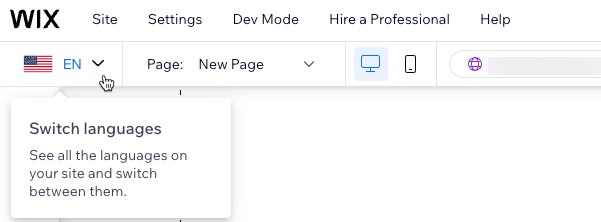
- Select the relevant language.
- Select your menu type and follow the steps:
Regular menu
 on the left side of the editor.
 next to the relevant menu item.
Advanced menu

Changing the order of menu items per language
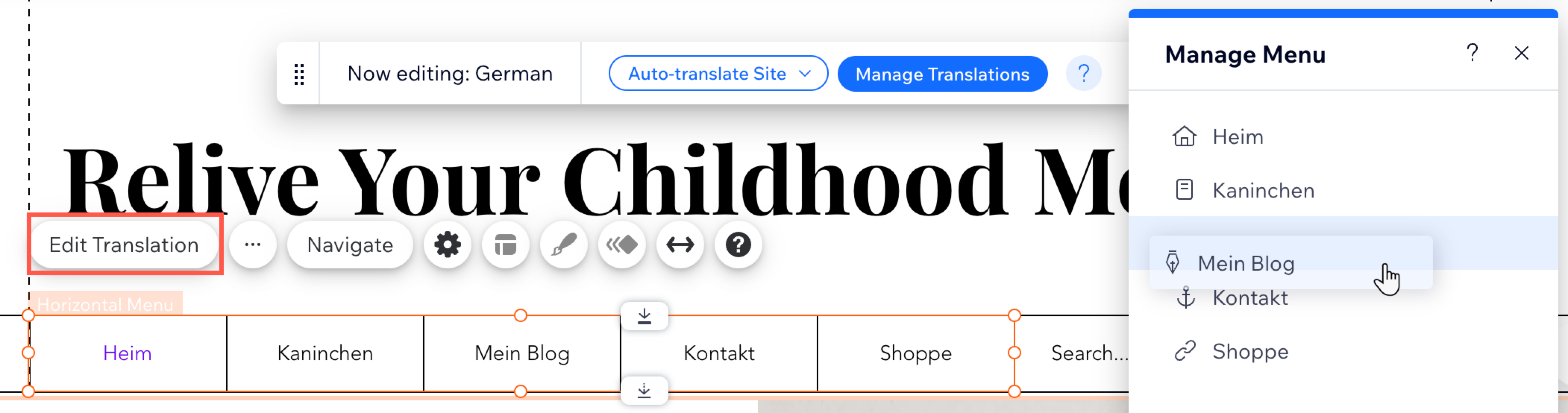
Customize your site menu for each language so visitors see the most relevant content. For example, a French version of your site might prioritize "Women's Clothing," while the German one may show "Men's Clothing" first. Changing the order in one language doesn't affect others.
Wix Editor
Studio Editor
- Go to your editor.
- (If you have a regular menu) Convert your menu to an advanced menu.
- Click the Switch Languages panel at the top of the editor.
- Select the relevant language.
- Select your menu.
- Click Edit Translation.
- Click and drag menu items to change their order.
Showing or hiding menu items per language
Show or hide menu items for each language to promote different content to different site visitors. For example, you might display "Local Events" on the Spanish site and hide it on the English site. Adjusting visibility in one language doesn't affect others.
Wix Editor
Studio Editor
- Go to your editor.
- Click the Switch Languages panel at the top of the editor.
- Select the relevant language.
- Select your menu type and follow the steps:
Regular menu

Advanced menu
 next to the relevant item.
FAQs
Click a question below to learn more about customizing your site menu per language.
How can I reset the translation and order of my menu items?
 on the left side of your editor and selecting a menu.
Will my menu's design, font and colors change when I translate it?
Why can't I see the menu items from my main language on my secondary language site version?
Can I hide a menu item for a specific language?
Can I translate the 'More' button in my menu?
 .
. How can I order my menu item for the sites that have both RTL and LTR languages?
Can I translate my site menu from the translation manager on my site dashboard?

