Wix Harmony Editor: Customizing Your Site's Header
- Customizing your header's background
- Designing your header
- Adjusting the header behavior
- Hiding your header from a specific page
- FAQs

Customizing your header's background
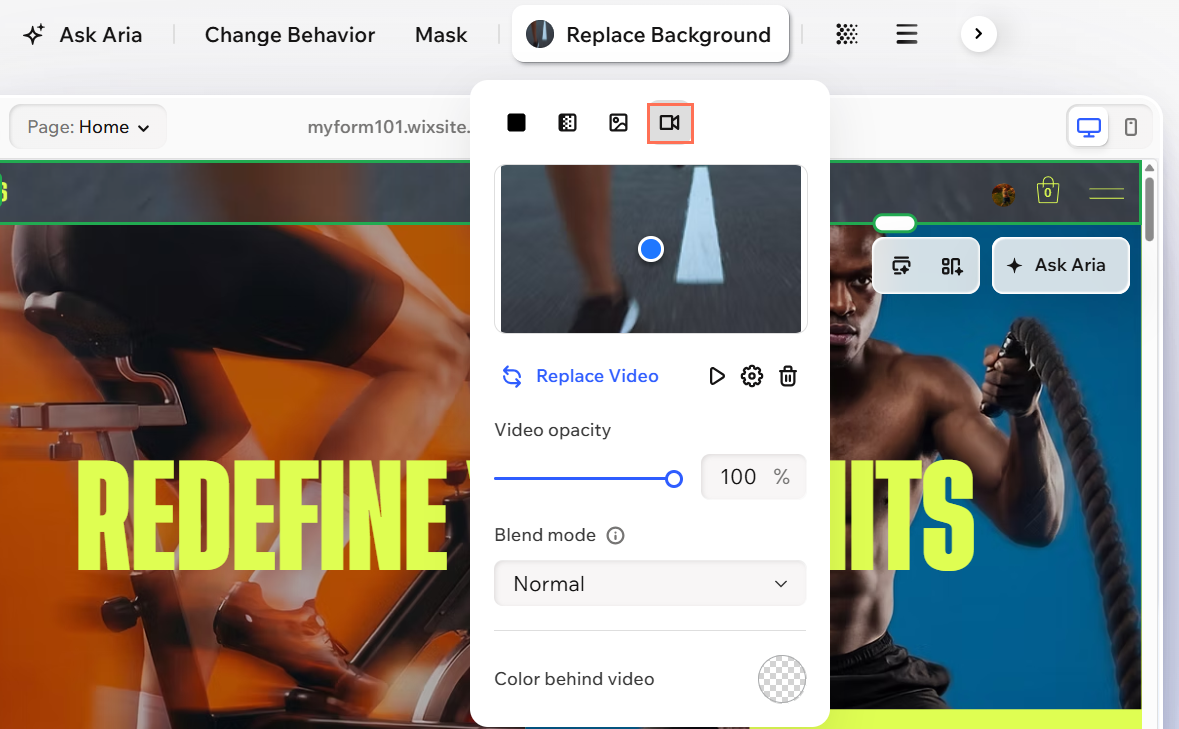
To customize the header background:
Select the header.
Click Replace Background on the action bar.
Choose the background type by clicking the relevant icon: Color
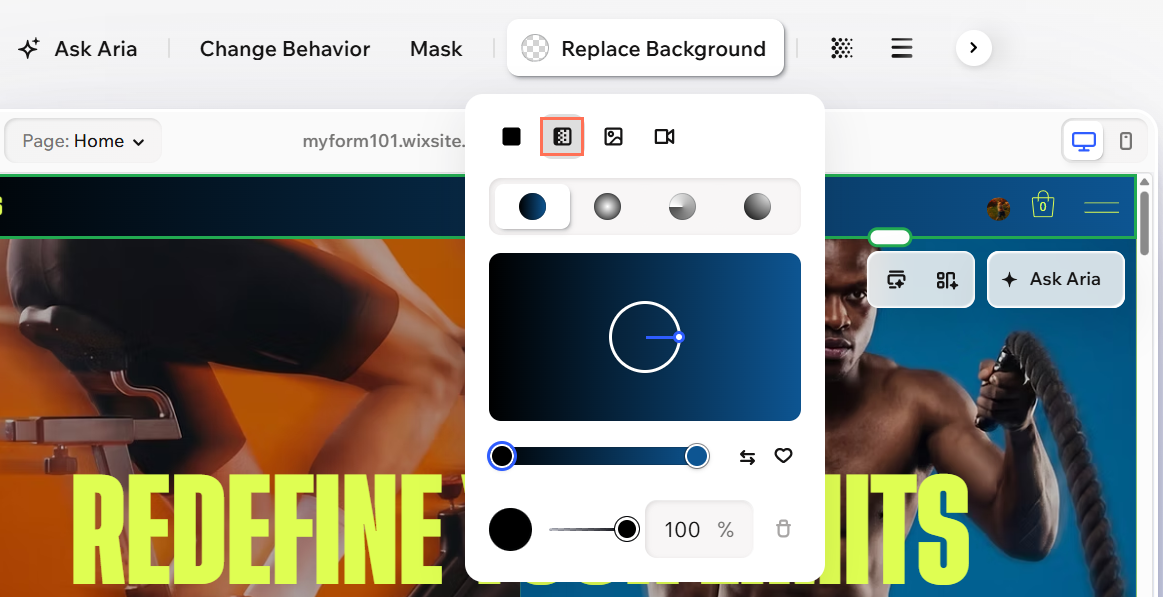
 , Gradient
  , Image
  or Video
  .
. Set up the header background:
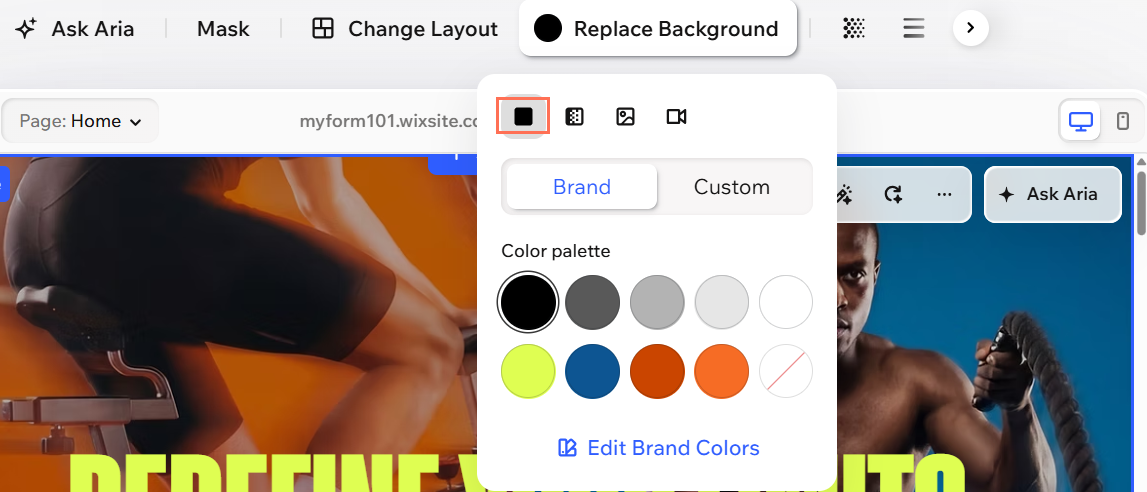
 .
. , Radial
  , Conic
  or Fluid
  .
.
 .
. to choose your image's fit mode (scale to fill, tile or original size) and write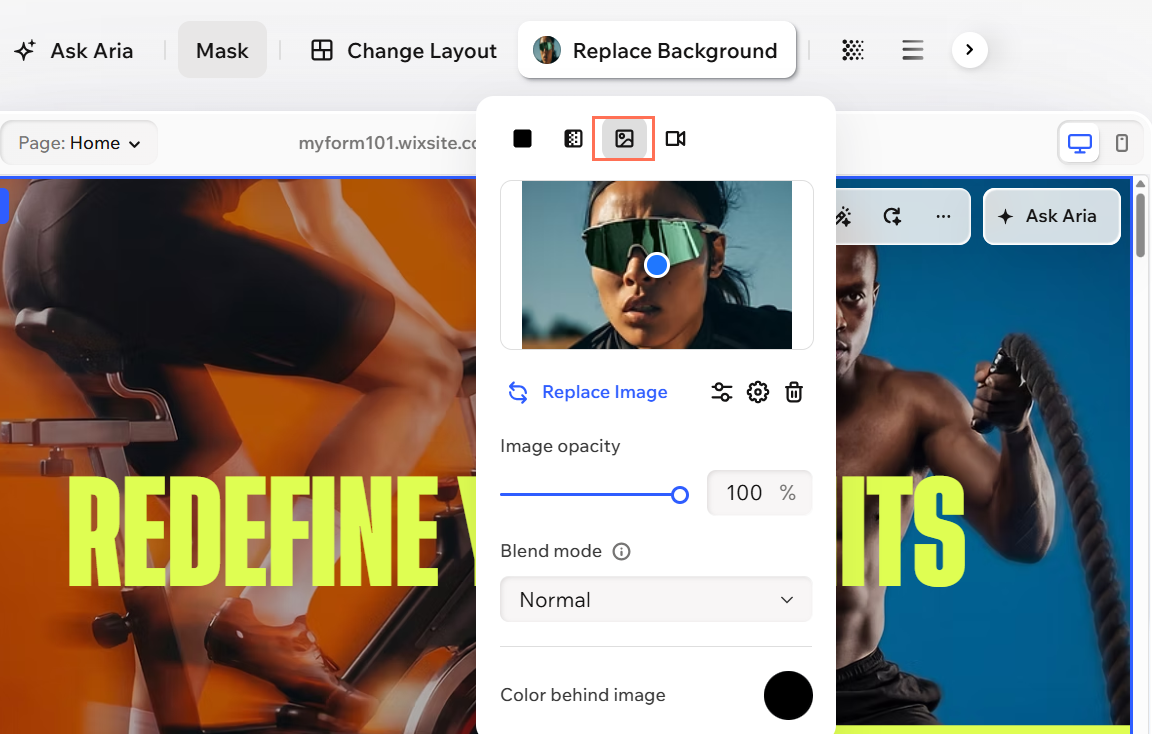
 .
. to access the
  .
. 
Designing your header
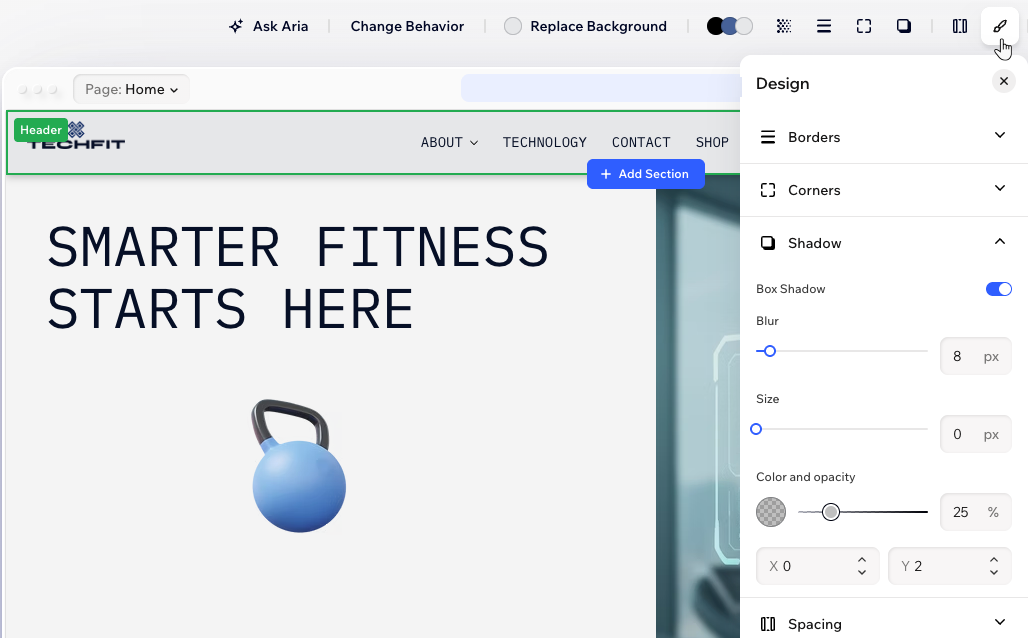
To design your header:
Select the header.
Click the All design options icon
 on the action bar.
Choose how to design your header:
Borders
 : Define the borders of your header so it stands out, choosing a color, width and style.
Corners
 : Make the corners of your header more square or round by dragging the slider under Radius. Click the Edit individual corners icon
  to design each corner separately.
Shadow
 : Apply inner and outer shadow to give your header an interesting 3D effect, setting the position, blurriness, color and more.
Spacing
 : Drag the slider to add space between the header and the edges of the screen. Click the Edit individual sides icon to only add padding to specific sides.

Adjusting the header behavior
To adjust the header behavior:
- Go to your editor.
- Click the header.
- Click Change Behavior on the action bar.
- Click the toggle next to Overlap next section:
- Enabled: The header sits above the next section with a clear separation between them.
- Disabled: The header floats over the top of the next section, creating a layered look where content appears behind your header.
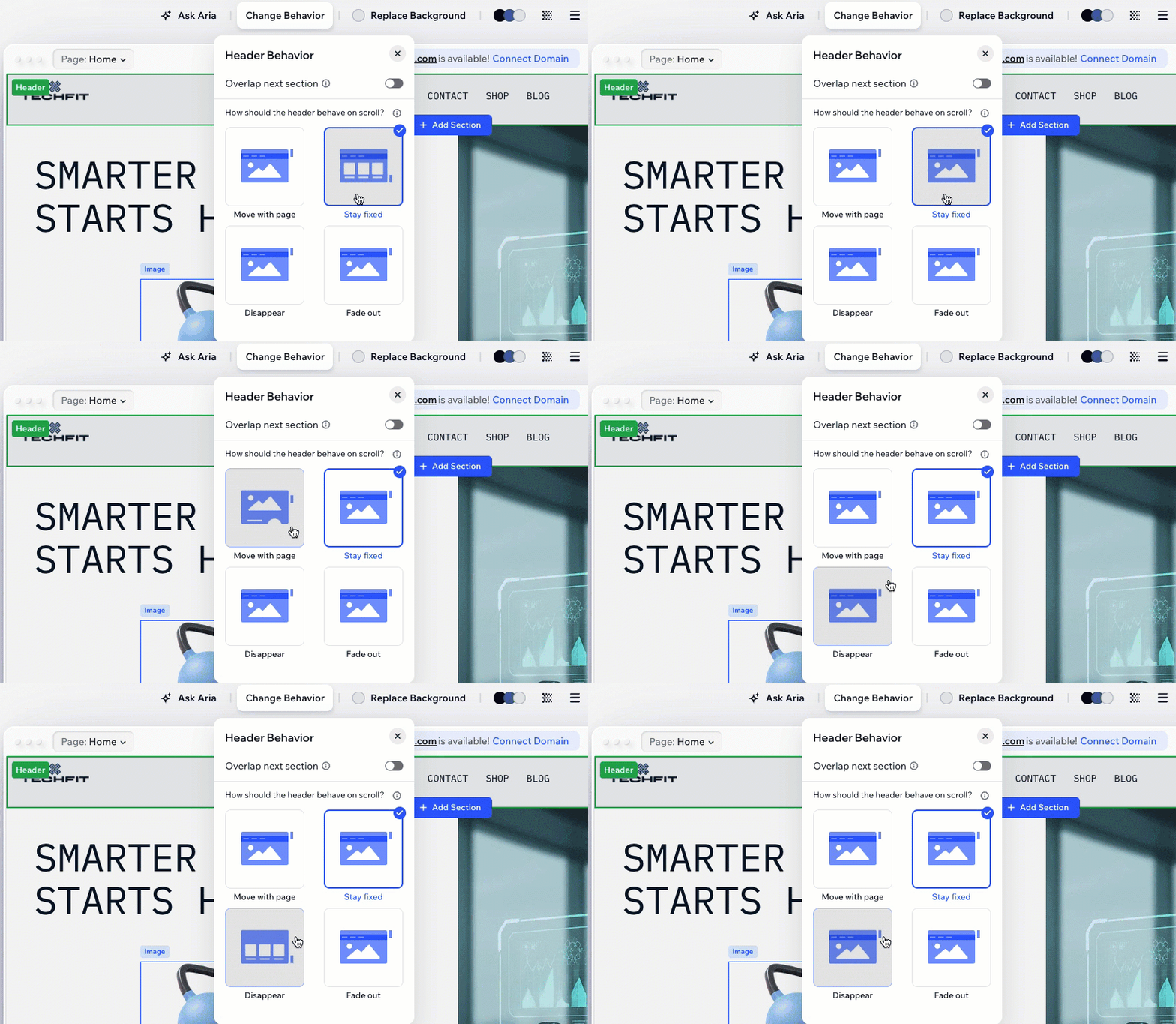
- Choose a scroll effect:
- Move with page: No scroll effect is applied. When visitors scroll down the page, they also scroll away from the header (i.e. the top of the page).
Note: This option is disabled when setting the header to overlap with the next section. - Stay fixed: The header stays at the top of the page as visitors scroll up and down, giving them easy access to your site's menu.
- Disappear: When visitors scroll through the page, the header gradually disappears. When visitors start scrolling up, the header appears again.
- Fade out: The header slowly fades out when your visitors scroll through the page and reappears when they start scrolling back to the top.
- Move with page: No scroll effect is applied. When visitors scroll down the page, they also scroll away from the header (i.e. the top of the page).
- (Optional) Preview your page to see the effect in action.
Hiding your header from a specific page
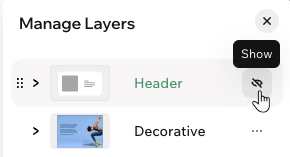
To hide your header from a page:
- Go to your editor.
- Open the page where you want to hide the header.
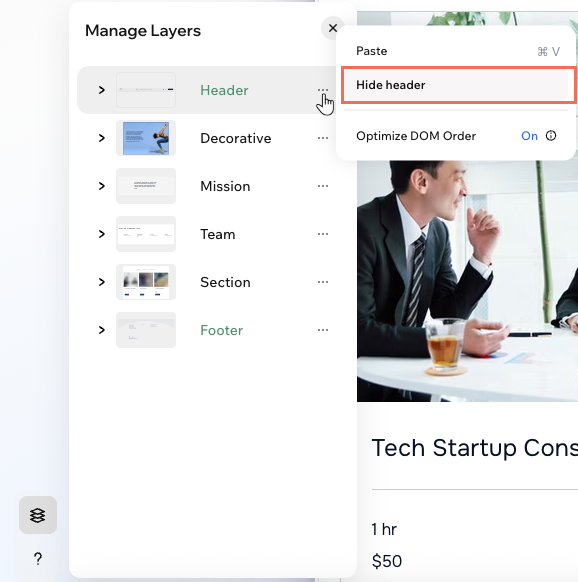
- Select the header.
- Click the Layers icon
 at the bottom left of the editor.
 - Click the More Actions icon
 next to Header.
 - Select Hide header.
 next to
Header.
next to
Header.
FAQs