


Wix Harmony Editor: Customizing Your Section Background
- Changing your section background
- Animating your section background
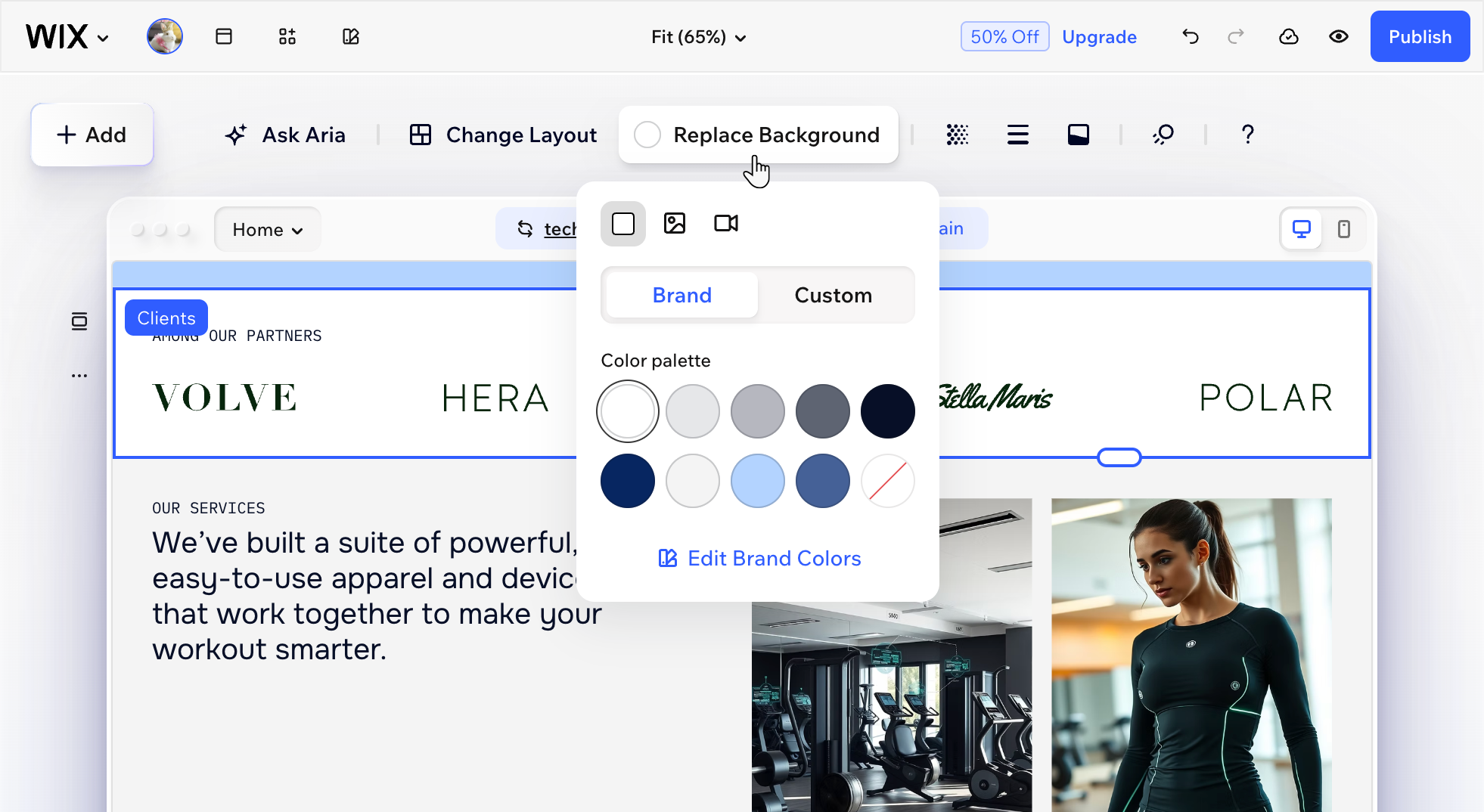
Changing your section background
To change your section background:
- Go to your editor.
- Select the relevant section.
- Click Replace Background.
- Choose the background type and customize it to your needs:
 .
. to get a specific color from your page.
 .
. , Radial
  , Conic
  or Fluid
  .
. .
. .
. : Click the icon to decide how your image gets scaled to fit the section (Scale to fill, tile or the image's original size) and give it
  .
. to access the
  .
. .
. On mobile, you can change the section background to a different solid color or gradient without affecting desktop. Image and video backgrounds are shared, so you can only replace them from desktop.
Animating your section background
To animate your section background:
Select the relevant section.
Click the Animation icon .
Select an animaion.
(Optional) Click Customize to fine‑tune your animation settings:
Preview on scroll: Click the Preview icon to preview how your animation plays as visitors scroll.
Zoom: Drag the slider to adjust how much you want to zoom in or out.
Direction: Adjust the animation’s direction using the available options (e.g. clockwise or counterclockwise, in or out, etc).
Speed: Drag the slider to make the animation move quicker or slower.
Scale: Drag the slider to decide how far the background fades back.
Angle: Set the rotation angle of the animation.
Stretch: Set the depth and 3D feel of the animation.
Animation type: Choose if your animation fades in or fades out.
 .
. to preview how your animation plays as visitors scroll.
- The available animations depend on the background type you pick for your section (i.e. color, image or video).
- The customization settings vary, based on the animation you select.
