


Wix Chat: Adding Elements to Your Chat Message
5 min
In this article
- Sending a link to a store product
- Sending a link to a service
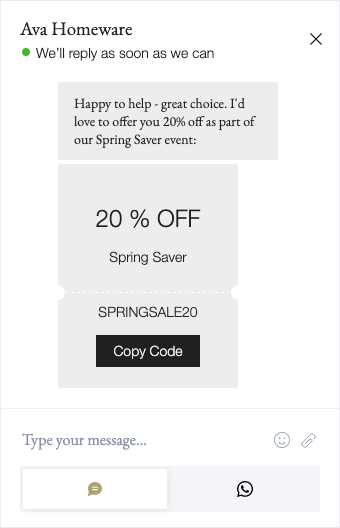
- Sending a coupon
- Requesting a payment
Make your Wix Chat messages more engaging by adding elements like product links, coupons, and more while visitors are actively browsing your site. These additions allow you to create elaborate and interactive messages that enhance the customer experience and go beyond plain text communication.
Note:
Chat messages sent from your Inbox instantly appear in your visitor's chatbox. If a visitor leaves your site during chat, your messages will be visible to them on their next visit. You have the option to continue your conversation via email if you have a saved email address for your contact.
Sending a link to a store product
Seize the moment by sending links directly to product pages. Reply to incoming chat messages or reach out to site visitors you can see are browsing.
Note:
You must add Wix Stores to your site to send product links.
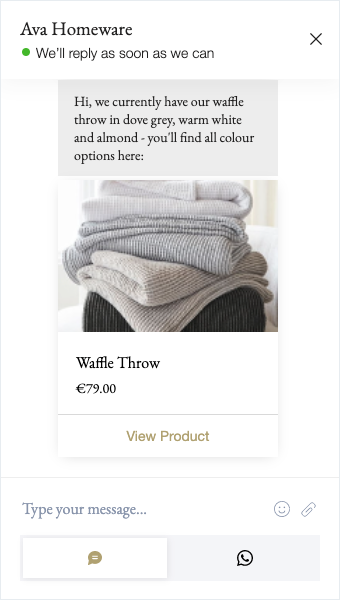
To send a link to a store product:
- Choose the contact you'd like to chat with:
- Go to Inbox in your site's dashboard and click an existing conversation.
- Select a live site visitor.
- Click the text box at the bottom to start typing your message.
- Click the Message via drop-down and select Chat.
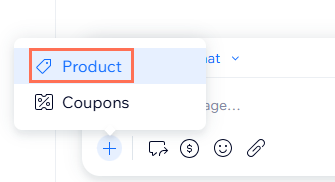
- Click the Add
 icon at the bottom left.
 - Click Product.
- Select the relevant product and click Send.
Note:
A product will not be listed if it's out of stock or hidden from your store page. Go to the Products page in your dashboard to manage the visibility of your store products.
Sending a link to a service
Promote services offered on your site by sending links that bring your contacts straight to your sign-up pages.
Note:
You must add Wix Bookings to your site to send links to services.
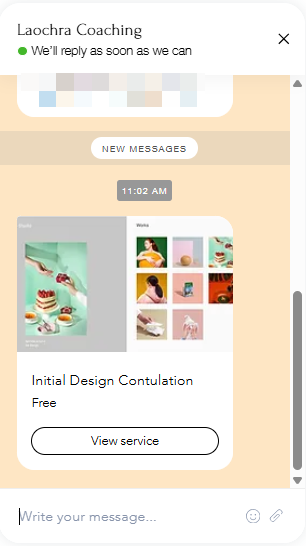
To send a link to a service:
- Choose the contact you'd like to chat with:
- Go to Inbox in your site's dashboard and click an existing conversation.
- Select a live site visitor.
- Click the text box at the bottom to start typing your message.
- Click the Message via drop-down and select Chat.
- Click the Add icon at the bottom left.
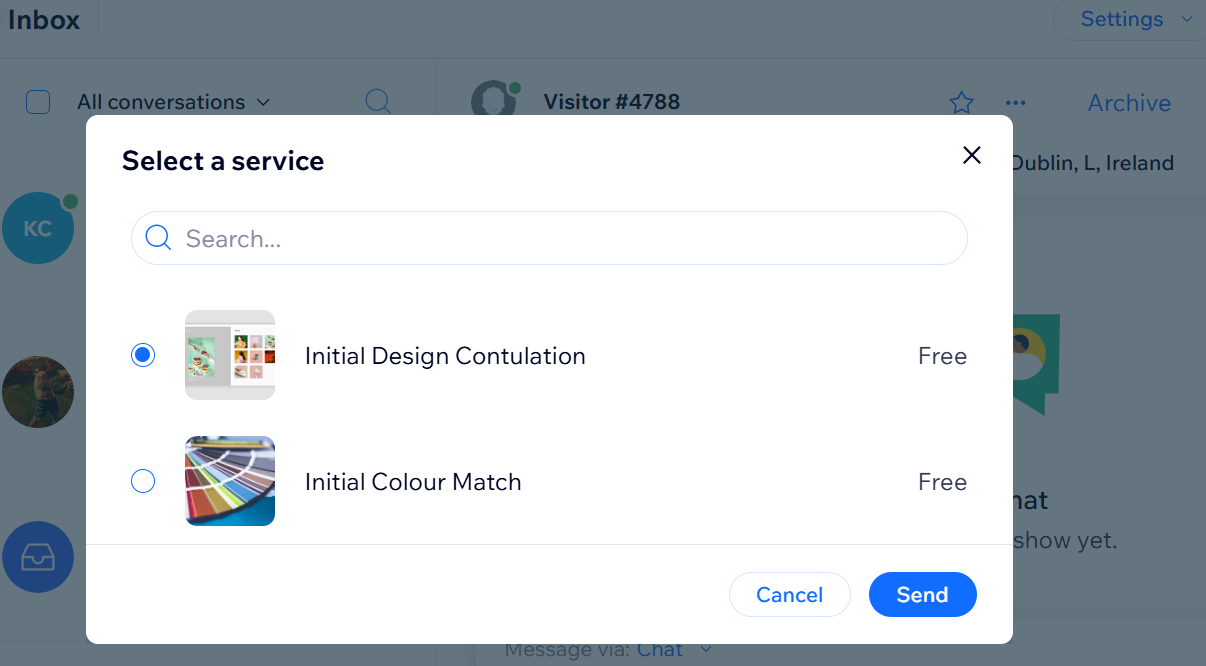
- Click Services.
- Select the relevant service and click Send.
Sending a coupon
Give your visitors reasons to spend more time on your site by sending coupons for store discounts, free shipping and more.
To send a coupon:
- Choose the contact you'd like to chat with:
- Go to Inbox in your site's dashboard and click an existing conversation.
- Select a live site visitor.
- Click the text box at the bottom to start typing your message.
- Click the Message via drop-down and select Chat.
- Click the Add icon at the bottom left.
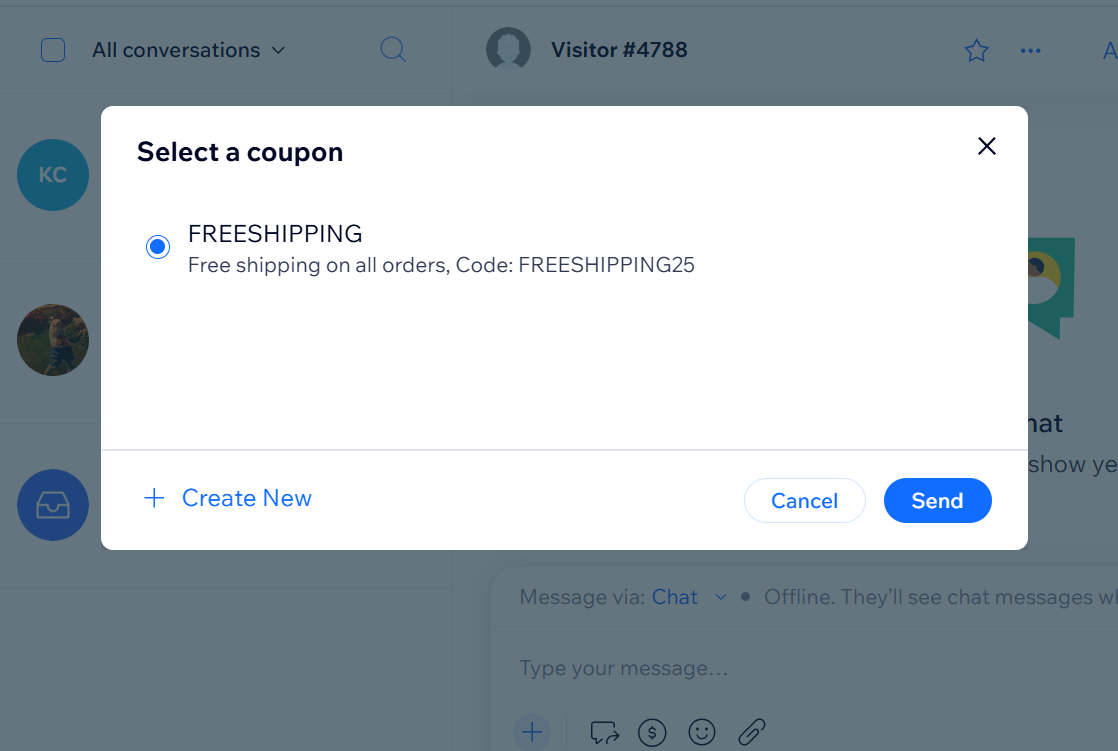
- Click Coupon.
- Choose what you want to do:
- Create a new coupon:
- Click + Create New.
- Select the type of coupon you want to offer.
- Enter your coupon details (code, name, etc.).
- When ready, click Create Coupon at the bottom right.
- Select the coupon you just created and click Send.
- Send an existing coupon: Select the relevant coupon from the panel and click Send.
- Create a new coupon:
Requesting a payment
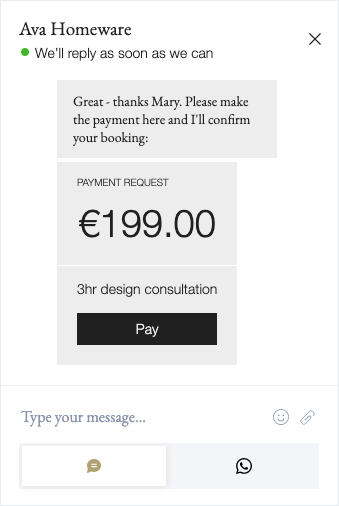
Send a pay link to share a convenient payment request. Your contact can use their credit card or PayPal account to make this payment.
To send a pay link:
- Choose the contact you'd like to chat with:
- Go to Inbox in your site's dashboard and click an existing conversation.
- Select a live site visitor.
- Click the text box at the bottom to start typing your message.
- Click the Message via drop-down and select Chat.
- Click the Pay links icon
 .
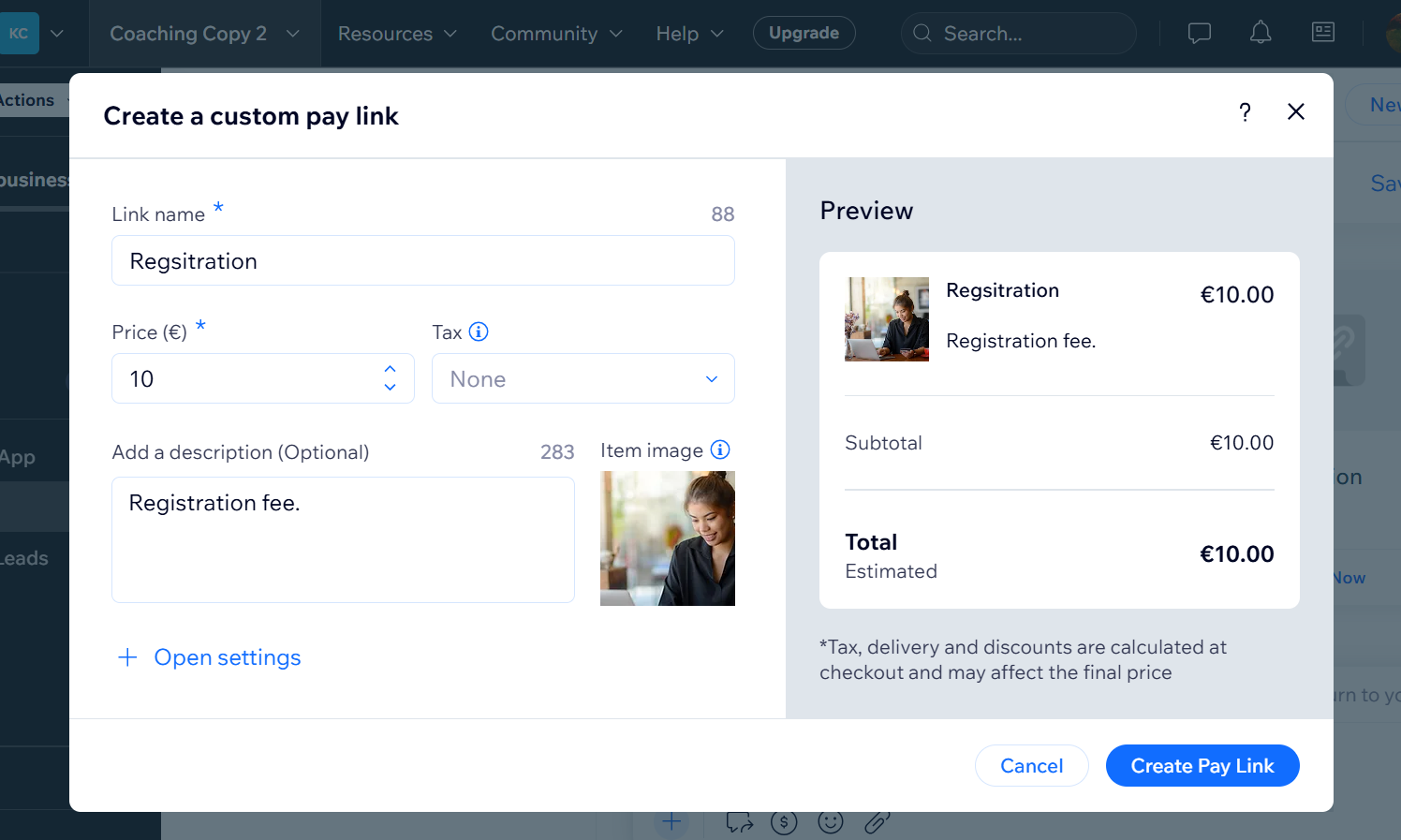
. - Set the amount and write a short description for your request.
- Click Create Pay Link.
Tip:
Any payment sent through chat appears in the Transactions tab on your site's dashboard.
