Site Members: Setting Page Permissions for Member Roles
In this article
- Limiting member pages to specific member roles
- Limiting other site pages to specific member roles
When
creating a member role, you give that role permission to access specific pages in your Members Area. If you add new pages, or the role changes, you can update the access permissions at any time.
Before you begin:
Limiting member pages to specific member roles
Decide which pages in your Members Area are only accessible to specific roles. This helps you control what different groups of members can see as your content and roles evolve.
To change the permissions of a member role:
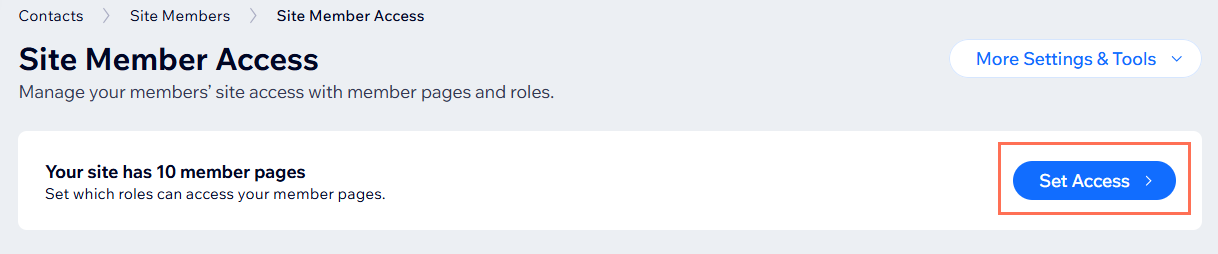
- Go to Site Member Access in your site's dashboard.
- Click Set Access.
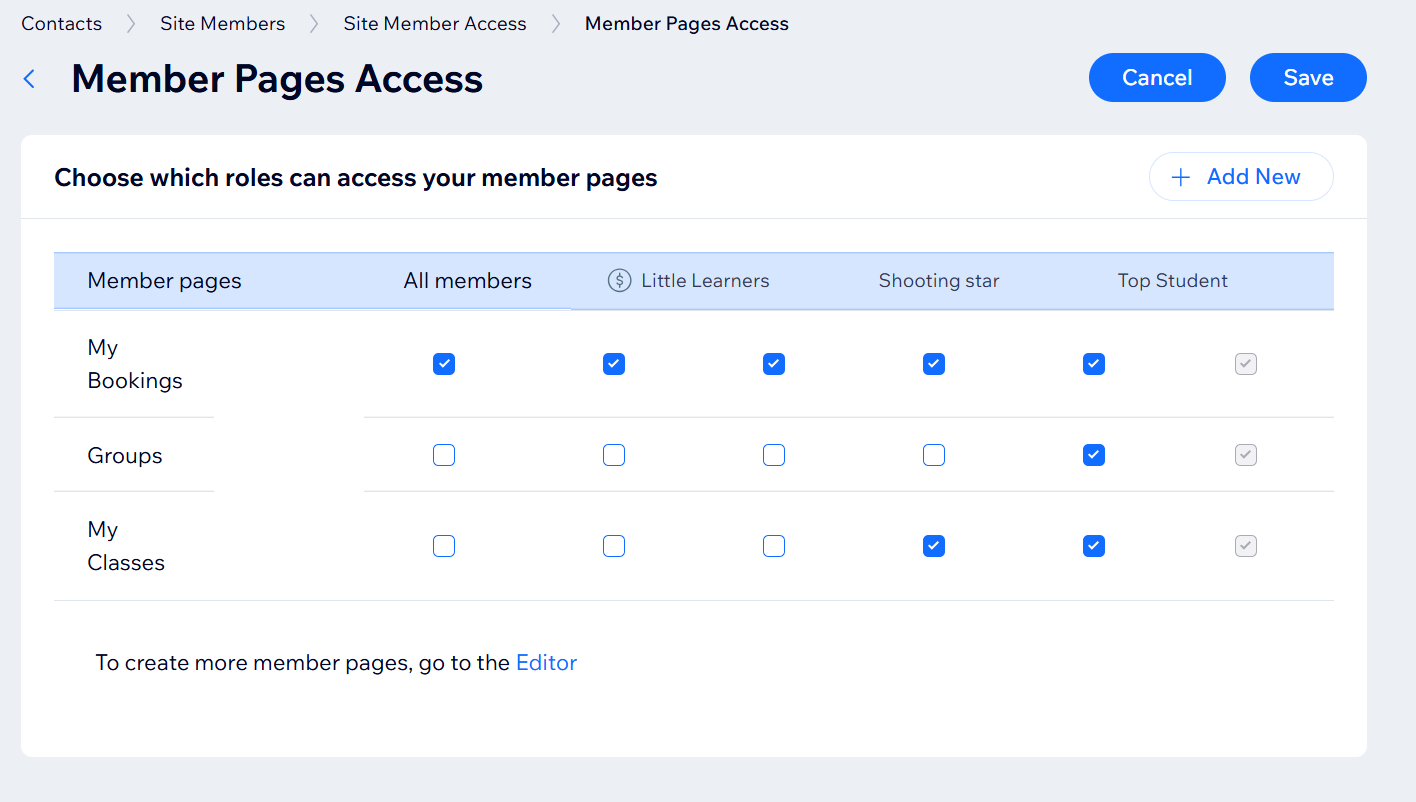
- Select the checkbox next to the pages each role that should have access.
- Click Save.
Tip:
If you're using
member badges or
pricing plans, you can give them access to specific member pages as well (the badges and plans appear next to member roles in the table).
Limiting other site pages to specific member roles
You can limit any site page to specific member roles – not just pages related to your Members Area. Head over to your editor and access the page's settings to get started.
Wix Editor
Studio Editor
- Click Pages & Menu
 on the left side of the editor.
 - Hover over the relevant page and click the More Actions icon
 .
. - Click Settings.
- Click the Permissions tab.
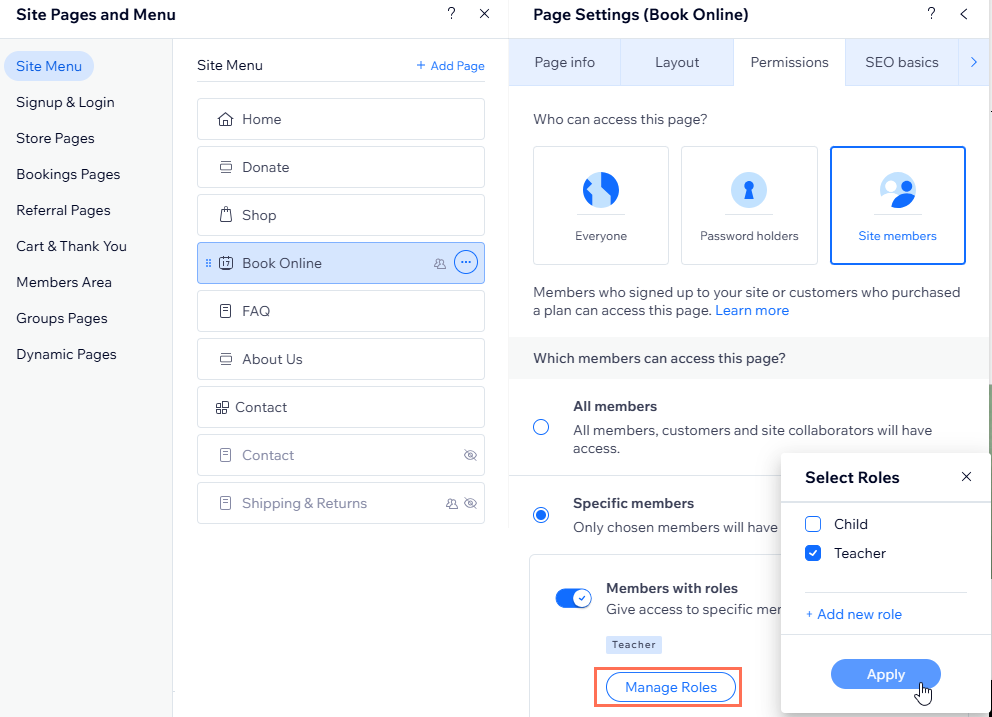
- Select Site Members under Who can access this page?
- Select Specific members under Which members can access this page?
- Enable the Members with roles toggle.
- Click Manage Roles and select the relevant role(s).
- Click Apply.