


Preparing Your Site for Bulgaria’s Move to the Euro
3 min
In this article
- Step 1 | Updating your site currency to EUR
- Step 2 | Updating your product pricing to EUR
- FAQs
On January 1, 2026 Bulgaria is changing its currency from BGN to EUR. If you sell in BGN today, update your site currency to EUR and adjust your product pricing so your checkout stays consistent.
In this article, learn how to prepare your EUR price list and rounding rules before January 1.
Step 1 | Updating your site currency to EUR
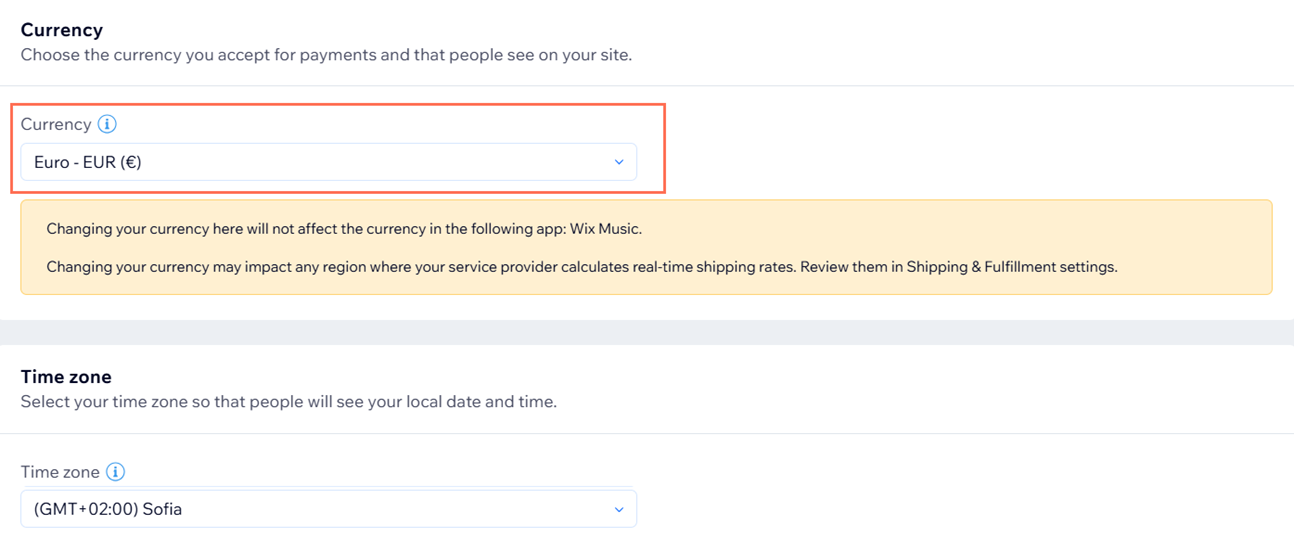
Update your site’s currency in your dashboard so transactions occur in EUR on January 1.
To update your site currency:
- Go to Settings in your site's dashboard.
- Click Language & Region.
- Scroll down to Currency and select Euro (EUR).
- Click Save.
Step 2 | Updating your product pricing to EUR
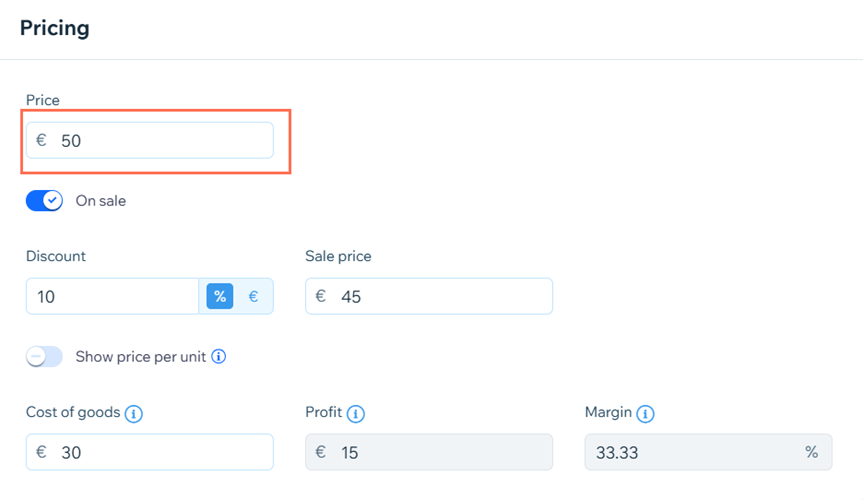
After switching your site currency, update product and variant prices to their EUR equivalents so your business shows correct amounts to your customers. Be sure to check related pricing such as tax and shipping charges, if applicable.
Important:
All price/currency changes made by you affect future purchases only. If you have active subscriptions for any of your products or services, your subscriptions will continue to process and from now on will be charged in EUR.
To update prices:
Depending on how you sell on Wix, choose the relevant product and complete the steps.
Wix Stores
Wix Bookings
Wix Events
Pricing Plans
- Go to Products in your site's dashboard.
- Click on the product you wish to edit.
- In the Pricing section, enter the product price in EUR and any variant pricing (if applicable).
- Click Save.
- Learn more about managing pricing in Wix Stores.
- Learn about managing shipping and delivery.
FAQs
Click a question below to learn more about selling with Wix.
What is the exchange rate of BGN to EUR?
Do I need to update my payment provider currency settings?
Can I display my prices in both EUR and BGN?
