


About the New Category Page Experience
In this article
- Important information for merchants with live shops
- Save time designing your shop
- Boost your shop's SEO
- Changes that occur when you migrate
- Actions to take after the migration
- Starting the migration
Important:
This article is for stores on the previous version of Wix Store categories who want to migrate to the new category page experience.
Once you migrate, you cannot switch back. Duplicate your site first to test before making a permanent switch.
If you're not sure which version you have, learn about the previous version of Wix Store categories.
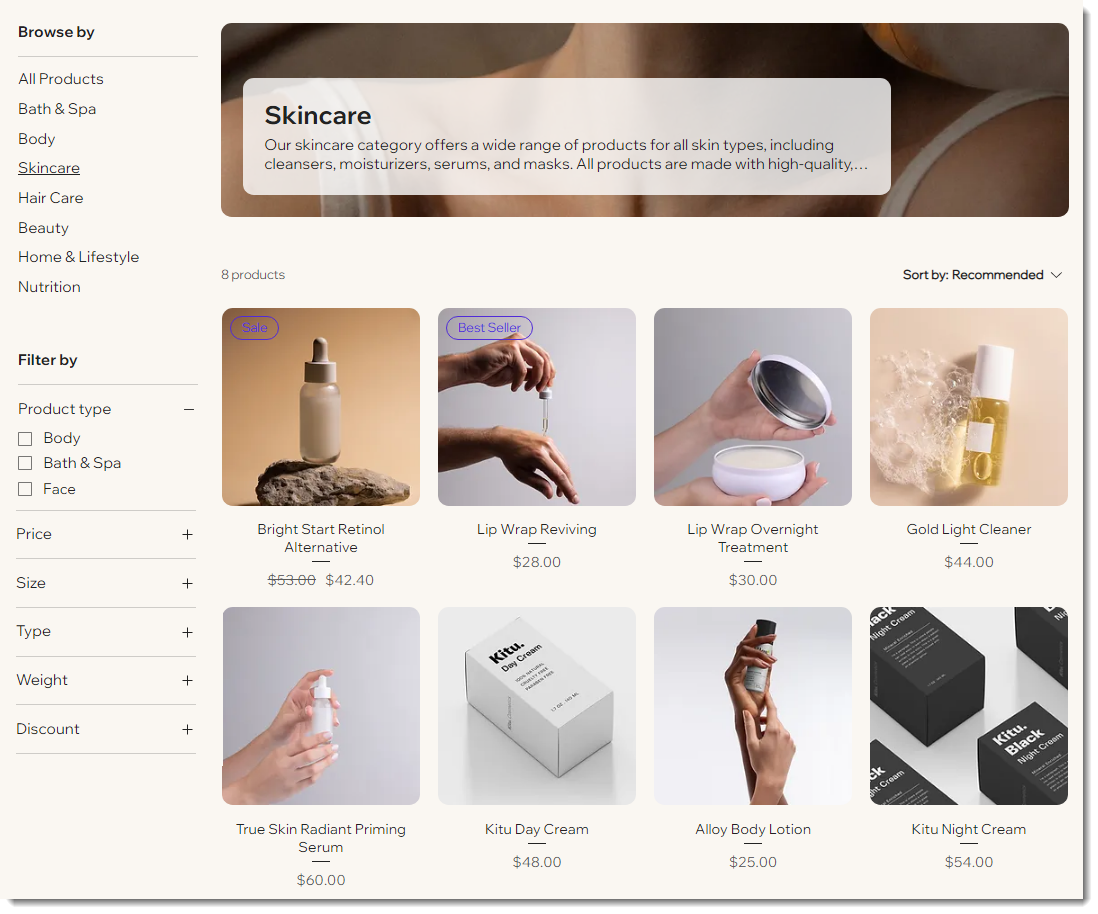
The new Category Page experience makes it easier to add new categories and improve your site’s SEO. Because it's a dynamic page, you need to customize it just once - your selections are applied to all categories.
This article will give you an overview of what happens when you migrate to the new category page.
Important information for merchants with live shops
If your site is live, you likely have an SEO ranking that brings customers to your shop, and customers may have bookmarked your site pages.
In addition, other sites or social media accounts likely have links leading to your shop pages.
Follow these
step-by-step migration instructions
to make sure your SEO ranking isn't negatively impacted and that links direct to your new pages, rather than becoming broken links.
Save time designing your shop
With the new experience, you can design your categories once and then display each new category automatically with the same design. No need to manually add a category to a separate shop page and customize it.
However, if you do want to feature a specific category somewhere on your site with a unique design, you can still
add a Product Gallery to a site page and customize it any way you like.
Boost your shop's SEO
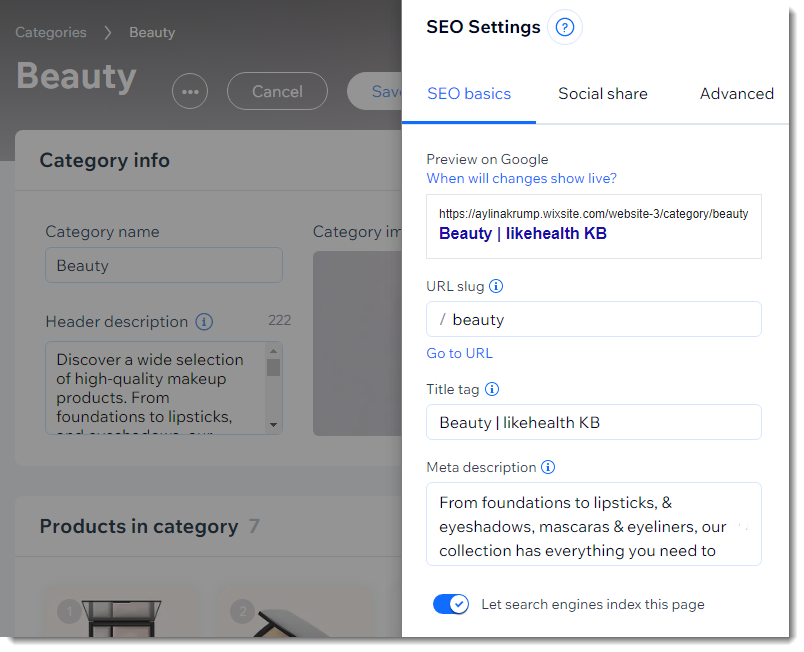
Category pages are set up to help your store's SEO ranking. Every category has a unique URL with a slug (ending) based on the category name.
In addition, categories have advanced SEO settings, which you can use to promote products on search engines and in social media.
Changes that occur when you migrate
As soon as you migrate to the new Category Page experience, your site undergoes a number of important changes:
- The Category Page is added: The new, dynamic Category Page is added to your site.
- By default, this page displays a sidebar with a list of all your categories as well as filters to help customers navigate. You can remove or customize these elements.
- The page comes with a Preview Toolbar to make it easy to see how your customizations look for each category.
- All categories become visible to customers: All your existing site categories become active. You can follow the step-by-step migration instructions to deactivate or hide categories. When a category is active, it means that:
- It appears in the Category Page sidebar. Note that the sidebar can be hidden, and specific categories in the sidebar can be hidden.
- It gets a unique URL and can be indexed by search engines (but they can be hidden).
- Can't create new shop pages: You can no longer add new shop pages (pages that come with a built-in Product Gallery). However, existing shop pages are not automatically deleted.
Note: You'll still be able to add a Product Gallery element to any site page.
Actions to take after the migration
If you already have an active site, you need to
follow the step-by-step instructions to make a smooth transition to the new Category Page. The instructions will guide you through all the changes you need to make, including:
- Deactivating (hiding) internal categories: In the dashboard, deactivate any categories that you don't want to display on your site, share, or allow search engines to index.
- Customizing the Category Page sidebar: In the editor, remove categories from the sidebar that you left active but don't want to display in the Category Page.
- Editing categories: Add category images and descriptions and optimize SEO settings.
- (Important) Redirecting the old shop pages: Keep your SEO ranking by redirecting shop pages to the corresponding new category URL.
- Updating the site menu: Replace old shop pages in the site menu with links to new category URLs. This helps customers navigate your site, especially on mobile.
- (Important) Deleting unnecessary shop pages: After completing the redirect, you can delete shop pages that are no longer needed. This ensures that you won't have any duplicate content, which can negatively impact SEO.
Important:
You must keep at least one of your old shop pages.
Deleting the last shop page will delete Wix Stores. You can, however, remove all access to this page within your site and hide it from search engines.
Starting the migration
Test before you migrate:
Remember, you can duplicate your site and test on the duplicated site.
Ready to get started? Go back to
Pages & Menu and click
Migrate to Category Page.
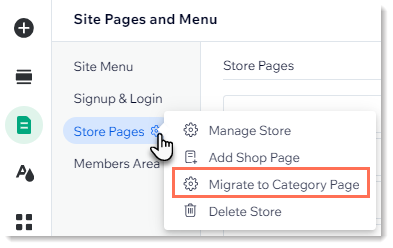
Then click
Migrate to Category Page and
I Understand, Install Now to get the new Category Page Experience.
Dig deeper:
- Read the step-by-step guide on how to migrate to the new Category Page experience
- Learn more about the new Category Page