


Wix Events: Creating an Online Zoom Event
In this article
- Step 1 | Create the event draft
- Step 2 | Add video conferencing
- Step 3 | Start your event
- FAQs
Create an event and meet up with your guests online. Your event can take place only online, or you can host a hybrid event that takes place both in person and online.
When you create an online Zoom event, a unique Zoom link is automatically generated which you can share with your guests.

Other options:
- Learn how to create an online event hosted on another platform.
- Learn how to create a live streaming event using Wix Video.
- Learn how to create a hybrid event (online and in person).
Step 1 | Create the event draft
Before you can connect to your Zoom account to add video conferencing, you must create and save your event draft.
To create an event draft:
- Go to Events in your site's dashboard.
- Click + Add Event and start creating your event draft.
- In the Location section, select an option:
- Online: Select this option for events that only take place online. Enter an Online Location Title (e.g. Online Seminar).
- Physical Location: Select this option for events that take place both online and in person. Enter the physical location under Event location.
- Click Create Draft at the top right.
Step 2 | Add video conferencing
Now that you've saved the event draft, you can connect to your existing Zoom account or create a new one.
To add video conferencing:
- Go to Events in your site's dashboard.
- Select the relevant event.
- Click the Features tab.
- Click Video Conferencing.
- Click Setup Video Conferencing.
- Select Zoom and click Continue.
- (If this is your first Zoom event) Connect to Zoom:
- Click Connect.
- Sign in to your existing Zoom account or create a new account.
- Click Done.
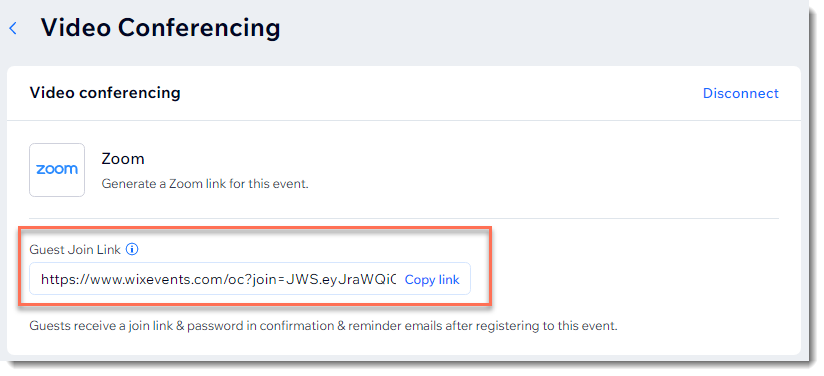
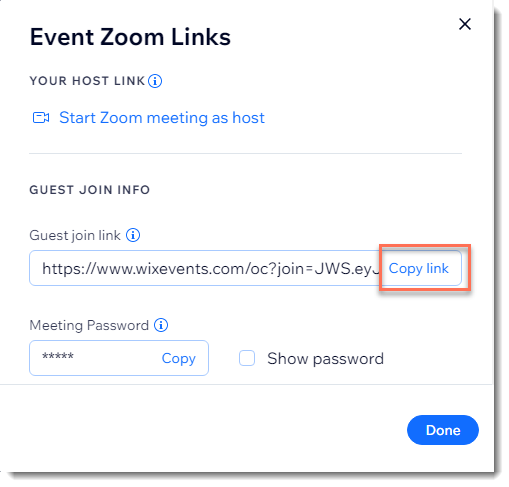
- Click Copy link to get the link to your Zoom meeting.
Note:
Guests receive the link and password in their confirmation email as well as reminder emails.
Step 3 | Start your event
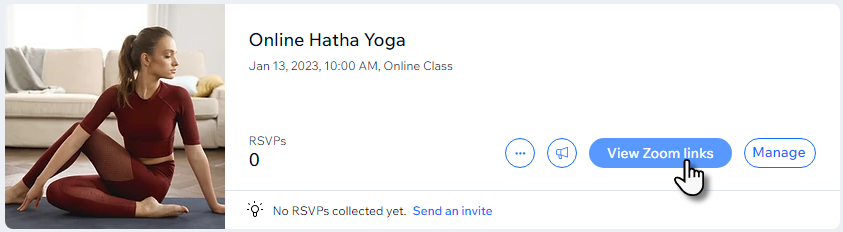
When it's time to hold your event, access the event in the dashboard and click
View Zoom links.
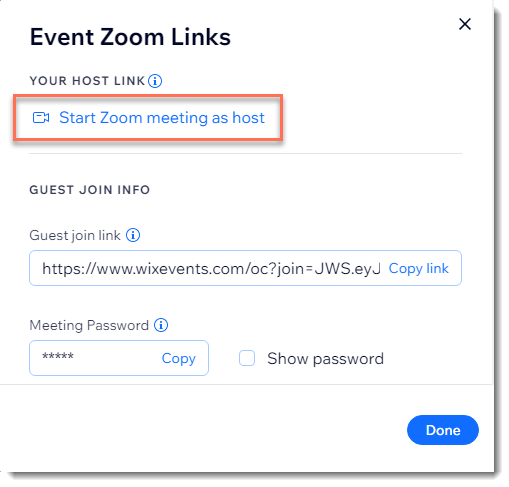
From the pop-up, click
Start Zoom meeting as host.
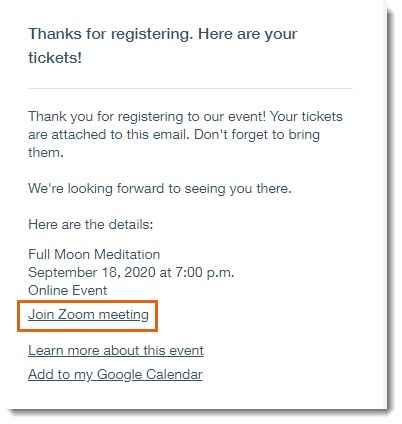
Guests can join the online event by clicking the link found in the confirmation email or reminder email (if you chose to add a link to these emails), or through any other method you used to send them the link.
If a guest has trouble understanding how to connect to the event, you can access the guest link in the same pop-up, copy it, and send it to them.
FAQs
Click a question below to learn more about creating an online Zoom event.
I already have a Zoom account. Can I connect it?
How can I switch to a different Zoom account?
 next to Zoom.
Do I need to upgrade my Zoom account?
How can I upgrade?
How can I access a recording of my Zoom event?
How can I find the Zoom meeting ID connected to my event?

Can I hold two Zoom meetings at the same time?
Can I host Zoom webinars instead of meetings?
Can I connect a Zoom meeting I already created to a new event I'm setting up?
Where can I find settings to configure my Zoom meeting?
What is the purpose of Zoom integration if it doesn't have any settings on Wix Events side?
How can I view a list of event attendees?
Can I disconnect my Zoom account from an event?

Can I reconnect my Zoom account to an event?

How can I delete the Zoom app from my site?

Can I create online events using other video conferencing platforms?
How can I access the Zoom help center?
Does Zoom offer free plans?